

Today, in this post, we’re going to discuss a very annoying issue in which a Windows 10 user gets locked out on his machine. Imagine, you started your Windows 10 and on the login screen, there is no user listed. In this case the login screen is blank and there is no account being displayed which you can select and enter its credentials to sign-in.
Here is the typical login screen you’ll see in this case:

We recently came across this issue on a Windows 10 Pro running machine. This is one of the worst case we’ve seen in which Windows 10 user is completely locked out. If you’re also victim of this problem, and you don’t want to Refresh or Reset Windows 10, this post may help you.
Here are few things you can try to recover your Windows 10 in such a case:
Page Contents
FIX: Windows 10 Shows No Users On Login Screen
Though you can use System Restore to fix this issue, but in case if you don’t have restore points created, you can restore System Image backup. In case if you can’t follow any of these recovery options, here is something to do:
FIX 1 – Using Registry
Registry Disclaimer: The further steps will involve registry manipulation. Making mistakes while manipulating registry could affect your system adversely. So be careful while editing registry entries.
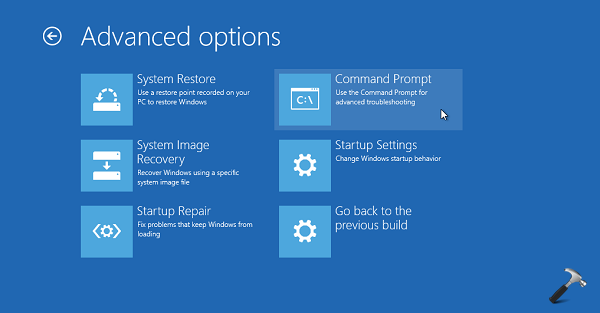
1. Plug in the bootable Windows 10 USB and boot in Advanced System Recovery Options, select Command Prompt.
2. In the Command Prompt, type regedit and press Enter key. This should launch Registry Editor. Navigate to following registry key then:
HKEY_LOCAL_MACHINE\SOFTWARE\Microsoft\Windows\CurrentVersion\Policies\System
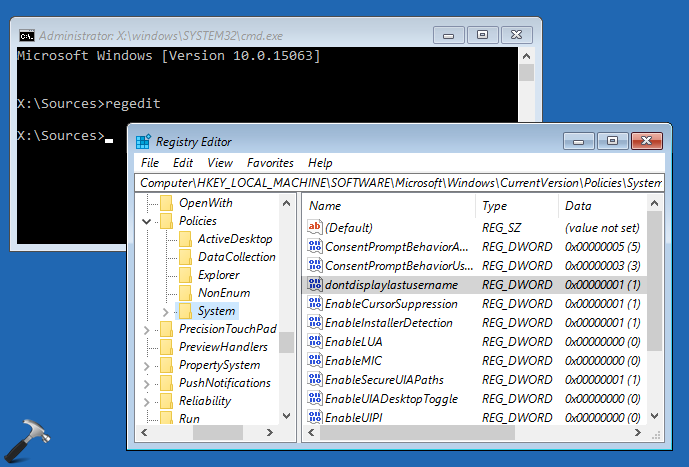
3. In the right pane corresponding to System registry key, look for dontdisplaylastusername registry DWORD (REG_DWORD). Double click on this DWORD to modify its Data:
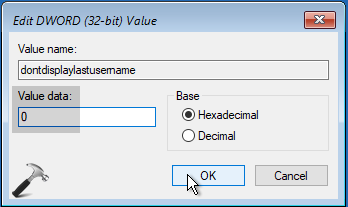
4. Finally, set the Value data to 0 from 1. Click OK and close Registry Editor, Command Prompt and Continue to your operating system. This will reboot the machine itself and after restart, you’ll be able to sign-in to your account.
If the issue still persists, try FIX 2.
FIX 2 – Via Command Prompt
1. Follow step 1 of FIX 1.
2. In the Command Prompt window, type following command and press Enter key:
net user administrator /active:yes
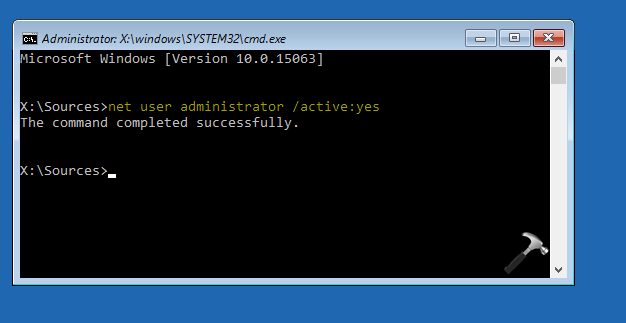
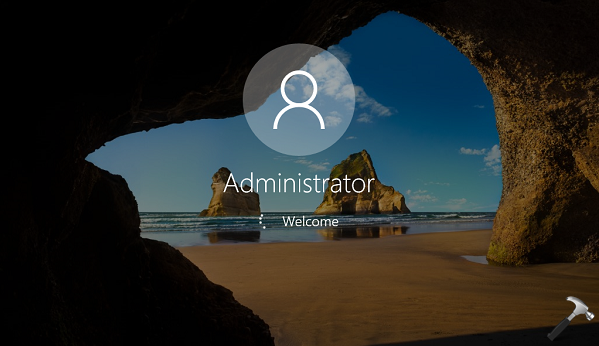
3. Close Command Prompt and Continue to your operating system. After a reboot, Windows 10 will automatically sign you in to built-in administrator account. Once you logged into this account, you’ll be able to manage other accounts very easily.
That’s it!
![Windows needs your current credentials [Fix]](https://www.kapilarya.com/assets/password_icon_1783831080.jpg)






Thank you for the information. Where can I get a bootable Windows 10 USB?
^^ Please refer: https://www.kapilarya.com/how-to-create-bootable-usb-from-windows-10-iso-file-using-command-prompt
Neither method worked. Using the registry edit the mentioned key did not appear. Using the command prompt method the same boot to windows with the windows background present minus the ability to log on occurs. Is there any other fixes? The system boots to the windows background photo, gives the windows tone, but no log on prompt ever appears.