

Earlier, we’ve seen how to reinstall Windows 10 without affecting your files i.e. Refresh Windows 10. Refresh seems to be wisest option when you’ve multiple issues and you don’t want to loose your precious data to fix them. However, in some cases, Refresh might not able to fix the multiple issues you’re having with your Windows 10. For such cases, remove everything and install Windows 10 i.e. Reset Windows 10 is useful.
Reset operation mainly covers two phases. In first phase, Windows will wipe all the data (apps, accounts, personal files) on the system root drive and in second phase, a clean install of Windows 10 will be done. Since the personal data has to erased, you should backup it using System Image feature or on a USB/HDD. Though you may easily format and make clean install using Windows 10 bootable USB, but if you do same thing via Reset feature, you won’t face any activation related issues later.
So in this guide, we’ve detailed all the steps so that you can easily Reset your Windows 10 with the help of them. Let’s get started now..
Page Contents
How To Completely Reset Windows 10
WAY 1 – Using Settings App, If Your PC Is Bootable
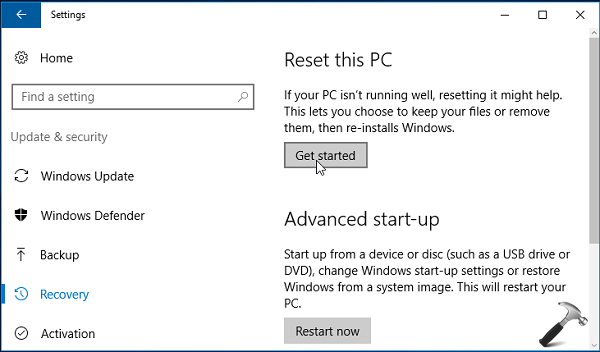
1. Open Settings app, go to Update & security > Recovery. Under Reset this PC, click Get Started.
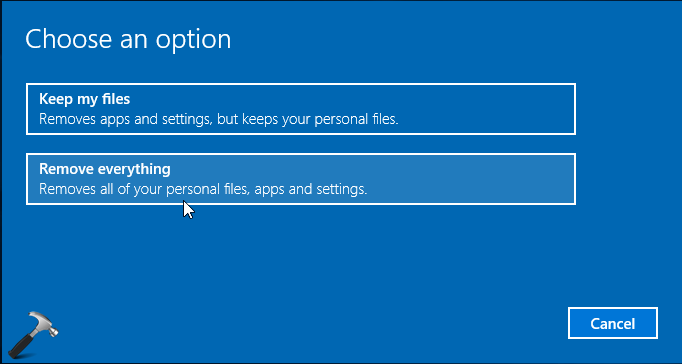
2. Then select Remove Everything option.
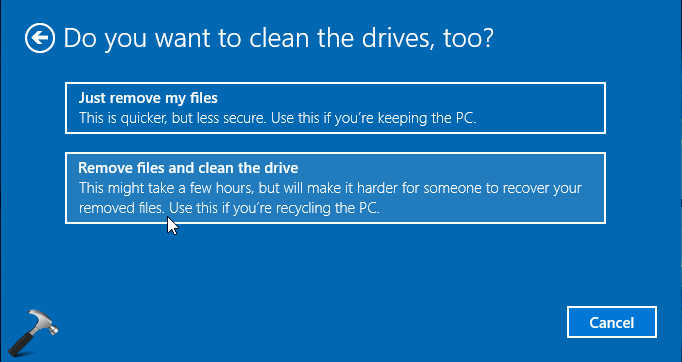
3. Next, select Remove files and clean the drive option.
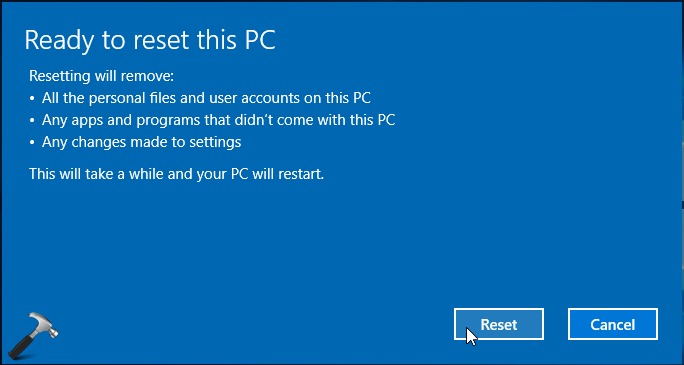
4. Then hit the Reset button on next screen.
5. You may need to wait for few minutes now, until Windows prepares itself for Reset operation.
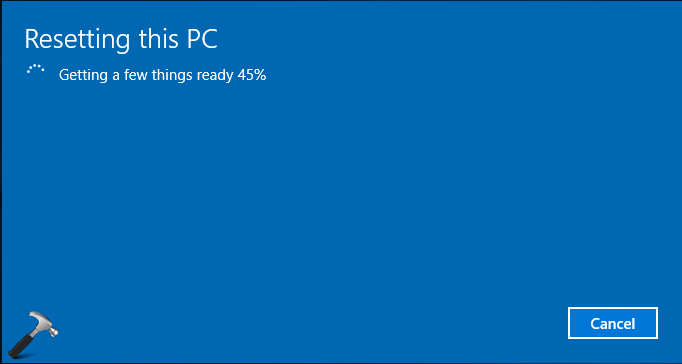
6. Now Windows will automatically restart and perform Reset, progress of which you can see on following screen:
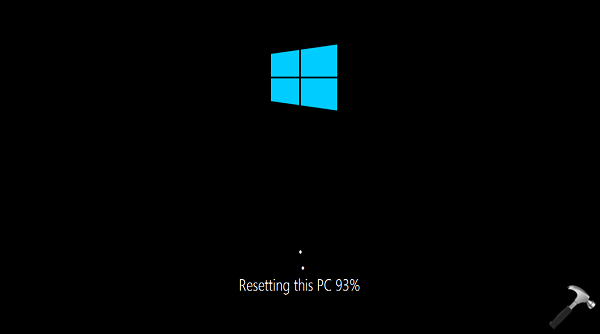
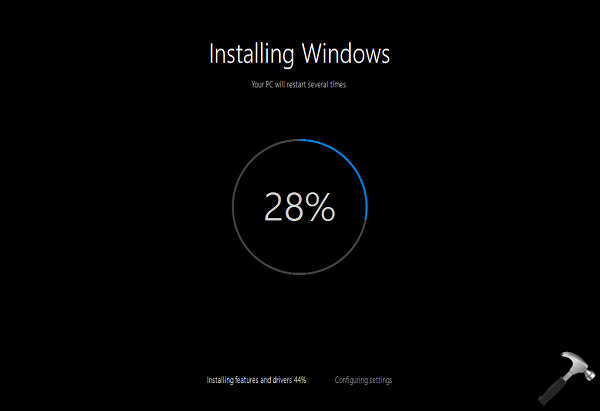
7. Another restart, and you’ll see a fresh copy of Windows is being installed.
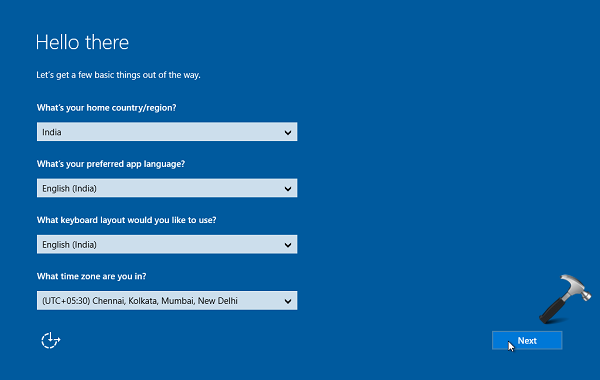
8. Next, choose the language, keyboard layout and your time zone in following screen. Click Next.
9. On next screen, click Accept button for End User License Agreement (EULA).
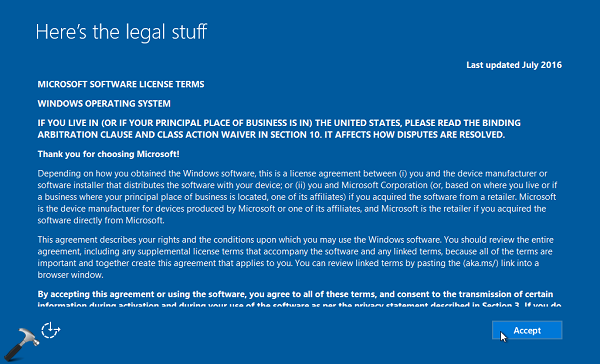
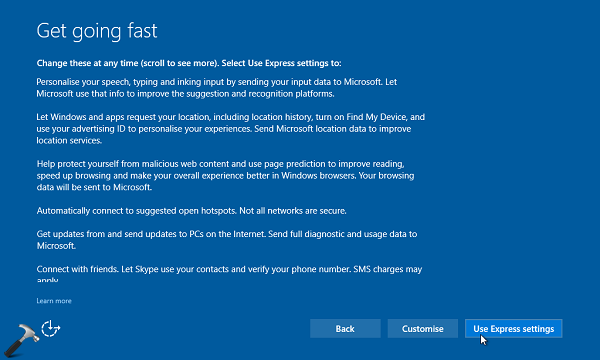
10. Moving on, you can hit Use Express Settings button or click Customize to have custom settings.
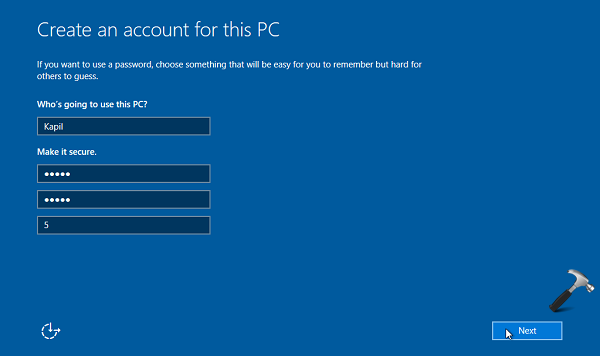
11. Then you need to create a new user account in below shown screen. Since we’ve performed Reset, obviously previous accounts and their data should be deleted now.
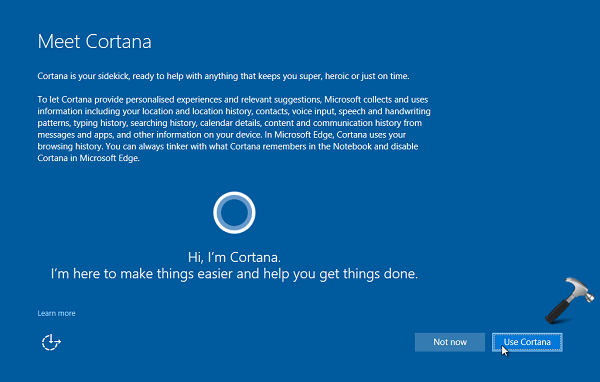
12. Choose whether you want to use Cortana.
Finally, you’re at Desktop and the Reset has been completed finally.
WAY 2 – Using Windows Advanced Recovery Options, If Your PC Is Not Bootable
1. Plug in your system recovery disc or Windows 10 bootable USB and start your system and press any key to continue.

2. Wait while your computer boots from your plugged disc.

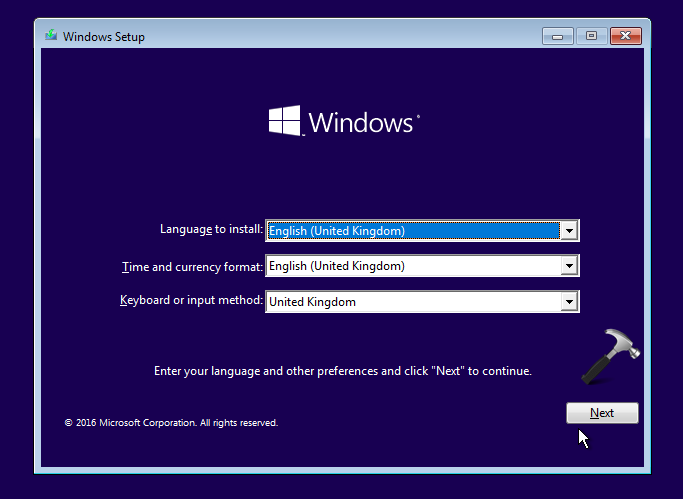
3. Then click on Next in Windows Setup screen shown below.
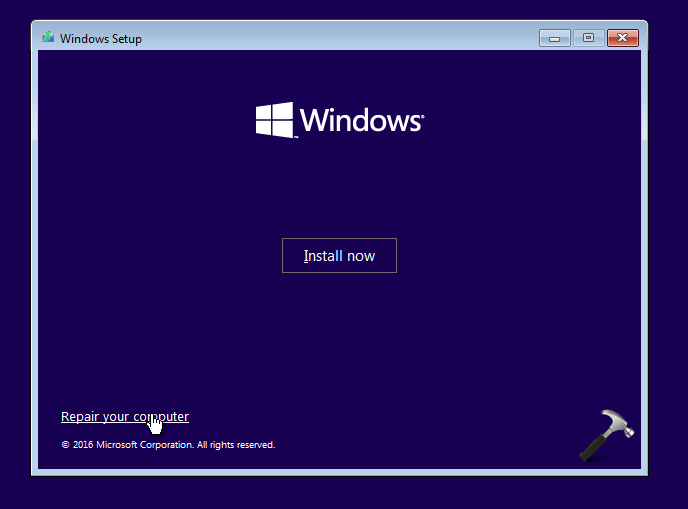
4. Moving on, click on Repair your computer link in next screen of same window.
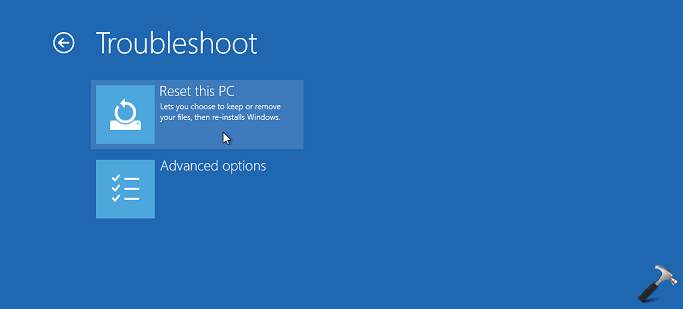
5. Now click Troubleshoot in below shown screen.
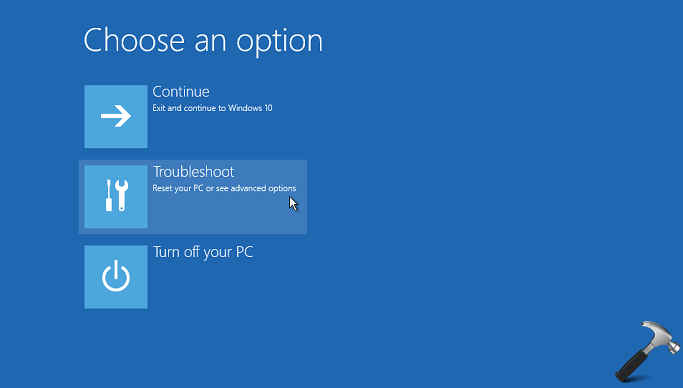
6. Then click Reset this PC.
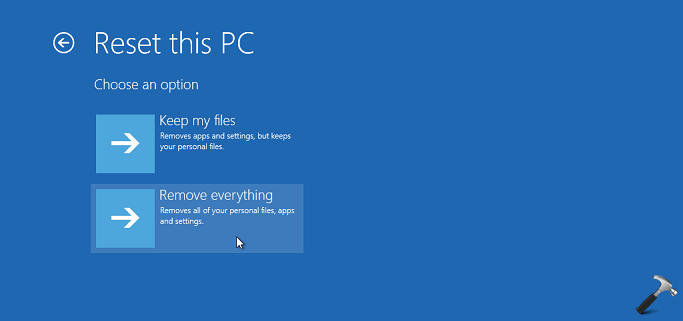
7. On next screen, select Remove everything option.
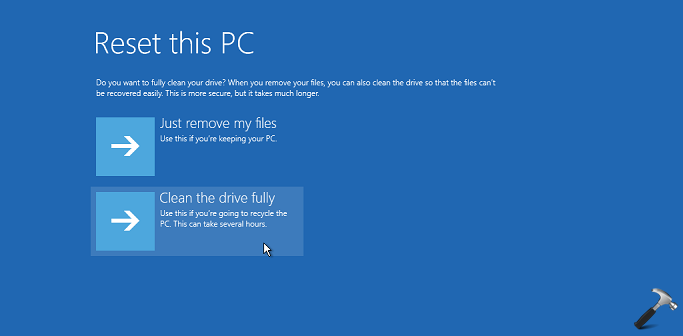
8. Then choose Clean the drive fully option.
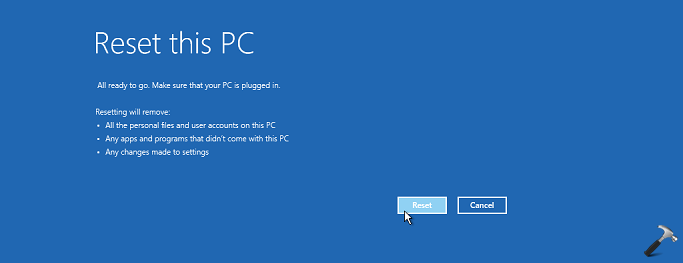
9. Finally, click Reset button to start Reset operation.
Onward steps are similar to steps 6-12 mentioned in WAY 1.
Hope you find the guide useful!
Related: There was a problem resetting your PC. No changes were made.
Also check: Reinstall Or Reset Windows 10 Using The Cloud.





Thanks l just reset my pc when every other options failed. My pc is working fine now. Thank you Kapil Arya.
^^ Glad to help 😊
this worked well Thank you just one glich when I go to turn it on it comes on and I can see that it has updated well empty but well but getting it to stay on is my problem it seems like it goes to sleep and I can’t get it to wake up. So right now I have a empty new operating system that I can’t get to stay on
^^ Try changing power options as mentioned here: https://www.kapilarya.com/fix-windows-10-wont-wake-up-from-sleep
I have been inserted disc in my laptop and turn it on.. But “press any key to…” does not appear. It only shows “Interactive Sign-in Process Initialization Has Failed”. What should I do?
^^ Change the BIOS settings and give first preference to your disc type, for example, Optical drive/DVD.
Hi Kapil, thanks for the informative post! One question; I have “Microsoft home and business” installed on my computer with all the basic word programs. Would I lose access to these with the “remove everything” option? I’m selling the computer and the potential buyer is interested a machine that has these programs, but since it is logged in with my account details I’m a bit skeptic about selling without doing a full reset…
^^ Yes, Remove everything will erase that program. Note that Reset may move your data to Windows.old folder. As you’re selling the machine, I recommend you to perform clean install. In either case, the buyer need to install the program at their end.
i did what you said it still dose a reset loop now what this the 3rd time reseting my bell latitude e5520 whats next im lost at this help
^^ You may opt for clean install if reset doesn’t works for you: https://www.kapilarya.com/how-to-make-clean-install-of-windows-10
I have this old Vaio that Vista OS that my friend left to me. When I turn the power on, the screen tells me to press Alt+Ctrl+Delete in order to start. But when I do, nothing happens. I want to start so I could reset it and install Windows 10 if that is still possible being that itvis probably one of the first Vaio models. Please help.
^^ First, check Windows 10 requirements:
Processor: 1 GHz or faster with support for PAE, NX, and SSE2
RAM: 1 GB (32-bit) or 2 GB (64-bit)
Hard disk space: 16 GB (32-bit) or 20 GB (64-bit)
Graphics card: Microsoft DirectX 9 graphics device with WDDM driver
Firmware: UEFI 2.3.1, Secure boot enabled, BIOS
If your system meet these requirements, you can make clean install by formatting the existing OS drive: https://www.kapilarya.com/how-to-make-clean-install-of-windows-10.