

While installing, if your printer require to get list of drivers from Windows Update, and you just can’t get that, this article is for you. Recently, while addling a new printer to Windows 10 Pro running machine, we faced this problem.
In this case, the new printer was not detected automatically from Settings app > Devices > Printers & scanners > Add a printer or scanner. Then we’ve to click The printer that I want isn’t listed. This opens Control Panel‘s Add Printer dialog. We now selected Add a local printer or network printer with manual settings. In the next screen, when we hit Windows Update button, we get “Windows is updating the list of printers. This may take a a few minutes.” message.
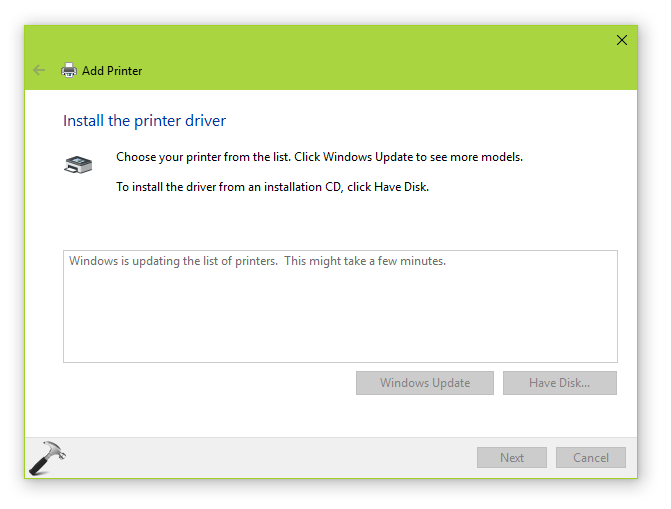
Then following error comes out after sometime:
Page Contents
Windows was unable to get a list of devices from Windows Update. Please try again later.
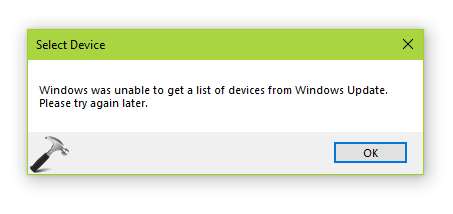
Since this didn’t worked out first time, hence we give it a retry – as suggested by the message itself. However, there was no change in the situation. The error keeps appearing and ultimately, we can’t add the printer at the last. After researching a bit, we found that older Windows Update database is root cause for this problem. Once that database is cleared out, the above mentioned error no longer occurs.
So if you’re also victim of this issue, here is how to fix it.
FIX: ‘Windows Was Unable To Get A List Of Devices From Windows Update’ In Windows 10/8.1/8/7
Open administrative Command Prompt and type following commands one-by-one followed by Enter key.
net stop wuauserv
net stop cryptSvc
net stop bits
net stop msiserver
Ren C:\Windows\SoftwareDistribution SoftwareDistribution.old
Ren C:\Windows\System32\catroot2 Catroot2.old
net start wuauserv
net start cryptSvc
net start bits
net start msiserver
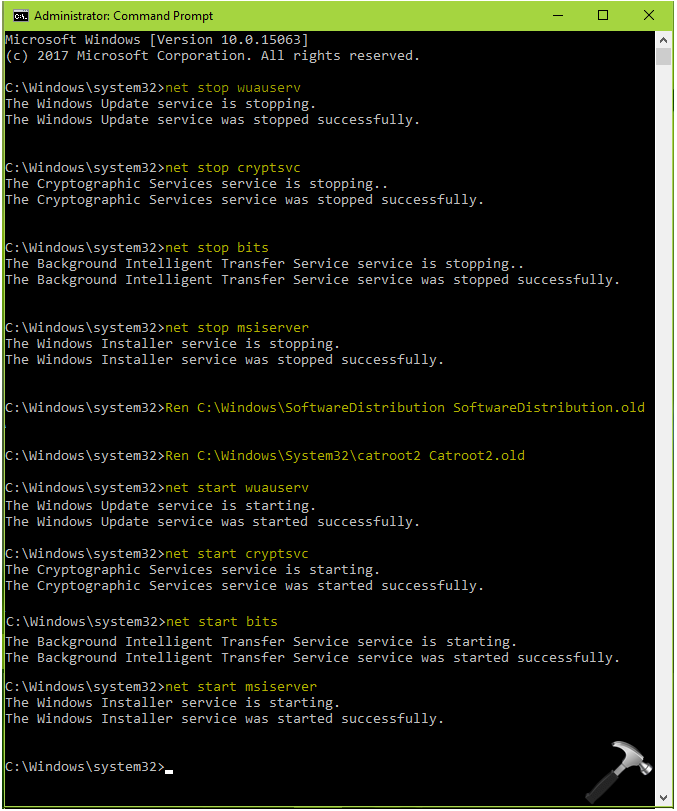
Close the Command Prompt window and reboot the machine.
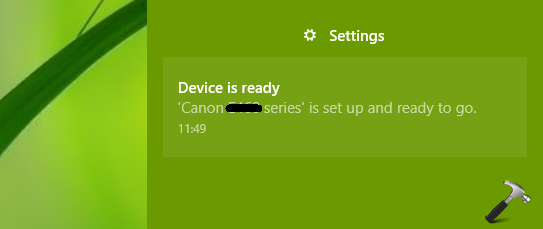
After restart, retry the process of manually adding the printer and you should be able to get your printer driver from Windows Update. Thus you’ll be able to install the printer successfully, then.
Hope this helps!





This suggestion did not work for me!
Dont work
While it seems several people in 2012 had this issue and this fixed that, it’s not working now.
it didn’t work with me, it always give access is denied
Thanks for the info
^^ Welcome!
Don’t work
The Cryptographic Service appears to have a watchdog and it restarts as soon as it’s stopped. Then catroot2 can’t be deleted/renamed because it’s in use. 21H1.
Everyone is copying each other, this is an old guide that people still peddle as new. It’s the same over the whole web except Microsoft’s guide. But that guide does not work either so i won’t link to it.
That solution crash my windows and repair was needed.