Previously, we’ve shared you how to change your OneDrive folder location in Windows 10. The guide will be helpful when you no longer interested to save your documents to current location and want to opt for another location.
However, while changing the location of OneDrive folder, you may see following error:
Page Contents
Your OneDrive folder can’t be created in the location you selected. Please choose a different location.
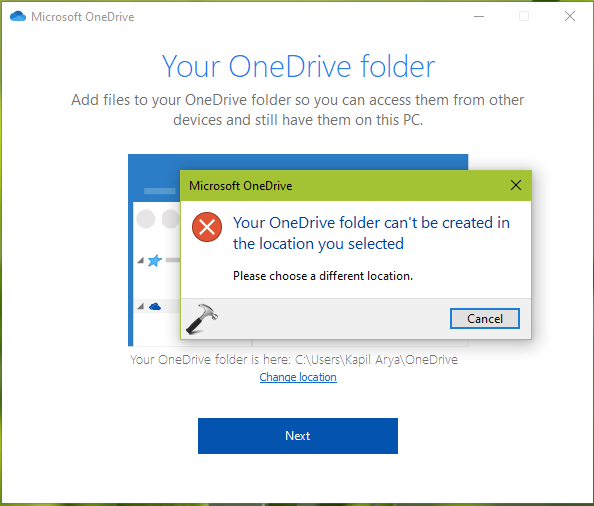
There are several factors which may cause this error and we’ll see how to fix this problem, in this post.
FIX: Your OneDrive Folder Can’t Be Created In The Location You Selected
FIX 1 – General Suggestions
1. First of all, perform clean boot. This will remove the possibility any third-party software, such as antivirus software is blocking OneDrive from changing location.
2. If you’re facing this issue on Windows 8.1/8/7, try OneDrive troubleshooter.
3. Right click on new location you wish for and make sure you’ve full permissions there. If not, you can refer our guide to take ownership of the location (folder) and grant full permissions to yourself.
4. If possible, try changing OneDrive folder location using another account and see if that works.
5. Try to uninstall OneDrive and reinstall it back, see if that helps.
FIX 2 – Make Sure Target Location/Folder Belongs To NTFS File System
A common cause for the above said problem is file system. So if suggestions mentioned in FIX 1 doesn’t helped you, it means you’re changing OneDrive location to a folder which is not in NTFS file system. If the new OneDrive location (folder) belongs to FAT or exFAT file system, the above error is expected because OneDrive no longer supports these file systems. To fix the problem, you need to format parent drive to NTFS file system, in case if you’re using external/USB drive. If that’s not possible, you need to try using another location which is in NTFS file system. Once you switch to NTFS based location, the error will no longer appear.
That’s it!