

We all know that Microsoft has removed the Windows Backup aka Windows 7 File Recovery feature in Windows 8.1. Instead in Windows 8.1, you can create a System Image to backup your data. Recently, I came around a strange scenario in a Windows 8 system upgraded to Windows 8.1. After upgrading the system, the Action Center section in taskbar notification area was still notifying me that Backup in progress:
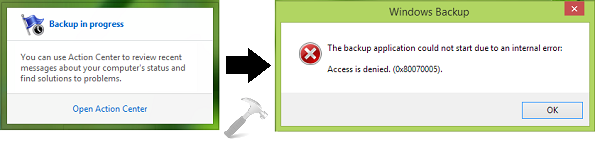
So I clicked on this notification which resulted into another error with following statement:
Page Contents
The backup application could not start due to an internal error:
Access is denied. (0x80070005).
Hence, eventually we reached a point which shows that both, the notification and the error message thereafter are completely meaningless regarding to Windows 8.1 and you should fix this flaw asap otherwise this notification may interrupt you again and again. After doing some research over this issue, it is found that the registry configuration for Windows Backup was not updated when the system upgraded to Windows 8.1 from Windows 8. Due to which, the registry entry corresponding to removed feature remained intact and thus arising the notification later.
Here is how to solve this problem:
FIX : Hide “Backup In Progress” Notification In Windows 8.1
Registry Disclaimer: The further steps will involve registry manipulation. Making mistakes while manipulating registry could affect your system adversely. So be careful while editing registry entries and create a System Restore point first.
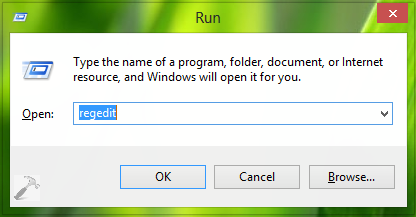
1. Press  + R and put regedit in Run dialog box to open Registry Editor (if you’re not familiar with Registry Editor, then click here). Click OK.
2. Navigate here:
HKEY_LOCAL_MACHINE\SOFTWARE\Microsoft\Windows\CurrentVersion\WINEVT\Channels\Microsoft-Windows-Backup/ActionCenter
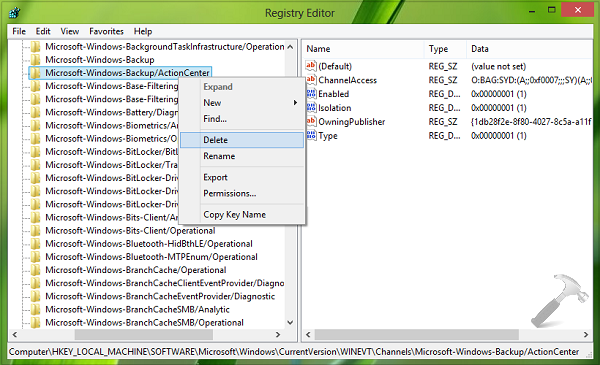
3. In the left pane of this location, right click over the key Microsoft-Windows-Backup/ActionCenter and select Delete. You can now close the Registry Editor and reboot the machine, Backup in progress notification will no longer be displayed now.
Hope this helps!



Followed this n it worked also i backup the key thanks kapil