

Microsoft introduced Edge as default browser in Windows 10. If you’re using Edge as your primary browser and you might want to customize it for yourself. In this beginner’s dedicated guide, we’re going to discuss about how to change home page in the Edge browser.
Well, it is relatively quite easy to change home page for Settings UI. But if you’re developer, or IT Professional and you need to do this for hundreds of machines at your workplace, you can adopt the registry method, which is also discussed here. Try your preferred method and change the home page to your favorite URL.
Page Contents
How To Change Home Page In Microsoft Edge
WAY 1 – Using Edge Settings UI
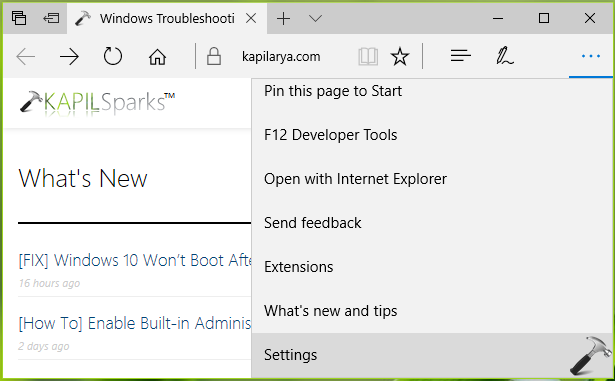
1. Open Microsoft Edge. Click on triple dots/more icon to open Edge options. Click Settings entry at the end of this pane.
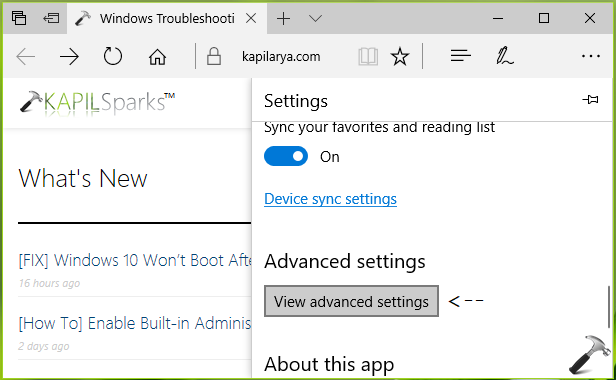
2. Next, in the SETTINGS pane, scroll down and hit View advanced settings button.
3. Now, in the Advanced Settings, turn on Show the home button option. Select A specific page and type the URL to your homepage in the input box, click Save icon (refer below shown screenshot).
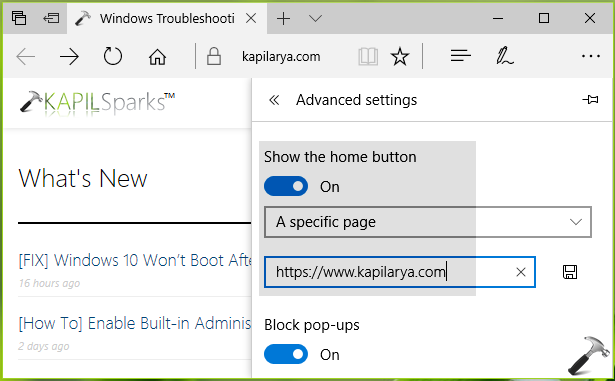
You can now restart Edge and it should point to the URL you specified as homepage, whenever you click Home button icon.
WAY 2 – Using Registry
Registry Disclaimer: The further steps will involve registry manipulation. Making mistakes while manipulating registry could affect your system adversely. So be careful while editing registry entries and create a System Restore point first.
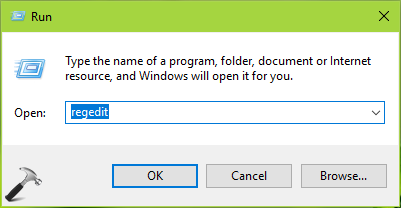
1. Press  + R and put regedit in Run dialog box to open Registry Editor (if you’re not familiar with Registry Editor, then click here). Click OK.
2. In left pane of Registry Editor window, navigate to following registry key:
HKEY_CLASSES_ROOT\Local Settings\Software\Microsoft\Windows\CurrentVersion\AppContainer\Storage\microsoft.microsoftedge_8wekyb3d8bbwe\MicrosoftEdge\Main
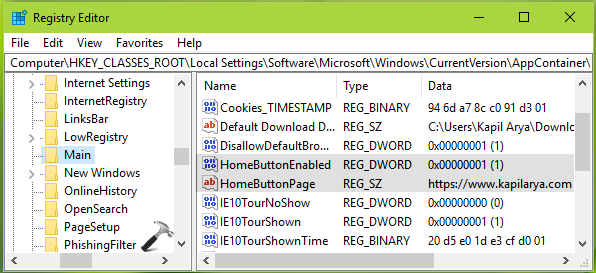
3. In the right pane of Main registry key, make sure these items exist:
- HomeButtonEnabled registry DWORD (REG_DWORD) with Data as 1.
- HomeButtonPage registry string (REG_SZ) with Data as URL to your homepage, for example, https://www.kapilarya.com.
4. Once you configured above mentioned items, close Registry Editor and reboot to make changes effective.
That’s it!





Hi Kapil
I am very interested on this issue.
I have made the changes you mentioned in my registry (want to copy to all users in my AD).
After re-login, nothing happened.
After reboot, nothing happened.
Any other changes will be ncessary?
^^ Try configuring it with Group Policy docs.microsoft.com/en-us/microsoftsearch/set-default-homepage, see if it helps.