

One day before, Microsoft has made Windows 8.1 RTM and Windows 8.1 RT available to Technet and MSDN subscribers. If you’re also the subscriber of any one of these portals, you can get Windows 8.1 RTM using the links mentioned here. Windows 8.1 RTM has introduced the final features for Windows 8.1. One of these newly introduced features in this edition is “Help Tips“.
Page Contents
Help Tips : A New Feature In Windows 8.1
Actually, in Windows 8, the hot corners features were a mystery for the beginners. If they move the cursor to any of the screen corner and when they got any pop-up (for instance say, app switching), they considered it as their new feature discovery. In Windows 8.1, Microsoft has tried to expose these features with the addition of Help Tips. So moving the cursor into any corner in this newly released Windows 8.1 RTM brings up the Help Tips for the first time. Have a look:
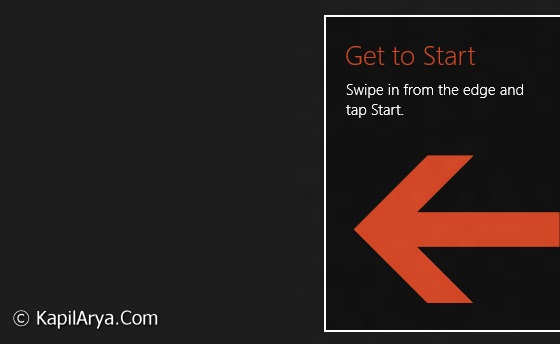
With Help Tips, the help IDs, user can move to different points and get the info about these points and what is their significance. So basically, its a must have feature for the dummy users, but for the power users, I know you were looking to kill it. Do follow this:
How To Disable Help Tips In Windows 8.1
Registry Disclaimer: The further steps will involve registry manipulation. Making mistakes while manipulating registry could affect your system adversely. So be careful while editing registry entries and create a System Restore point first.
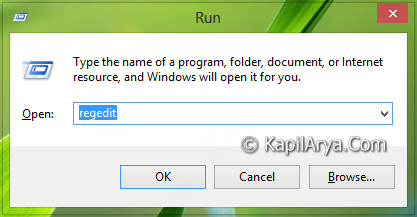
1. Press  + R and put regedit in Run dialog box to open Registry Editor (if you’re not familiar with Registry Editor, then click here). Click OK.
2. Navigate here:
HKEY_CURRENT_USER\Software\Policies\Microsoft\Windows\EdgeUI
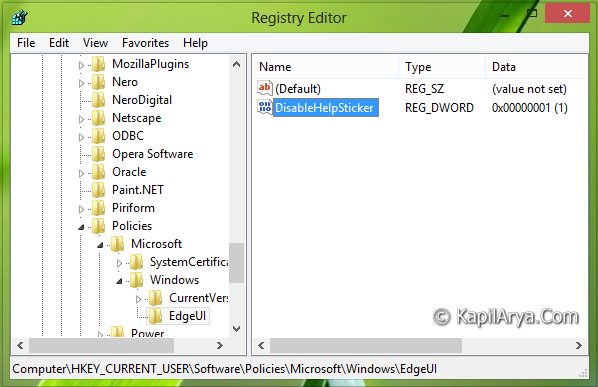
3. In the right pane of this location, create a new DWORD named DisableHelpSticker using Right click -> New -> DWORD Value. If you see the DWORD already there, no need to create anything. Double click on same DWORD to modify:
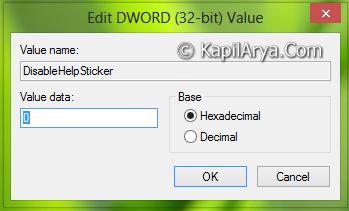
4. In the above shown box, type the Value data equals to 1 in order to completely disable the Help Tips feature. Click OK.
5. Do the steps 3, 4 for this location as well:
HKEY_LOCAL_MACHINE\SOFTWARE\Policies\Microsoft\Windows\EdgeUI
So, we’re done with configuration part. Do close the Registry Editor and reboot the machine to get results. In future, if you wish to enable Help Tips feature again, simply delete the DisableHelpSticker from both the registry locations mentioned above.
That’s it!







This worked. Thanks buddy :)
Thanks buddy. I am a beginner in using computing skills. I thank God for solving my problem through the knowledge He has imparted in your head. Blessings and emau is good night in Keapara language which is very very far from India but is close by internet.
^^ 😊