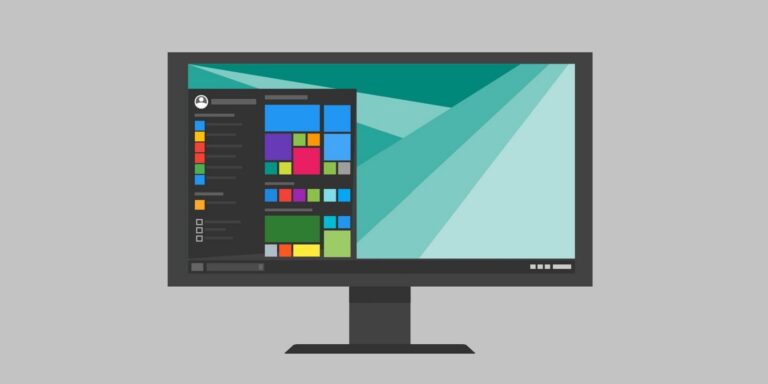
If you’re using Windows 8.1 RT, here is some good news for you! Microsoft has recently released a Windows Update that will add Start Menu to your Windows 8.1 RT edition. Since on Windows RT editions, you are not able to upgrade to Windows 10, hence this update will help you to get similar functionality of Windows 10.
Adding the Start Menu will replace the Start Screen on your Windows 8.1 RT. Just like in Windows 10, you have the option to either use Start Screen or Start Menu as per requirement. However, the Start Menu available via this update is somehow different than the one available in Windows 10, as far as robustness is concerned. BUT, its better to have something, than have nothing at all :)
How To Enable Start Menu In Windows 8.1 RT
So if you’ve missed Start Menu on your Windows RT, checkout the latest updates available to you and essentially install Update for Windows RT 8.1 feature improvement (KB3033055) to enable this feature.
The new Start Menu for Windows 8.1 RT has 6 sections that are highlighted in following screenshot:
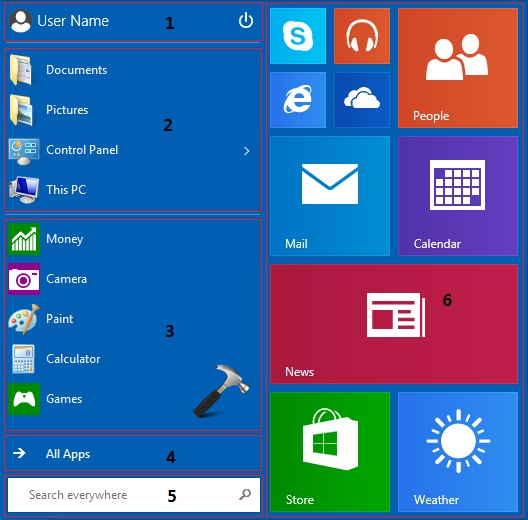
Here is the description for those 6 sections:
1. Header: This is where the user account picture and power button appear.
2. Pinned List: Apps that are pinned for easy access appear here.
3. Most Frequently Used applications list (MFU): Apps that are frequently used but not pinned anywhere else will appear here.
4. All Apps button: Selecting this button displays the All Apps list.
5. Search text box: Typing here begins a search.
6. App grid: Both Immersive and Win32 apps can be pinned, unpinned, and resized in this area.
To enable or disable Start Menu, go to taskbar > right click > Properties > Start Menu. Select the check box that’s labeled Use the Start menu instead of the Start screen. If the check box is selected, the Start menu will be enabled. If the check box is cleared, the Start screen will be enabled. You will need to re-logon to apply changes and make them effective.
You can read all about the extended properties of this Start Menu in the following support article:
Read more about features of Start Menu for Windows 8.1 RT
Enjoy the new Start Menu on your Windows 8.1 RT! See this fix if Modern Apps are not working for you.