

Whenever Microsoft releases a beta version (testing build) or service pack of Windows, a watermark is shown on the desktop mode of this Windows. This concept is also applied to newly released Windows 8 Consumer Preview (Beta) which will be followed by Windows 8 stable release and its further updates.
Windows 8 Beta, by default shows following watermark:
Windows 8 Consumer Preview
Evaluation copy. Build 8250
Most of users asked the way to remove /edit this watermark. The reason is clear that the watermark is of no use and is annoying. So to help you all on this issue, I am going to share a free tool. This tool is named as “My WCP watermark editor“.
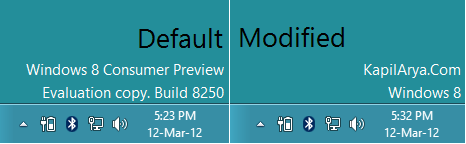
My WCP watermark editor can easily remove or edit the watermark on your wish. Following is the screenshot of condition of Windows before and after using this tool.
Here is how to use this tool:
How To : Remove Or Modify The Watermark (Build Number Info) In Windows 8
Step 1 : Download My WCP watermark editor using below link:
Step 2 : Run the downloaded file using administrative privileges.
Step 3 : When you run the tool, following window is shown:
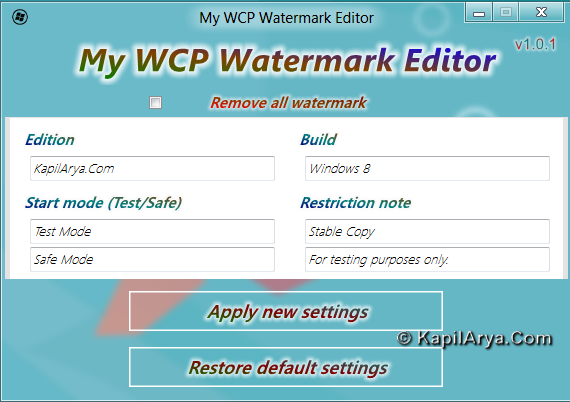
Here, the Edition Field shows upper line of watermark. Default is Windows 8 Consumer Preview.
Build field shows second half of second line of watermark. Default is Build 8250.
The Restriction note here shows first half of second line of watermark. Default is Evaluation copy. In this field, put something that doesn’t contains slug ‘copy’.
Start mode simply notifies whether you are using Windows in safe or not. Recommended to keep it unchanged.
To remove the watermark, check the Remove all watermark option.
Once you’re done click Apply new settings.
Step 4 : Reboot the PC. Navigate to personalization window and change the theme. That’s it. Now your modified watermark is shown up or no watermark is shown if you removed all watermark in previous step.
Hope this help you to deal with watermark.
PS : I would recommend to create a “System Restore” point before using this tool. So that if anything goes wrong, we have the back option.
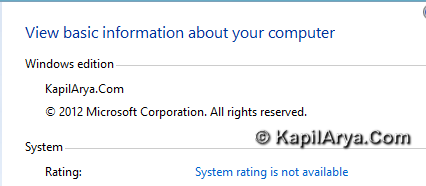
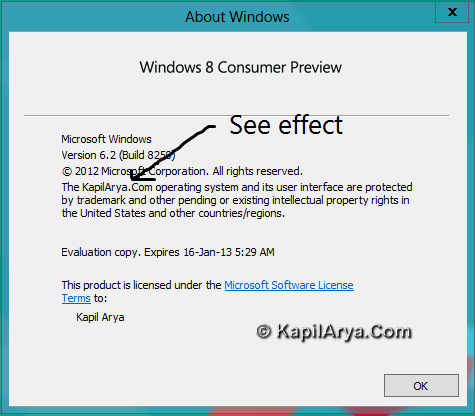
NOTE : This tool also modifies the information in System Properties and About Windows prompt.
Hope you find the article useful!

how to do this manually ?
Thanks thats awesome thanks again for share ;)))
thnx thnx tanx… to kill the most annoying thing on windows 8
@ lee, Manual:
1. Run %appdata%MicrosoftWindowsThemes
2. Follow as indicated in image:
NOTE: Works only with basic theme. Doesn’t works on changing theme and wallpaper.
great job dude.. u r my new hero!
@kapil, thanks for both method does this app will generate an error means is it safe to use it?
thnx again bro bt i will confine to wcp manual fix is sticky
thanksss. mind blowing
i make all the text field blank in this app then click on set then the watermasrk is gone but now when i am running this app again it say are you sure you r using windows 8 beta . so plz tell me how to reset it to default
^^ I don’t get what you want to do reset? Is it the default watermark or your tweaked settings. Well here are both cases:
If you want to reset default watermark, run sfc /scannow command in elevated command prompt for once and reboot.
If you want to get reset your modified setting, try running the tool again and save them. After reboot, you’ll get your desired effect. Hope this helps :)
This works but the problem that it messes up all win 8.1 apps.SFC fixes the apps problem but restores the watermark.
But i have made some progress by removing windows 8.1 preview but the evaulation copy is still present..any suggestions
Hi,
I am also getting a popup whenever I try to change the watermark a second time.
It says “Are you sure you are using Windows 8 Beta?” and only let’s me press OK without running the program.
Can you advise how to resolve this?