

If you’re an iPad user, there are some obvious limitations from Apple you’re suffering from. On iPad, if you got to manage the files downloaded via third-party apps, you have trouble to extract it to other devices. Thus, the file remain in the iPad and you can’t move it to your computer etc. This is due to following reasons:
- Apple devices have the built-in Bluetooth facilities, but Bluetooth can be used only among Apple manufactured products like iPod, Mac, iPhone etc. Thus other devices are rejected.
- Using iTunes, which is the official suite from Apple to transfer files between computers and iDevices using USB cable doesn’t recognizes .exe files.
Obviously, you might feel frustrated that you’re having these expensive devices but you can’t simply share the files with other devices, while others can do it without any hitch. So to make it out, I’ll suggest you to install the FileMaster app available via iTunes store. This app is free, and having no ads plus handy to download all types of files.
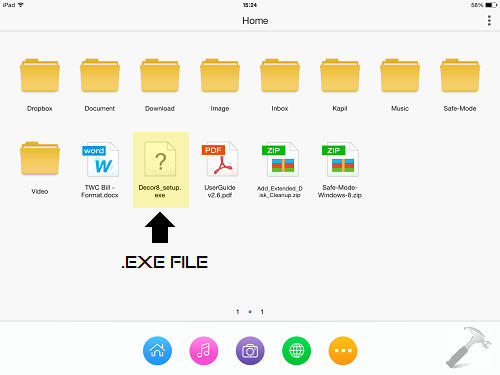
When you have downloaded your desired files in this app, do the following trick to transfer files to your Windows running computer.
Transfer All Type Of Files From iPad To Windows
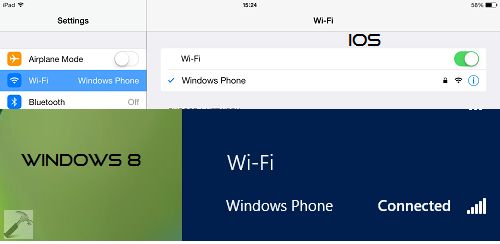
1. First of all, make sure your Windows computer and iPad is connected to same WiFi network.
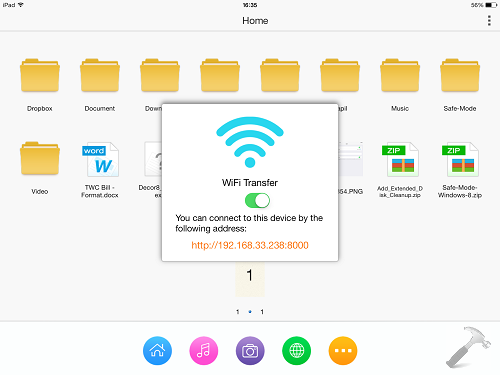
2. Open the FileMaster app on iPad. Tap the last icon which is more & designated by three dot symbols, select WiFi option from the pop context menu so appears. It will open Wifi Transfer wizard. It will provide you the Hypertext Transfer Protocol address.
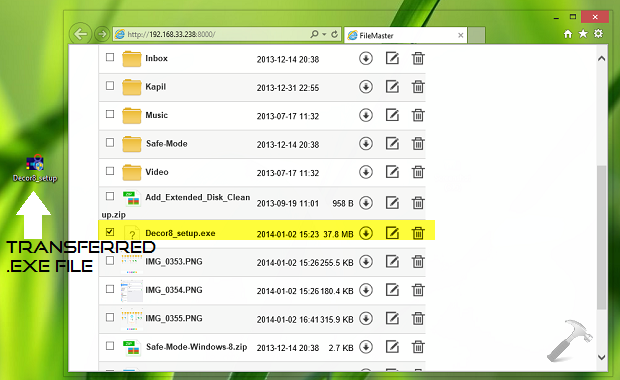
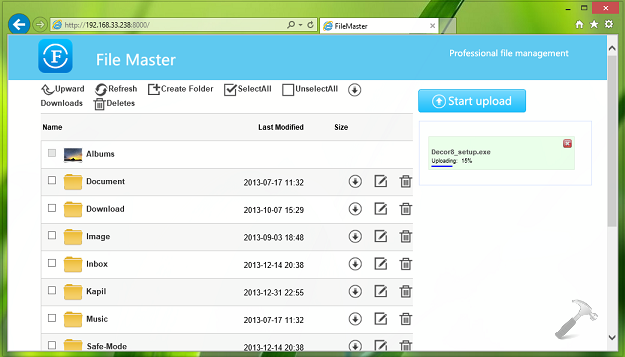
3. Moving on, open any browser on your Windows system, and input the HTTP address obtained from previous step. Please make sure you include the http necessarily in the address. It will open the file browser which is elegant in style and completely working, so you can download the desired files which you want to extract. The download speed will be same we’ve in Bluetooth transfer plus your Internet data won’t be consumed. In this way, the file can be extracted from iPad to Windows.
4. If you like to transfer files from Windows to iPad, you can also do that via uploading files by clicking Start upload option on the browser.
Hope you enjoy the trick!



Works gud man even I have connected to Ethernet on windows! TY
Nice….
Is there any alternative app which supports wifi transfer?
^^ Download Lite is yet another file manager you can try; its also free but with limitation of 7 files:
itunes.apple.com/in/app/download-manager-lite/id322875558?mt=8
I downloaded the app (basically I’m trying to play PC games on IOS) I can get the files to download via another app, but they aren’t right the code is just characters. I’m also using the puffin web browser to access the games online, but then after a while it wants you to DL. any thoughts or suggestions?
Thank you!
Kelly