Windows 8, by default merges the second instance of a Desktop app when first instance of that app is already running in Task Manager. Thus the Start Screen aka Modern Screen has the ability to avoid second instance (opening of new window) of Desktop apps. Unfortunately there exists not even a single setting to modify this setting in Windows 8.
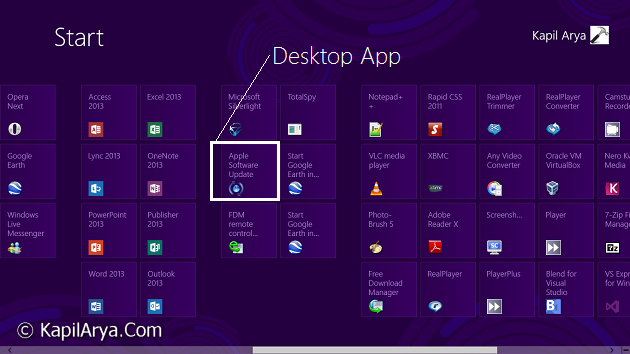
This may be ridiculous for you many times. So what to do to avoid this? How to make the Start Screen so configured that it allows Windows to open new instance of already running app? Well, no need to worry more about it, the solution is here.
There is a simple Registry trick that you can implement to solve this issue. Here is that one:
How To : Open Classic Style Apps In New Window From Start Screen
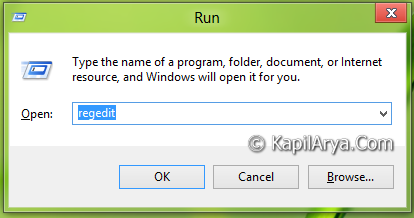
1. Press  + R and put regedit in Run dialog box to open Registry Editor (if you’re not familiar with Registry Editor, then click here). Click OK.
2. Navigate here:
HKEY_CURRENT_USER\Software\Microsoft\Windows\CurrentVersion\ImmersiveShell
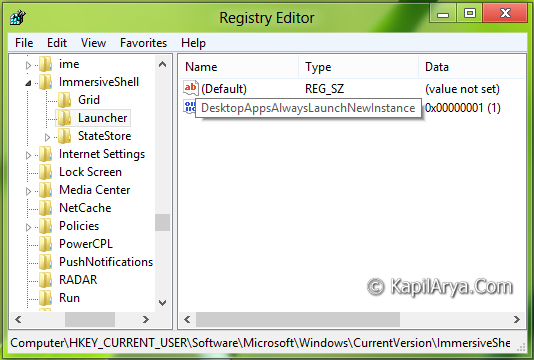
3. In the left pane of this location, create a new key using right click -> New -> Key. Name it as Launcher. Now in the right pane of this newly created key, create a DWORD value using right click -> New -> DWORD Value. Name this DWORD as DesktopAppsAlwaysLaunchNewInstance.
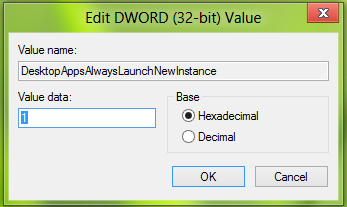
4. Double click on the DWORD so created in above step, put its Value data equals to 1. That’s it. Restart Explorer and try to launch a Desktop app from Start Screen, it’ll always open in new instance.
Hope you find the tip useful!