Registry Editor is one of the great utility to customize the Windows. I am now addicted to it, to make every modification to my Windows using this facility. I gives optimum fix and works in almost all cases.
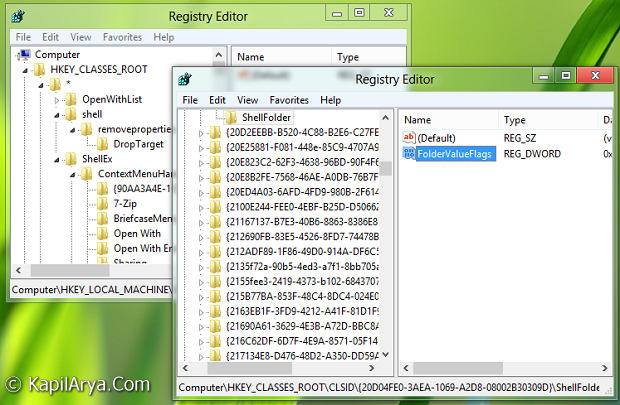
However, today, when I tried to open Registry Editor in two different windows, I was unable to do so. After using some technical skills, I got succeed to run Registry Editor in multiple frames. Then I found that others may face this problem also, so I decided to share the trick via this article.
Here is the way…
How To : Open Multiple Registry Editors Simultaneously In Windows
1. Press  + R or press + W and type Run in search box to get Run dialog prompt.
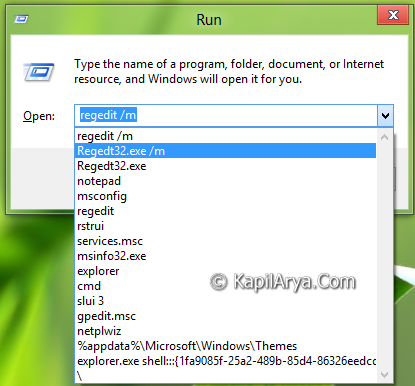
2. Generally, to open Registry Editor we use regedit or Regedt32.exe commands. So open the Registry Editor using any one of them. But to open multiple Registry Editor windows, use any one of following commands:
Regedt32.exe /m
regedit /m
3. Press OK and you’ll be able to see multiple windows of Registry Editor. Proceed to your aim now.
That’s it!