

UPDATE : In Windows 8.1, PC Settings app is pinned to Start Screen by default.
Recently I have received an email from my colleague. He asked me that how to fix lost PC Settings / Control Panel app in Start Screen of Windows 8. Here is what he said:
I recently preformed quick maintenance on my Windows 8 PC to remove useless programs and install some necessary software. These software are very important for me and I can’t install them again and again as it is very time consuming. Now the problem is that, I have lost my PC Settings app from start screen. They have been lost from Start screen search also. I have tried some search queries on Google, but unfortunately I have no solution yet. I hope you’ll know something about this and will fix it.
Rgds.
Without consuming your time, here are the solutions you can try:
FIX : PC Settings App Missing From Windows 8 Start Screen
1. Open administrative Command Prompt.
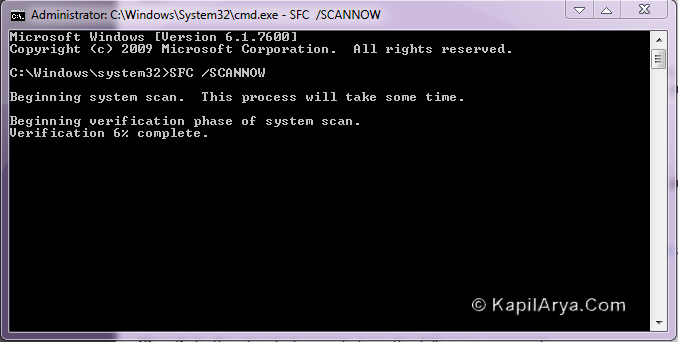
2. Type following command:
SFC /SCANNOW
Press Enter after typing the command. The process takes a few minutes to repair corrupt files and making fixes. Once finished you will be replied with the message Windows Resource Protection found corrupt files and successfully repaired them. Close the elevated Command Prompt and reboot.
3. Now in the Start Screen, search for Control Panel or PC Settings. In results you’ll find Control Panel or PC Settings, if not try the above two steps again.
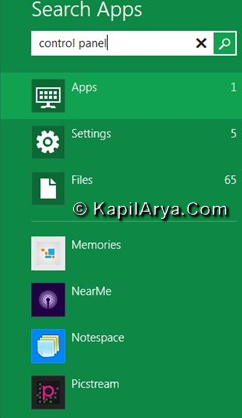
4. Right click on resulted app and select Pin to pin the app tile to Start Screen.

That’s it!






2nd method doesn’t works!!!
^^ Try the first one.
Microsoft Windows [Version 6.3.9600]
(c) 2013 Microsoft Corporation. All rights reserved.
C:WINDOWSsystem32>SFC /SCANNOW
Beginning system scan. This process will take some time.
Beginning verification phase of system scan.
Verification 100% complete.
Windows Resource Protection found corrupt files but was unable to fix some
of them. Details are included in the CBS.Log windirLogsCBSCBS.log. For
example C:WindowsLogsCBSCBS.log. Note that logging is currently not
supported in offline servicing scenarios.
C:WINDOWSsystem32>
How does Microsft Now explain this where there Own commands doen’t work any more.
Microsoft windows 8.1 has done this untill I took there store Upgrade my computer was fine.
Not for windows 8.1 thats what I been asking everyone think’s they have the fix to restore controll panels like it was in windows 8.0 with the Windows 7 Recovery And Performances & Matinace is not in there the microsft doesn’t allow you to do an upgrade or update from the online store .oh and windows 8.1 Has EVERYWARE at the top ?
the first time it locked up my Hard drive and had to get it fixed $750.00 Dollars later and listing to tomany people who don’t know how to restore the control panels to get the feature your diagrams did nothing I followed what you did then restarted the computer and nothing?
^^ You may be interested in checking out these DISM commands as well:
http://www.kapilarya.com/fix-do-inbox-corruption-repair-using-dism-in-windows-8