We all know that Microsoft introduced Gadgets to Windows in Windows Vista. They are also available in Windows 7, but later on the development team has took off all the Gadgets which were being hosted by it, in its Windows Personalization Gallery, as they could allow Remote Code Execution which could in turn compromise your computer. They now find no place in Windows 8.
In case you don’t like Gadgets or you don’t use them or strictly you don’t want to let them to compromise your computer, then you may want to remove Gadgets from context menu in Windows Vista & 7.
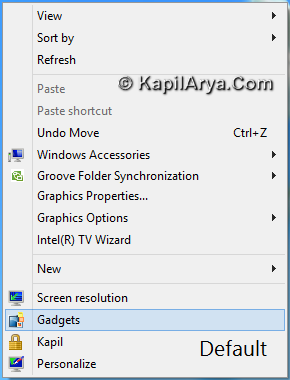
In this article, I’ll tell you the way to remove the Gadgets entry listed in the right-click context menu of Desktop. The option so listed is handled by a registry key. If that key is deleted, the option will be removed as well. Here is how to do this:
Remove Gadgets From Desktop Context Menu In Windows Vista/7
Registry Disclaimer: The further steps will involve registry manipulation. Making mistakes while manipulating registry could affect your system adversely. So be careful while editing registry entries and create a System Restore point first.
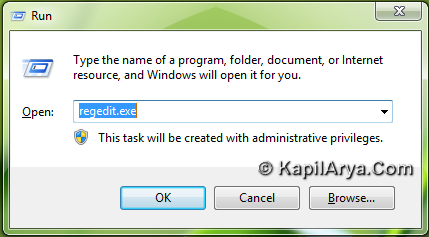
1. Press  + R and put regedit in Run dialog box to open Registry Editor (if you’re not familiar with Registry Editor, then click here). Click OK.
2. Navigate to the following key:
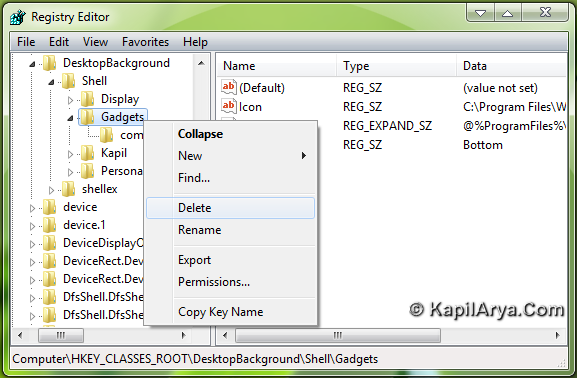
HKEY_CLASSES_ROOT\Desktop\Background\Shell\Gadgets
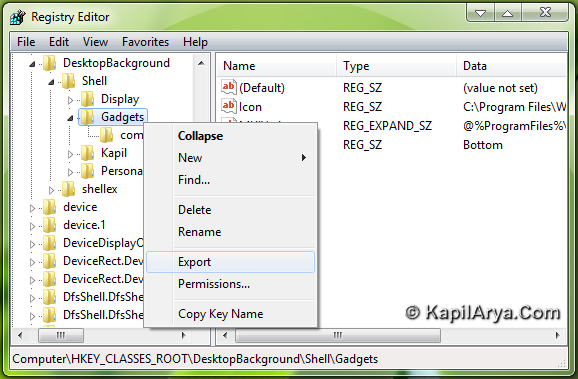
3. First of all, export the entries of this key Gadgets using Right Click -> Export. Save the registry file as back up. Now take ownership of same registry key.
4. After taking ownership of the key, delete the same key viz. Gadgets using Right Click -> Delete.
That’s it! Now Reboot and you’ll no longer see the Gadgets entry in the Desktop context menu.
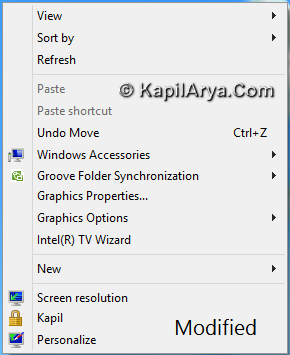
In case you want to add the Gadgets option again to the context menu, then simply open the registry file saved in step 3.
Hope this helps!