

As we all know, Windows 8 which is primary OS came pre-installed for new Windows devices you buy nowadays. Windows 8 has lots of cool features in it. One of these cool features is the Administrative Tools on Start Screen.
In fact Administrative Tools are hidden by default and can by enabled using following method:
How To Show Or Hide Administrative Tools In Windows 8.1
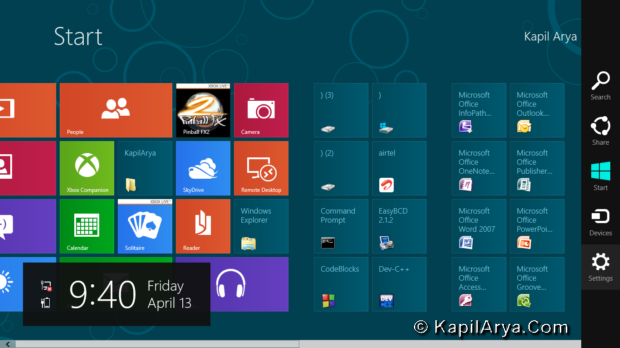
1. Access the Start Screen. Press  + C to bring Charms Bar. Click on Settings.
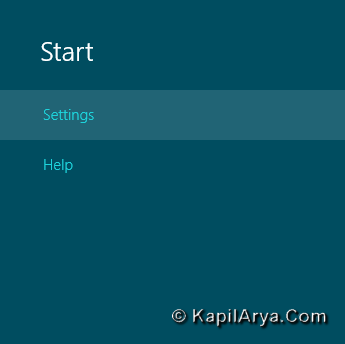
2. Then click on Settings in Start section.
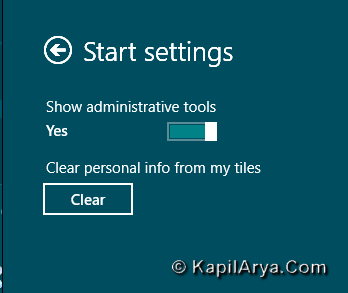
3. In the Start settings, under Show administrative tools, bring the slider from No to Yes (towards right).
4. Finally click on Start Screen and you’ll got the access to Administrative tools as shown below.
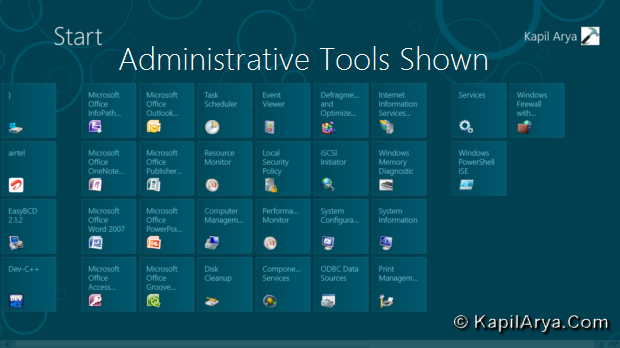
Following are the main programs revealed by enabling Administrative Tools:
- Task Scheduler
- Computer Management
- Local Security Policy Editor (secpol)
- Disk Cleanup
- Print Management
- Component Services
- Resource Monitor
- System Configuration Utility
- And much more programs
Hope you like the tip!







cool ;)