

The country or region setting in Windows, referred to as geographic location (GeoID), indicates the country or region that you’re in. Some software, including Windows, may provide you with additional content for a particular location. Some services provide you with local information such as news and weather. Here is how to manually access Regional settings:
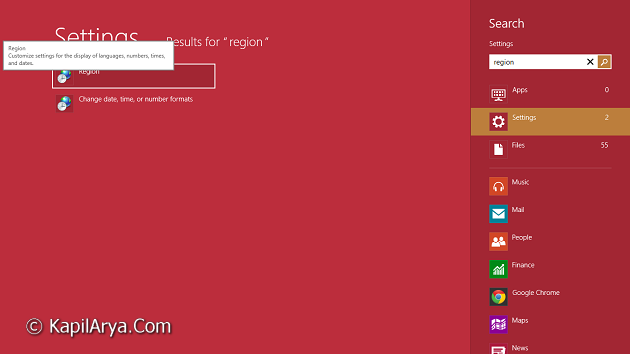
1. Press  + W and type region in search box. Click on resulted Region. If you’re using Windows 7, Vista then search it in Start Menu.
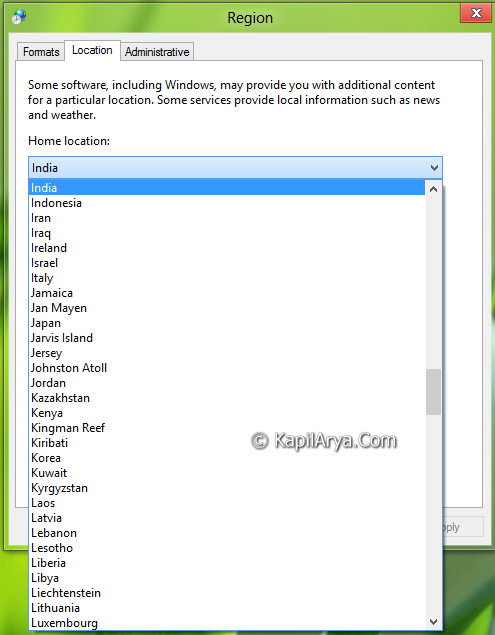
2. On the Region window, switch to Location tab, here you can pick your home location and Apply it followed by OK.
In this tutorial, I’ll will show you how to enable or disable all users from being able to change their geographic location (GeoID) in Vista, Windows 7, and Windows 8 using Registry Editor. So lets share the way…
Page Contents
How To : Force Windows To Use Specific Geographic Location
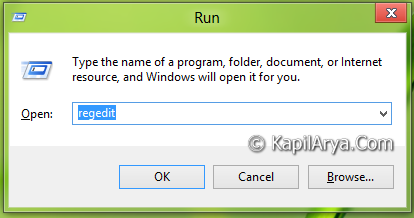
1. Press + R and put regedit in Run dialog box to open Registry Editor (if you’re not familiar with Registry Editor, then click here). Click OK.
2. Navigate to following location:
HKEY_CURRENT_USER\Software\Policies\Microsoft\Control Panel\International
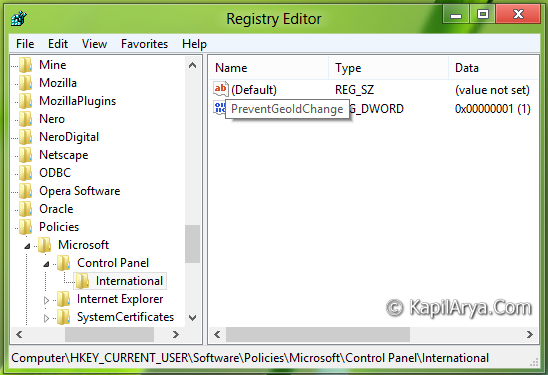
3. In the right pane, create a new 32-bit value as PreventGeoIdChange.
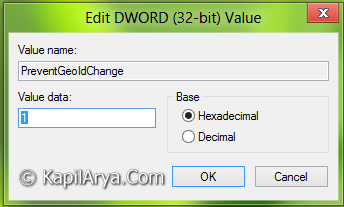
4. Moving on, edit the above created value, paste its Value data equals to 1 to disable changing of Location. Also repeat this creation and modification of PreventGeoIdChange at following location as well:
HKEY_LOCAL_MACHINE\SOFTWARE\Policies\Microsoft\Control Panel\International
5. Once you put 1 as Value data in step 4, the option in Region window is greyed out as:
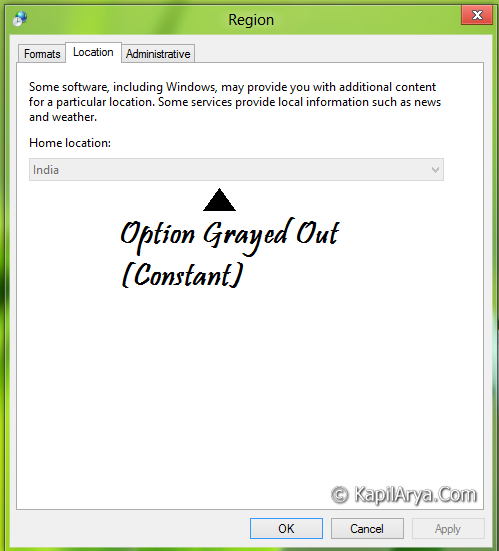
That’s it. Now the normal users won’t be able to specific different location as the option is already fixed.
Download Direct Registries
To made the work easy, we’ve created direct registries. All you need to do is to open these files with Registry Editor. Click Yes for prompts.
Video Tutorial
To take a live demo of this tweak, checkout the following video:
Hope you enjoyed the article!



Awesome article bro…
Does it is necessary to create the dword for HKEY_LOCAL_MACHINESOFTWAREPoliciesMicrosoftControl PanelInternational
^^ Its up to you, but I’ll recommend it as far as user selectivity is concerned.
Didn;t found that value in step 3 at location HKEY_CURRENT_USERSoftwarePoliciesMicrosoftControl PanelInternational plz Help. nice post btw
^^ You have to create the value as it is not there by default :)
Thanks that worked like a charm.. you can block it lol….
NICE TUTORIAL AS USUAL (y) +1
what abt uac permission ?