

Few days back, we posted the fix applicable when you’re not able to open Windows Store due to miscellaneous reasons, which you can read here:
FIX: Can’t open Windows Store in Windows 8 or later
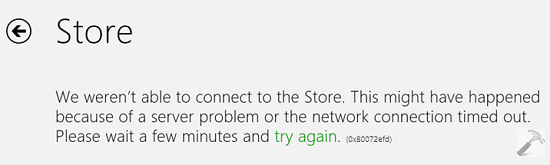
However, yesterday when I was trying to open Windows Store on one of my system, I received the same error message but with different code. Since the error code was different this time, none of the earlier mentioned suggestions worked for me to fix my issue. Here was the error code and message I received in this scenario:
Page Contents
We weren’t able to connect to the Store. This might have happened because of a server problem or the network connection timed out. Please wait a few minutes and try again.(0x80072efd)
Upon investigating, we found that this issue was actually related to network adapter and dependency services to run it. Thus, in order to fix this issue, you should first make sure that you’re using latest version of network adapter on your system. Then try to temporarily disable network adapter from Device Manager (run devmgmt.msc command to get this opened).
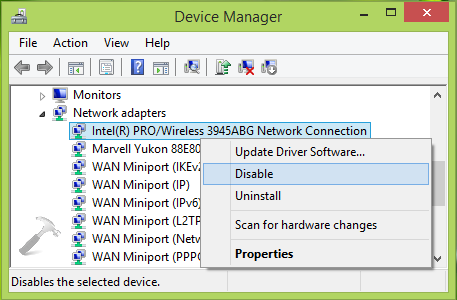
Now again re-enable the network adapter and verify if you could open the Store or not. If Store is still throwing same error, then try the steps mentioned as a selective fix:
FIX : We Weren’t Able To Connect To The Store. Error 0x80072efd
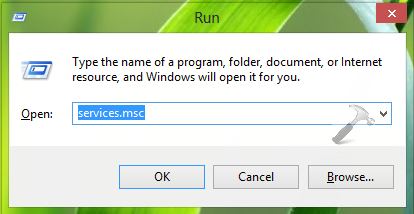
1. Press  + R and put services.msc in Run dialog box. Click OK to open Services.
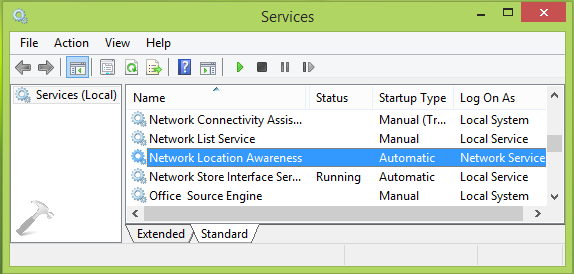
2. In the Services window, scroll down and look for the Network Location Awareness service. Since you’re facing this issue, this service may not be running. Double click on same service.
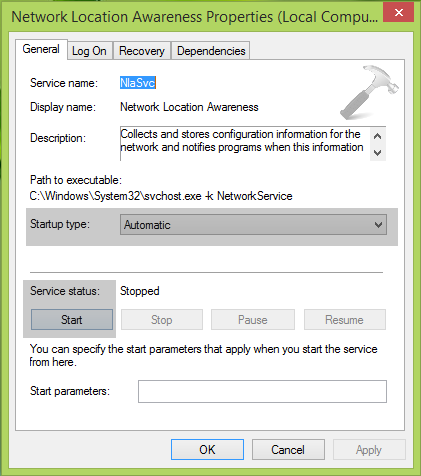
3. In the Properties window for Network Location Awareness service, at General tab, set the Startup type to Automatic. If the service status is Stopped in your case, click Start button there. Click Apply followed by OK.
You can now close the Services window and boot the system into Safe Mode with Networking.
See : How To Boot Into Safe Mode With Networking
In this mode, once you’ve confirmed that issue is resolved, you can now restart the machine in normal mode and Store must be opening without any error.
Hope this helps, Good luck!




Thamks for this solution :) solved my problem
windows 10 installed by itself now i cant download free install apps from store to stream movies all i get when i try to install an app is the working mode and it never installs
^^ Seems like your downloads are kept pending, see if this helps you (applies to Windows 10): https://www.kapilarya.com/fix-windows-store-keep-pending-downloads-in-windows-8-1
I updated the drivers but still the issue is there.
Network location is also not stopped. Plus I disable the driver’s and enable it but to no help.
This error is coming 0x80072ee2 this is the correct one.
Thamks for this solution, it worked by re-enable the network adapter (y)
^^ Glad it helped!