

We all know that Windows 10 Store provides us both Universal and Modern Apps. Sometimes due to some sort of technical issues, you may face problem in downloading these apps. The issues may be due to server problem, client-side computer problems, network connectivity etc. etc.
Recently, while downloading an app from the Store, we came around a strange error. Following is the message received in this case:
Page Contents
Well this is embarrassing
We can’t find the app.
The error code is 0x80070002, in case you need it.
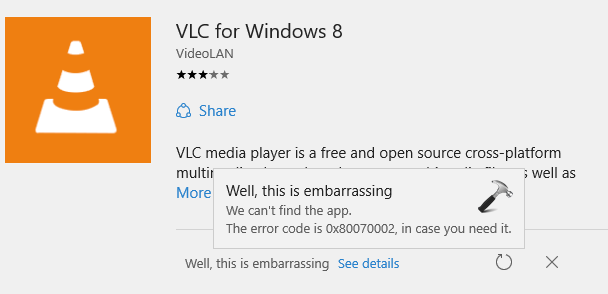
As you can see in the above shown screenshot, we don’t have any help or support link for this error except the code. For some users, a simple reboot may be the key to solve this problem. But for some, the problem may even persist after multiple reboot. We also recommend you to try the automated Windows Apps Troubleshooter mentioned here and see if that helps. You should also try to switch to local account from Microsoft account and revert, in case if it helps. If you still face the problem, then try these specific steps:
FIX : “Well, This Is Embarrassing. We Can’t Find The App” Error 0x80070002 For Windows Store
1. Press  + E to open File Explorer. In the File Explorer window, make sure you’ve checked Hidden Items in the View tab under ribbon. Then navigate to following folder:
C:\Users\<USER-NAME>\AppData\Local\Microsoft\Windows\SettingSync\remotemetastore\v1
* Substitute C: with system root drive and <USER-NAME> with your user account name. Here, AppData is hidden folder.
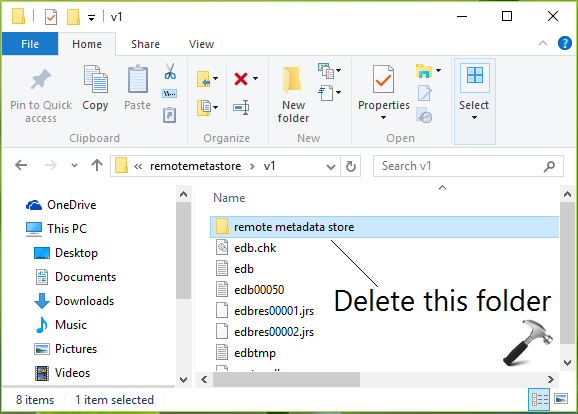
2. If you see remote metadata store folder inside v1 folder, simply delete it or move it some other location. Close File Explorer.
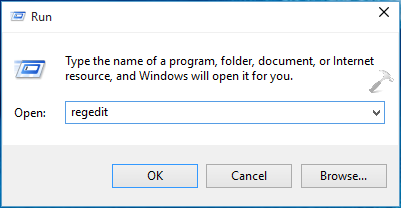
3. Press + R and put regedit in Run dialog box to open Registry Editor (if you’re not familiar with Registry Editor, then click here). Click/tap OK.
4. In the left pane of Registry Editor, navigate to following registry key:
HKEY_CURRENT_USER\Software\Microsoft\Windows\CurrentVersion\SettingSync\MSADisconnectState
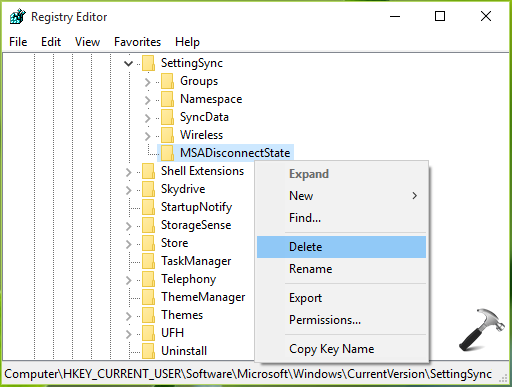
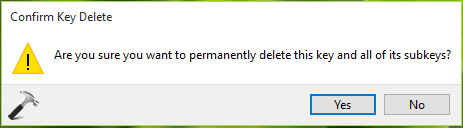
5. Finally, right click over the MSADisconnectState registry key and select Delete. Provide your confirmation for this operation with clicking/tapping Yes here:
Now close the Registry Editor and reboot the machine. After restarting your system, try to download apps and this time you won’t face any error.
That’s it! Go here to learn how to re-register Store app in Windows 10 to fix multiple issues at once.






Well, I’ve the same problem and I followed all the steps but nothing happens, but after a while I figured out and fixed simply by log out my account into local account and that sit every thing goes well.
^^ Thanks for your inputs :)
This solve my prob thank you so much…..
^^ Glad we could help :)