

As far as official work is concerned, printing plays an important role. In Windows, the printing related tools are managed by Print Spooler service running in the background. This services takes great care of enlisting installed printers plus the printing operation via them. Imagine how you would print if this single service would not be running on your Windows? In that case, your device can’t simply do printing!
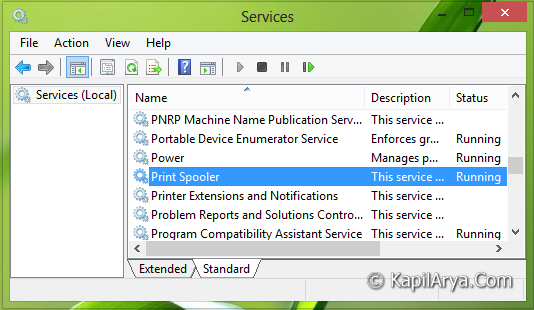
In this article, we’ll show you the way to fix the error while starting of Print Spooler service in your Windows 8 or 8.1. By inspection on our system, we found that Print Spooler service was not running in the background; and when we tried to start, it resulted the error. Following the screenshot of one such error:
Page Contents
Windows could not start the Print Spooler service on Local Computer.
Error 1608: The dependency service or group failed to start.
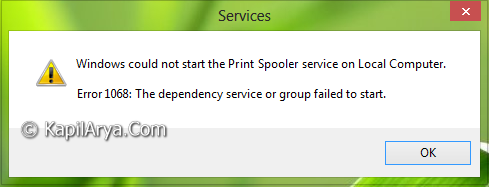
As shown in the image above, there is nothing to help you to solve this issue except the error code itself. This error won’t let you to start Print Spooler service on your system until it is fixed. Now the question comes out; how to fix it? Well, registry manipulation as usual in my articles will help here too to fix up the problem. Here is how:
FIX : ‘Windows Could Not Start The Print Spooler Service On Local Computer’ In Windows 10/8/7
Registry Disclaimer: The further steps will involve registry manipulation. Making mistakes while manipulating registry could affect your system adversely. So be careful while editing registry entries and create a System Restore point first.
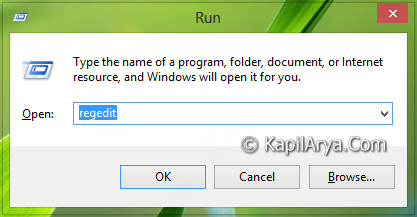
1. Press  + R and put regedit in Run dialog box to open Registry Editor (if you’re not familiar with Registry Editor, then click here). Click OK.
2. Navigate here:
HKEY_LOCAL_MACHINE\SYSTEM\CurrentControlSet\Services\Spooler
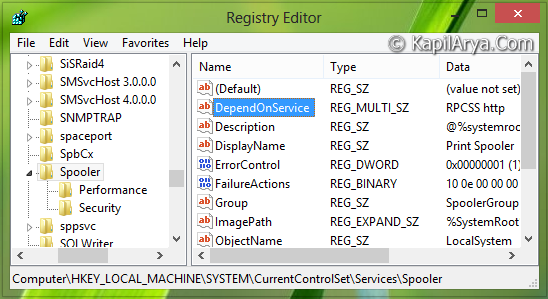
3. In the right pane of this location, look for the multi-string (REG_MULTI_SZ) named DependOnService and double click on the same to get this:
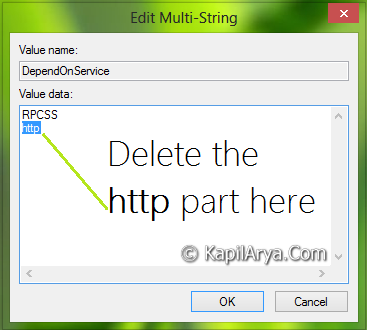
4. Here as shown in the above image, there are two dependency terms for the service enlisted one per line. You have to delete the http value here. Leave the RPCSS part as it is. After making the modification, click OK. You may now close the Registry Editor and reboot to get the issue fixed.
If you have any other issue similar to this in starting Print Spooler service, then you can try following registry fix. This registration file, which is extracted from the fresh Windows 8.1 machine, will reset the Print Spooler registry entries on your system, consequently fixing the issues related with the service.
All you need to do is to download the PrintSpooler.reg file from above link, and do a right click on it. Select Merge; reboot the system; finally get fixed.
Hope you find the article useful!





gr8 man!! It worked and now i can print n got fixed failed to read description error for this service.
Thanks, I made all changes like you tell, but it still the same. Spool service not running. :(
^^ Have you merged registry?
Sure, all steps.
^^ In that case, make sure this is not a hardware issue, to get this confirmation visit nearest computer repair shop.
Thank you, thank you thank you…Worked perfectly.
^^ Glad we could help :)
The Download link is not giving any file to download instead of that, it is showing some script? How can I download the file “PrintSpooler.reg? Can you show the proper link?
^^ Right click the download link and select Save link as option. Then right click this saved file and select Merge.
social.technet.microsoft.com/Forums/windows/en-US/dc67cf1a-4308-4604-a8da-8cd7a7b8fe1d/print-spooler-service-is-missing?forum=itprovistaprinting
I got solved the problem in windows8
By clicking the above link and follow instructions from 1 to 4. You mostly solve this issue. Do it all as admin privileges
Merci enormement! Ça a marche le link!!! Muchas Gracias!!!
Please help me….. I urgently need to send Invoices I am using Windows 10, Outlook 2010 and QuickBooks Pro. It keeps giving me an Printer error 20 using QuickBooks pdf converter. When Windows 10 tested compatibility test, it never picked up that this would be a problem. Can somebody please tell me what to do……. I AM DESPRATE.
^^ Have you tried above mentioned fix? Try to reset the registry configuration.
Kapil, I did as directed and I still have issues with starting the print spooler. It tells me error 0x800706b9 and says that it not have enough resources are available to complete this operation when I try to start it. . This started to happen right after I got hit with a virus. I have 4 printers that I can not print to from this pc. I can print from another PC with no problem.
Any guidance will be very much appreciated!
Thanks
^^ Have you tried merging registry mentioned in the last part of the article? Do try that and see if it helps.
I upgrade from 8.1 to 10. Tried the above and it didn’t work. Totally removed everything related to the printer, rebooted, did the above, rebooted again and still I can’t start the print spooler. What else?
^^ Try merging registry :)
i have windows vista 64 bit i have to install hp 1120 laser printer in the windows we got all prints through install printer but excel sheet printing did not coming out give error
plz told what i can do word and jpg and notepad all graphics types printing coming out but not applied at excel printing
Kapil Arya your suggestion is not working