To resolve the issue “Failed read description, error code 2”, you have found the right site. This bug usually shows up in the Services window, and it causes users not to be able to see or manage certain services correctly. The annoying thing is that it does not show the cause clearly, leaving the users wondering about how to rectify it. In this guide, we will take you through step-by-step solutions to resolve Failed to read description, error code 2 in Windows 11/10.
Page Contents
Causes of Failed to Read Description, Error Code 2
Now, we can take a brief look at the reasons why this error occurs:
- Hacked/damaged system files.
- Registrable problems that do not allow loading services correctly.
- Interfering Applications: Windows services are being blocked by conflicting applications.
- Improper startup configurations.
- Errors in the services of Windows or improper settings
Time to get down to the specific solutions.
Fix: Failed to read description, error code 2
Fix 1: Delete the Problematic Service
The error may pop up because of a corrupted or useless service.
1. Go to Start -> Run and type the following to open Services.
services.msc
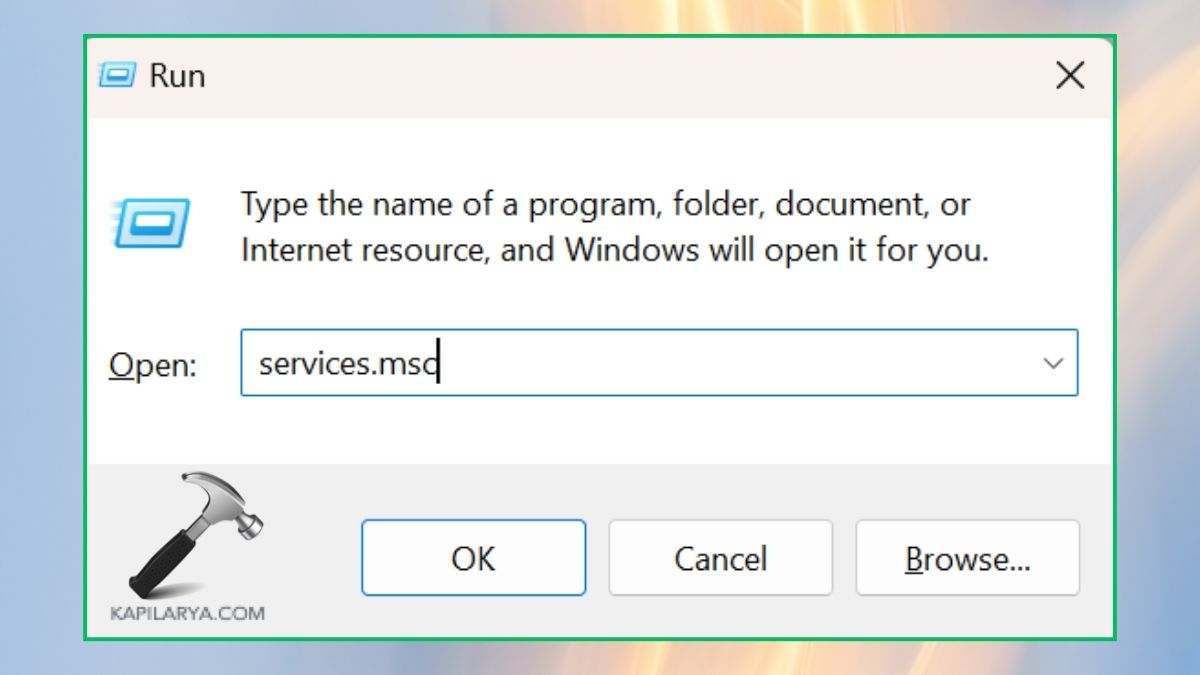
2. Find the service that is displaying the error message. Right-click it and take note of its Service Name.

3. Now, open the Command Prompt (Admin).

4. Type:
sc delete "ServiceName"

5. Restart the PC and see if the error does not occur.
Fix 2: Run the System File Checker (SFC) and DISM Scan
One of the most popular reasons for “Failed to read the description, error code 2” is corrupted system files. SFC and DISM scans can repair them by running a scan.
1. Press Windows + S, type Command Prompt, and click on Run as Administrator.
2. Enter the command and press Enter:
sfc /scannow

Will wait until the scan completes.
3. If problems persist, then use the following DISM commands one at a time:
DISM /Online /Cleanup-Image /CheckHealth
DISM /Online /Cleanup-Image /ScanHealth
DISM /Online /Cleanup-Image /RestoreHealth

4. Reboot your computer and see whether the error is continuing.
Fix 3: Make Changes in the Registry Editor
Corruption of registry values related to services might also be an issue, and editing the Windows Registry may fix this problem.
Caution: Inaccurate alterations in the Registry can make a system unstable. Avoiding this is very simple: before doing anything, back up your registry first.
1. Press the Windows Start button and locate Registry Editor.

2. You must navigate to this path:
HKEY_LOCAL_MACHINE\SYSTEM\CurrentControlSet\Services
Find where the service is exhibiting the error. Delete the corrupt entries by right-clicking or correct the entries.

3. To implement the changes, restart your PC.
Fix 4: Disable Fast Startup
Fast Startup may trigger a service conflict in Windows 10/11 and trigger an error message such as Failed to read description, error code 2.
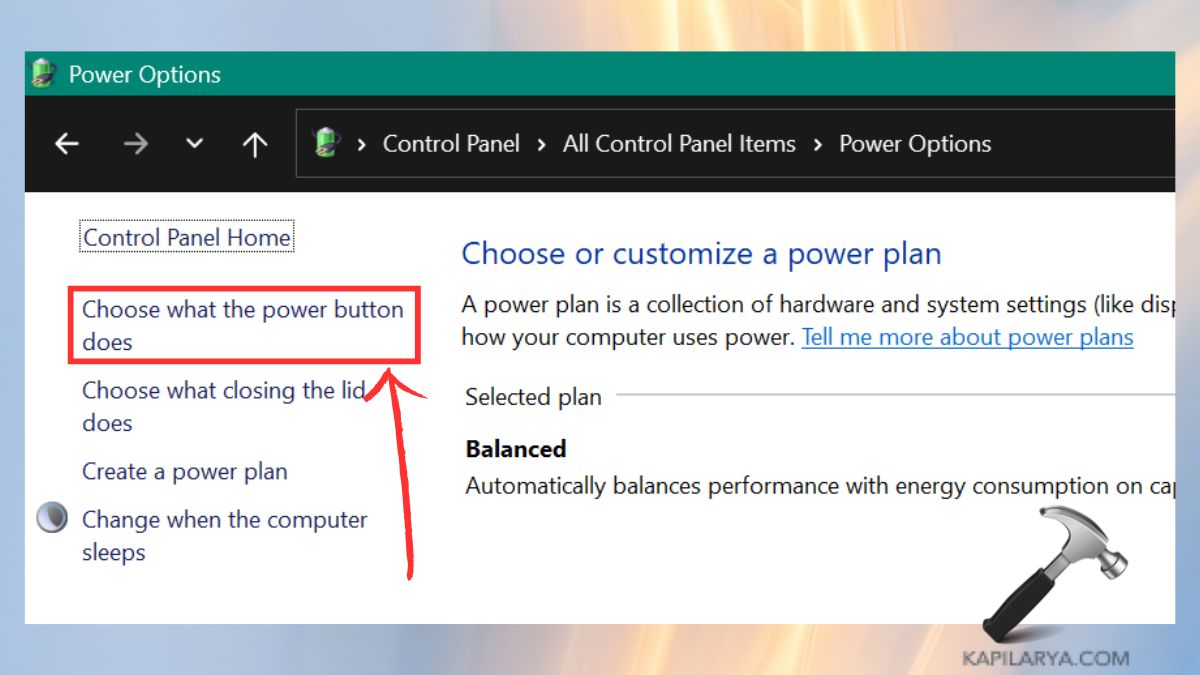
1. Press Start, open the Control Panel, and go to Power Options.

2. Click on Choose what the power buttons do (in the left panel).
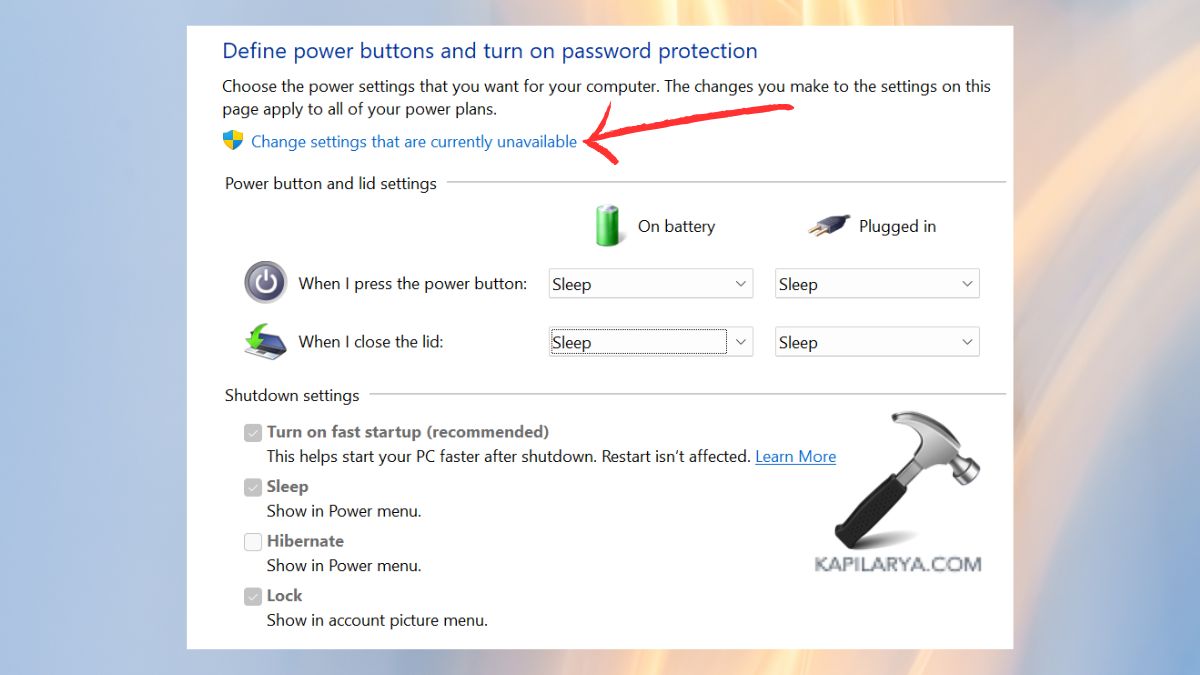
3. Choose the option – Change the settings that are unavailable.
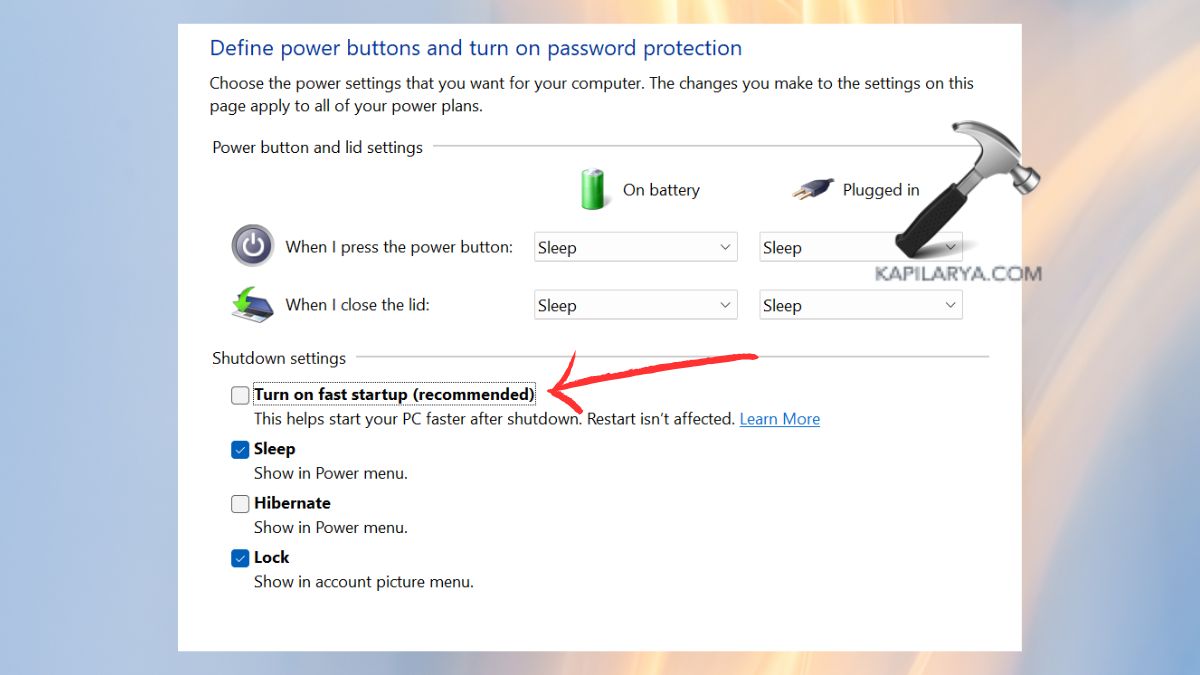
4. Uncheck Turn on fast startup (recommended). Restart your computer, and the changes should be made.
Fix 5: Uninstall Conflicting Applications
The message related to the error code 2 can be produced by third-party programs, particularly services or antivirus software.
1. On Win+R – Run block, type and press Enter.
appwiz.cpl

2. Identify newly added or suspicious programme. Select Uninstall when you right-click on them. Restart your computer and make sure that the issue is resolved.

Frequently Asked Questions (FAQs)
#1 What does “Failed to read description, error code 2” mean?
It implies that Windows cannot receive correct information about a service because of damaged files or the registry, or conflicts.
#2 Can I fix error code 2 without reinstalling Windows?
Yes! The problem can most often be solved by running the SFC/DISM repair tool, editing the registry, or deleting troublesome services without a full reinstall.
#3 Is it safe to delete a service to fix this error?
Yes, but not with critical system services: you may be certain of this. Before you delete the service name, always research it.
#4 Does disabling Fast Startup affect performance?
Not significantly. It can raise the boot somewhat, but it makes the system more stable.
That’s it!