The Steam Client Service service failed to start is one of the most frequent mistakes experienced by Steam users when attempting to open the platform itself or add games to the library. In Windows 11/10, the Steam Client Service is normally the source of all the problems where Steam displays a blank screen, fails to update or just cannot start at all. This service has the responsibility of the installation, updating, and management of the games. In case of failure to start, Steam just halts.
Throughout this troubleshooting guide, you will get to know why the Steam Client Service service failed to start, how to fix it in 7 step-by-step procedures, and how to prevent it in the future.
Page Contents
Fix: The Steam Client Service service failed to start
This article will take you through every available answer, whether you are a gamer seeking to start your favorite title or someone with a problematic Steam on a Windows PC.
Fix 1: Repair the Steam Client Service
The most suggested and fastest way to fix them is through manual repair of the Steam Client Service. This can eliminate most of the cases since corruption in the service file is the most prevalent cause of failure.
1. Press Windows + S and type cmd. Select Run as administrator at the right side of the Command Prompt.

2. Paste the following command in Command Prompt. To start the repair process, and press the Enter key.
"C:\Program Files (x86)\Steam\bin\steamservice.exe" /repair
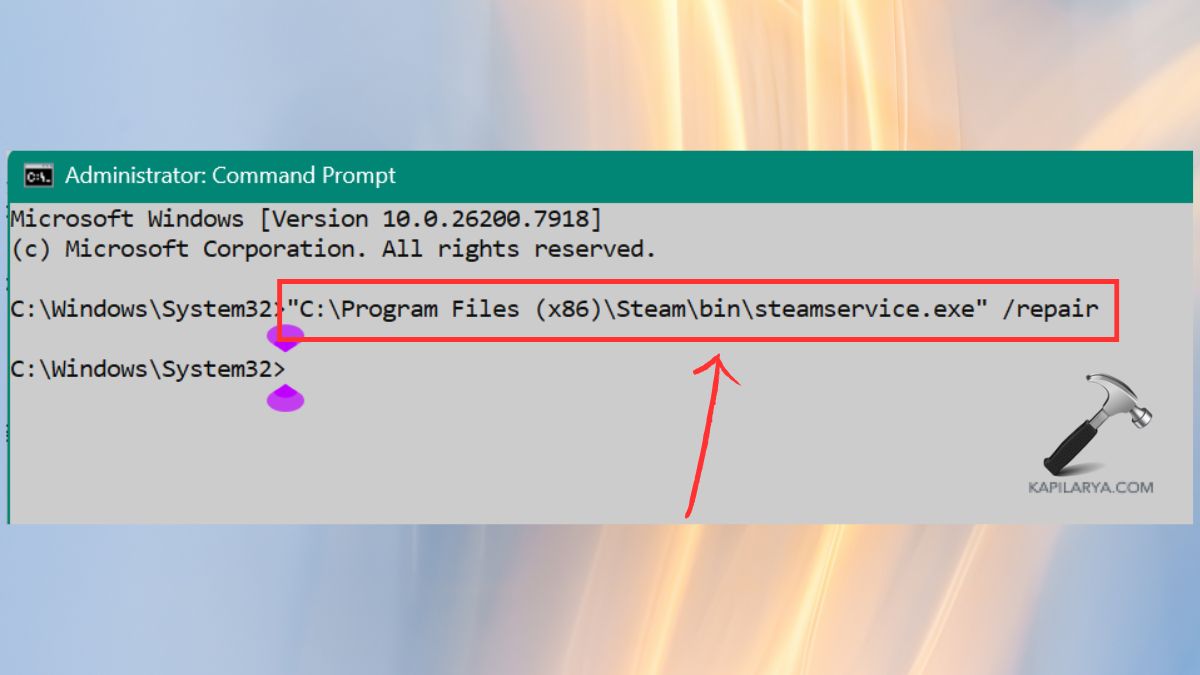
The command also forces Windows to reformat and repair the Steam Client Service files, which have been corrupted, making Steam unable to start. Just one thing, wait until the repair is done.
Reboot your PC and reopen Steam.
Fix 2: Run Steam as Administrator
In case Steam fails to locate prerequisite system files and services, the service will not start. To provide Steam with the right to interact with Windows elements, it is necessary to run it with the permission of an administrator.
1. Click the Steam icon on the desktop with the right button. Tap Run as administrator.
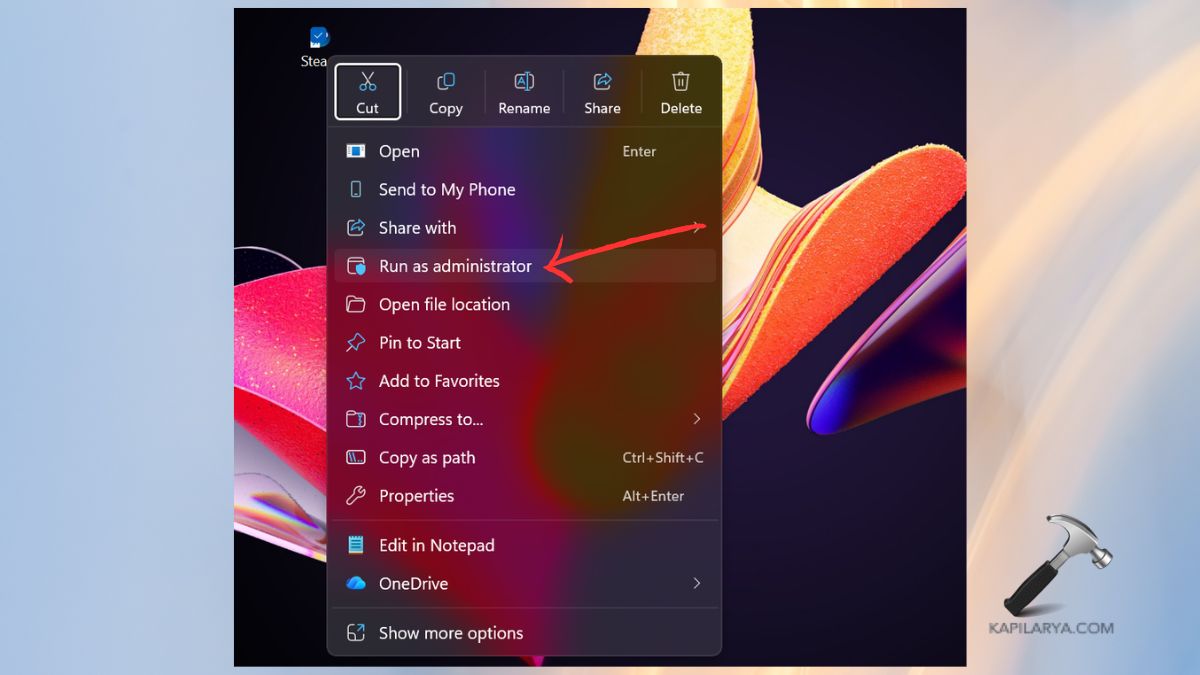
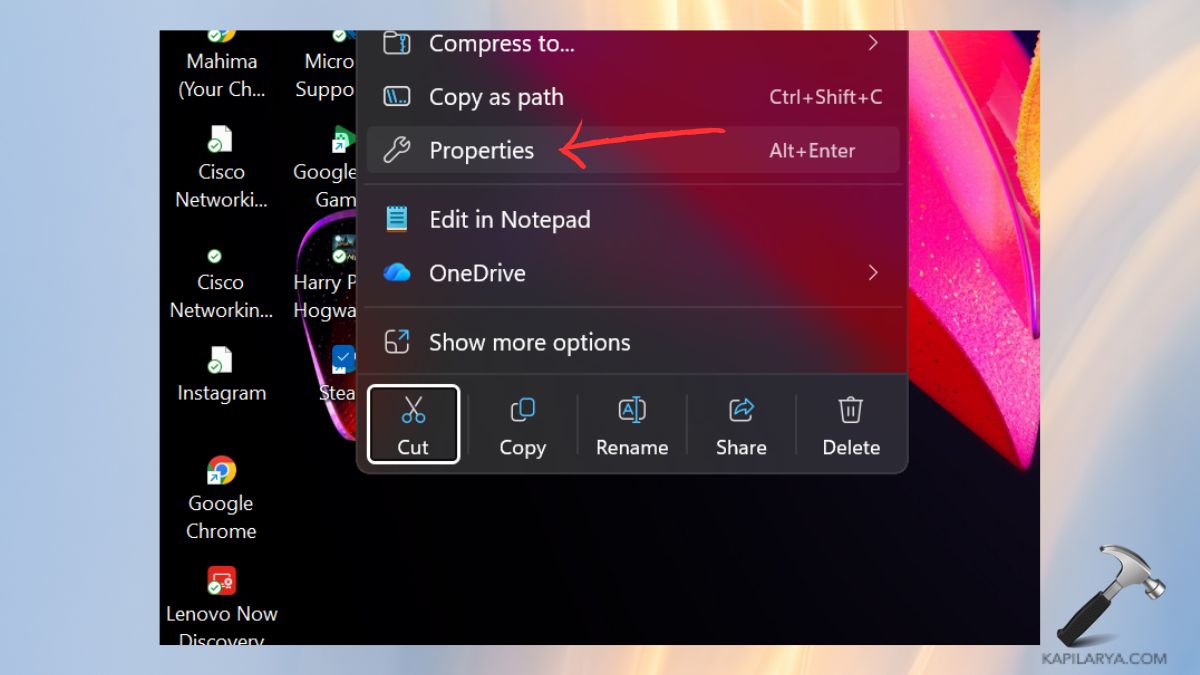
2. Make It Permanent (Recommended). Right-Click on the shortcut of Steam > Properties.
3. Go to the Compatibility tab. Tick Run this program as an administrator. Click Apply > OK.
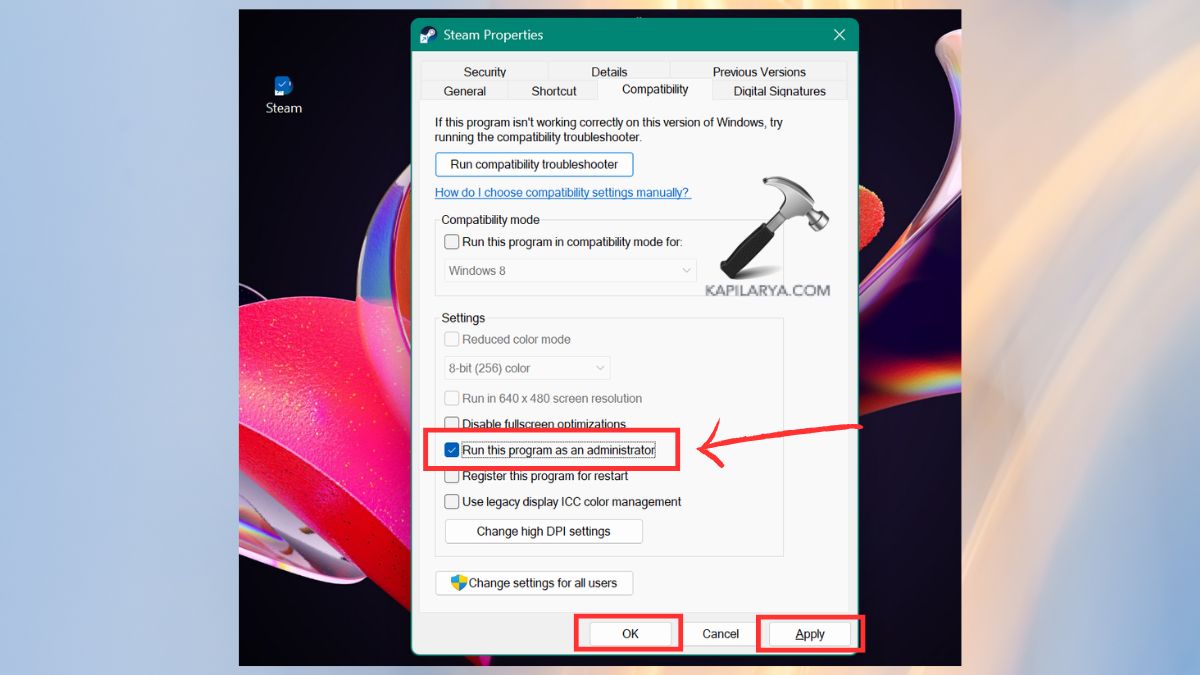
Updates, installation and management of library folders, and the start of services all require administrator privileges by Steam. The Steam Client Service frequently fails without the permission of the admins.
Fix 3: Set Steam Client Service to Automatic Startup
The Steam Client Service relies on Steam to operate in the background. In case this service has been configured to Manual or Disabled, Steam fails to launch it, which causes the error.
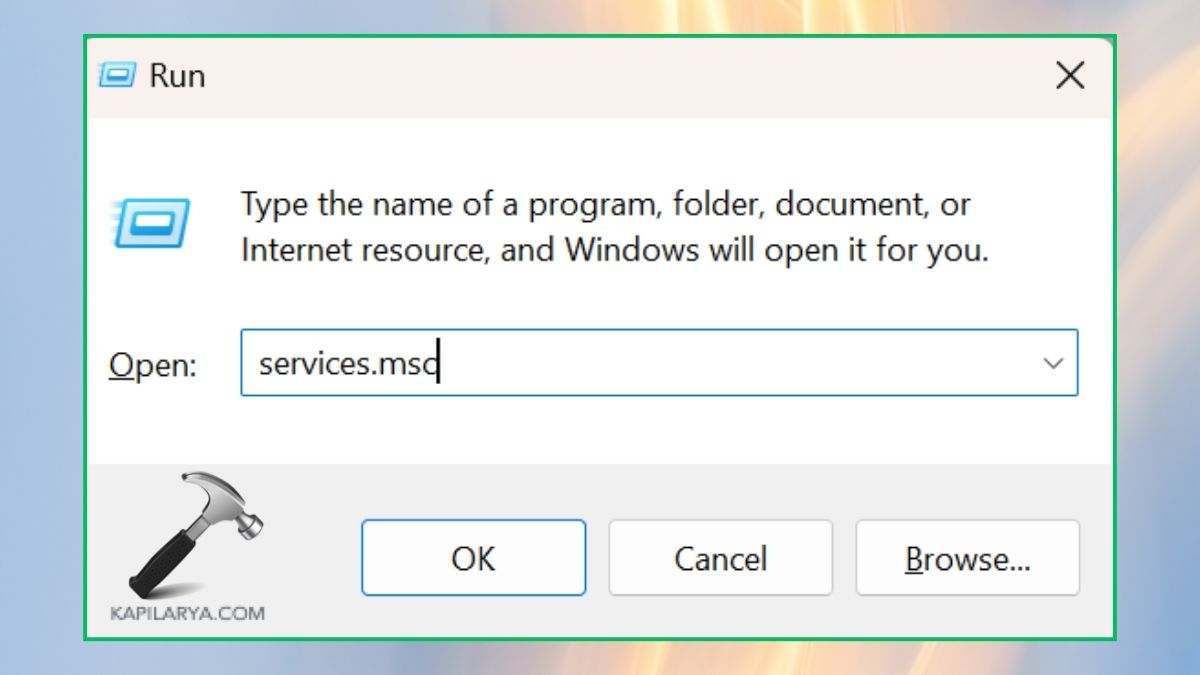
1. Press Windows + R to open Run. Enter the Services command.
services.msc
2. Move down and locate the Steam client service. Double-click it. Change Startup type to Automatic. By ensuring the service is set to Automatic, Windows will automatically load the service during startup, and Steam will not crash because it cannot start up because of inactive services.
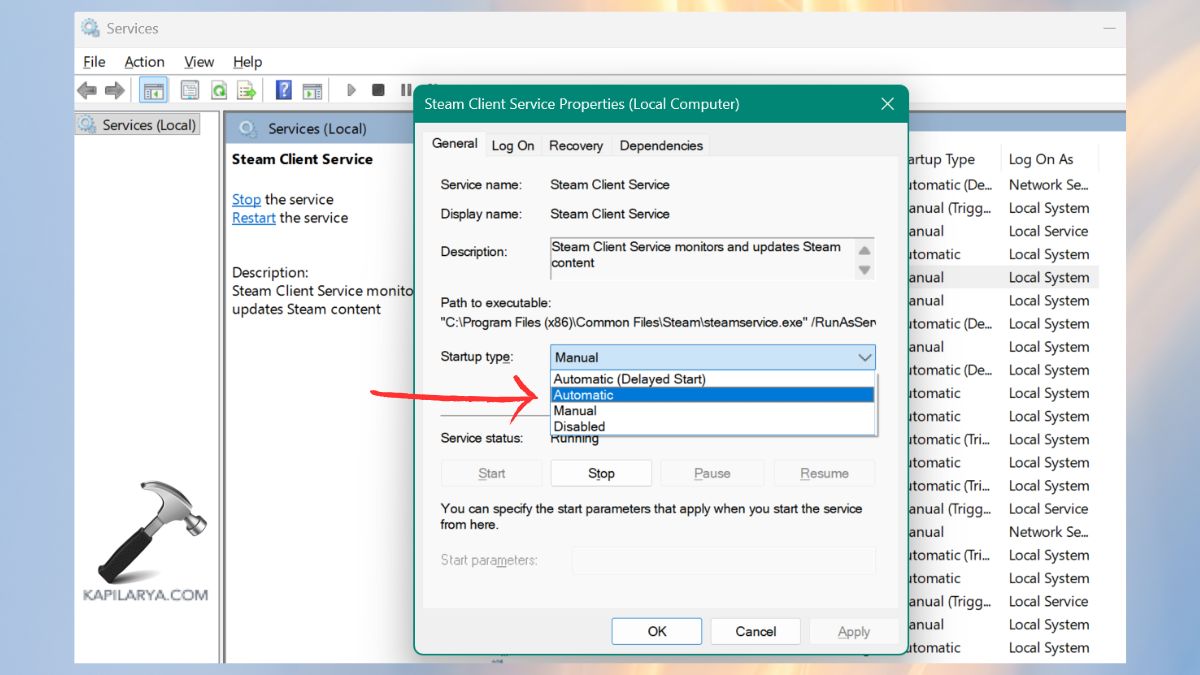
3. Click Start in case of a stopped service. Then, click Apply > OK.
Fix 4: Install the Latest Windows Updates
Old Windows versions are also prone to conflicts with Steam, particularly when new updates are released on the Steam platform. Lack of patches in Windows may lead to failure of vital components in the system.
1. Open Settings. Go to Windows Update.
2. Click Check for updates. Install all pending updates. And, tap on “Restart”.

Fix 5: Run System File Checker (SFC) and DISM
Broken Windows services are caused by corrupted system files and lead to the unexpected crash of Steam. These problems in the system are solved by running SFC and DISM.
1. Open Command Prompt (in the form of Administrator).
2. Type the command below. Enter and wait till the scan is complete.
sfc /scannow

3. Going back to the Command Prompt window, type. Press Enter, then wait until DISM fixes the system.
DISM /Online /Cleanup-Image /RestoreHealth

Restart your PC. In case of damage to the Windows system files, then the steam services cannot be executed. These system files are recovered by SFC and DISM.
Fix 6: Reinstall the Steam Service Manually
In case the Steam Client Service is not installed or is totally corrupted, the solution is to reinstall it back manually.
1. Close Steam completely.
2. Open this folder in the File Explorer:-
C:\Program Files (x86)\Steam\bin
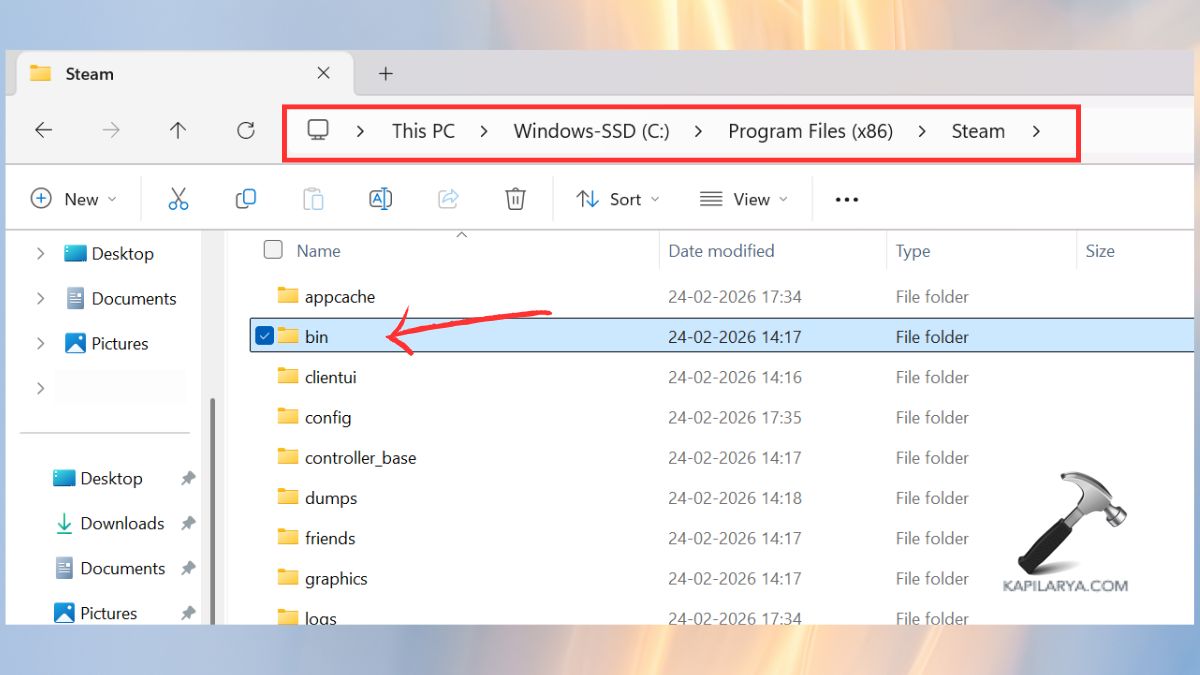
3. Locate “steamservice.exe”. Click the right-hand part of it & then select Run as administrator.
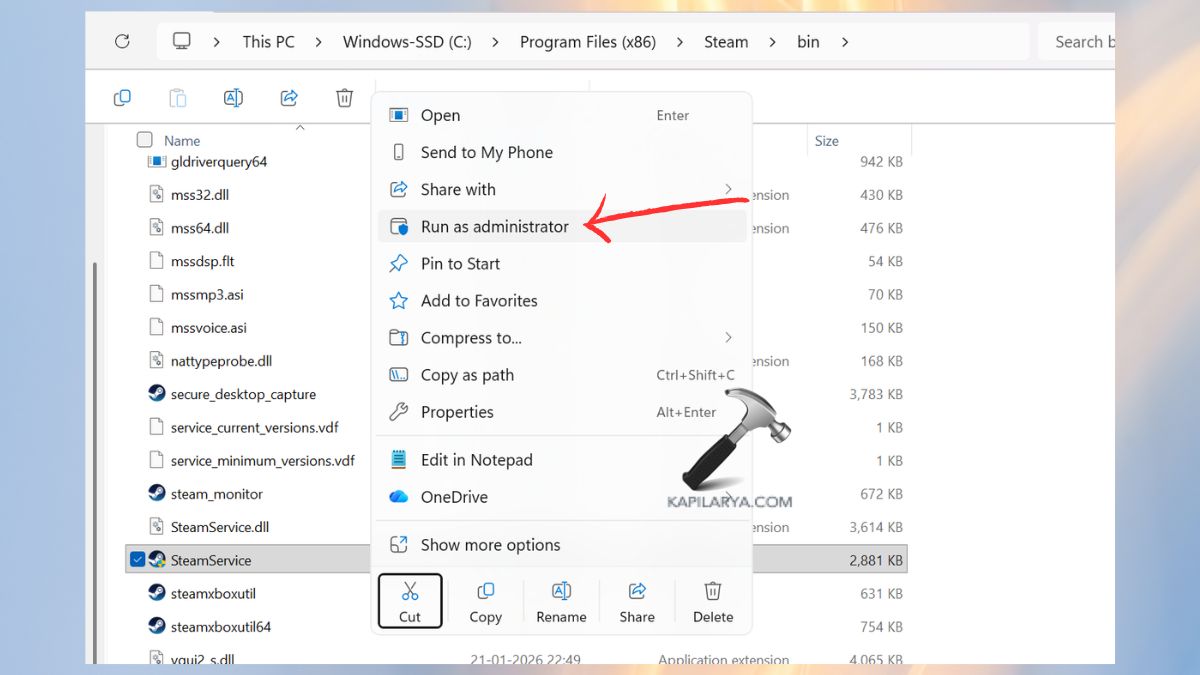
Restart your computer. Direct operation of the service executable causes Windows to reinstall or re-register the following files, which can be missing or missing that set of files, Steam Client Service.
Fix 7: Completely Remove and Reinstall Steam
Provided that the error was not solved with the help of the above techniques, full uninstallation and reinstallation will reconfigure all the Steam elements.
Note: The game files will not be removed, provided they are placed in an isolated SteamLibrary folder.
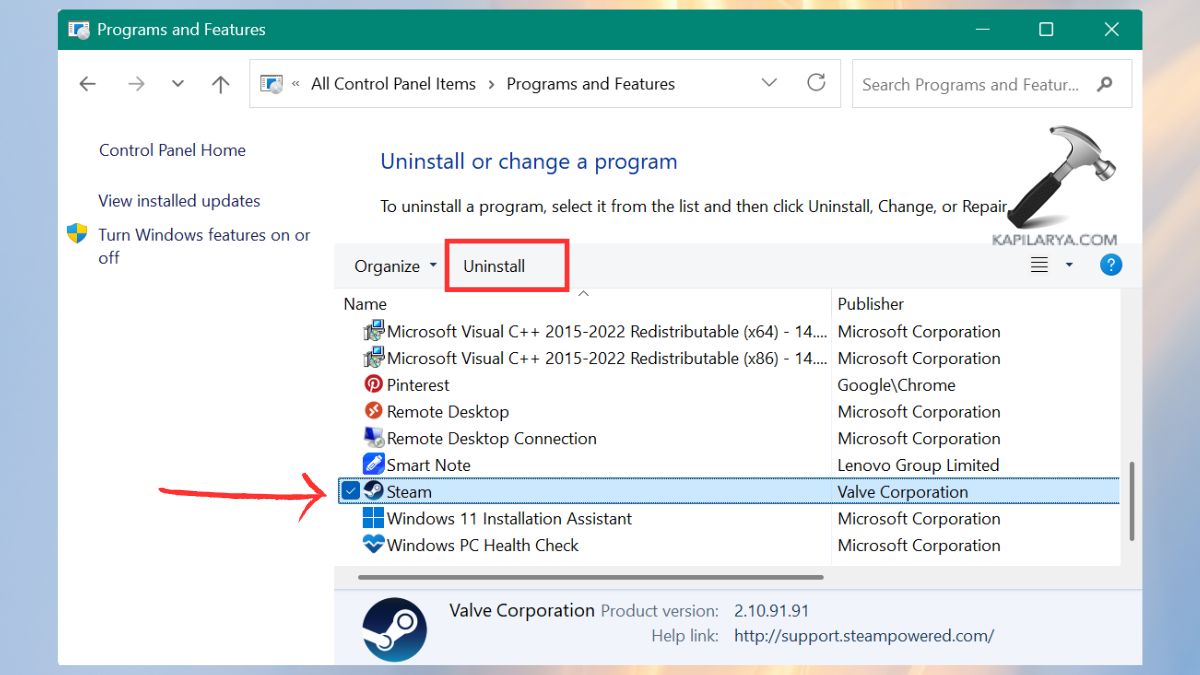
1. Open Control Panel > Programs and Features.

2. Select Steam in the list and Uninstall it.
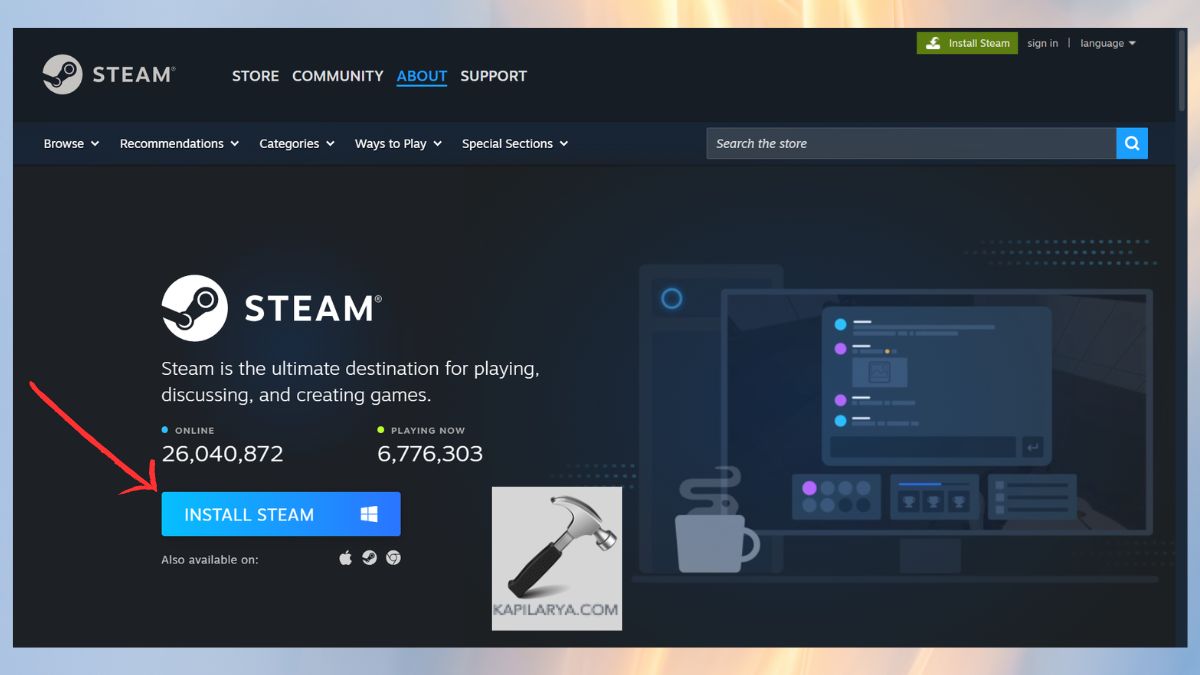
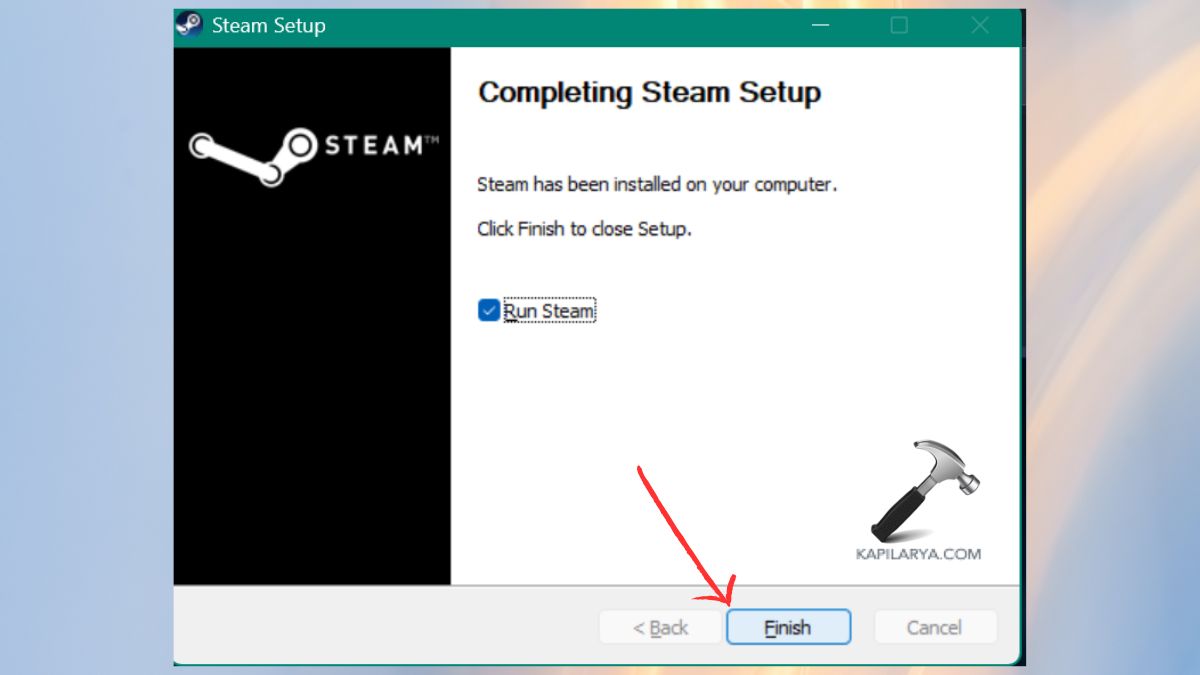
3. Now, get the most recent Steam installer on the official location. Reinstall Steam and use it with your account.
4. Clean installing will remove the corrupted files, rebuild the Steam Client Service, and check whether all the parts are functional.
Frequently Asked Questions (FAQs)
What does “Steam Client Service service failed to start” mean?
That is, Steam is unable to initiate one of the principal system services that it requires to manage games, updates, and installations. In the absence of this service, Steam will not start normally.
Does repairing the Steam Client Service delete my games?
No. The process of repairing only restores service files and not your installed games or SteamLibrary.
Can antivirus cause Steam services to fail?
Yes. Service files of Steam are blocked by some antivirus programs. In case you are suspected of this, add the Steam directory to the whitelist or deactivate your antivirus.
Is reinstalling Steam safe? Will I lose my data?
Reinstalling Steam is safe. Any game you have saved or that you have installed will be left unexchangeable so long as it is not in the common Steam folder.
That’s it!