Do you want to fix the “No Audio Output Devices Found” issue in Windows 11? If your PC has stopped detecting speakers or headphones, here’s a simple, step-by-step guide to restore sound on Windows 11. This article covers nine practical fixes. From quick checks to driver reinstall and BIOS tweaks, so you can easily fix No audio output devices found in Windows 11.
Page Contents
Fix No audio output devices found in Windows 11
Fix 1: Reinstall the Default Audio Drivers
The error can sometimes be caused by bad drivers or nonexistent drivers. The default drivers of sound can be reinstalled to refresh them. These steps will make Windows 11 automatically reinstall the default audio driver.
1. Click on the Windows + X keys and press the Device Manager option.

2. Open the “Sound, Video and game controllers” from the list. Right-click the audio device and select Uninstall driver. Restart your computer.

Fix 2: Perform Some Preliminary Checks
It is prudent to begin with simple checks before getting into sophisticated fixes.
1. First, ensure that your speakers or headphones are well plugged through the System > sound >output.
2. In this, also ensure that volume is not low in the Input section.

3. When it comes to Bluetooth, it is important to ensure that the Bluetooth is ON and device is matched and connected. Scan it through Bluetooth and devices; under settings.

An attempt to jump-link the device to another PC is worth trying to eliminate hardware problems.
Fix 3: Turn On the Audio Services
Background services are applicable to windows audio. When they are switched off you will get the No audio output devices found message.
1. Go to the menu by pressing Windows + R and then paste this command, and press Enter.
services.msc

2. Search Windows Audio and windows audio Endpoint Builder. Click on each of them with a right click and select Start (or Restart in case it is already running).

3. Go to its Properties by right-clicking and change the startup type to Automatic.

Fix 4: Enable the Audio Output Device From Device Manager
In the event that your sound device is not detected by Windows, it was disabled in the Device Manager.
1. Open the Device Manager (press on windows + X). Either you can look it up in the Start menu.
2. Extend Sound, video and game controllers. Click on your audio device with the right-click and go to Update device. Reboot the computer and check audio.

Fix 5: Check for System Updates
At times, old system files are causing incompatibility with audio drivers.
1. To this, go to Windows settings. Choose Windows Update out of the right-side menu.
2. Press the Check for updates option to check whether there are any updates.

Connect and update the downloaded updates. Then, restart your PC.
Fix 6: Enable or Disable Chipset Audio From BIOS
That onboard audio chipset may have been disabled in the recent update of your BIOS or a change of your hardware.
1. Reboot and enter BIOS key (at the starting point, it can be F2, F10 or Del).
2. Go to the Advanced Peripherals or the Integrated Peripherals. Search Onboard audio or HD audio controller.
Ensure it’s Enabled. (You will have to (probably) switch off and switch on again). Save changes and restart.

Fix 7: Run the Audio Troubleshooter
The Windows 11 system has an inbuilt troubleshooter which can potentially auto correct common audio problems.
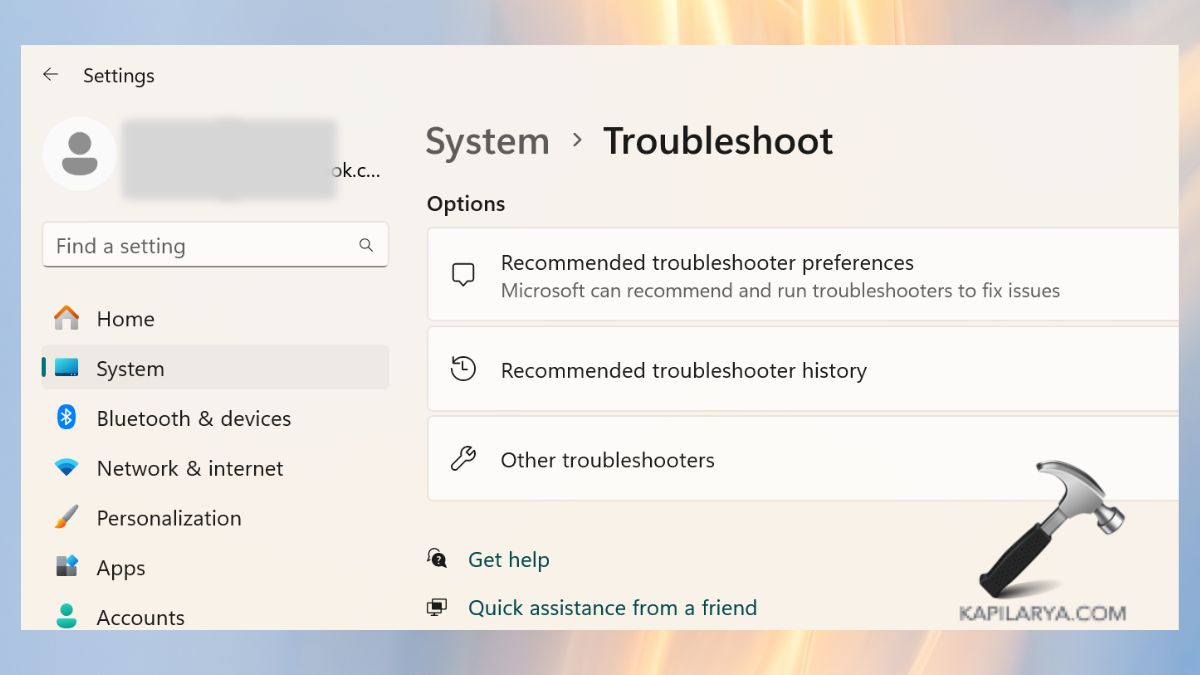
1. Click the windows + I to get to Settings. Click on System > Troubleshooters > Other troubleshooters.
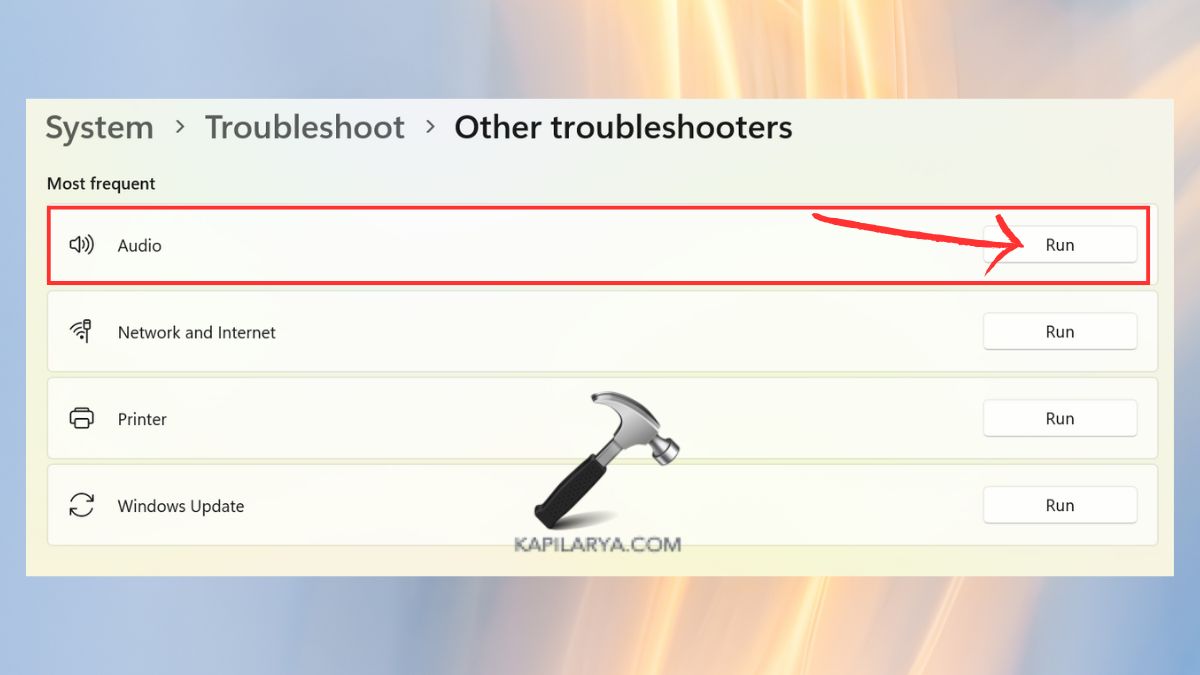
2. Go to audio, and on it, you see the Run button. Then, go as in the screened instructions.
Fix 8: Install Manufacturer-Specific Audio Drivers
In case default windows drivers do not function, then drivers provided by the manufacturer of your PC or motherboard can help.
1. Go to the original web page of your laptop/PC manufacturer (HP, Dell, Lenovo, ASUS, etc.).
2. You must hunt down your system’s model and accordingly download the latest audio drivers.
Install them and restart your system.

Fix 9: Ensure the Audio Output Device Isn’t Disabled
There are times when the machine will unintentionally malfunction in Windows settings.
1. Right-Click the Speaker icon in the taskbar and choose the Sound settings.

2. In the Output section, you need to ensure that you have selected a preferred audio device.
Then, scroll down and tap on “All sound devices” settings which should help you find your device if it is not visible.

3. Click on the audio device you are having problem with. Here, ensure that Audio option is allowed and volume is not down.

Frequently Asked Questions (FAQs)
That’s it!