

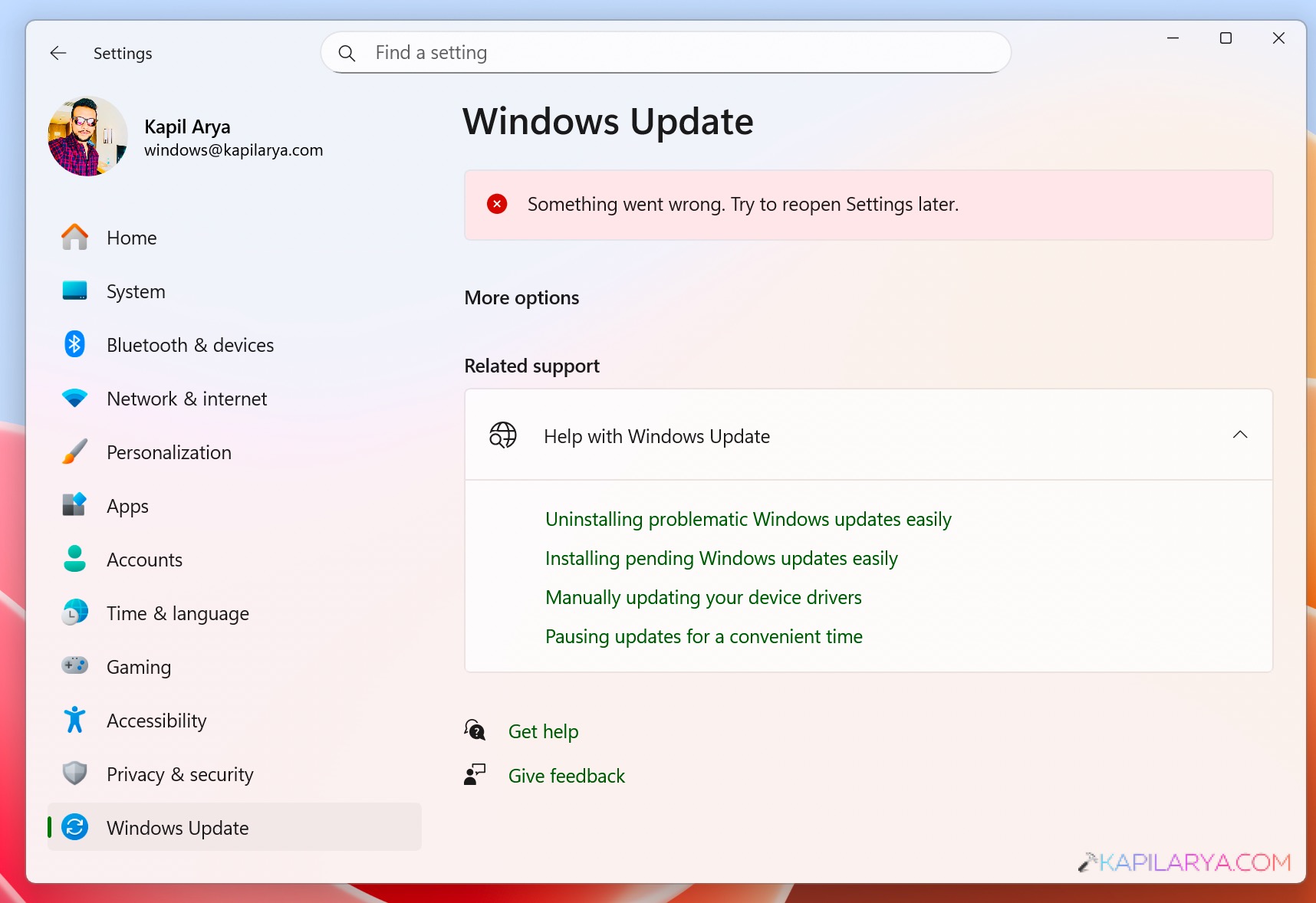
In this article, we’ll discuss the potential issue when Windows Update page saying ‘Something went wrong, Try to reopen Settings later’ rather than loading update module. Windows Updates are essential in improving the security, stability and performance of your PC, even though most individuals will not consider them until something goes wrong.
This step-by-step guide will provide you with some of the effective workarounds that may assist you solve the problem fast. Be it corrupted files, service failures or wrongly set-up settings, these troubleshooting techniques will assist you to have Windows Update running again on a positive note.
Page Contents
What Makes Windows Update Fail ‘Something went wrong’
The mistake is normally as a result of the following reasons.
- Corrupt system files.
- A bad Windows update service.
- Folders containing damaged update cache.
- Hard disk issues.
- Wrong registry settings.
- New patches are incompatible with the new updates.
We have provided solutions step-by-step in a simple and practical manner to assist you in resolving the Windows update error of Windows 11.
Fix: Windows Update ‘Something went wrong’ in Windows 11
The most effective methods of troubleshooting are listed below. Take them one at a time until the problem is sorted out.
Fix 1: Run an SFC Scan (System File Checker)
Windows update tends to fail because of corrupt system files. It is also possible to run SFC that will automatically identify and repair damaged files.
1. Press Windows + S and type “cmd”. Click Run as administrator.

2. This is the command that should be typed in the Command Prompt window. Press Enter.
sfc /scannow

Wait until the scan is complete (100) and restart your PC. This fix is used to resolve missing or corruption of system files, which can be causing windows update not to work.
Fix 2: Rename the SoftwareDistribution and Catroot2 Folders
Such folders hold windows update. In case of corruption of data inside, updates can be based with the error of something went wrong.
1. On this one, open Command Prompt (Admin) again.
2. Stop update services.
net stop wuauserv
net stop bits
net stop cryptsvc

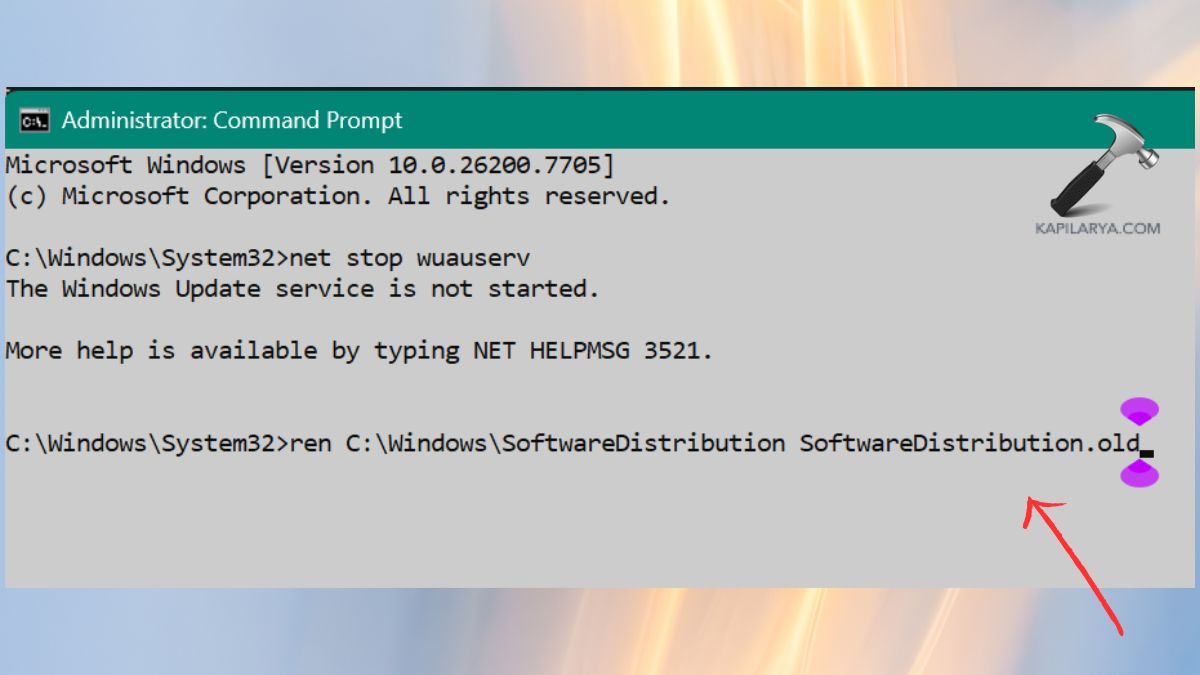
3. Rename folders.
ren C:\Windows\SoftwareDistribution SoftwareDistribution.old
ren C:\Windows\System32\catroot2 catroot2.old
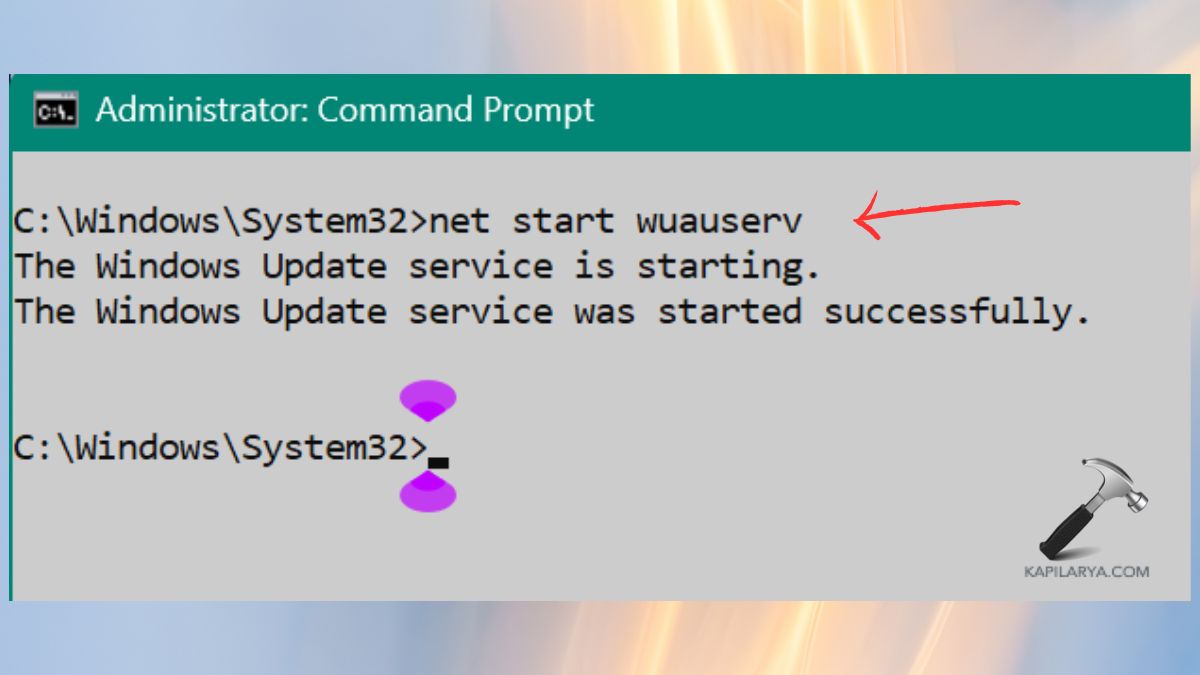
4. Restart services.
net start wuauserv
net start bits
net start cryptsvc
Proceed to restart the PC and restart again.
Fix 3: Run the Windows Update Troubleshooter
The in-built troubleshooter identifies automatically with the problems associated with update components.
1. Enter Windows + I to access Settings. Open System > Troubleshooter > Other troubleshooters.
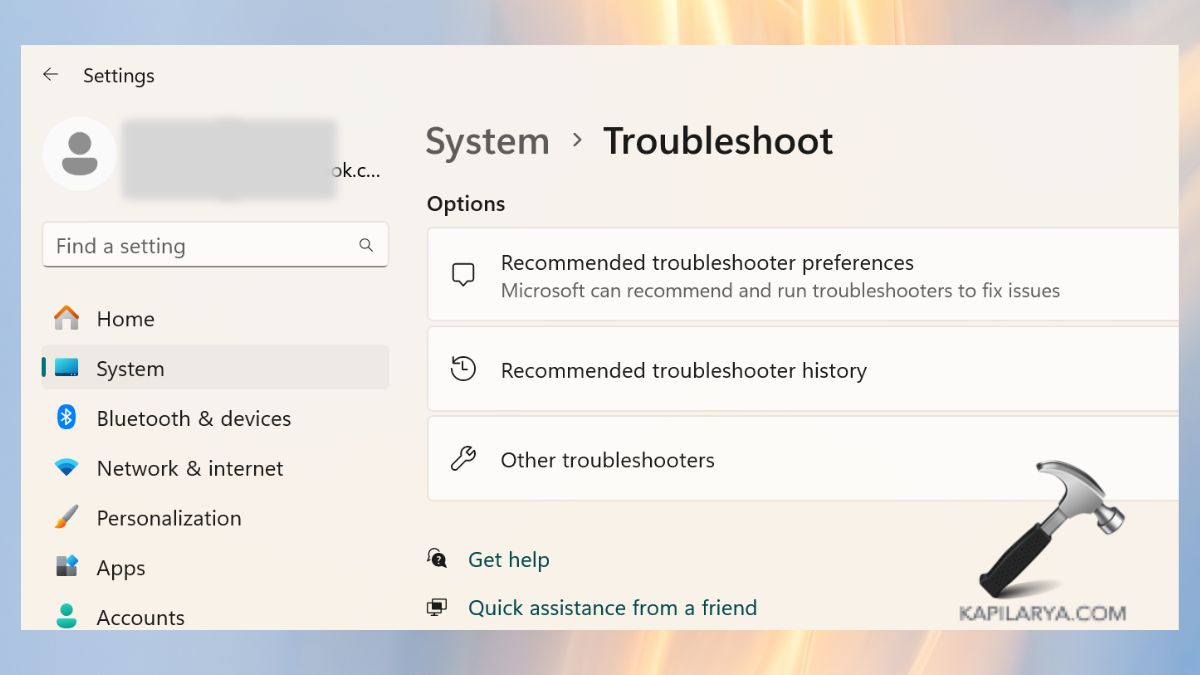
2. Find Windows Update. Click Run.

Take the instructions onscreen. In case the update components are corrupt, the troubleshooter will rebuild it.
Fix 4: Run a CHKDSK Scan (Check Disk Utility)
The errors on hard disks may make the update files fail during the installation process.
1. Search cmd, right-click, and run as administrator.
2. Enter the command. Press Enter and type Y in case of confirmation.
chkdsk /f /r
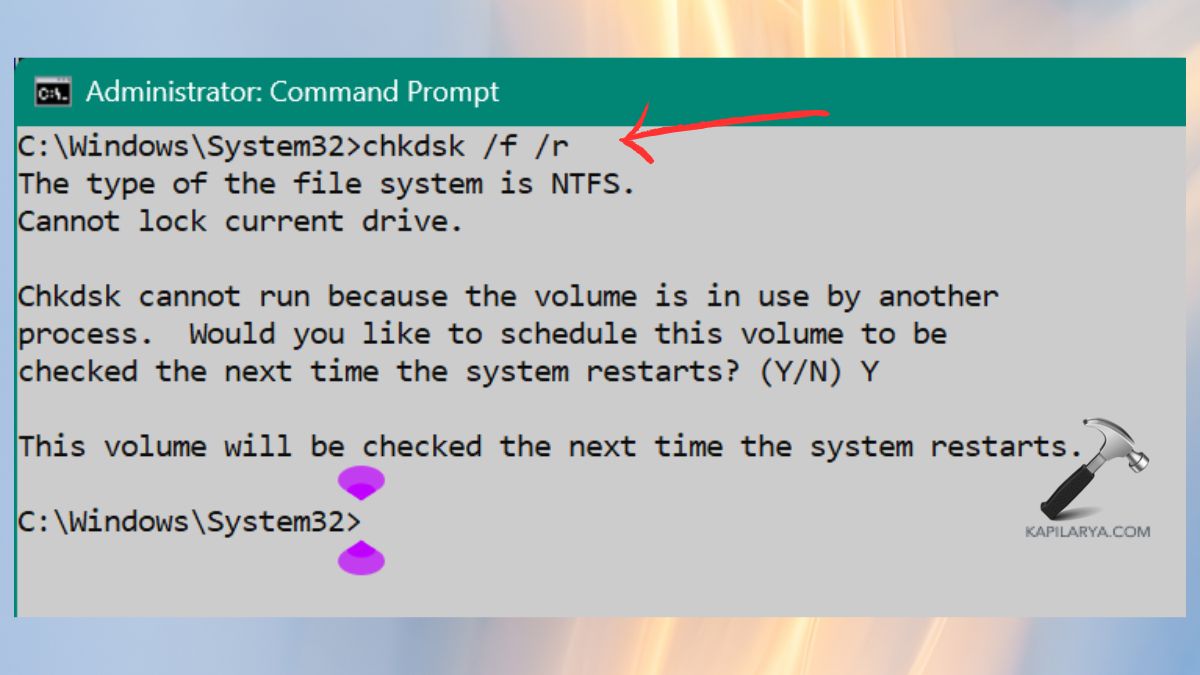
Restart your PC. For now, it will automatically scan your disk to find bad sectors that are then automatically repaired.
Fix 5: Check if the Update Orchestrator Service is Enabled
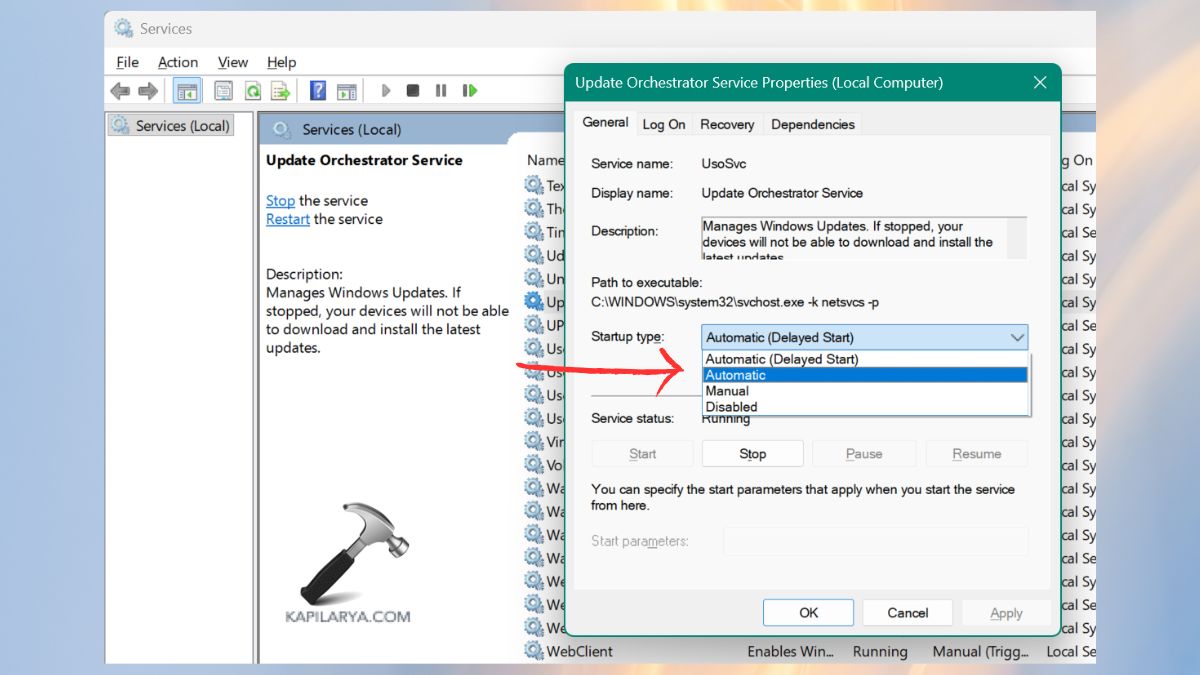
This service takes care of the Windows updates. In the event of being disabled, you might encounter: “Something went wrong. Try opening Settings later.”
1. Press the keys Windows + R, input and enter.
services.msc
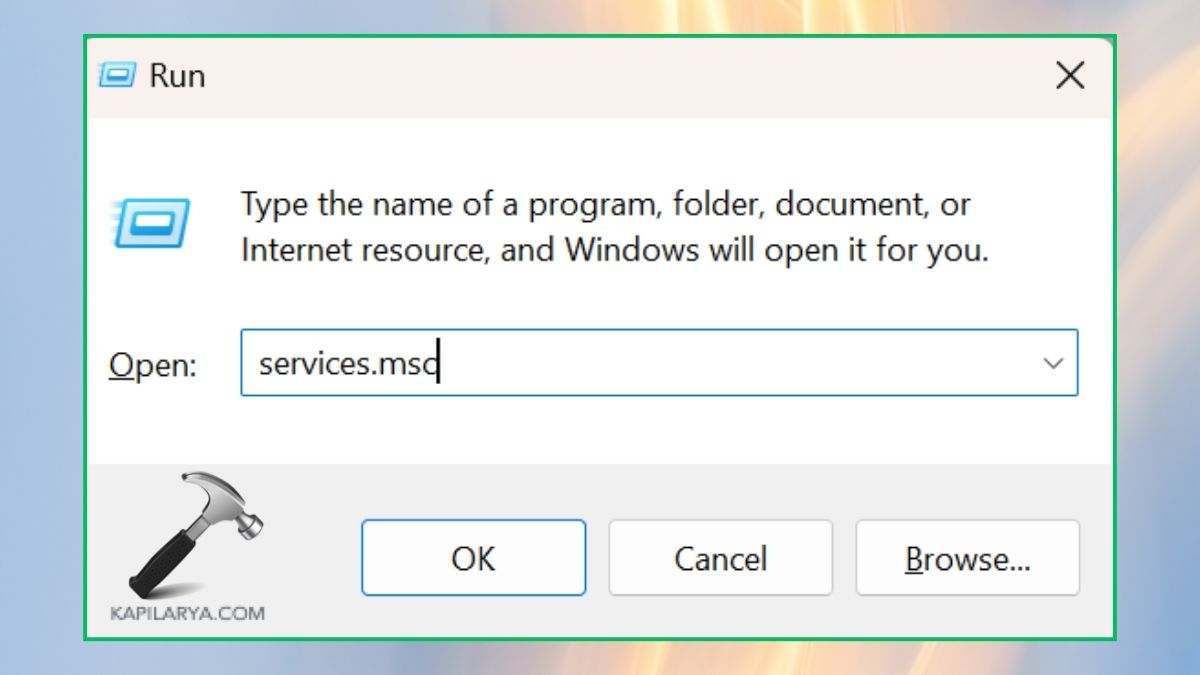
2. Click on “Update Orchestrator Service”. Then, tap twice on it > change Startup type: Automatic. And click on Start in case the service is “Stop”. Click OK.
Fix 6: Edit the Registry
The update error can be registered sometimes because of inaccurately set registry keys.
Caution: Remember that modification of the Registry can lead to problems in the system. Follow the steps carefully.
1. Click on Windows + R, type and press Enter.
regedit
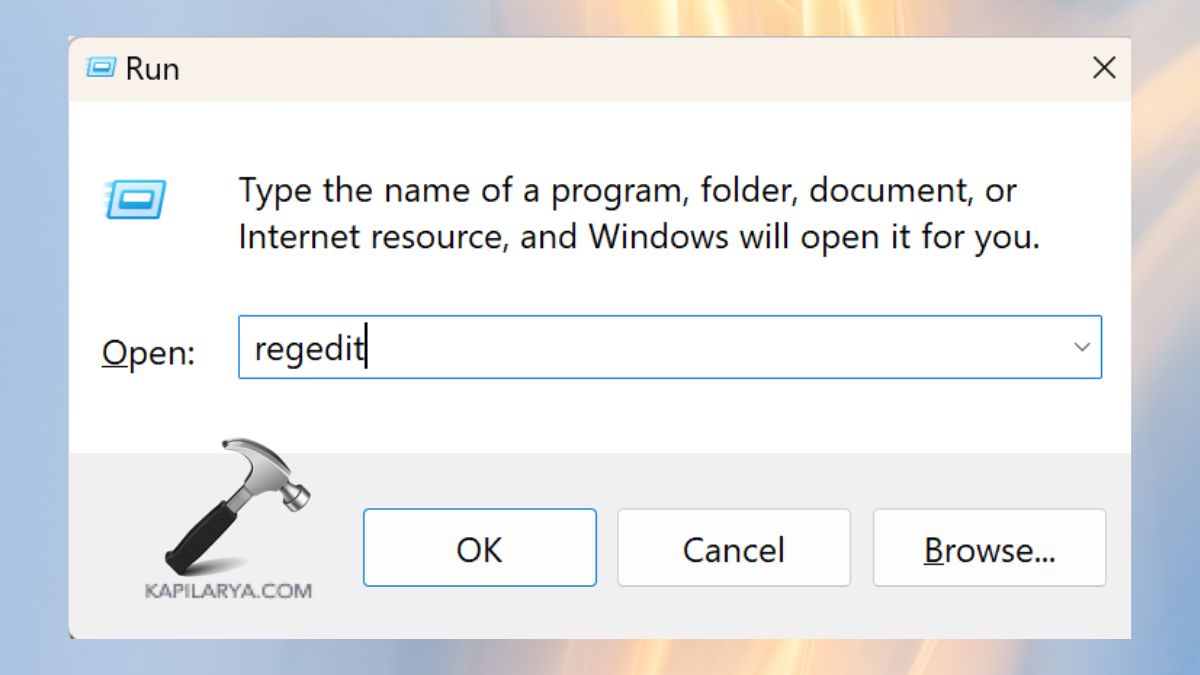
2. Navigate carefully to this path.
HKEY_LOCAL_MACHINE\SOFTWARE\Microsoft\WindowsUpdate\UX
Search on the key IsConvergedUpdateStackEnabled. Make a double-click and change the value, i.e., to 0.
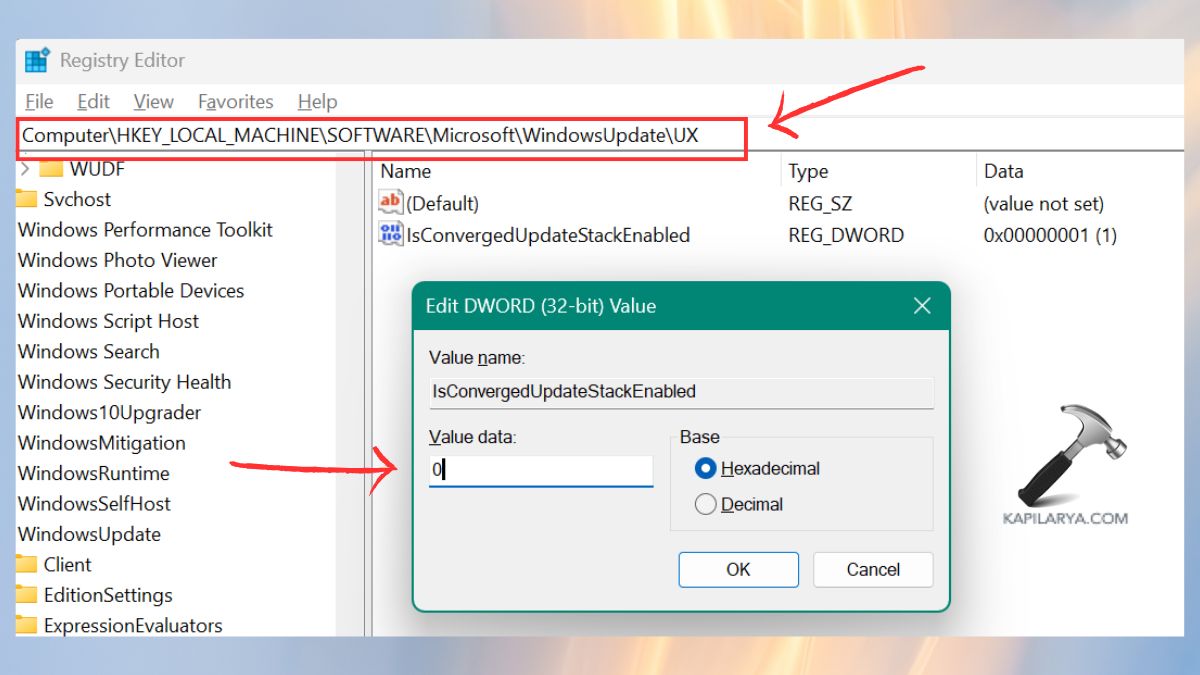
Restart your PC. This restarts Windows Update UX-related preferences, which can lead to update errors.
Fix 7: Roll Back Windows Using System Restore
Should the issue began with the installation of a new update or after an upgrade of the system, it might be possible to roll back to restore.
1. Click the Windows + S > search, Create a restore point.

2. Open it. Click System Restore.

3. Now, select a restore point which is preceding the error occurrence. Follow the instructions. Corrupted system settings will be reverted by Windows, and personal files will not be deleted.

Fix 8: Reset Windows 11 (Final Fix)
In case of failure of all the above solutions, resetting Windows is a means of rectifying the deep-rooted system problems.
1. Access Settings > System > Recovery.

2. Proceed with clicking on Reset this PC, click Reset PC.
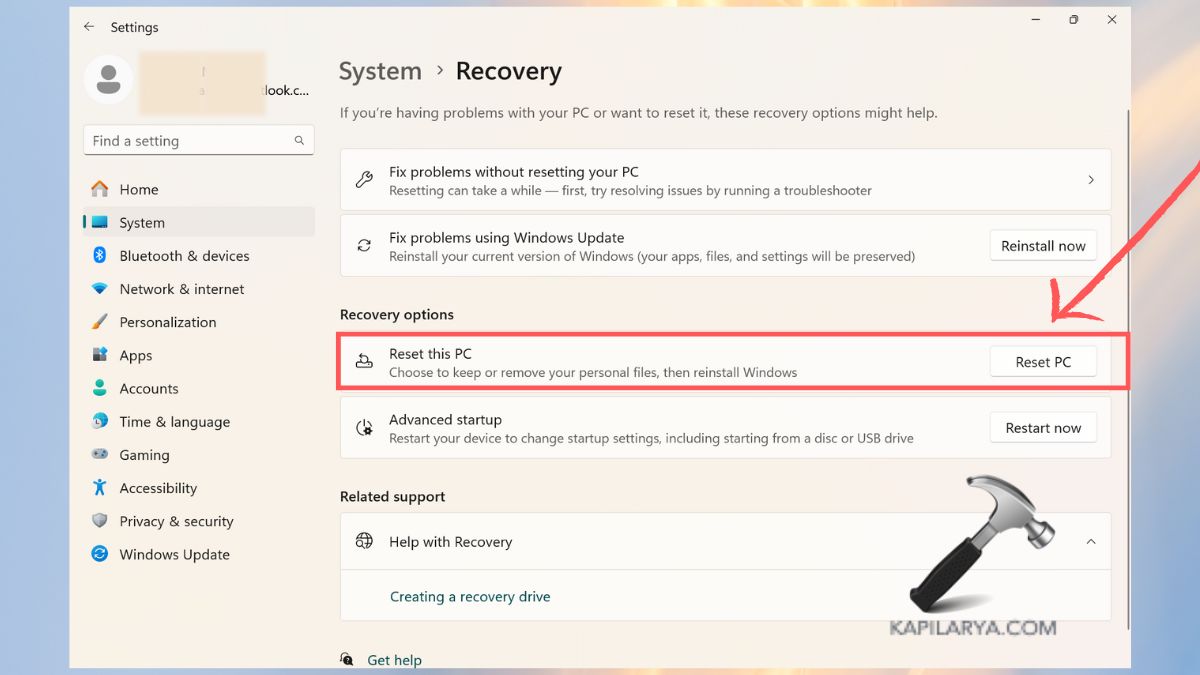
3. Select “Keep my files (recommended)”. Follow the procedures when making some Reset. This restores broken system files and everything is fine with Windows Update once again.

Frequently Asked Questions (FAQs)
Why does Windows Update say “Something went wrong” in Windows 11?
This mistake is most commonly manifested by the faulty files, malfunctioning update cache, the disabled work of the Windows services, or disk errors.
Is it safe to delete or rename the SoftwareDistribution folder?
Yes, this folder is automatically recreated by Windows. Removing its name renews the update files.
Will resetting Windows 11 delete my personal files?
In case you select Keep my files, Windows would delete system files and applications, but not your documents, photos, and data.
How do I know which fix will work?
All system errors are caused by varying factors. Hence, one should give the solutions a shot individually, beginning with the basic (SFC scan) and moving up to the sophisticated (Reset PC).
That’s it!





