

You’re not up to date, but no updates available in Windows 11 is one of the most confusing Windows Update problem that many users reported. You go to Windows Update settings and wait as new updates seem to be installed but then the system tells you that you are out dated despite the fact that there are literally zero updates being displayed. The following is a step by step hold in guide illustrating why this occurs and the ways you can take to ensure that this error does not occur ever again.
Page Contents
Understanding the “You’re Not Up to Date” Windows 11 Error
You are not up to date but there are no updates in Windows 11 this bizarre message often shows up when the Windows update service thinks that your system is old, but the update service is unable to connect to the Microsoft servers as intended or is held up either by corruption, configuration errors or by a network malfunction.
This reminds even ordinary users that this is the place where you can update your PC but is otherwise unhelpful since it itself does not show an update. This brings about the usual apprehensions such as:
- Is my Windows broken?
- Have I not installed the necessary security updates?
- Is this a bug in Windows 11?
The windows update depends on numerous background services and files in cache. And even a single one of those gets corrupt or stuck then Windows will falsely tell you that your updates are done.
Why Does Windows 11 Say “You’re Not Up to Date” When There Are No Updates?
This error may occur itself as a result of some inner factors. The most common causes are:
- SoftwareDistribution and Catroot2 hold old update files in your windows. In case these folders are corrupted, updates will not check.
- Windows Update requires a number of services such as: Windows update service, BITS, Cryptographic services. They will not show any updates in case they are shut down or crash.
- The error in the system time does not allow the authentication with the Microsoft servers.
- Windows restricts updates on measured connections.
- System files that are damaged are able to disrupt the process of updates.
- What is broken after the cumulative updates are some of the components.
- Windows can believe that an update has been partially installed.
Ways to Fix ‘You’re not up to date, but no updates available’ in Windows 11
You are not up to date, but no updates in Windows 11 failure may appear alarming, but as you have noticed, it can be fixed through these nine easy processes.
Way 1: Perform a Manual Update Check
This is the simplest solution, and it coincidentally succeeds most of the time.
1. Press Win + I to open Settings. Go to Windows Update.
2. Click Check for updates. Wait until Windows restarts the server connection.

In case the error is removed, it could suggest your PC was temporarily offline on the update servers of Microsoft.
Way 2: Ensure You Are Not on a Metered Connection
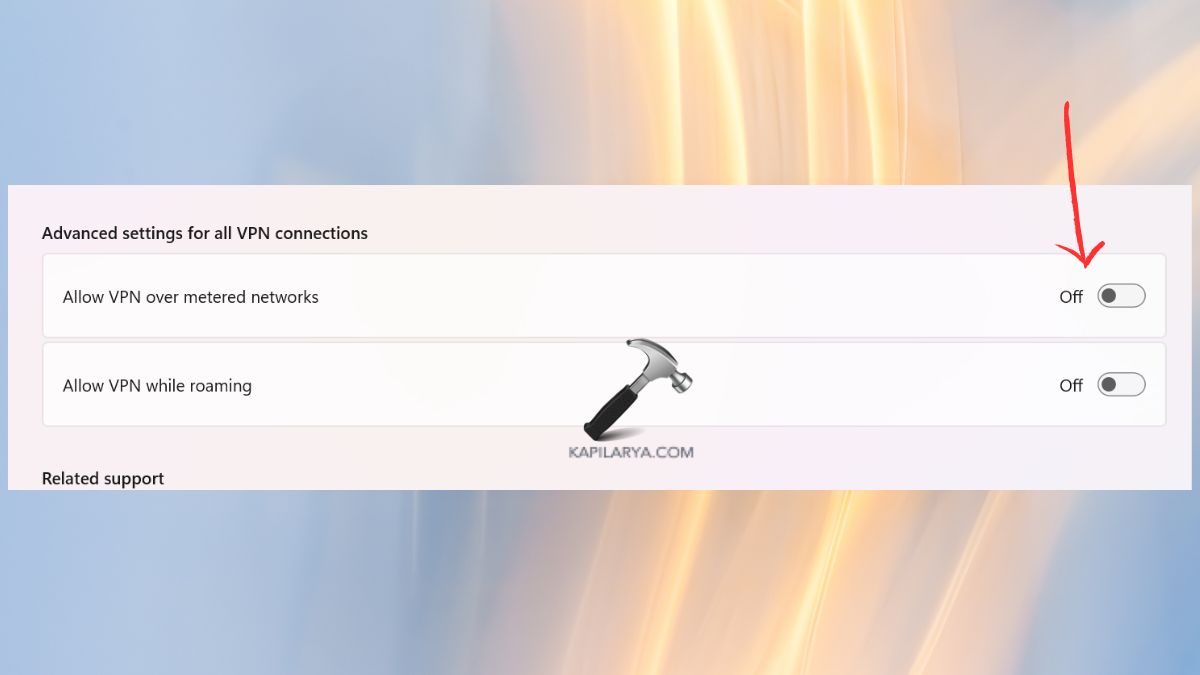
Metered connection blocks update to conserve information, and hence misreport the update status.
1. Open Up Settings > Network and Internet. Select your Wi-Fi or Ethernet or VPN.
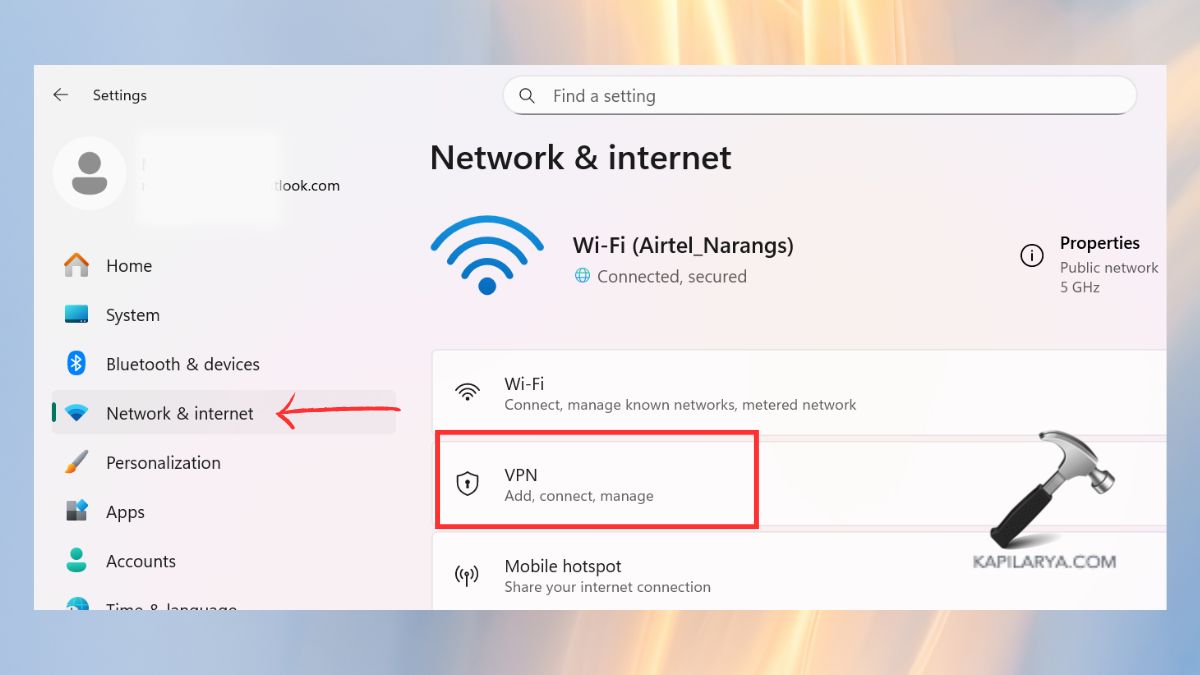
2. Disable Metered connection. Need to reconnect with the Internet and check updates.
Way 3: Correct Your Date and Time Settings
Wrong time and time zone settings may prevent communication with the update servers.
1. Enter Settings > Time and language > Date & time.
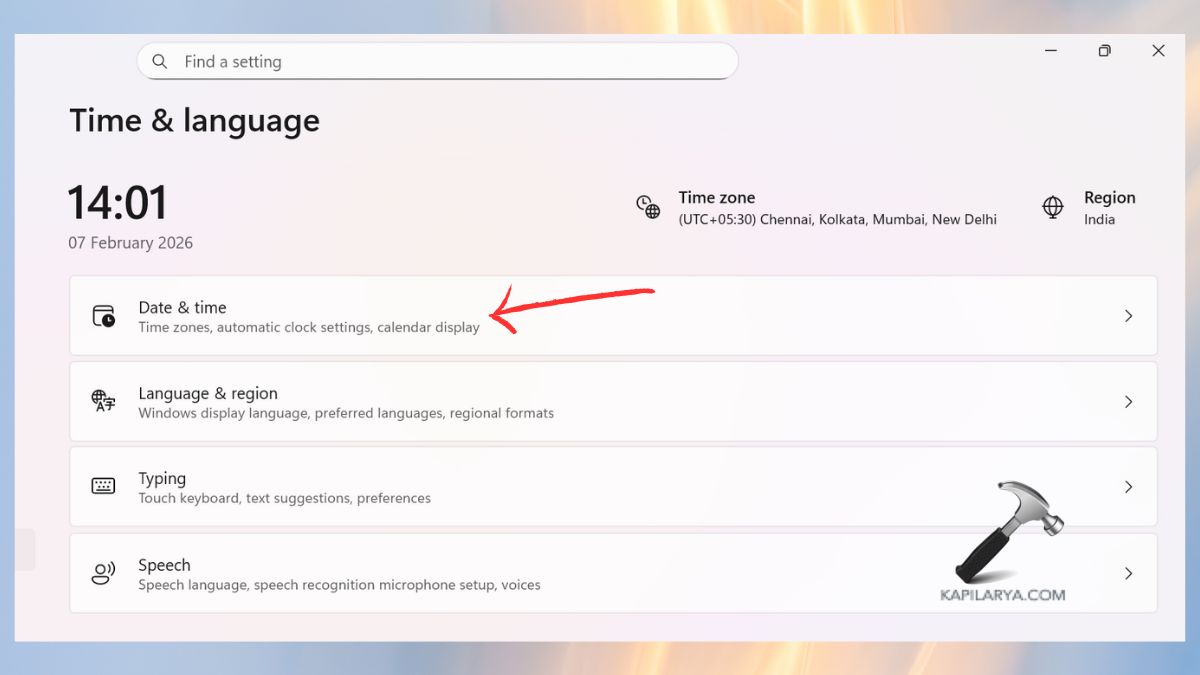
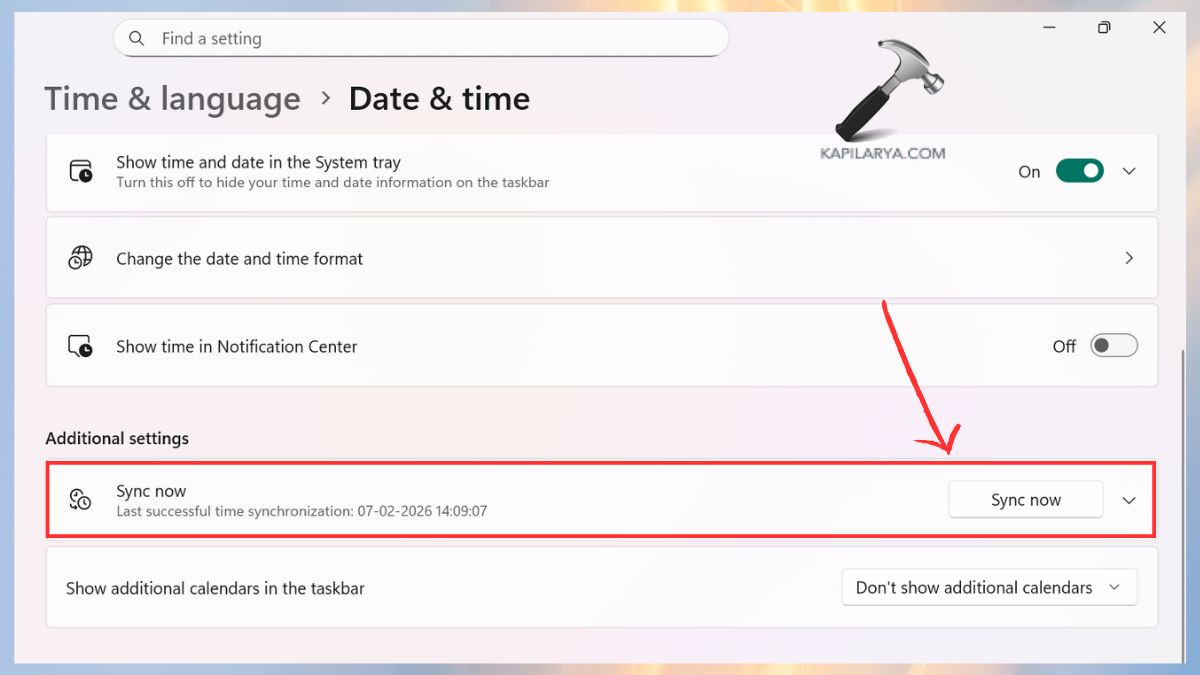
2. Enable these settings – Set time automatically.

3. Click Sync now. Attempt to recheck updates.
Way 4: Run the Windows Update Troubleshooter
It is an inbuilt utility that scans your system and any frequent update problems are automatically fixed.
1. Access Settings > System > Troubleshooting.
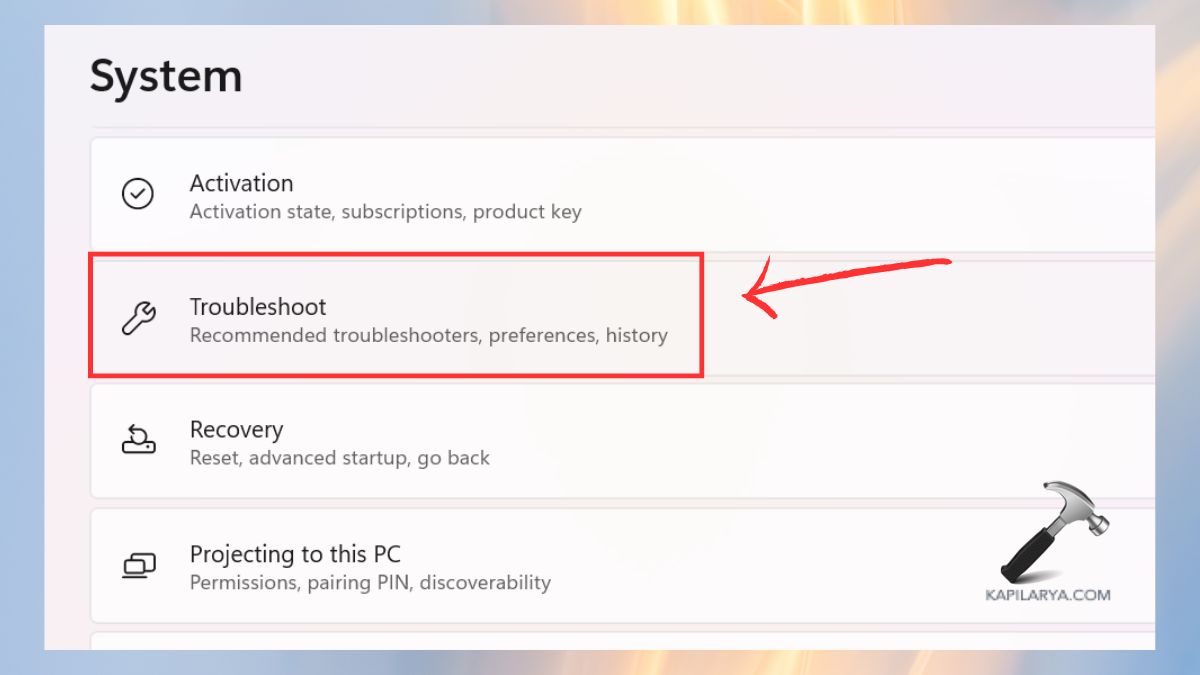
2. Click Other troubleshooters.
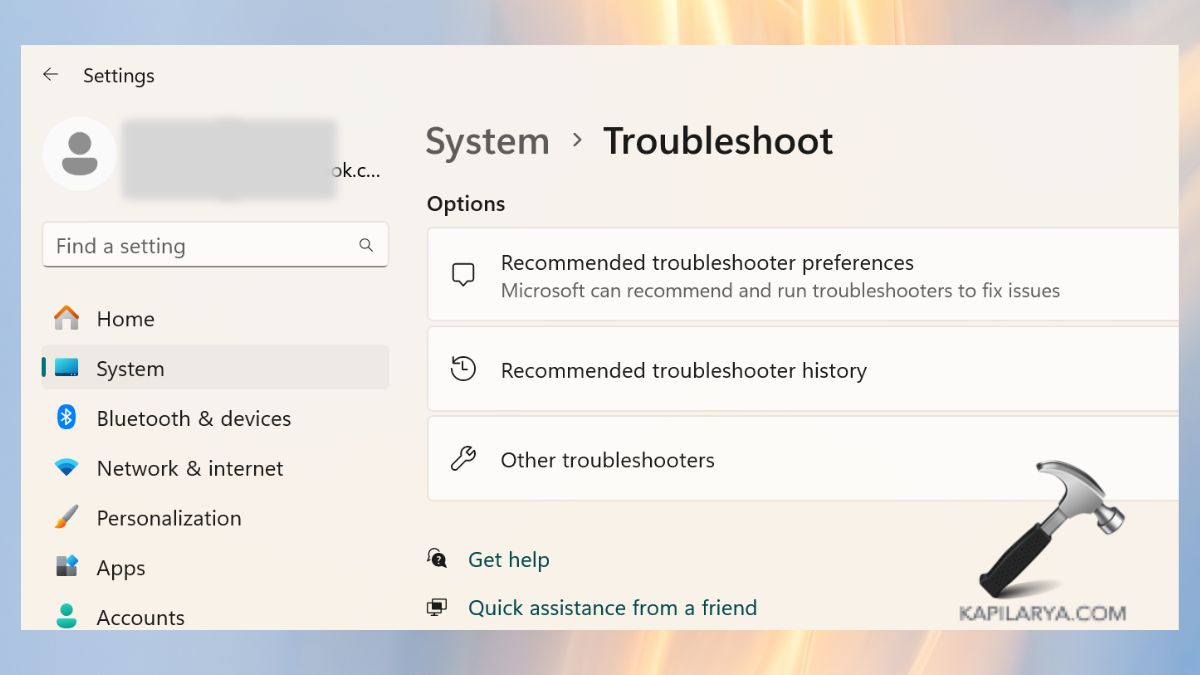
3. Locate Windows update > Click on Run. Apply the recommended fixes.

Close to completion, restart your PC.
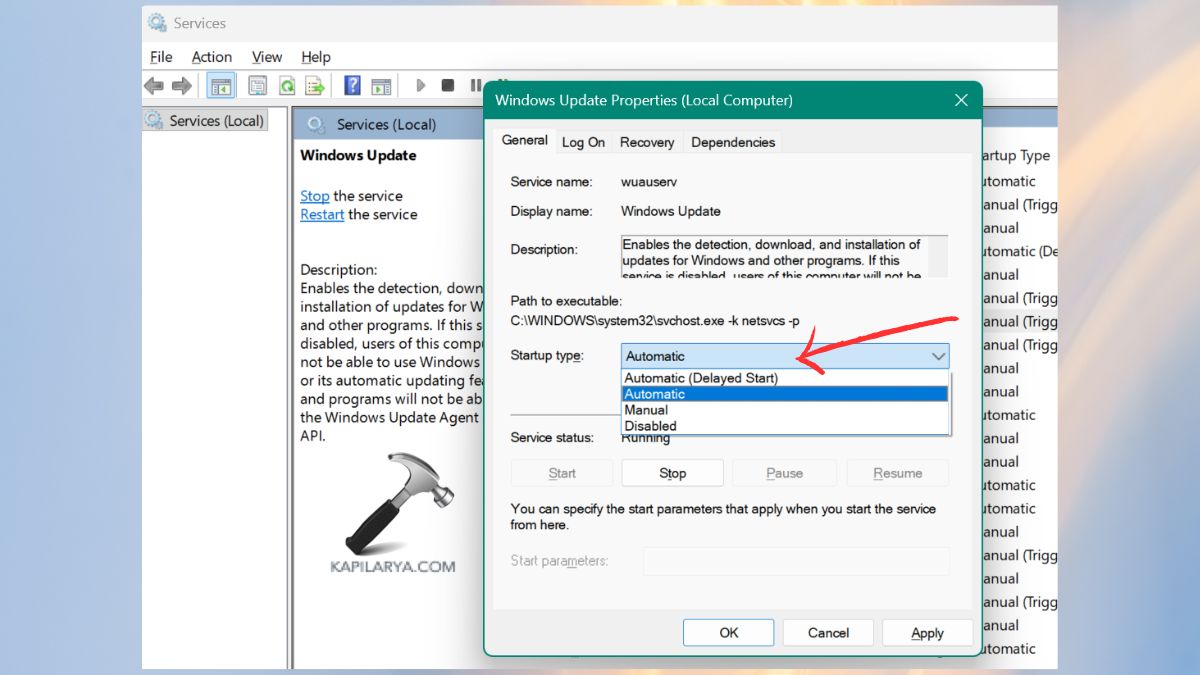
Way 5: Restart Windows Update Services
In case of discontinuation of update services, the updates will not appear.
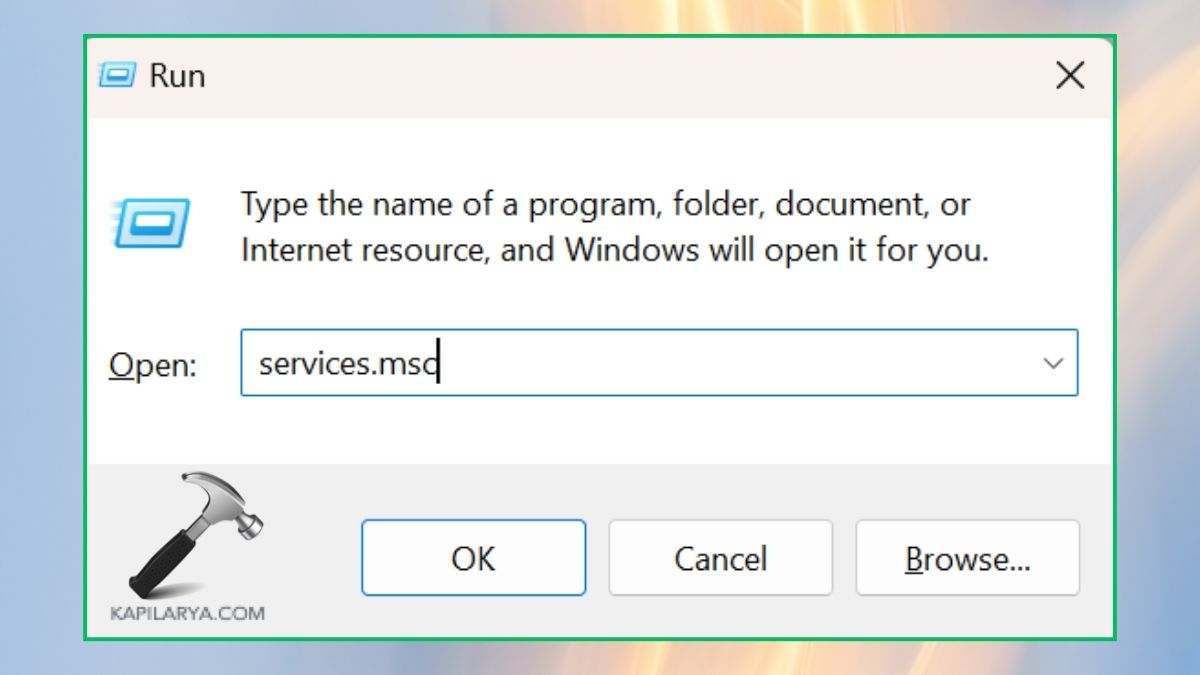
1. Press keys Win + R, enter this, then hit Enter.
services.msc
2. Find the following services:-
- Windows Update
- Background Intelligent Transfer Service (BITS)
- Cryptographic Services
3. Right-click each > Restart.
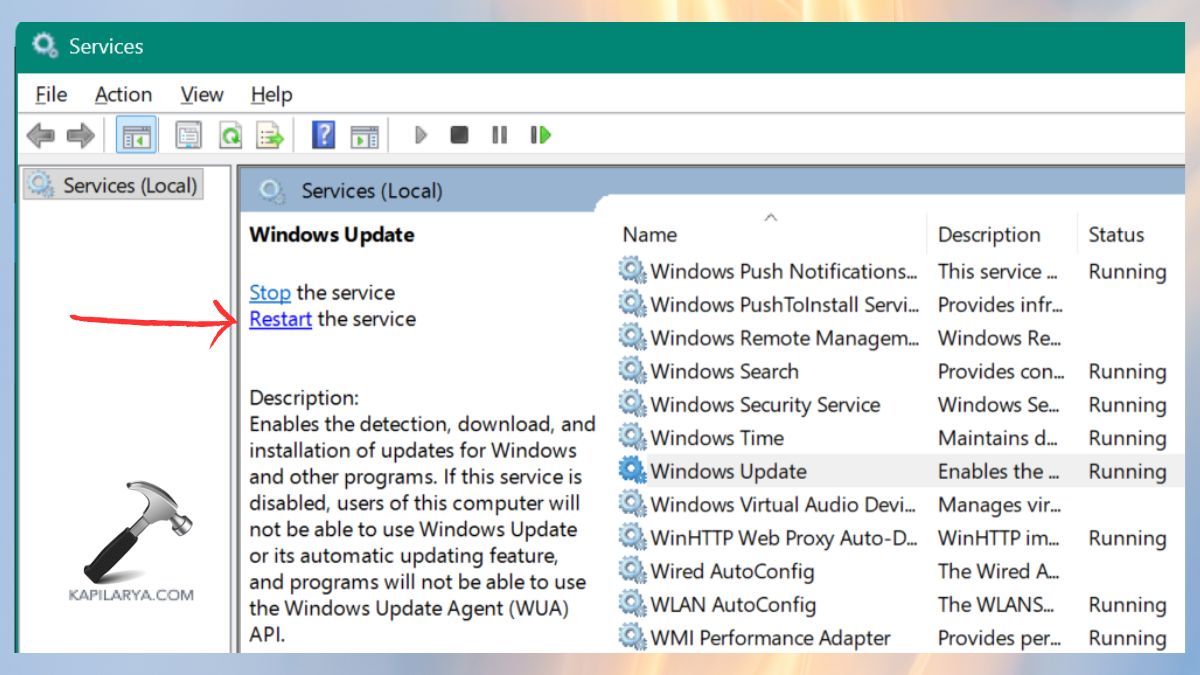
4. In case any of the service is disabled, then keep the start Up Type as Automatic.
Way 6: Reset Windows Update Components
This fixes one of the strongest errors in all Windows upgrades.
1. Open Command Prompt (Admin).

2. Run these commands one by one. This completely re-launches the update engine and causes Windows to re-generate all update files.
net stop wuauserv
net stop bits
net stop cryptsvc
ren C:\Windows\SoftwareDistribution SoftwareDistribution.old
ren C:\Windows\System32\catroot2 catroot2.old
net start wuauserv
net start bits
net start cryptsvc

Way 7: Run SFC and DISM
The update errors happen regularly in case of damaged system files.
1. Press Windows key + S. Open Command Prompt with Admin abilities, again.
2. Type this command. This mends damaged fundamental files.
sfc /scannow

3. Then run this command. Aspects of deeper corruption at the OS level are repaired by DISM.
DISM /Online /Cleanup-Image /CheckHealth
DISM /Online /Cleanup-Image /ScanHealth
DISM /Online /Cleanup-Image /RestoreHealth

Restart your PC afterwards.
Way 8: Try a System Restore (If the Issue Started Recently)
In case the error happened after a new update or installation of an application, you can use the System Restore to go back to a stable position.
1. Find Create a restore point in the Start menu.

2. Click System Restore.

3. Select a restoration point prior to the occurrence of the error. Restoration process to be total. This will leave no personal files deleted.

Way 9: Reset Windows 11
When all does not go, and nothing is working, select Windows reset. The keep my files option that allows one to reset Windows on the Windows Reset program will normally cure even the most intractable Windows update bugs.
1. First, go to Settings > Systems > Recovery.

2. Click Reset this PC.
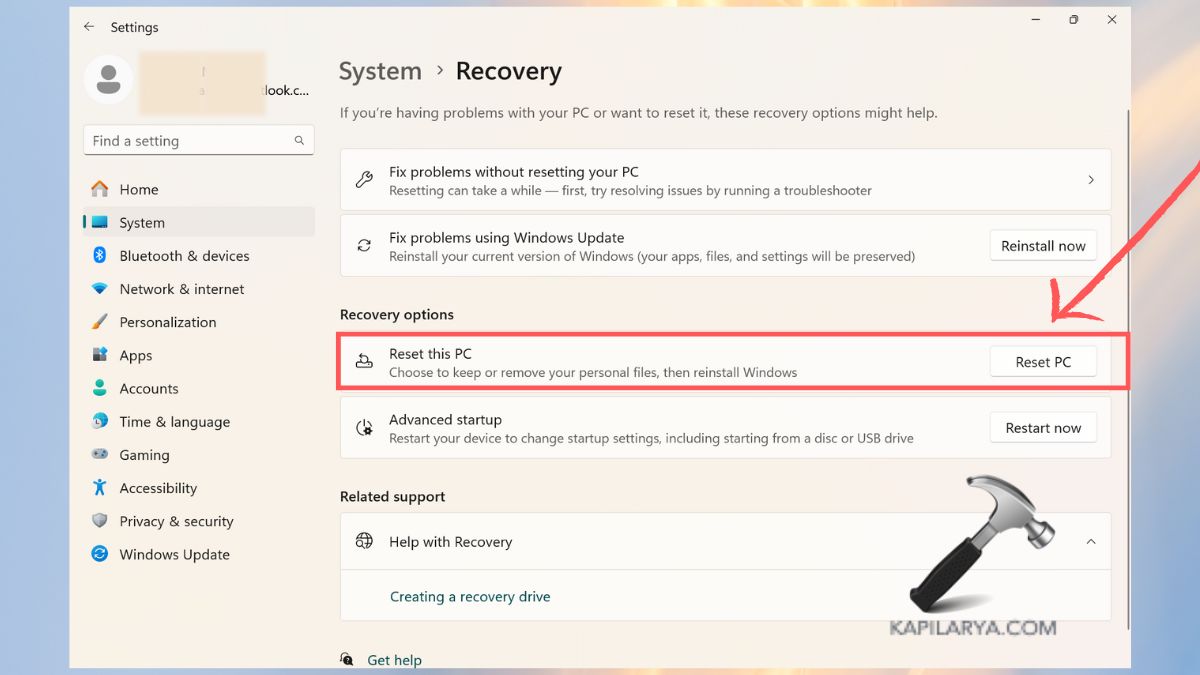
3. Choose Keep my files. Follow the instructions. In order to update after the reset, everything will proceed normally.

Frequently Asked Questions (FAQs)
Why does Windows 11 say “You’re not up to date” when there are no updates?
This occurs when update cache files or system files become corrupted, or even when update services are corrupted. This can also be caused by setting the time settings incorrectly and metered networks.
Is it safe to reset Windows Update components?
Yes. It is just renaming old update cache folders. Rebuilds everything is safe with windows.
Can System Restore fix update issues?
Yes, in case there was a recent change or update-installation of the problem.
Will resetting Windows delete my files?
In case you want to keep the files or data intact, your files, pictures, and personal information will not be lost.
That’s it!





