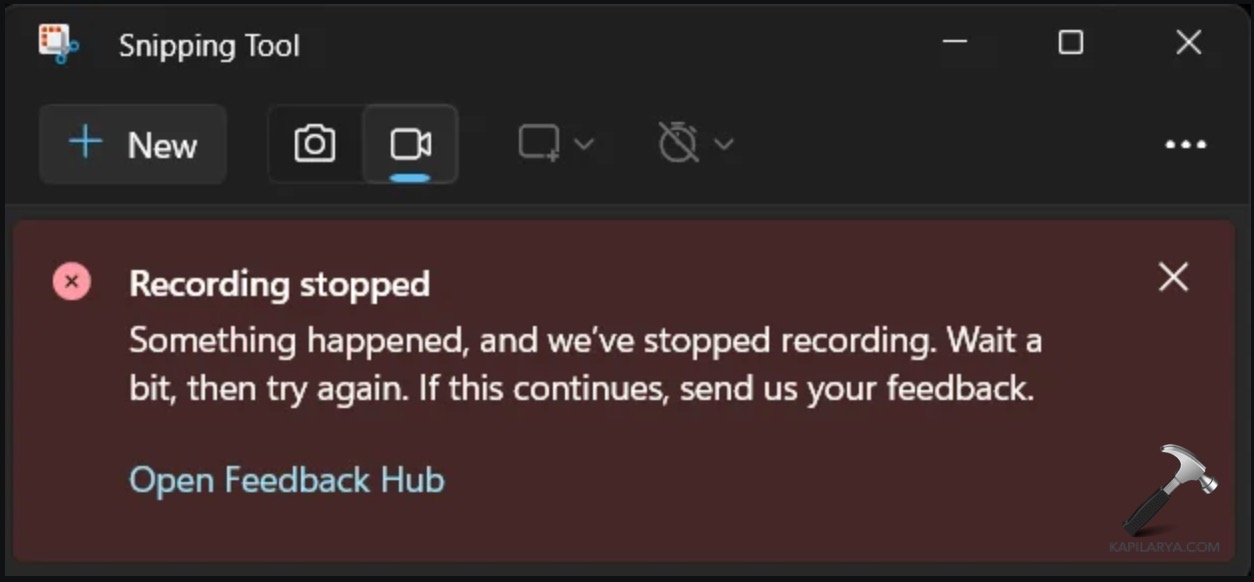
If the Snipping Tool on Windows 11 displays a message like Recording stopped or Something happened, and we’ve stopped recording, or it stops unexpectedly during video capture, it’s usually due to app glitches, incorrect graphics settings, display projection conflicts, or corrupted app files. This articles talk more about this issue and suggest ways to fix it.
Page Contents
Why the Error Happens
The Recording stopped message typically occurs when the recorder loses access to a display context, graphics priority, or the path where it needs to save media. Graphics setting mismatches, projection mode switches, or corrupted app files are the most frequent culprits.
Fix Snipping Tool Recording Stopped Error
Below are several practical solutions you can try one by one to fix the Snipping Tool recording stopped error.
Method 1: Change Display Projection Settings
Display configuration can affect how Snipping Tool records, especially when multiple monitors are active:
1. Press Win + P to open the projection sidebar.
2. Choose PC screen only to disable extended or duplicate displays.
3. Try recording again in the Snipping Tool.
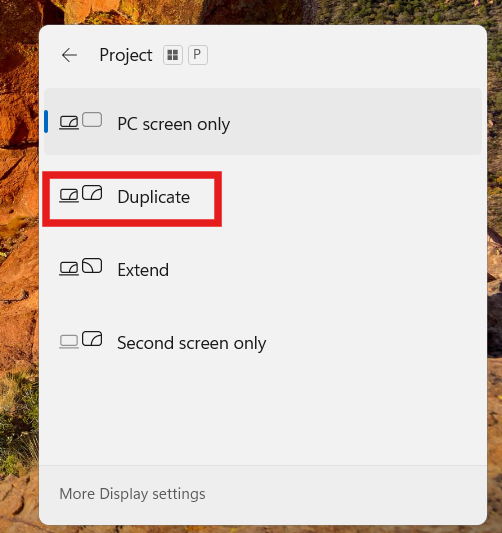
Switching to a single-display mode often prevents recording disruptions caused by projection changes.
Method 2: Set Snipping Tool to High-Performance Graphics
Graphics settings can influence how recording functions, especially on systems with integrated and dedicated GPUs:
1. Open Settings and click on System. Then go to Display and then Graphics.
2. Under Add an app, select Microsoft Store app.
3. Browse for Snipping Tool and add it.
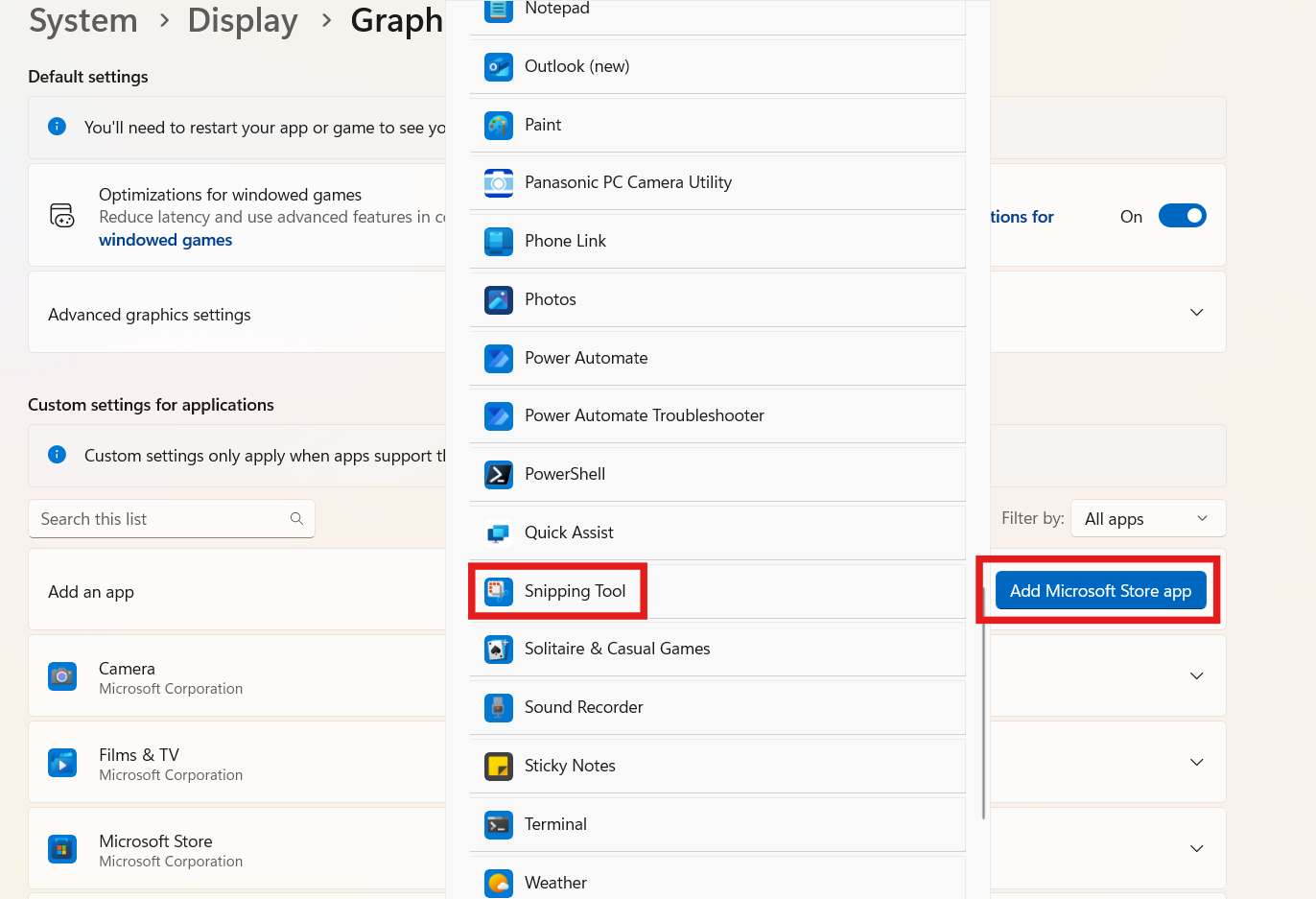
4. Click Options for Snipping Tool, choose High performance, and click Save.
5. Restart the Snipping Tool and try recording again.
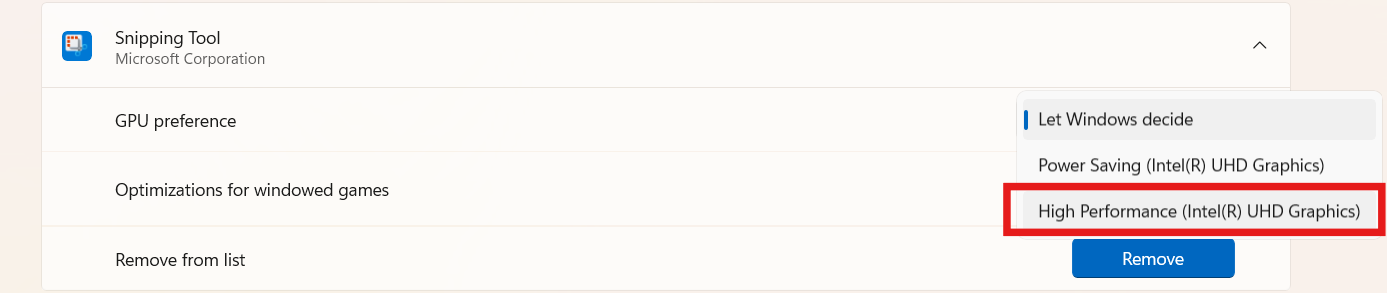
Using the high-performance GPU forces the recorder to use your primary graphics card, which can eliminate some recording glitches.
Method 3: Repair or Reset the Snipping Tool
Corrupted or outdated Snipping Tool data can cause recording failures:
1. Press Win + I to open Settings.
2. Go to Apps and then Installed apps.
3. Find Snipping Tool, click the three dots (…) next to it, and choose Advanced options.
4. Click Repair first. If that doesn’t help, click Reset.
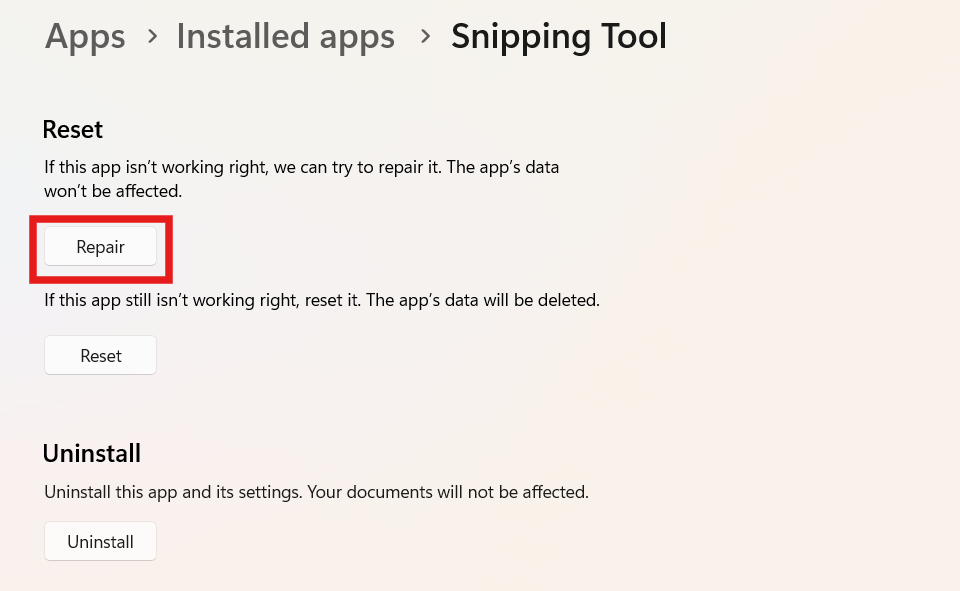
Repair refreshes core components, while Reset clears cached configuration data that may interfere with recording.
Method 4: Reinstall Snipping Tool
If repair/reset doesn’t fix the problem, reinstalling can replace corrupt app files entirely:
1. In Settings, go to Apps. Then click on Installed apps, find Snipping Tool.
2. Click the three dots (…) and choose Uninstall.
3. After removal, open the Microsoft Store.
4. Search for Snipping Tool and install it again.
5. Launch the app and try recording.
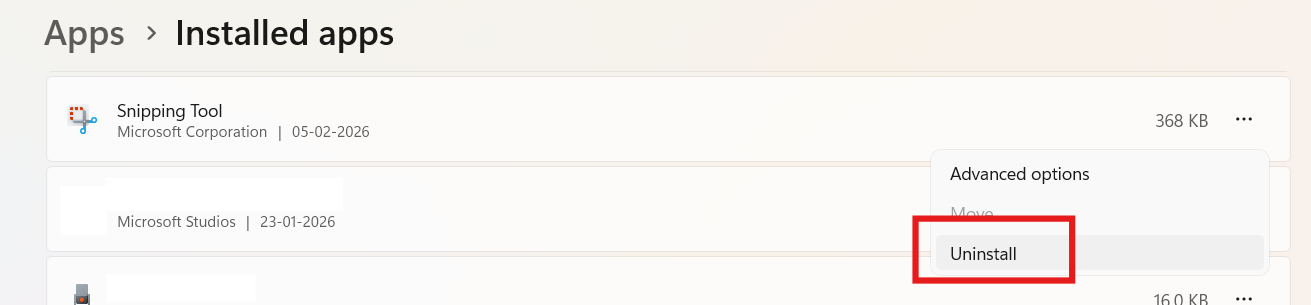
Fresh installation removes any residual corruption that repair/reset couldn’t fix.
Method 5: Switch Off Multi-Display Recording Conflicts
If recording stops when switching displays or disconnecting an external monitor:
1. Before recording, disconnect secondary monitors or set your display to the primary screen only.
2. Start Snipping Tool recording on a single display to avoid unexpected interruptions.
3. Display reconfiguration during recording can reset app state and stop the capture abruptly.
Other suggestions
1. Check Save Location Permissions: Snipping Tool saves recordings to C:\Users\<your-username>\Videos\Screen Recordings. Make sure this folder exists and isn’t write-protected.
2. Try Feedback Hub: If none of the steps help, use the Feedback Hub to report the error to Microsoft so they can address the bug in future updates.
3. Consider Dedicated Recorders: Users report that Snipping Tool’s recorder still has limitations; using third-party screen recorders like OBS Studio or ShareX may avoid many Recording stopped issues.