When you plug in your headphones, but they don’t show up in the list of playback devices in Windows 11, it can be frustrating. This usually happens due to incorrect sound settings, disabled output devices, driver issues, or software hiccups that stop Windows from detecting the connected audio gear.
Page Contents
Headphones Not Showing Up in Windows 11
Below are reliable fixes you can try one at a time to restore proper headphone detection and sound output.
Fix 1: Show and Enable Headphones in Playback Devices
Windows sometimes hides inactive or disabled audio devices.
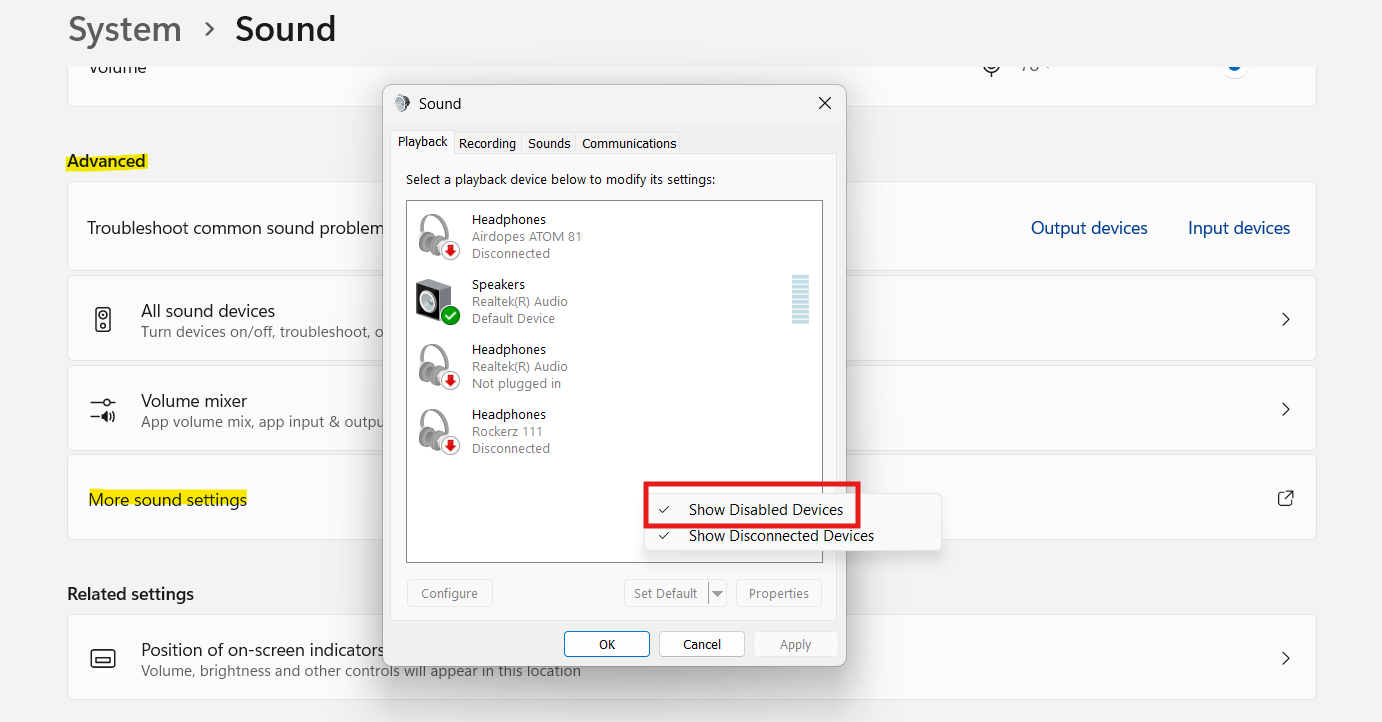
1. Right-click the speaker icon in the taskbar and select Sound settings.
2. Scroll down and click More sound settings to open the Sound window.
3. In the Playback tab, right-click anywhere in the blank area and check Show Disabled Devices and Show Disconnected Devices.
4. If your headphones appear, right-click them and choose Enable.
5. Set them as the Default Device and click OK.
This makes sure hidden or disabled devices become visible and usable.
Fix 2: Restart and Re-connect (Power Cycle)
Outdated or corrupt drivers can prevent detection.
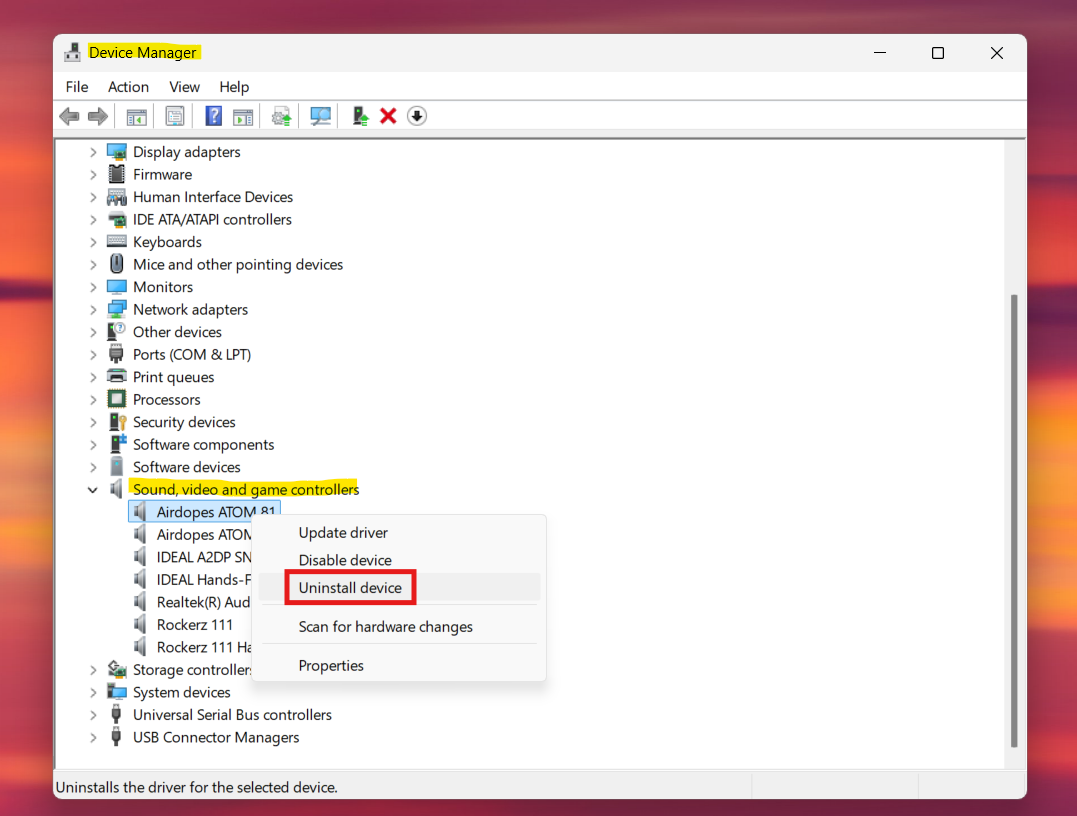
1. Open Device Manager and expand Sound, video, and game controllers.
2. Right-click your audio driver and choose Uninstall device.
3. Restart your PC so Windows reinstalls the driver automatically.
4. If needed, download the latest driver from the manufacturer’s site and install it manually.
This refreshes the audio driver and resolves many recognition issues.
Fix 3: Run the Audio Troubleshooter
Windows includes a tool that automatically fixes common sound problems.
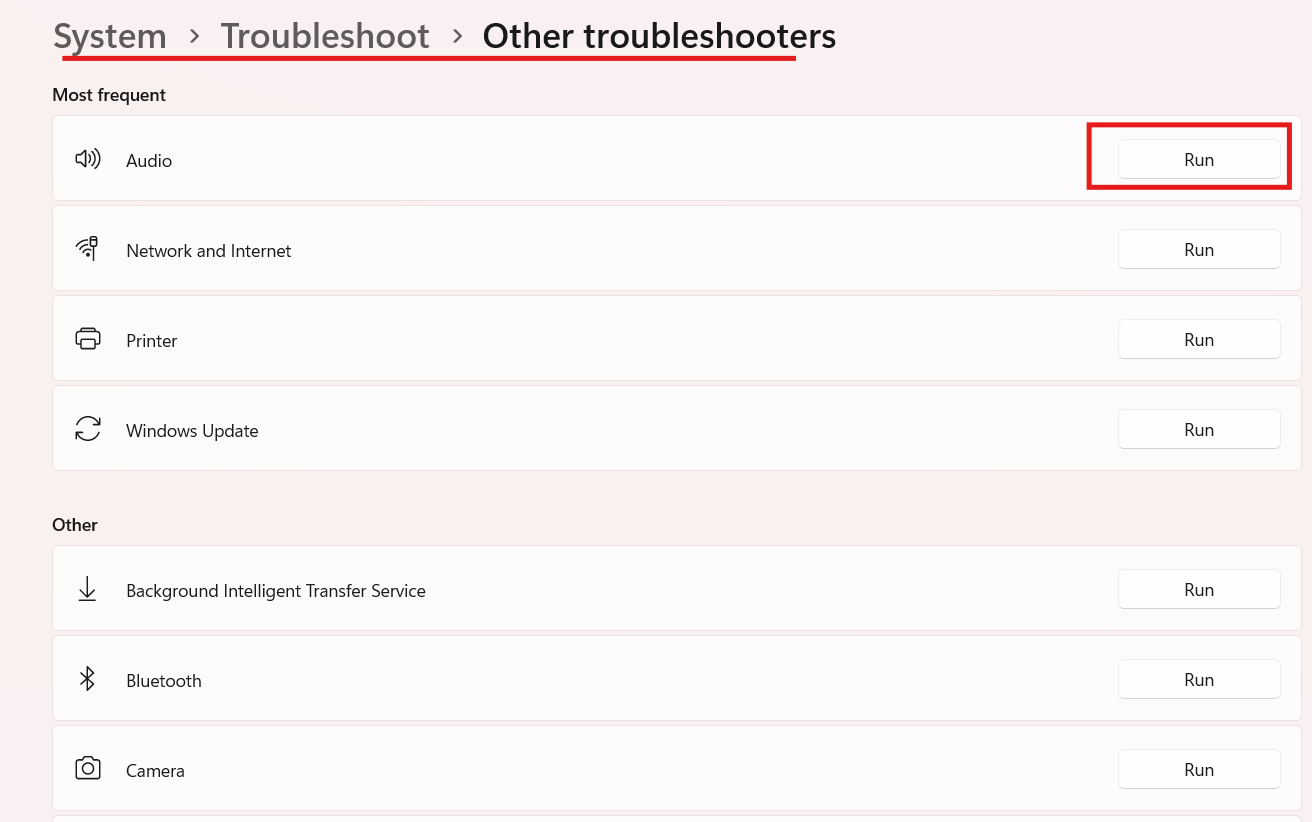
1. Open Settings, go to System, and go to Troubleshoot and then Other troubleshooters.
2. Find Audio and click Run.
3. Follow the instructions and restart your computer.
This scan can detect and correct problems with the sound system.
Fix 4: Check Hardware and Connections
Sometimes the issue isn’t software.
1. Inspect the headphone plug and audio jack for dust or debris.
2. Try plugging them into another port or device to confirm they work.
3. If the cable or jack is loose or damaged, try another pair of headphones.
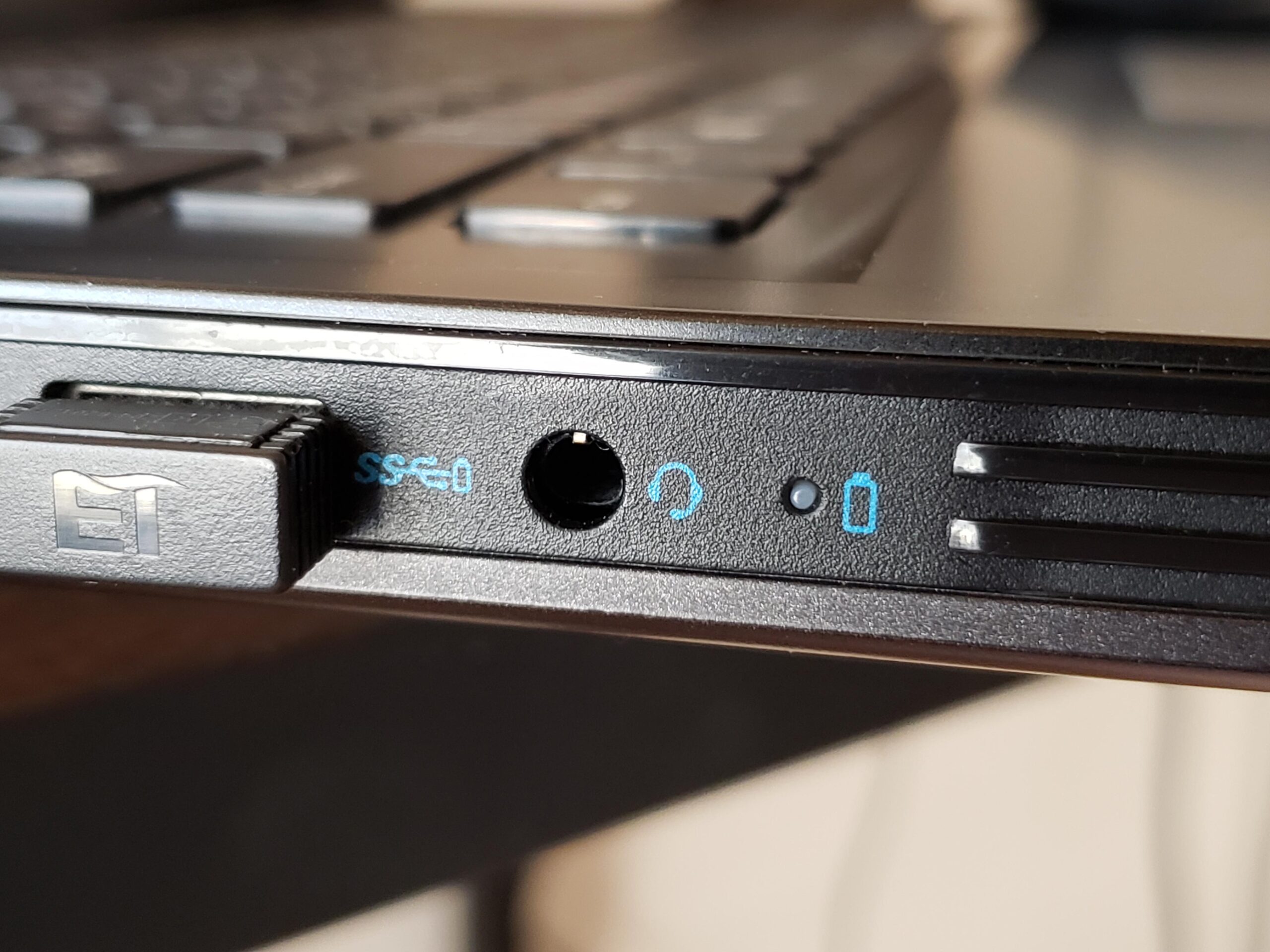
Hardware problems often show up only when everything else checks out.
Fix 5: Set Headphones as Default Audio
Windows may send audio to a different device.
1. Go to Sound settings under System in Settings.
2. In the Output section, select your headphones from the dropdown list.
3. Adjust the volume and test the sound.
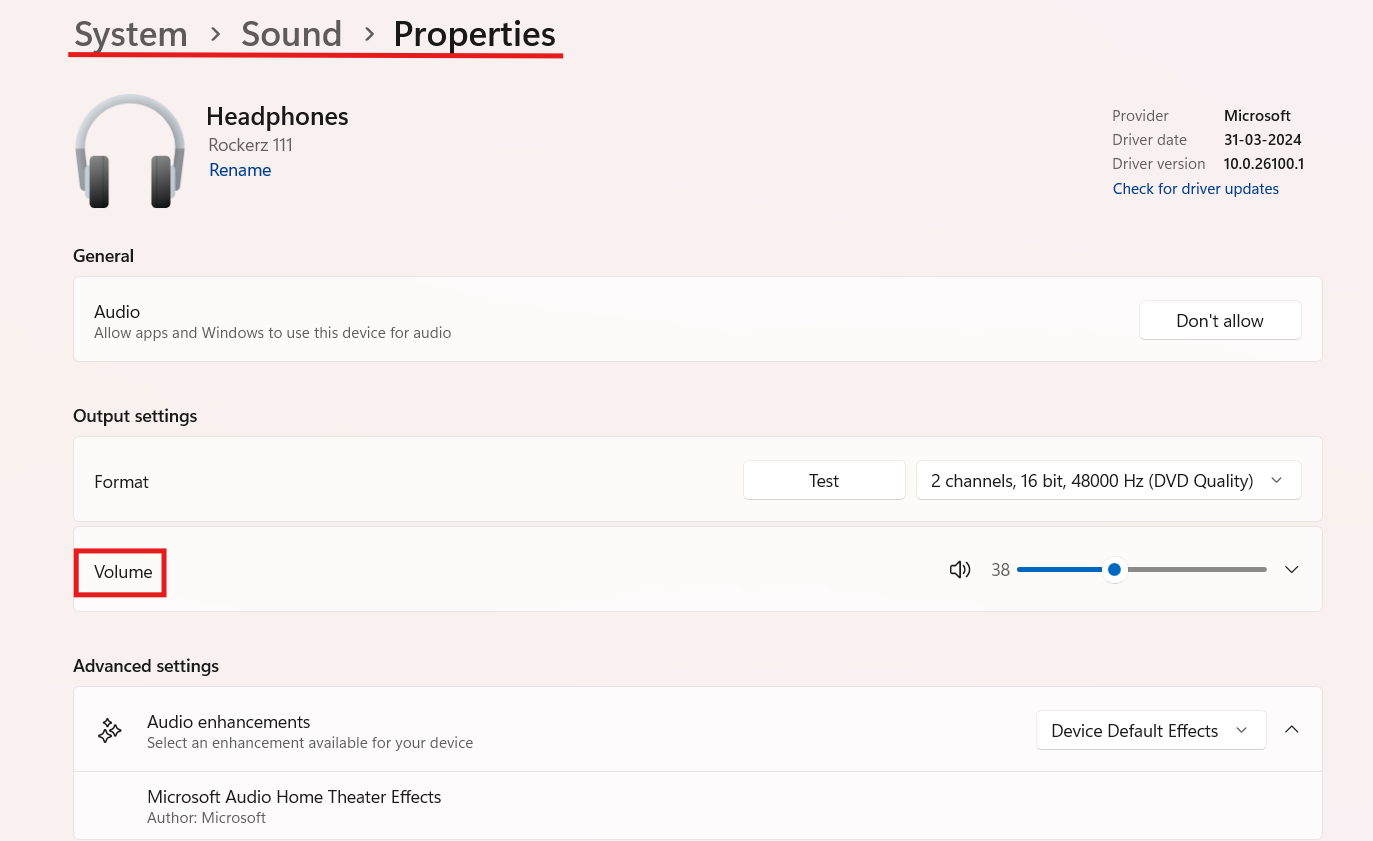
Choosing the correct output device ensures audio goes to the headphones.
Fix 6: Disable Audio Enhancements
Sometimes sound effects interfere with device detection.
1. Open the Control Panel and select Sound.
2. Choose your default audio device, open Properties, and go to Enhancements.
3. Check Disable all enhancements, then restart your PC.
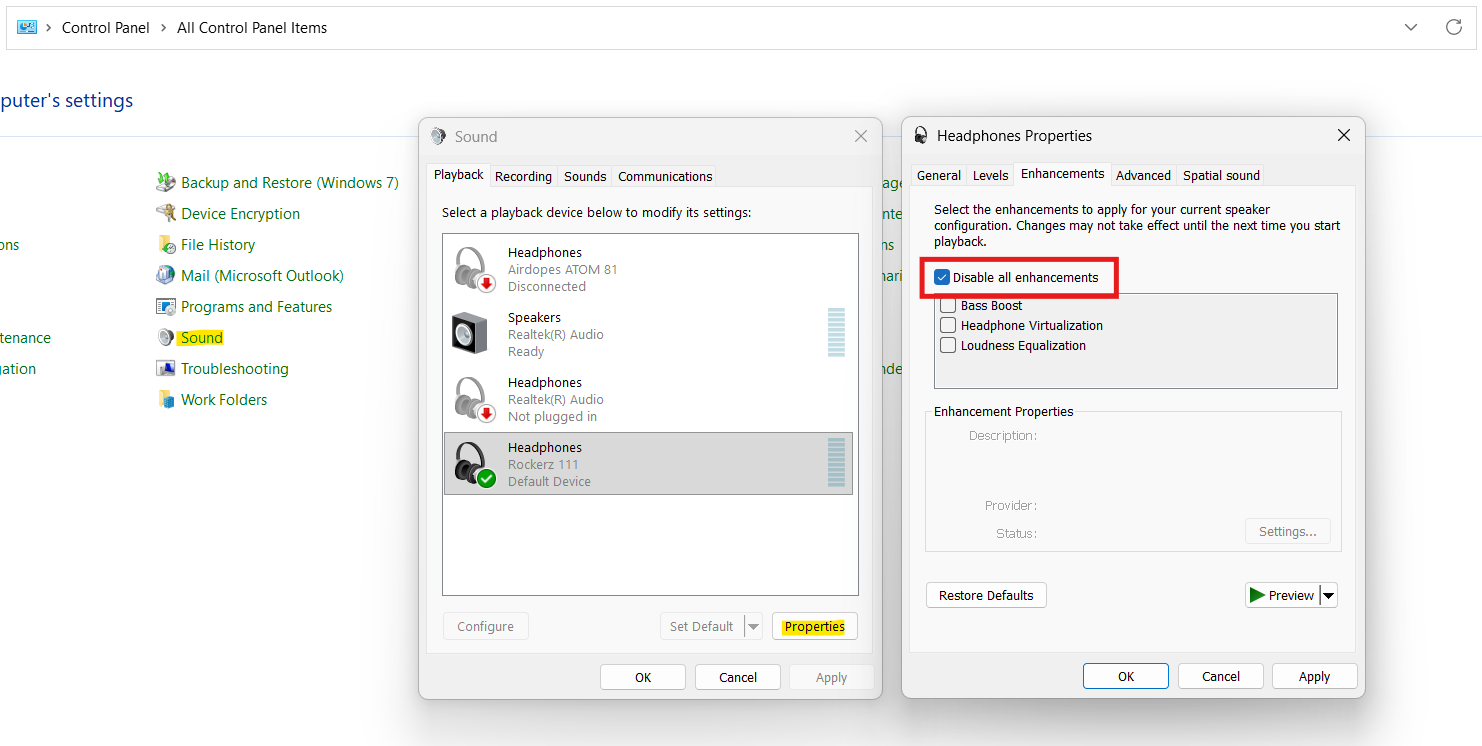
This removes optional effects that can cause detection issues.
Quick Tips
1. Always restart your PC after trying a fix before testing again.
2. Make sure you’re using the correct jack and that the plug is fully inserted.
3. If the headphones work on another device, then the issue is likely with Windows settings or drivers.