If you see the message Your current version of diagnostics is not up to date when you try to run a hardware or system diagnostic tool in Windows 11, it means the version you are using is older than what Windows or the tool requires.

Page Contents
Fix: Your Current Version of Diagnostics is Not Up to Date
Diagnostic apps can fail to run properly or report errors when their internal components are outdated. The tips below will help you update the tool and ensure it works correctly again.
Fix 1: Reset Core Windows Services
The diagnostic tool relies on specific Windows services to verify and fetch updates. If these services stall, the tool fails.
1. Open the Command Prompt as an administrator.
2. Stop the update services by executing these commands one by one:
net stop wuauser
net stop cryptSvc
net stop bits
net stop msiserver
3. Immediately restart them by using the net start command for the same four services listed above.

Fix 2: Create a Bootable USB Diagnostic Tool
If the internal tool is broken, a standard reinstall often fails to work. You must replace it with a fresh version running from an external drive.
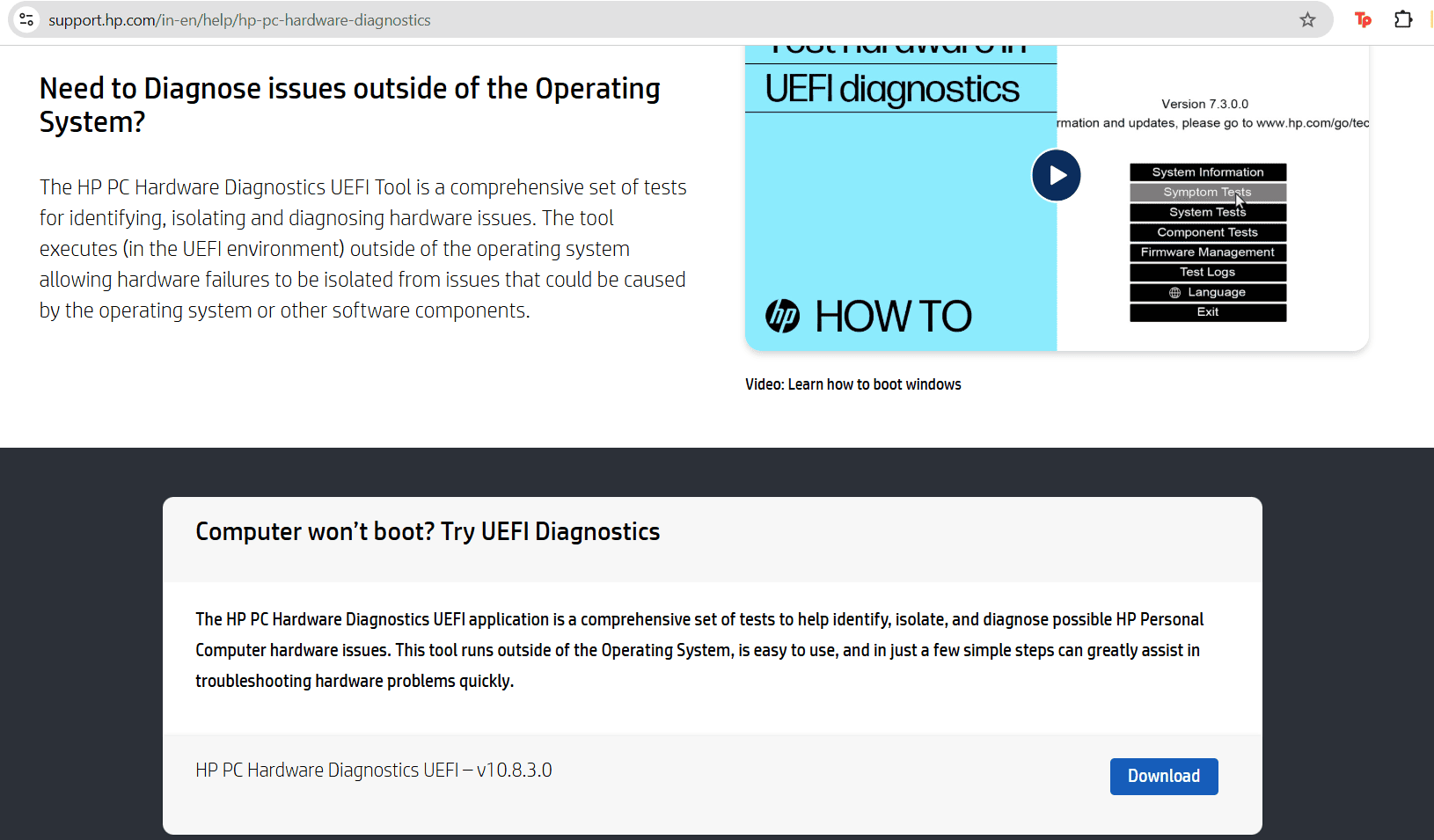
1. Visit your PC manufacturer’s support website, most likely HP for this case.
2. Download the UEFI Diagnostics file.
3. Run the installer and select the option to Create a bootable USB key.
4. Insert the USB drive, restart your PC, and press F9 to boot directly from the USB.
Fix 3: Update BIOS/UEFI Firmware
Outdated firmware often lacks the code required to support modern diagnostics.
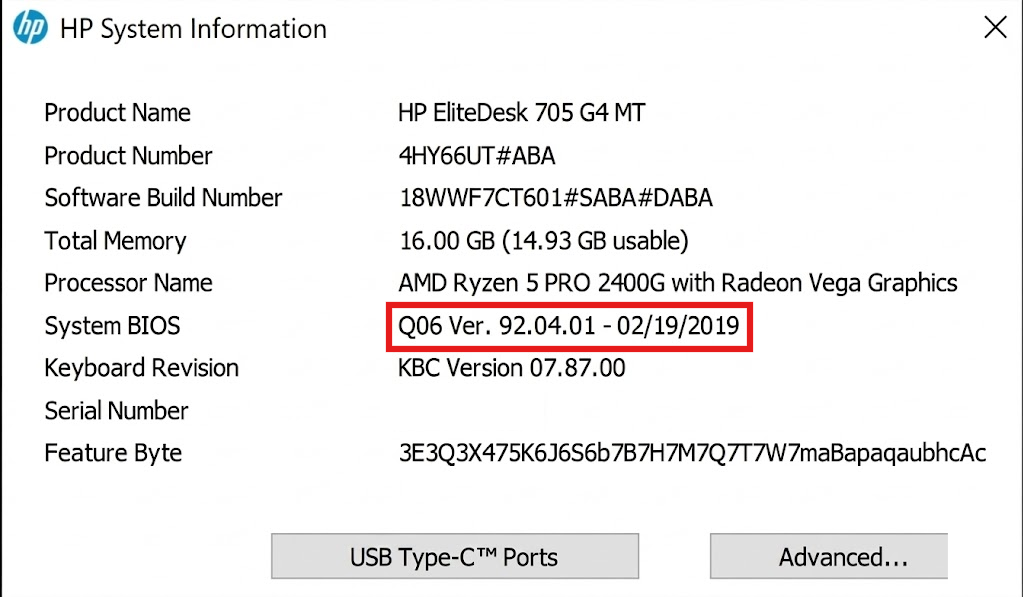
1. Press the Windows key + R and type msinfo32 to find your BIOS version.
2. Go to your PC manufacturer’s website and locate the BIOS section for your specific model.
3. Download and install the latest firmware executable.
4. Restart your PC when the update completes.
Fix 4: Manually Update System Drivers
Generic driver searches often miss the specific storage or chipset drivers needed to fix this error.
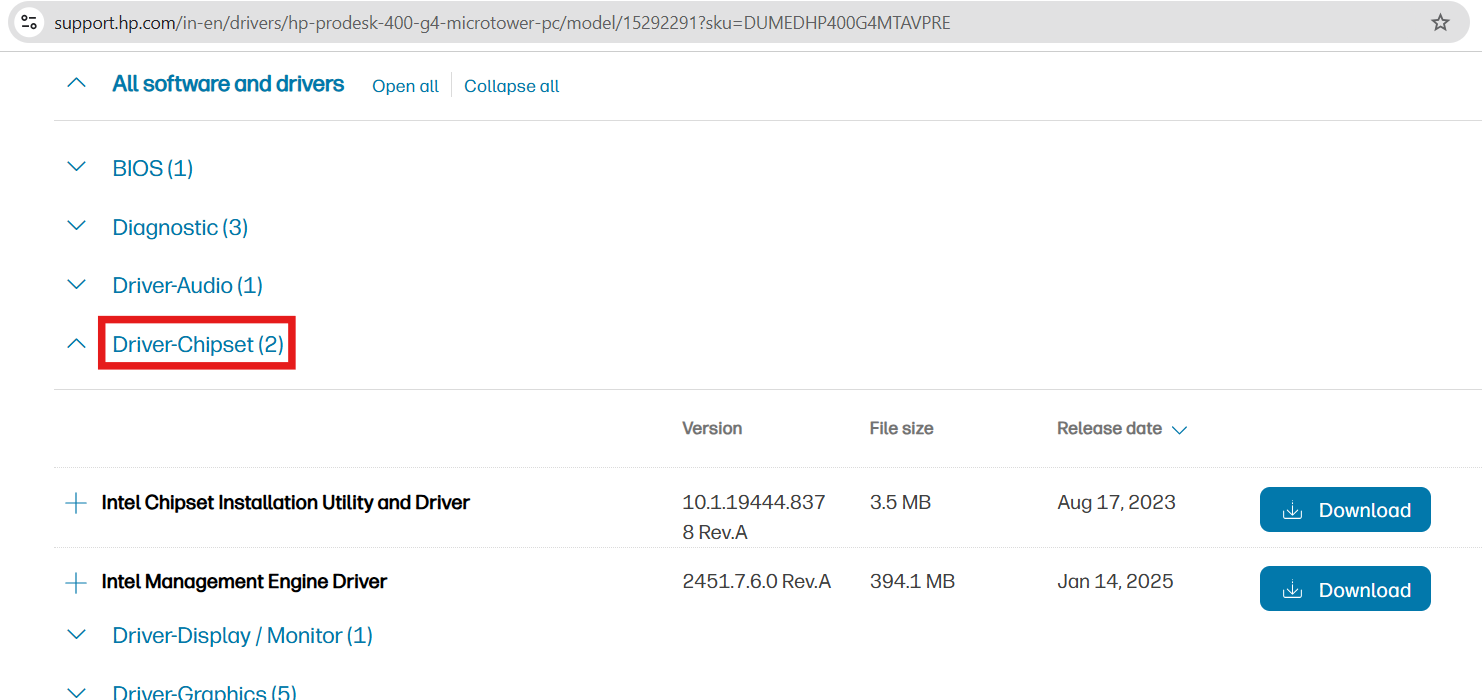
1. Visit the manufacturer’s official download page.
2. Locate and download the latest drivers for Chipset and Storage Controllers.
3. Install them manually and restart your PC.
Note: Do not rely solely on Device Manager’s automatic search for these specific components.
Fix 5: Repair Corrupted System Files
Corrupted system files can cause the tool to flag itself as outdated erroneously.
1. Open Command Prompt as administrator.
2. Run the command sfc /scannow and wait for it to finish.
3. Then, run the command DISM /Online /Cleanup-Image /RestoreHealth.
4. Reboot your computer once both scans verify the files are clean.

Fix 6: Use In-App Network Update
Some versions of the UEFI tool include a built-in feature that allows for self-repair via the internet.
1. Open the hardware diagnostics tool.
2. Look for a Network Check or Update button.
3. Allow the tool to connect to the server and refresh its components directly.
Quick Tips
1. Always restart your PC after applying a fix before testing again.
2. Ensure your internet connection is stable when the tool attempts to check for updates.
3. If your PC has a “Support Assistant” app installed, use it to scan for these specific tool updates automatically.