The window terminated unexpectedly in Visual Studio Code usually occurs when the renderer process crashes during launch. This is most often caused by GPU driver conflicts, corrupted backup files, extension issues, or Electron-related startup problems in Windows 11.

Page Contents
Fix: The Window Terminated Unexpectedly Error in Visual Studio Code
When this happens, VS Code may fail to open or close immediately after starting. Follow the fixes below in order until the issue is resolved.
Fix 1: Restart Your System
Temporary glitches and locked system resources can trigger this error.
1. Save your work and close all applications.
2. Restart your computer fully.
3. Launch Visual Studio Code again.
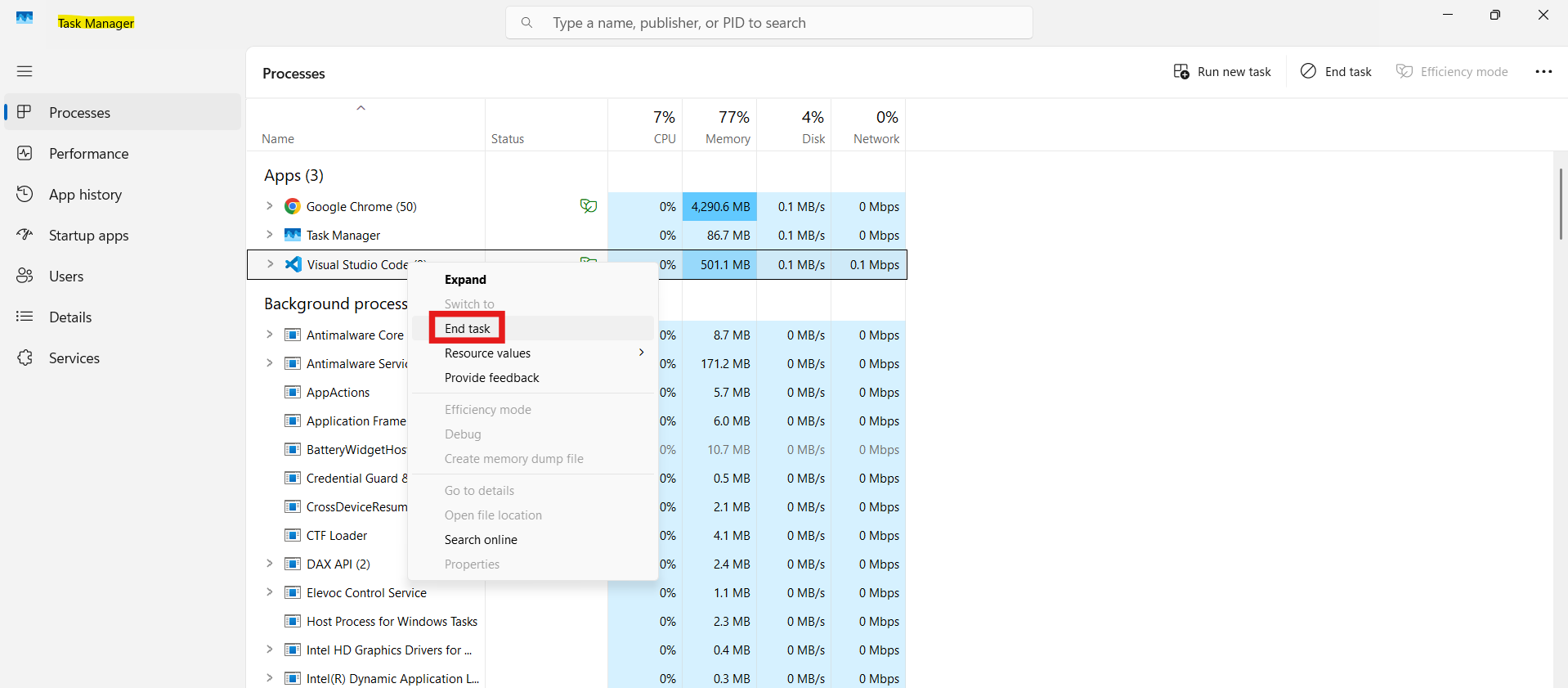
Fix 2: End Visual Studio Code Background Processes
VS Code may still be running in the background even after you close it.
1. Press Ctrl + Shift + Esc to open Task Manager.
2. Look for Visual Studio Code or Code Helper processes.
3. Select each one and click End Task.
4. Reopen Visual Studio Code.
Fix 3: Disable GPU Hardware Acceleration
Graphics driver conflicts are the most common cause of this error.
1. Close Visual Studio Code completely.
2. Open Command Prompt.
3. Run the following command:
code --disable-gpu
4. Check if Visual Studio Code opens normally.
If this resolves the issue, GPU acceleration is likely causing the crash and should be left disabled.

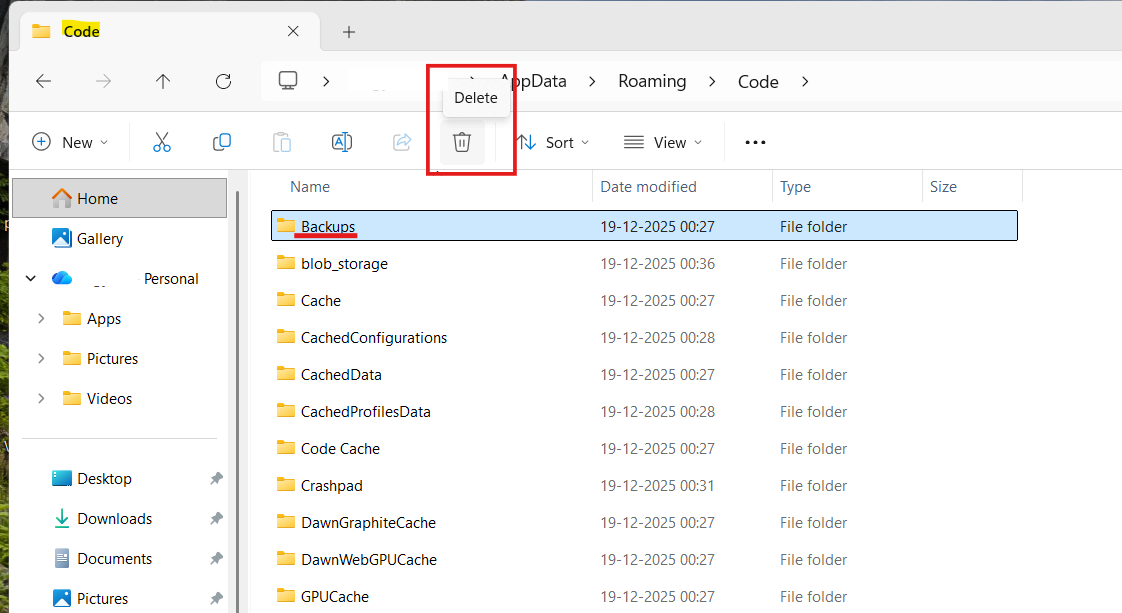
Fix 4: Delete Corrupted Backup Files
Damaged recovery data can prevent VS Code from starting correctly.
1. Close Visual Studio Code.
2. Press Windows + R, type%appdata%, and press Enter.
3. Open the Code folder.
4. Delete the Backups folder.
5. Restart Visual Studio Code.
Note: This removes unsaved work from previous sessions.
Fix 5: Disable Extensions Temporarily
A faulty extension can also crash the VS Code window.
1. Close Visual Studio Code.
2. Open Command Prompt and run the following command:
code --disable-extensions
3. If VS Code opens, re-enable extensions one at a time to identify the problematic one.

Fix 6: Reinstall Visual Studio Code
If none of the fixes work, a clean reinstall is recommended.
1. Uninstall Visual Studio Code.
2. Go to C:\Users\YourUsername\AppData\Roaming
3. Delete the Code folder.
4. Install the latest version of Visual Studio Code.

Fix 7: Launch Without Sandbox (Advanced)
If GPU disabling does not work, the sandbox environment may be causing conflicts.
1. Close all VS Code windows
2. Open Command Prompt as Administrator
3. Run: code --no-sandbox
4. Check if Visual Studio Code launches
Use this only for testing, as it reduces application security.

Conclusion
The Window Terminated Unexpectedly error in Visual Studio Code is usually caused by GPU acceleration conflicts, corrupted backup data, or extension issues. Disabling GPU acceleration resolves the problem in most cases. Use advanced fixes only if basic steps fail.