Today, I was reviewing Windows 8 shortcuts, and thing pulled me to write this article was that shortcut which comes with  + P. Actually this shortcut helps us let us select how we want to get display on screen. Surely you have the options here to:
- Extend the display to second screen
- Duplicate the display
- Display second screen only
- Duplicate the display on either screens
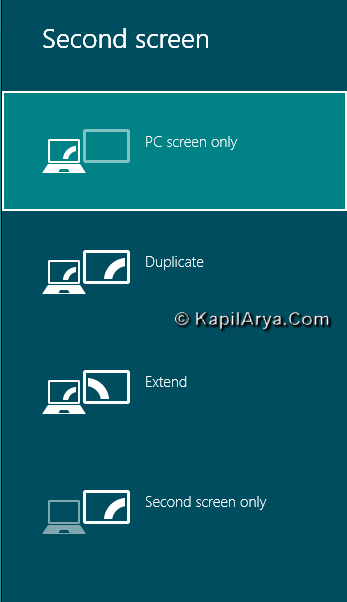
But what if we have not configured the second screen? In that case the display will limit to native screen. So to deal out with such cases, first we have to configure the screen settings. Here is how:
How To : Extend, Duplicate, Project Second Screen In Windows 8
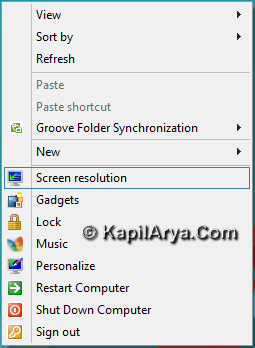
1. Right click on Desktop, pick Screen resolution.
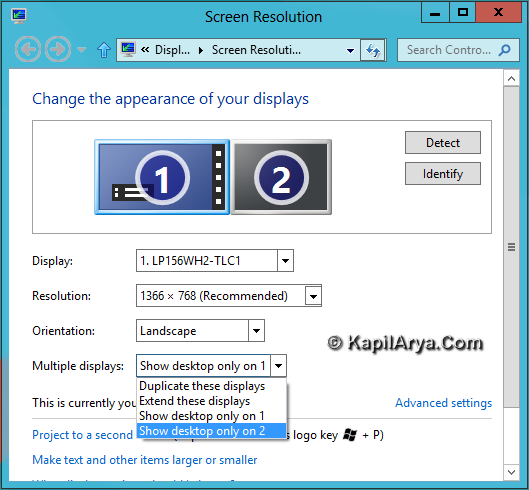
2. Under Screen Resolution window click on Detect to get second screen.
Now go for configuring Multiple displays list to choose desired setting.
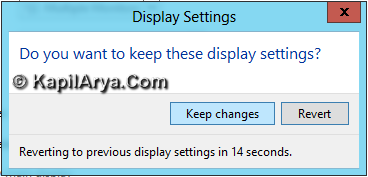
3. Confirm the changes you’ve made.
That’s it!