If you’re using Microsoft Edge as your primary browser with proxy settings but have issue accessing sites, this article for you. The problem may occur if you’ve incorrect proxy settings configured.
In this case, when you start Microsoft Edge and try to go to any webpage, you get following error:
Page Contents
Can’t connect to the proxy server
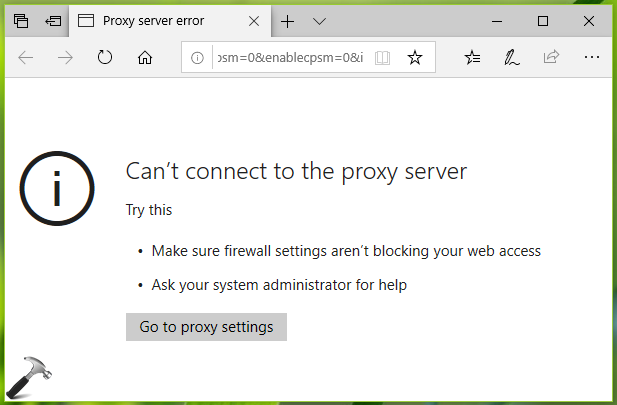
As you can see in the above screenshot, Windows recommends you to check firewall settings to resolve the problem. You can refer our following guide to check if Microsoft Edge is allowed via Windows Firewall:
How to allow/block apps via Windows Defender Firewall in Windows 10
If you already confirmed and there is nothing wrong with firewall settings, you can then try below mentioned fixes and see if they helps you.
FIX: Can’t Connect To The Proxy Server In Microsoft Edge
FIX 1 – Via Settings App
1. Right click Start Button or press  + X keys and select Settings.
2. In the Settings app, navigate to Network & Internet > Proxy.
3. Now in right pane of Proxy, under Manual proxy setup, turn off Use a proxy server option. This should disable proxy settings on your system with immediate effect.
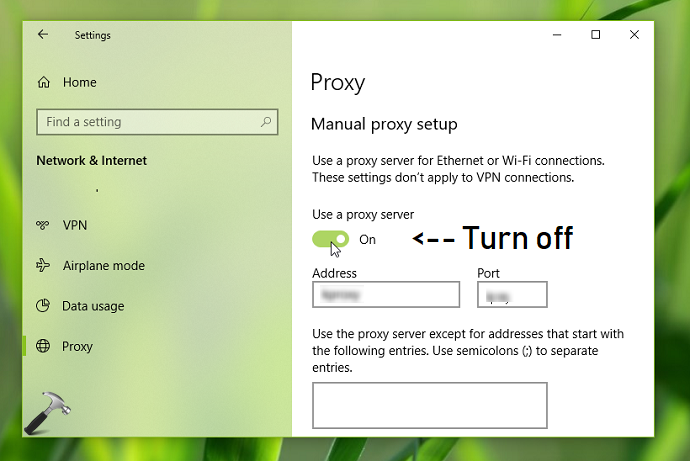
4. Close Settings app and verify, if the issue is resolved now.
If Settings app not working on your system, you can try FIX 2 mentioned below.
FIX 2 – Via Internet Properties
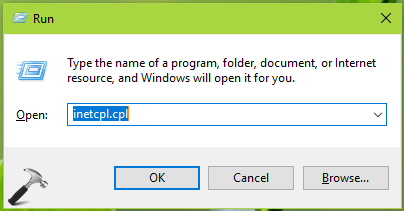
1. Press + R and type inetcpl.cpl in the Run dialog box, to open Internet Properties.
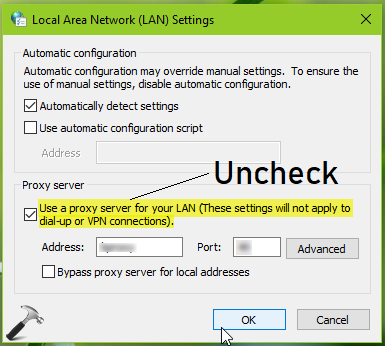
2. In Internet Properties window, switch to Connections tab. Under Local Area Network (LAN) settings, click LAN settings.
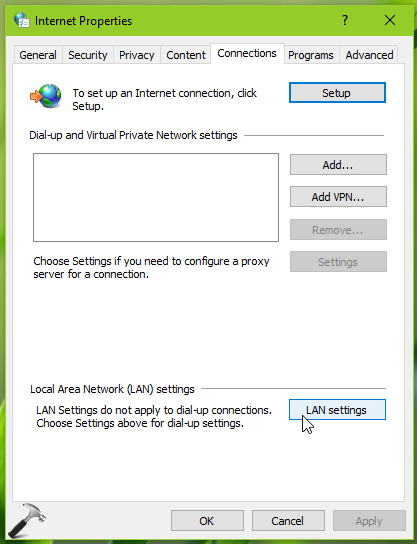
3. Under Local Area Network (LAN) settings, uncheck Use a proxy server for your LAN (These settings will not apply to dail-up or VPN connections) option. Click OK, Apply, OK.
Reboot or restart your machine and this should resolve the proxy issue with Microsoft Edge.
Let us know via your comments, if issue still persists!
Also see: Can’t Connect Securely To This Page Error In Microsoft Edge.