Can’t remove Windows device from Microsoft account? This article is on your side in case you have been left with this error in Windows 11. It is a problem that is experienced by many Windows users when attempting to unlink an old laptop or PC to their Microsoft account.
This may occur regardless of clicking on Remove at the Microsoft devices page, particularly when the device contains remaining credentials or services that are associated with your account. In this article, we shall provide you with some easy step-by-step procedures of correcting the issue and, in fact, getting rid of your Windows device with little effort.
Page Contents
Why This Error Happens
When Windows does not allow deleting your device under your Microsoft account, there is most likely a reason behind it (although this is not stated explicitly). In the majority of cases, it occurs due to the following reasons.
- You are still logged in with your Microsoft account.
- Windows stores the login tokens in Credential Manager.
- Such services as OneDrive, Store, or Outlook are still in operation.
- You are changing accounts or formatting a PC.
- On a shared or office computer, you have logged in.
- Microsoft believes that the device is still in use.
Fix: Can’t remove Windows device from Microsoft account
In these fixes, you are able to delete any Windows gadgets in your Microsoft account without any difficulties. These are the methods that secure your privacy, clean your Microsoft dashboard, and secure your account.
Fix 1: Clear Microsoft Credentials
Windows caches resume your Microsoft user name and password into Credential Manager. And, the information continues to reconnect your computer to your account on reboot after removal.
1. Open Control Panel.
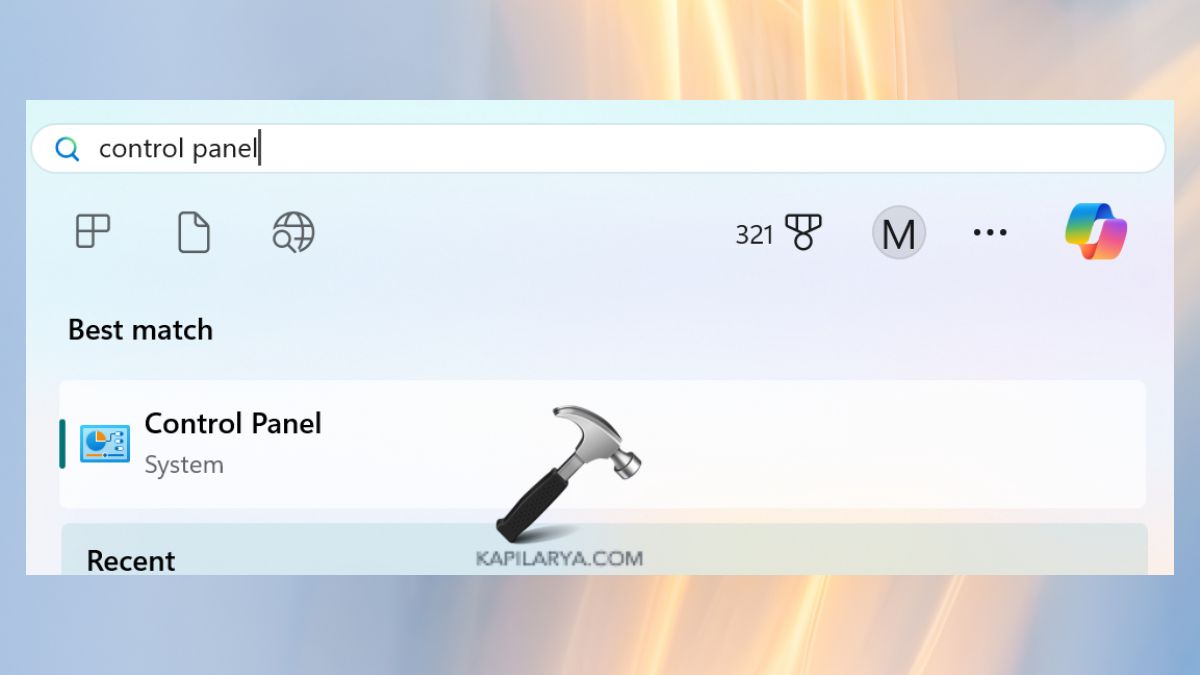
2. Go to Credential Manager.

3. Click Windows Credentials.

Remove entries related to-
- MicrosoftAccount
- Outlook
- OneDrive
- Office
Restart your PC.
Fix 2: Remove the Device Online From Microsoft Account
In case the device is no longer in your possession, this approach becomes the easiest and quickest.
1. Visit now and login with your credentials: https://account.microsoft.com/devices.

2. Click Remove device.

This is expected to work but in case it does not, your machine is still bound to your account on your machine. Move to Method 3.
Fix 3: Switch Your Windows Login to Local Account
This comes in very handy in the situations when the device is not letting you unlink, since you have been using it with your Microsoft account.
1. Click on the Settings gear icon and go to Accounts > Your Info.

2. Decide to use a local account instead.
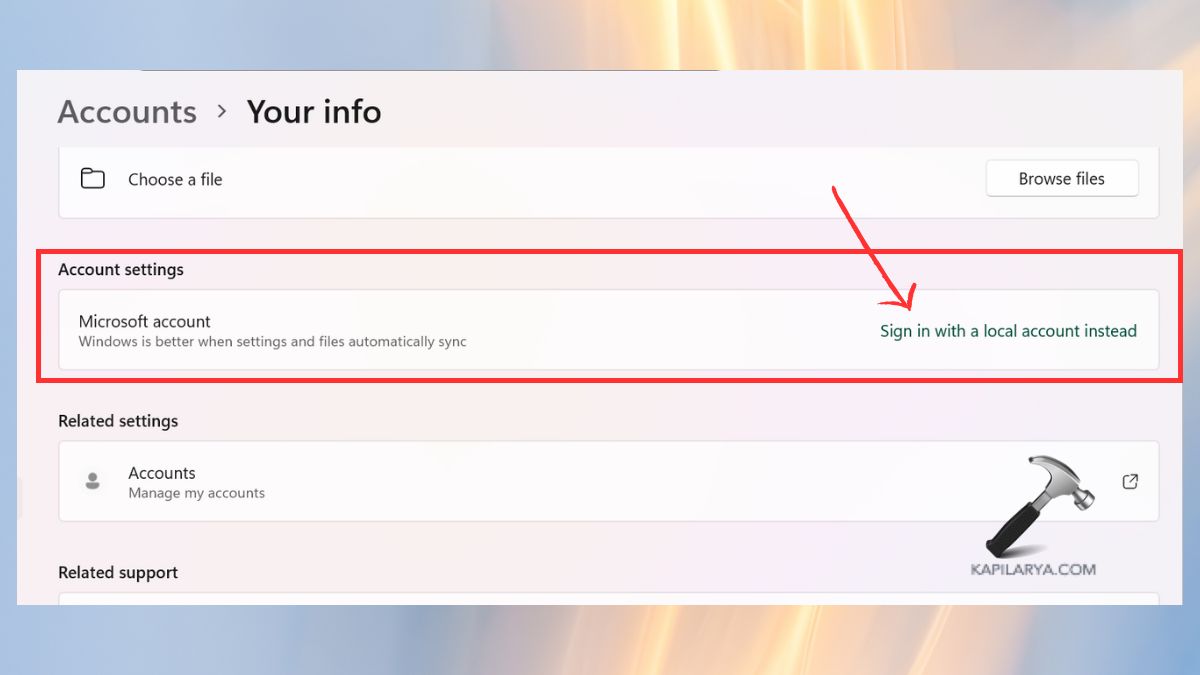
Create a local password. Restart the device.
3. Return to the device management page of Microsoft https://account.microsoft.com/devices. Click Remove.
Frequently Asked Questions (FAQs)
Why won’t Microsoft let me remove my device?
Since it remains linked by log ins, by way of sync service, or the in-use of an account.
Does removing the device delete my Windows data?
No, it just eliminates online association. Your local files remain safe.
I sold my laptop. How do I remove Windows device from Microsoft account?
You only need to follow Method 2 and take the device out of another.
That’s it!