The Sign-in error 0x80190001 is enough to obstruct your workflow as it appears immediately when you log into your Microsoft account or Outlook, and then confuses you. This error in Windows 11 may frequently appear because of network glitches or old app data, or because of problems with authentication. However, the better part is that it can be fixed! Here, we are going to divide the most optimal and user-friendly practice to resolve the Microsoft account error 0x80190001 under sign-in.

Page Contents
Fix Sign-in error 0x80190001 for Microsoft account/Outlook
All of these fixes can help you to avoid frustration and resume working on your emails and files.
Fix 1: Power OFF/ON Your Wi-Fi Router
Connectivity glitches can occasionally be fixed by a simple connectivity router retest.
1. Disconnect your Wi-Fi router and unplug it out.
2. Wait 30 seconds to 1 minute.
3. Plug it back in and turn it on. To troubleshoot further, do a restart, then log in again.
Fix 2: Temporarily Disable VPN or Proxy (If Already Using One)
In the case that you are already on a VPN or proxy, it may interfere with the authentication of Microsoft.
1. Turn off your VPN or your proxy.
2. Try signing in again.
3. Should it succeed, enable your VPN to enable Microsoft services, or leave it turned off whilst signing in.
Fix 3: Repair or Reinstall the Outlook App
In some cases, it is even the Outlook application that is the source. A compromised installation may deny the Microsoft account sign-in.
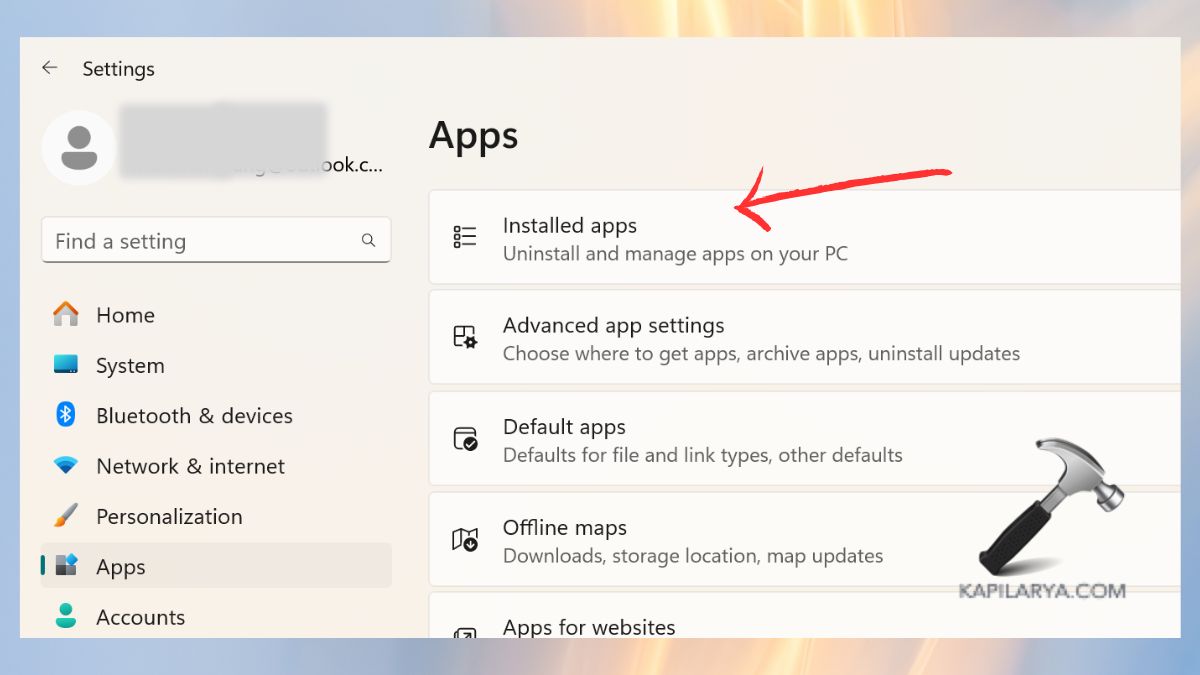
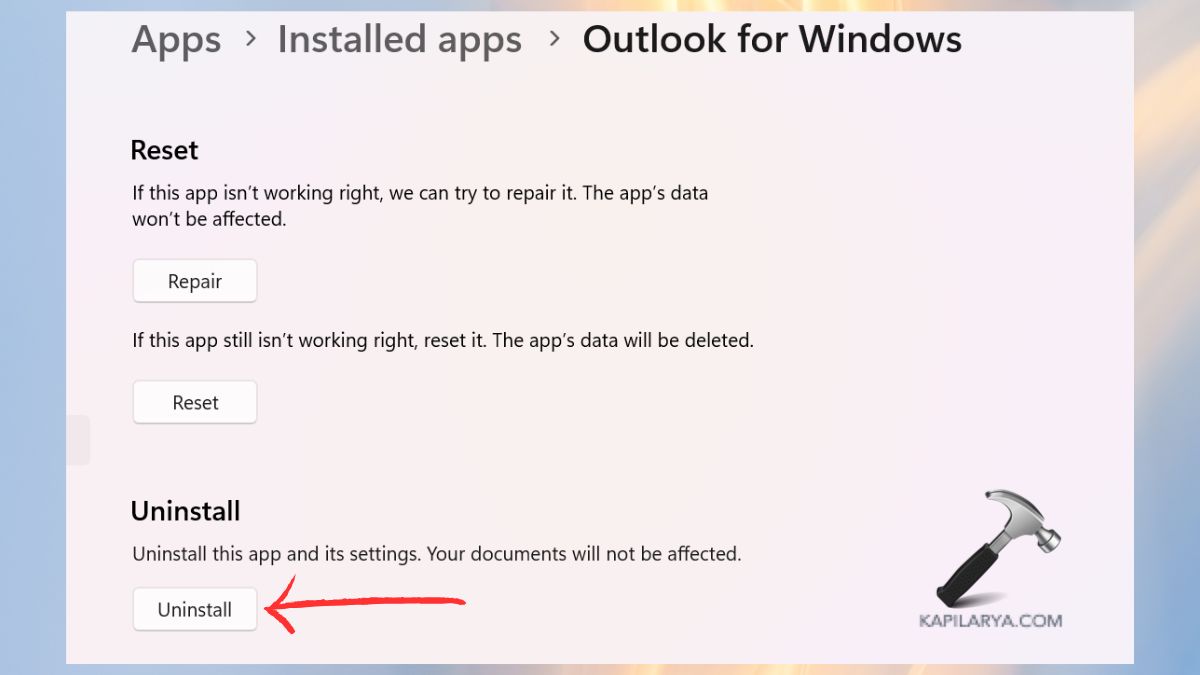
1. Click Win + I to open Settings. Click on “Apps and Features” from side menu and choose Installed Apps.
2. Find Outlook (New outlook or Microsoft office). Choose Advanced options from three-dot icon.
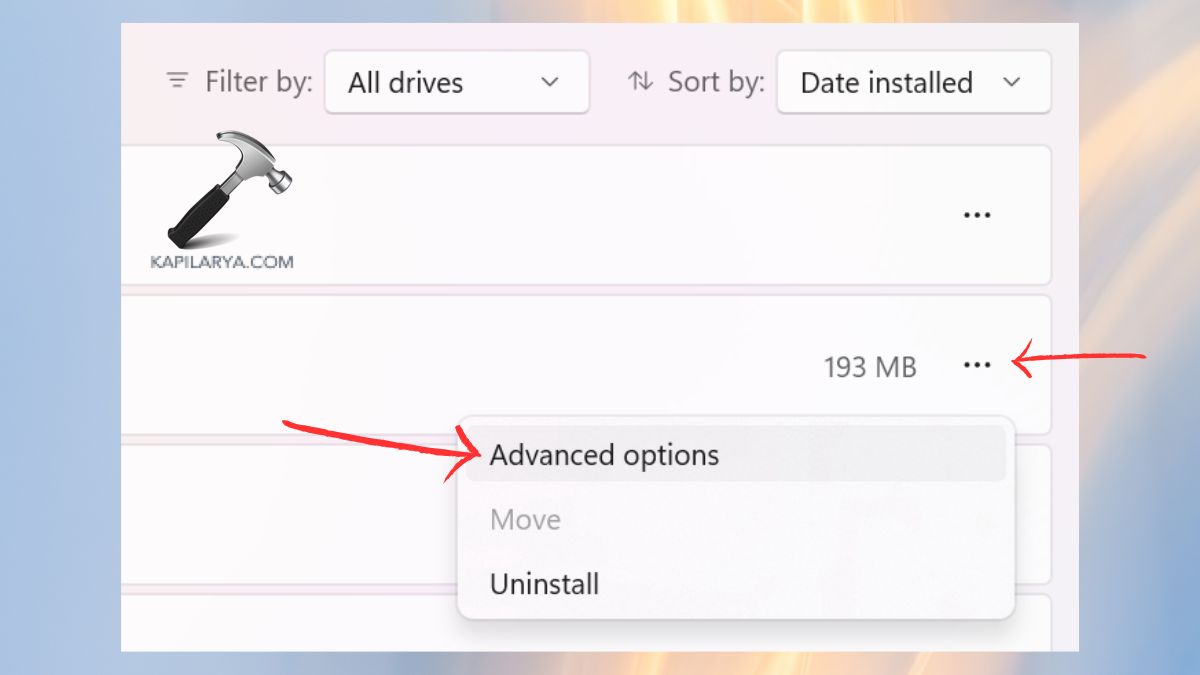
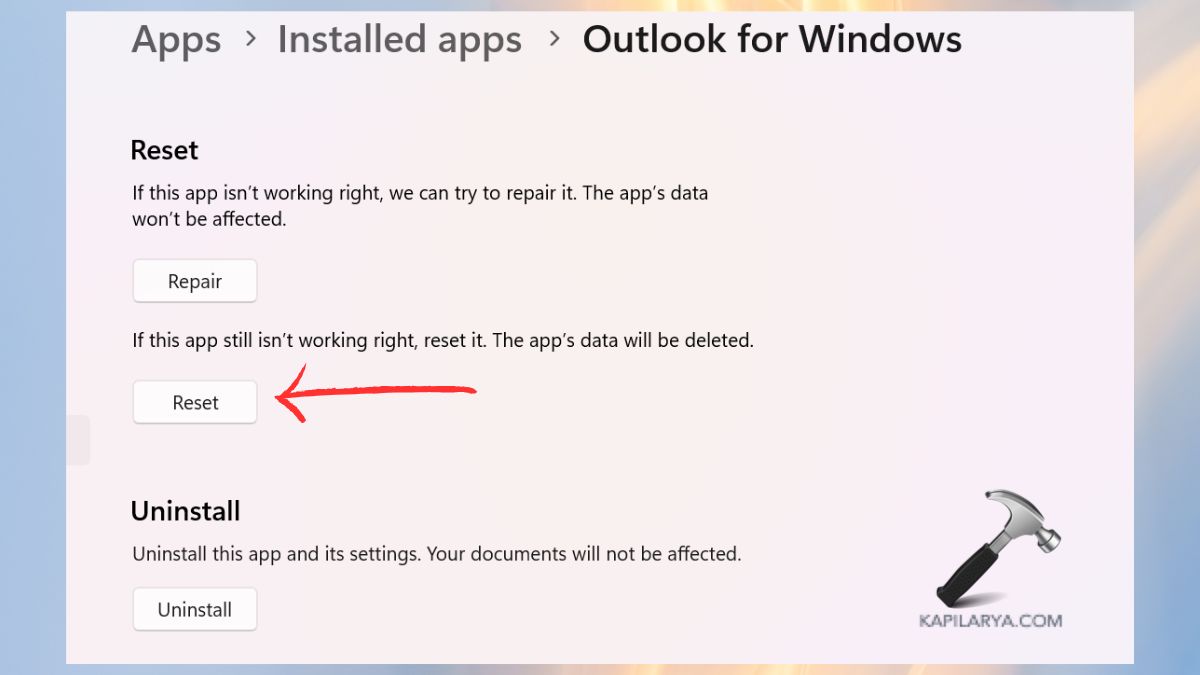
3. Scroll down and select Repair option.

4. When repairing is not helpful, select Reset.
5. In case the problem continues, remove and reinstall Outlook again in the Microsoft Store or Office site.
Fix 4: Use a VPN or Change Internet Connection
Microsoft servers prohibit connections from some areas or unreliable ISPs. Such issues can be overcome by switching networks or using a VPN.
1. Select a Wi-Fi network or a mobile hotspot and connect your PC.
2. Switch to a reliable VPN, at least temporarily, and see whether you can sign in again.
3. When the error is gone, then it was your internet connection that was the problem. You are required to contact your ISP in order to get help in this scenario.
Fix 5: Reset Your Network Settings
A network reset will help resolve any underlying network connectivity problem that could be the cause of the problem with Outlook sign-in.
1. Click on the “Win & I” > Network and Internet > Advanced Network settings.

2. Select Network Reset.

3. Restart, rejoin Wi-Fi, and attempt to log in to your Microsoft account once again.
Fix 6: Create a New User Profile
A corrupted Windows user profile may also lead to error 0x80190001. The problem can be resolved by creating a new profile.
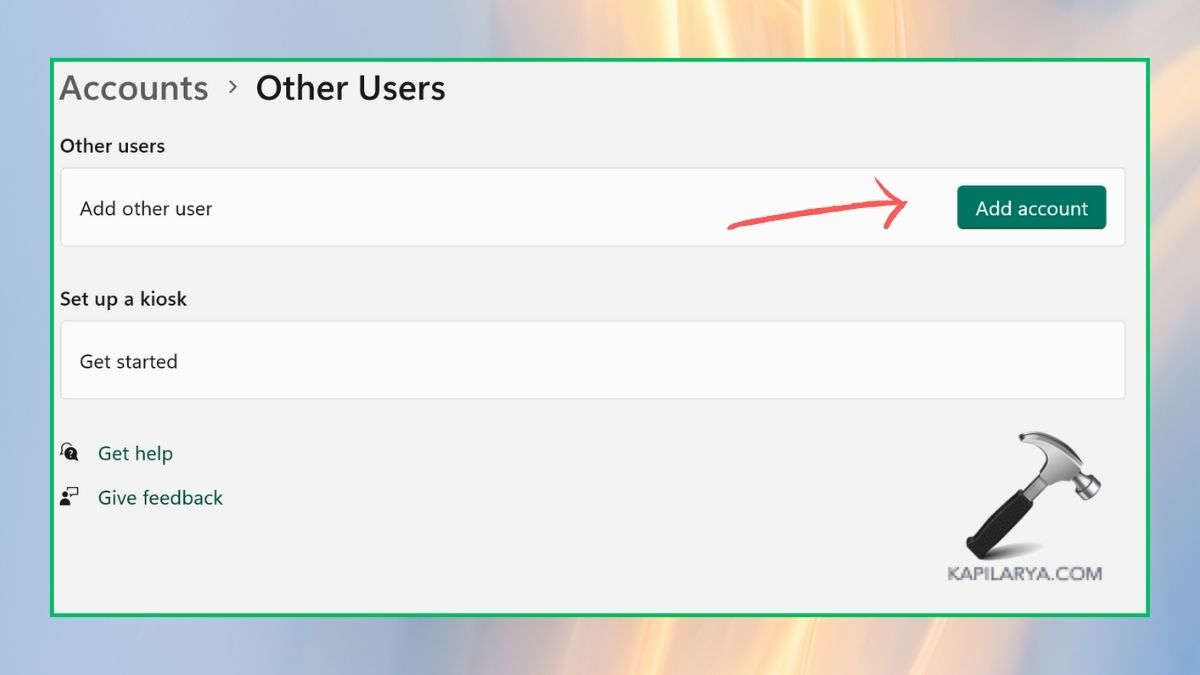
1. Click on Settings > Accounts > Other users.

2. Click Add account > Add a new user with no Microsoft account.
3. Permit a username and a password.

4. Attempt to log in to your new Microsoft account or Outlook once more.
Fix 7: Reset Your Microsoft Account Password
When something goes wrong with your password or security check, resetting your password will work.
1. Visit the Microsoft account page (https://account.microsoft.com/account). Click on “Change Password”.
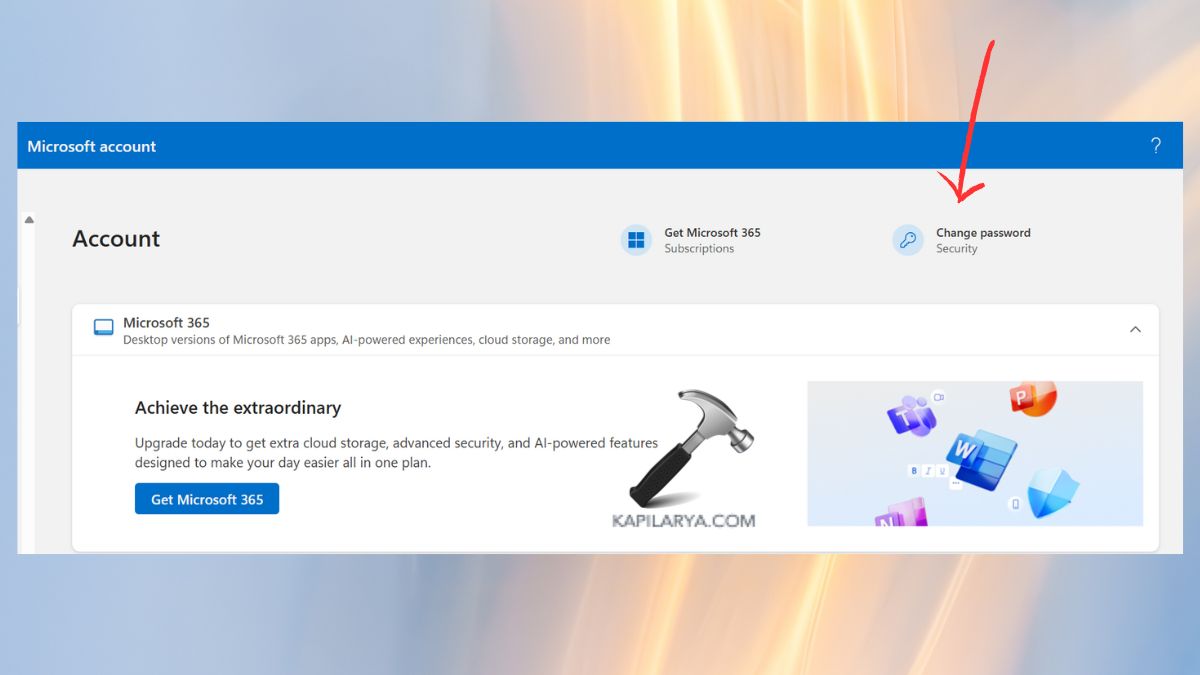
2. Complete the instructions to check your identity. Create a new, strong password.

3. Attempt to re-sign in to the Outlook of your Microsoft account.
Fix 8: Repair or Reinstall Microsoft Office Suite
In case your Outlook is an element of the office suite, repairing or reinstalling the entire suite could eliminate corrupted elements.
1. Again, go to Settings > Apps > Installed Apps.
2. Then, find Microsoft Office, click on three-dot icon and choose “Modify”.
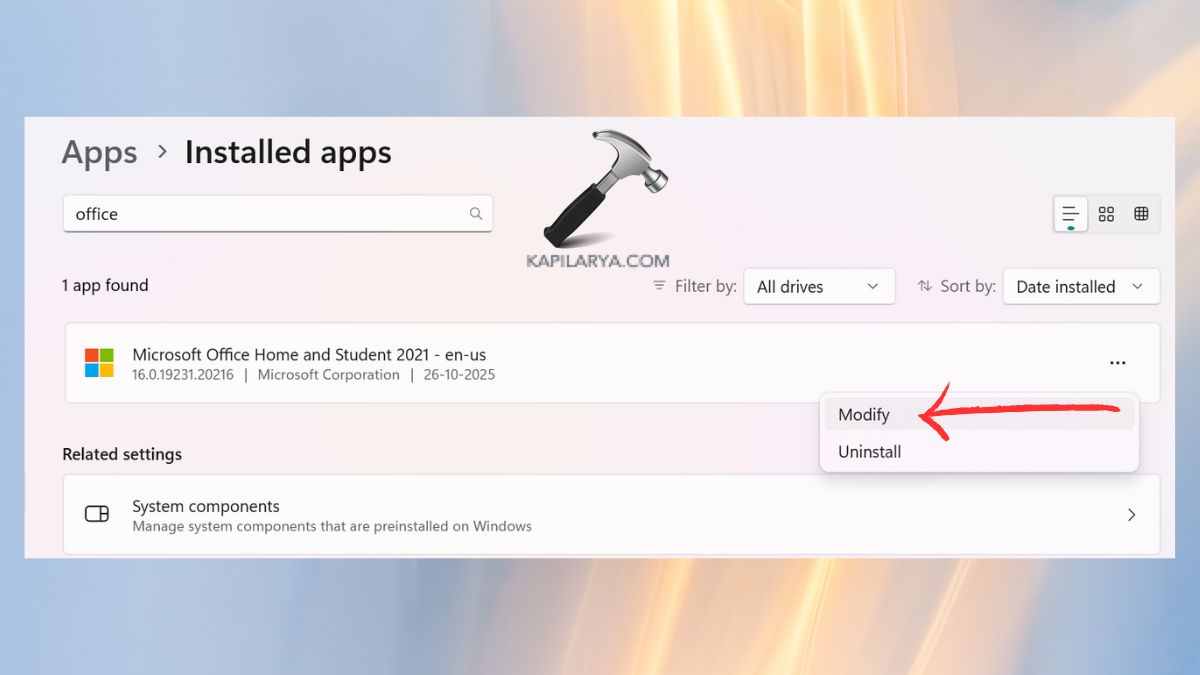
3. Select Quick Repair, and in case it does not work, Online Repair.
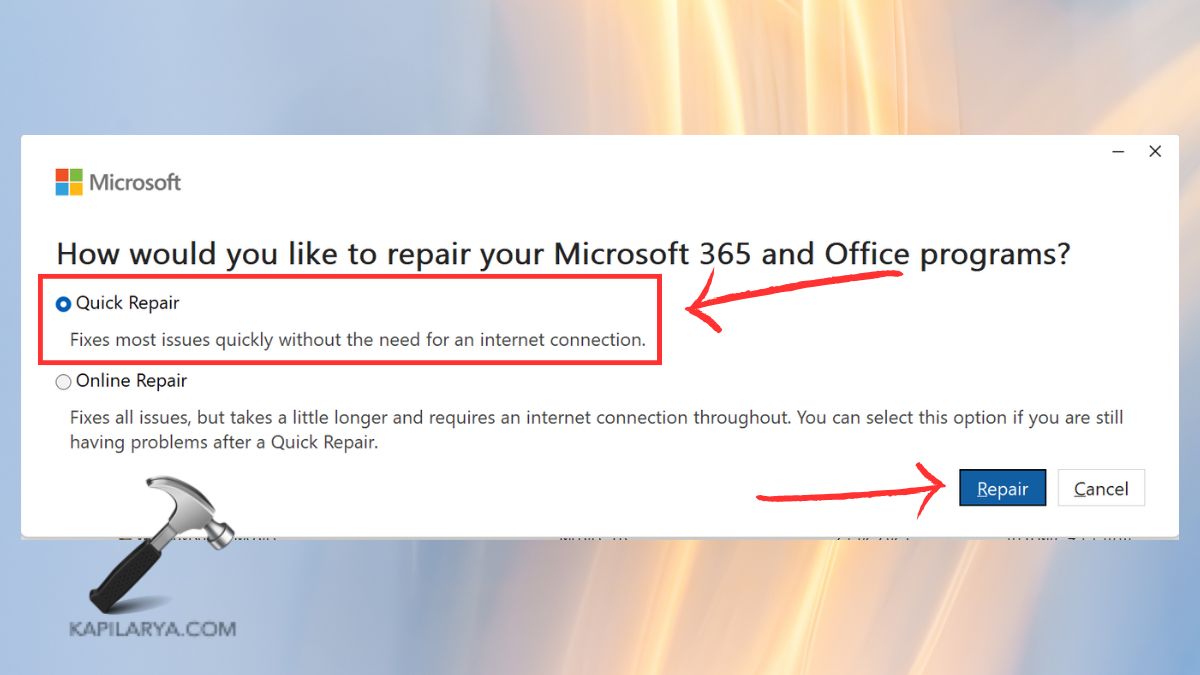
4. Afterward, restart and attempt to log in once more.
Frequently Asked Questions (FAQs)
That’s it!