We all know that Group Policy is a robust tool to manage your users and machine in an organization. If you applied a GPO to a particular number of users or to all user but it is not applying to one specific user, then this article is for you.
There might be multiple factors which will involve to create this issue. However, the most common causes are accounted here. You can try the suggestions mentioned below and see if that helps you.
Page Contents
FIX: Group Policy Not Applying To One User/Computer
FIX 1 – General Suggestions
1. Make sure the user is member of the group, to which you are applying GPO. Check the Scope tab for GPO. For machine-based policy setting, GPO should be linked to OU that contains the computer. While if it is user-based policy setting, correct user OU must be linked.
2. Confirm that the group to which you applying GPO is global.
3. Check if you’ve correctly configured the GPO setting. Some GPO titles might be misunderstood very easily and hence they’re not configured as they should be. For example, ‘Turn Off UDP On Client’.
4. Check the status of WMI filtering.
FIX 2 – Check Effective Access
Below steps are shown for user, but similar steps can be used for computer.
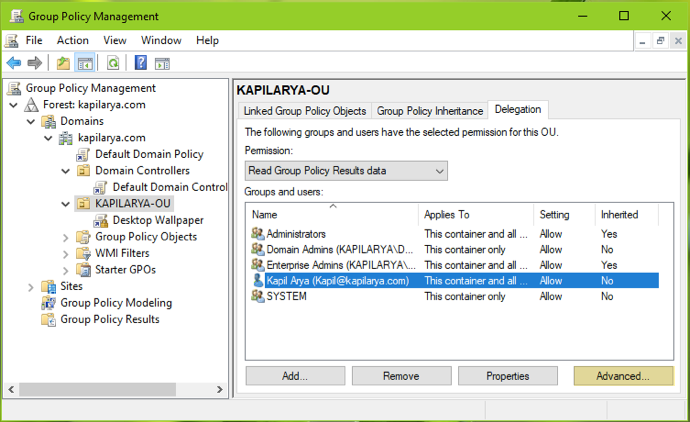
1. Open Group Policy Management and click on the OU. In the corresponding right pane, under Delegation tab, highlight the user to which Group Policy is not applying. Click on Advanced button.
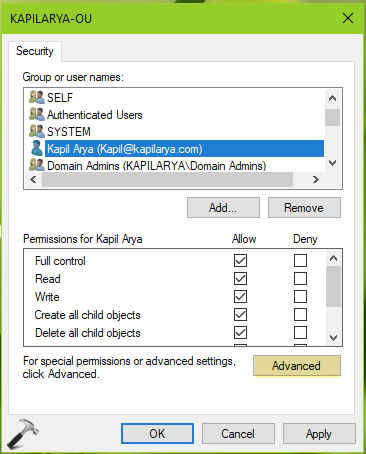
2. In the window open next, select the affected user and click Advanced.
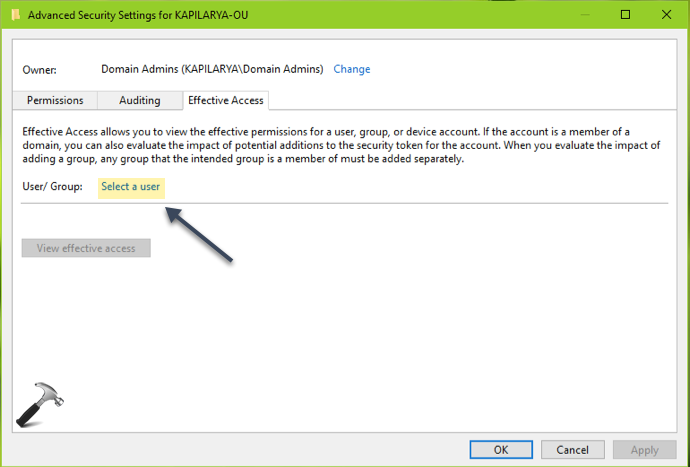
3. Under Advanced Security Settings, switch to Effective Access and click on Select a user. In next window, locate the user and return back to this window.
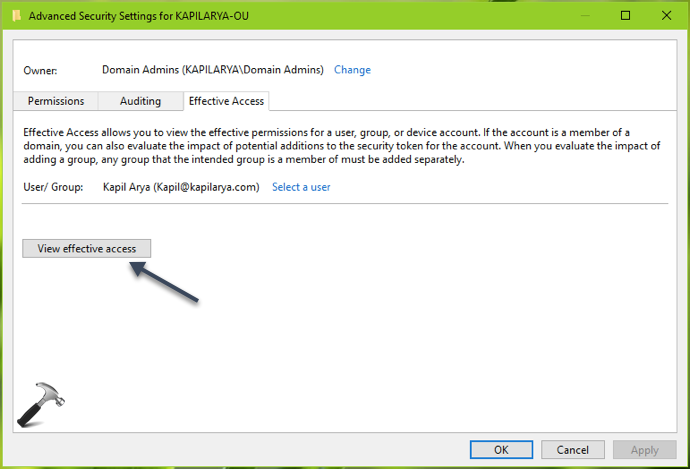
4. Once you locate the user, click View effective access.
5. Now the effective access for selected user should be displayed. You need to make sure that user have access for Apply Group Policy. You might also want to re-ensure other permissions. If some permission isn’t as it should be, switch to Permissions tab, select the user and click Edit, and finally configure the required permissions.
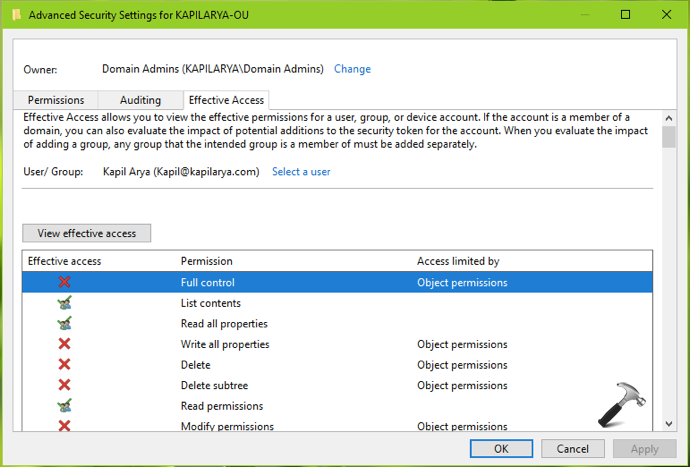
Once the user have appropriate permissions, the issue will no longer be present.
Hope this helps!