When Location Services are disabled or grayed out, you may see a message like “Location has been turned off by an admin.” in Windows 11.
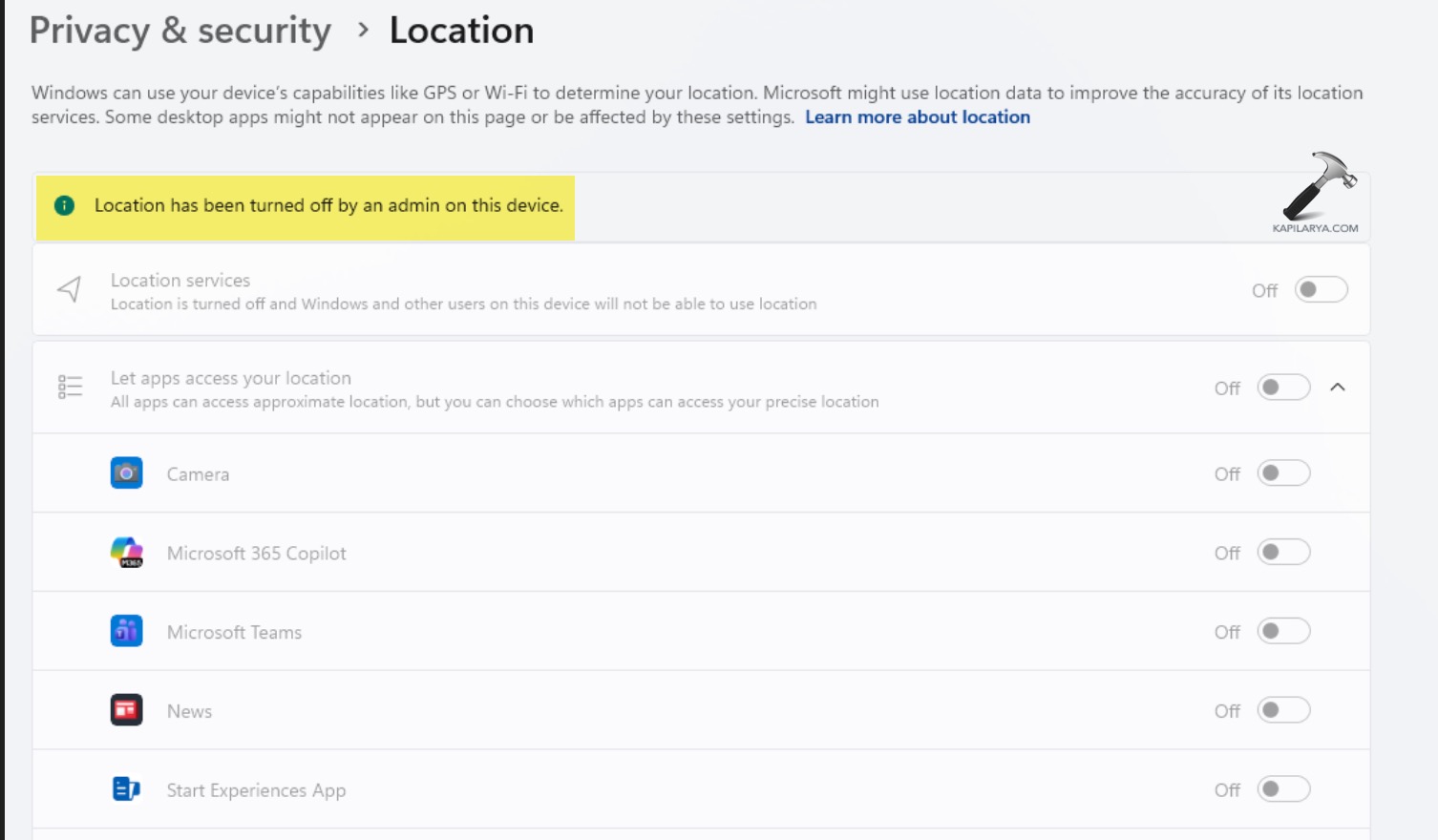
As a result, you cannot turn the toggle back on.
In most cases, Windows blocks the feature because a system policy or registry setting restricts it, even on personal PCs.
Page Contents
Fix: Location Has Been Turned Off by an Admin on Windows 11
This can also happen after privacy tweaks, cleanup tools, or comparing corporate-style restrictions. Below are multiple ways to fix it and restore control over location settings.
Fix 1: Enable Location Services as an Administrator
Often, the simplest cause is that a non-admin account cannot change Location settings:
1. First, sign out of your current Windows account.
2. Then, sign in using a local admin or Microsoft account with administrative rights.
3. Open Settings, and click on Privacy & security, then go to Location.
4. Turn Location services to On.
5. After that, sign out again and return to your regular account.
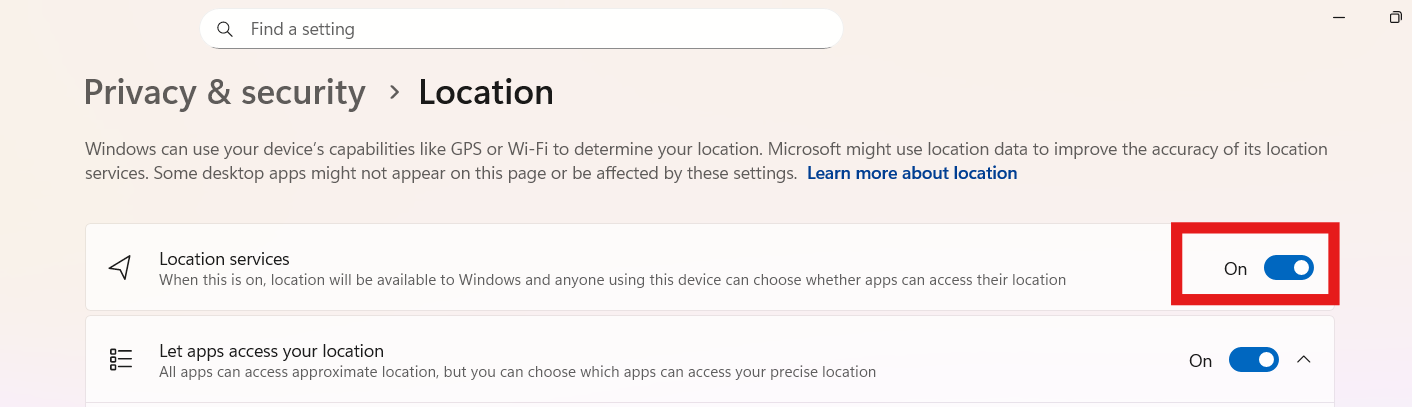
Using an account with full privileges can re-enable things that were blocked for standard users.
Fix 2: Enable Location via Registry Editor
NOTE: If you’re new to registry, create a System Restore point before below steps:
Additionally, registry entries can force Location Services to stay disabled:
1. First, press Win + R, typeregedit, and press Enter.
2. Then, to enable the Geolocation Service, navigate to:
HKEY_LOCAL_MACHINE\SYSTEM\CurrentControlSet\Services\lfsvc
3. Find the Start DWORD. Set it to 2 (Automatic) or 3 (Manual).
4. Next, to remove the “Managed by Admin” restriction, navigate to:
HKEY_LOCAL_MACHINE\SOFTWARE\Policies\Microsoft\Windows\LocationAndSensors
5. If you see DisableLocation, delete it or set it to 0.
6. Then, to fix the App Permissions, navigate to:
HKEY_LOCAL_MACHINE\SOFTWARE\Microsoft\Windows\CurrentVersion\CapabilityAccessManager\ConsentStore\location
7. Make sure the Value shows Allow.
8. Restart your PC for the changes to take effect.
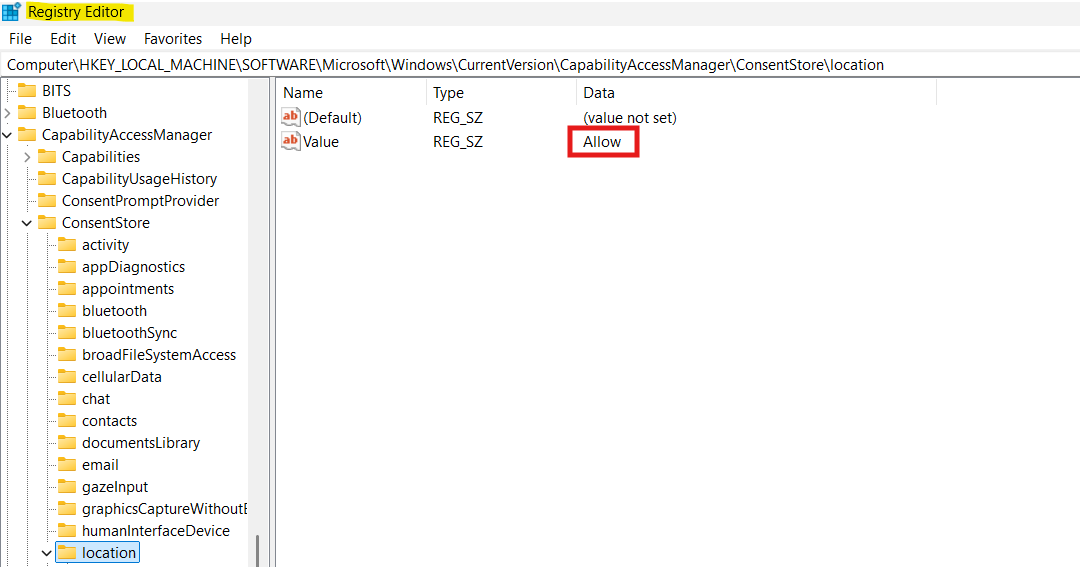
If you don’t see the specific folders or keys mentioned above, don’t worry; it usually means a policy hasn’t been set
Fix 3: Check Geolocation Service Status
Windows depends on a background service to provide location data:
1. Press Win + R, type services.msc, and press Enter.
2. After that, find the Geolocation Service in the list.
3. Double-click it.
4. Set Startup type to Automatic or Automatic (Delayed Start).
5. Click Start if it isn’t already running.
6. Then, restart your PC.
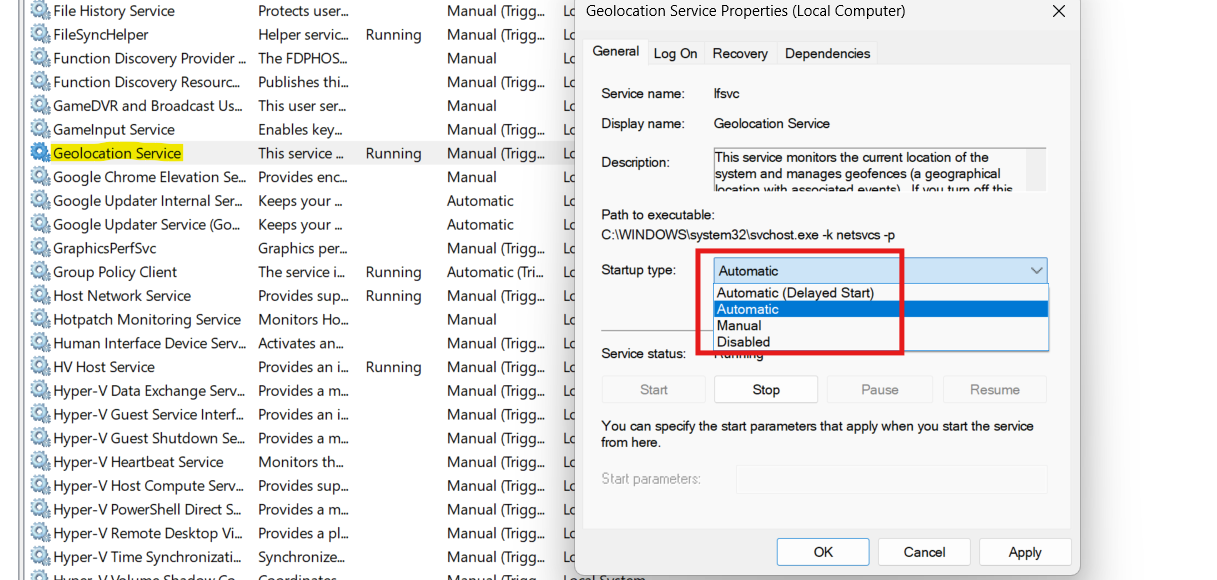
If this service is disabled, the location toggle may remain grayed out even if settings are correct.
Fix 4: Reset Group Policy (Windows 11 Pro/Enterprise)
If a Group Policy is set to block location, change it back:
1. First, press Win + R, type gpedit.msc, and then press Enter.
2. After that, go to:
Computer Configuration and then Administrative Templates. Click on Windows Components and then go to Location and Sensors.
3. Locate a policy like Turn off location or similar.
4. Ensure that it is set to Not Configured.
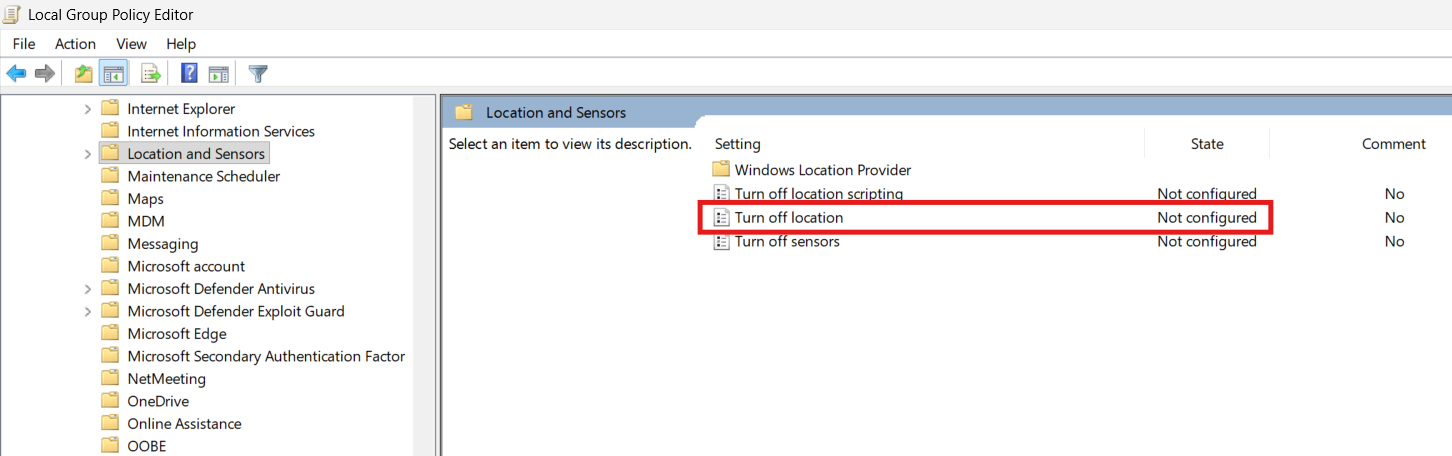
This lets Windows Settings manage Location services again.
Fix 5: Undo Third-Party Blocking or Privacy Tools
Sometimes privacy tweakers, debloat scripts, or overzealous security tools can disable system features like Location:
1. Uninstall or disable any recent privacy/optimizer apps you used.
2. If the issue started after such a change, consider doing a System Restore to a point before the change.
Some of these tools write policies into the registry that are not always undone automatically.

Optional: Check for Managed by Your Organization
If Location settings show as Managed by your organization even on a personal PC:
1) It can be due to leftover policy remnants or registry entries from optimization tools or incorrect tweaks.
2) The methods above will usually clear that state if it isn’t actually controlled by a real organizational domain.