Previously, I’ve shared you how to configure your Windows 11 to receive Insider Preview builds. Now in this article, we’ll see how to switch Windows Insider Channel in Windows 11. See, Windows Insider Program releases Preview Builds in different channels. And you’ll receive the Preview Build only for the channel you’ve opted. While you setup Windows 11 for Windows Insider builds, you should have been asked to choose a Windows Insider Channel. However, if you later need to switch Windows Insider Channel, this guide will help you.
Before seeing the actual steps to switch channels, it is important that you’ve sufficient information on channels.
Page Contents
Windows Insider Channels in Windows 11
Atm, Windows Insider Program have these 4 channels:
Canary channel
This channel is ideal for highly technical users. You can preview the latest platform changes early in the development cycle. These builds can be unstable and are released with limited to no documentation.
Dev channel
This channel is ideal for enthusiasts. It provides access to the latest Windows 11 preview builds as we incubate new ideas and develop long lead features. There will be some rough edges and low stability.
Beta channel
Preview Builds are less buggy and more reliable updates as compared to Dev channel.
Release channel
More stable builds as compared to Beta channel. Get a closer build to next stable release. Provides early access to next upcoming Windows 11 Version.
You can read more able Windows Insider Program Channels in this post.
Here is how you can Windows Insider Channel on your Windows 11.
How to switch Windows Insider Channel in Windows 11
Method 1: Via Settings
1. Press  + I keys to open Settings app.
2. Go to Windows Update > Windows Insider Program.
3. Expand Choose your Insider settings label. Then you’ll find options to select Windows Insider Channel of your choice. As you can see in the screenshot below, I’ve already selected Dev channel, but if I like, I can select Beta and Release Preview is greyed out here, as of this writing for Windows 11.
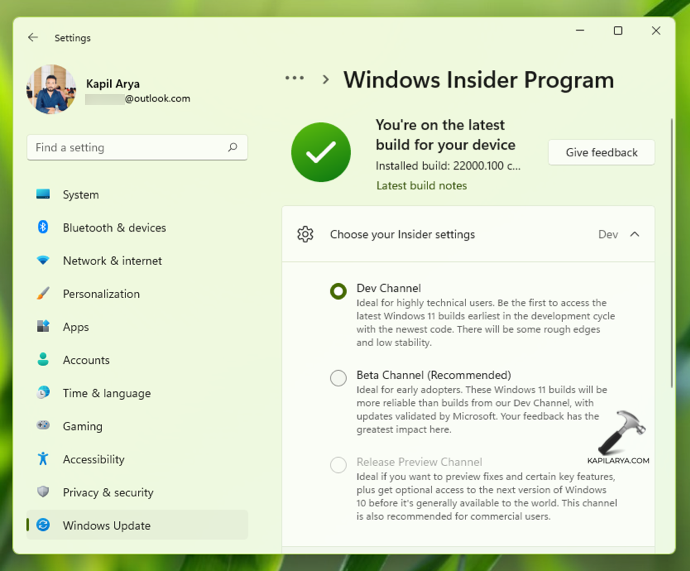
4. Your Windows Insider Channel is in effect immediately and you can then go to Windows Update to check for latest build in your selected channel.
Method 2: Via Registry
 Registry Disclaimer: It is recommended to create a System Restore point first, if you’re not familiar with registry manipulation.
1. Run regedit command to open Registry Editor.
2. In left pane of Registry Editor window, navigate to:
HKEY_LOCAL_MACHINE\SOFTWARE\Microsoft\WindowsSelfHost\Applicability
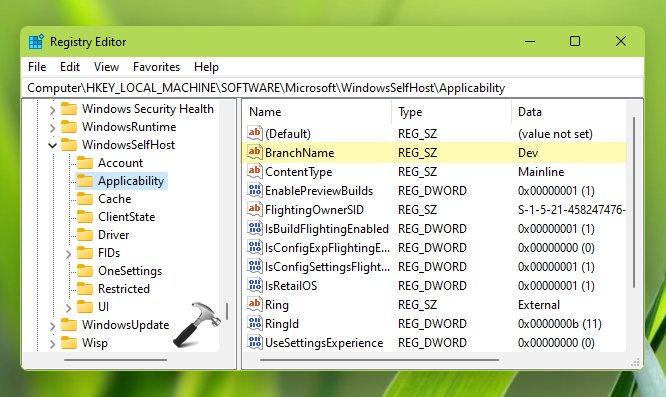
3. You should be able to locate BranchName registry string (REG_SZ). You can set it to channel name like Dev, Beta and Release Preview to opt for respective Windows Insider Channel.
4. Then go to following registry key:
HKEY_LOCAL_MACHINE\SOFTWARE\Microsoft\WindowsSelfHost\UI\Selection
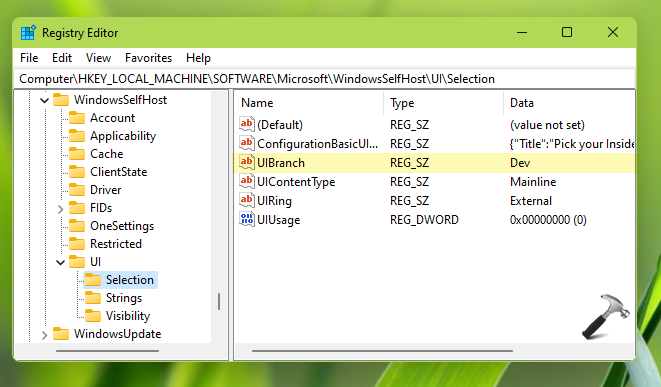
5. Similar to step 3, set the UIBranch registry string (REG_SZ) to Dev, Beta and Release Preview. Make sure you fill same Value data for both the registry strings.
6. Once done, close Registry Editor and reboot.
Video guide
Check this video to illustrate above methods:
That’s it!
Related: Download latest Windows 11 Preview Build.
Update history: Originally published on Aug 4, 2021. Last updated in accordance with latest Windows Insider channel changes.