Can’t turn on location services in Windows 11? This article is just for you.
Location services in Windows 11 have a significantly larger role to play than most users realize. This feature may improve your everyday computing experience by providing correct weather forecasts to finding lost gadgets, and more, but it does not stand out. The problem of not being able to turn on location services in Windows 11 turns off functionality in a range of applications and system features.
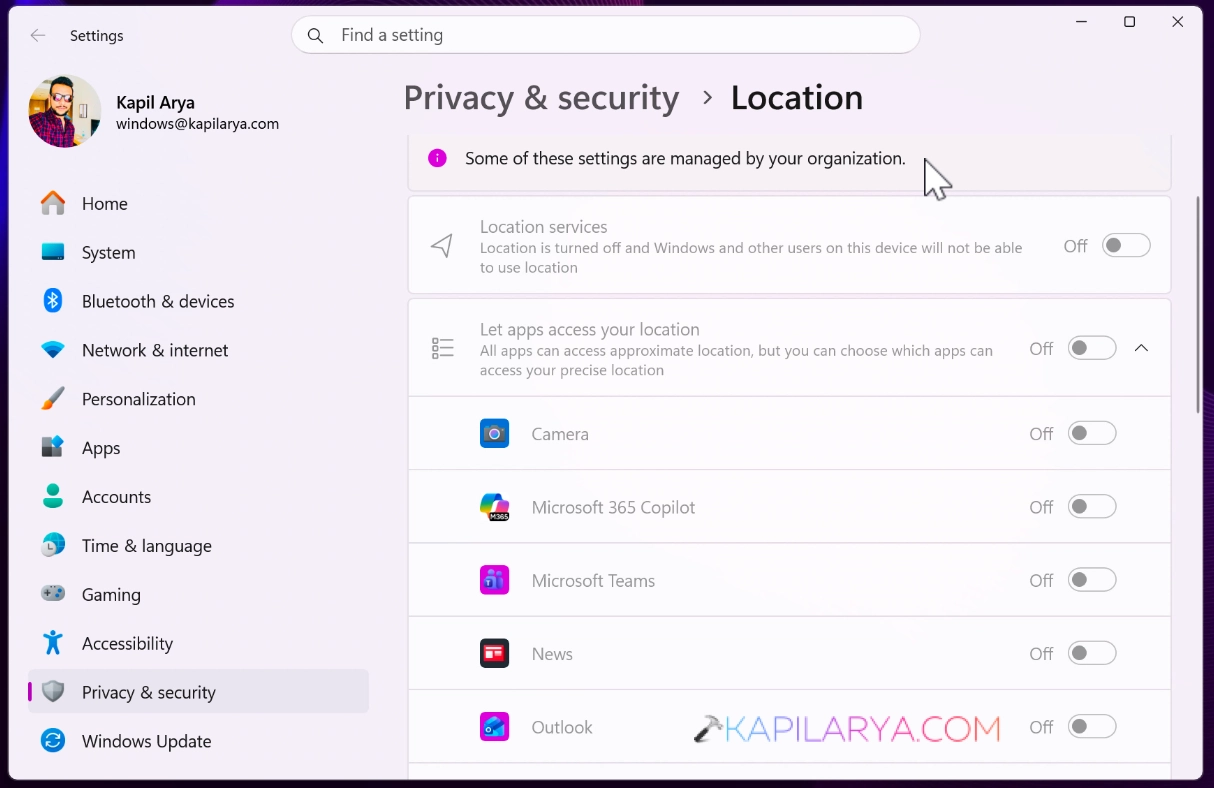
That is why it is the priority to fix the problem in Windows 11, particularly when you are using navigation applications, ride-sharing, browsers, or productivity tools.
Page Contents
Why Location Services Won’t Turn On in Windows 11
The problem is not realized by many users at first. These are some of the typical indicators-
- The Location toggle is in grey.
- Apps result in warnings of location access off.
- Maps and Weather present wrong information.
- “Find My Device” doesn’t work.
- Knowing where you are is beyond the capabilities of browsers.
Whenever any of these remind you of something, then you are, indeed, encountering the can’t turn on location services in Windows 11 problem.
Is It Safe to Turn On Location Services in Windows 11?
Absolutely. Windows 11 provides custom control of privacy, which enables you to make a choice.
- What applications are able to get your location
- Stored location history
- When location access is used
Microsoft has set up this functionality to be privacy-friendly without interfering with convenience. And, when properly set up, the privacy is not affected by its process.
Fix: Can’t turn on location services in Windows 11
What appears to be frustrating is the Can’t turn on location services in Windows 11 issue, which can be resolved easily once one has the proper strategy in place.
Method 1: Enable Using Windows Settings
This is the simplest and quickest way of correcting can’t turn on location services in Windows 11 on personal computers. These are the steps to follow:
1. Click “Windows + I” to open Settings. Go to Privacy & security. Click Location.
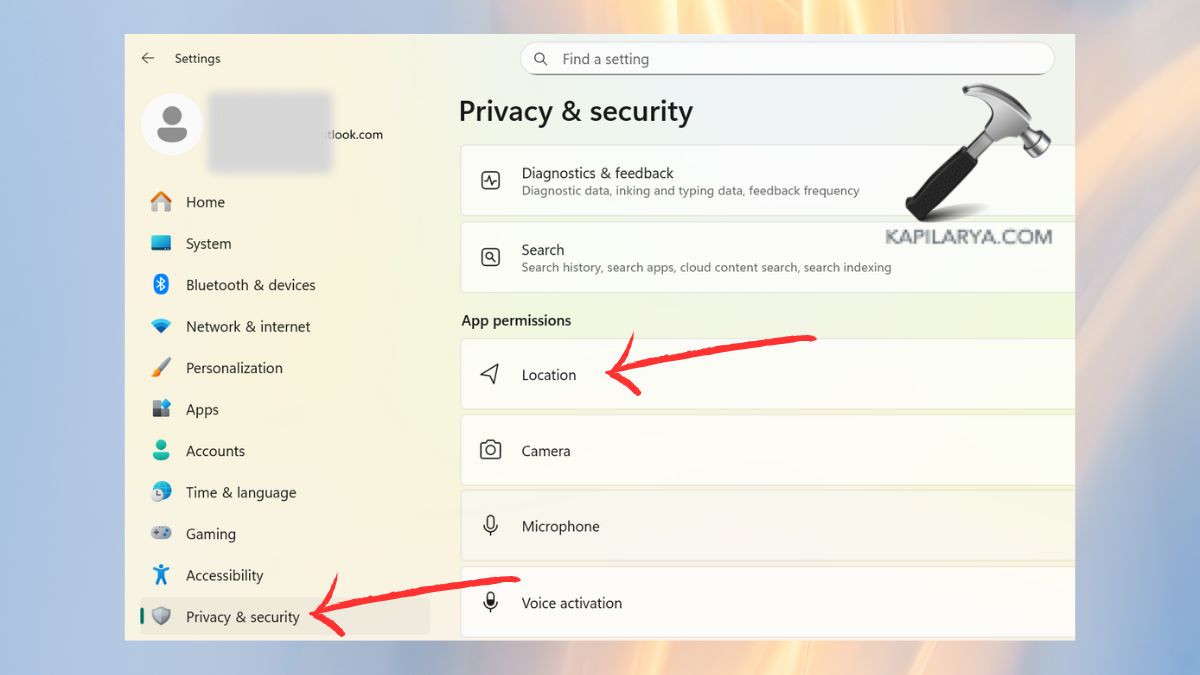
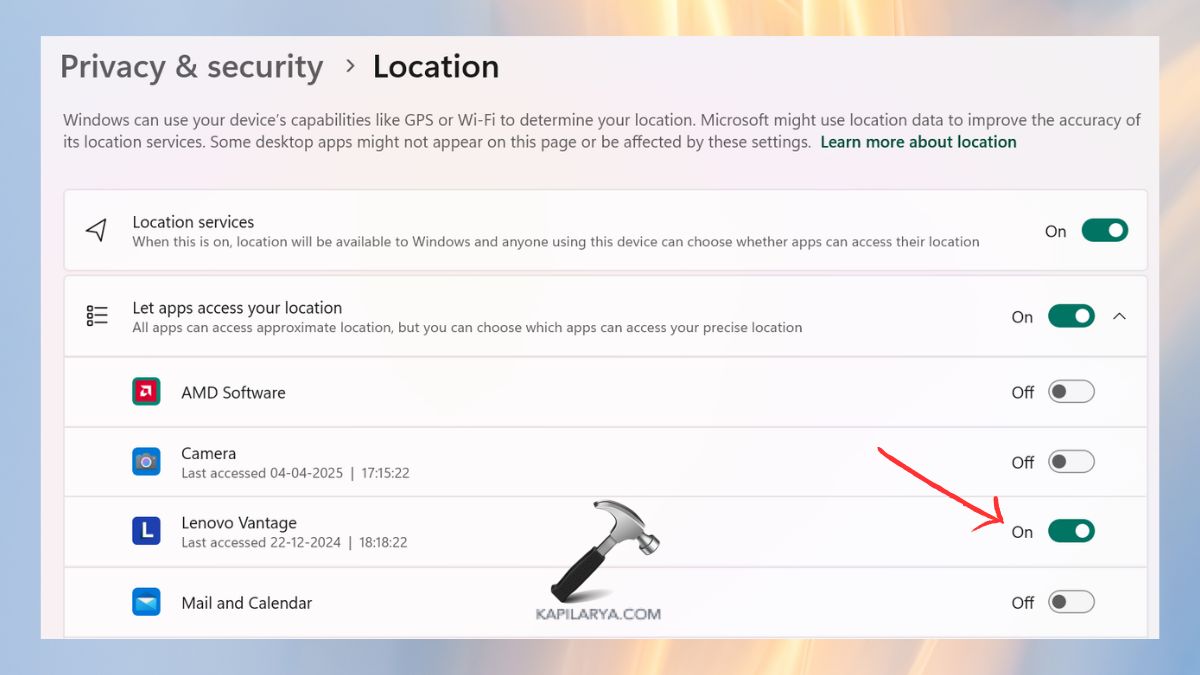
2. Turn Location services to On. Allow Let applications to know where you are.

3. Scroll down and grant location permission to certain apps in case required.
Method 2: Fix using Registry Editor
In case the toggle does not appear or is grey, there is a possibility that a registry policy is disabling it. Use the following steps in order to fix them-
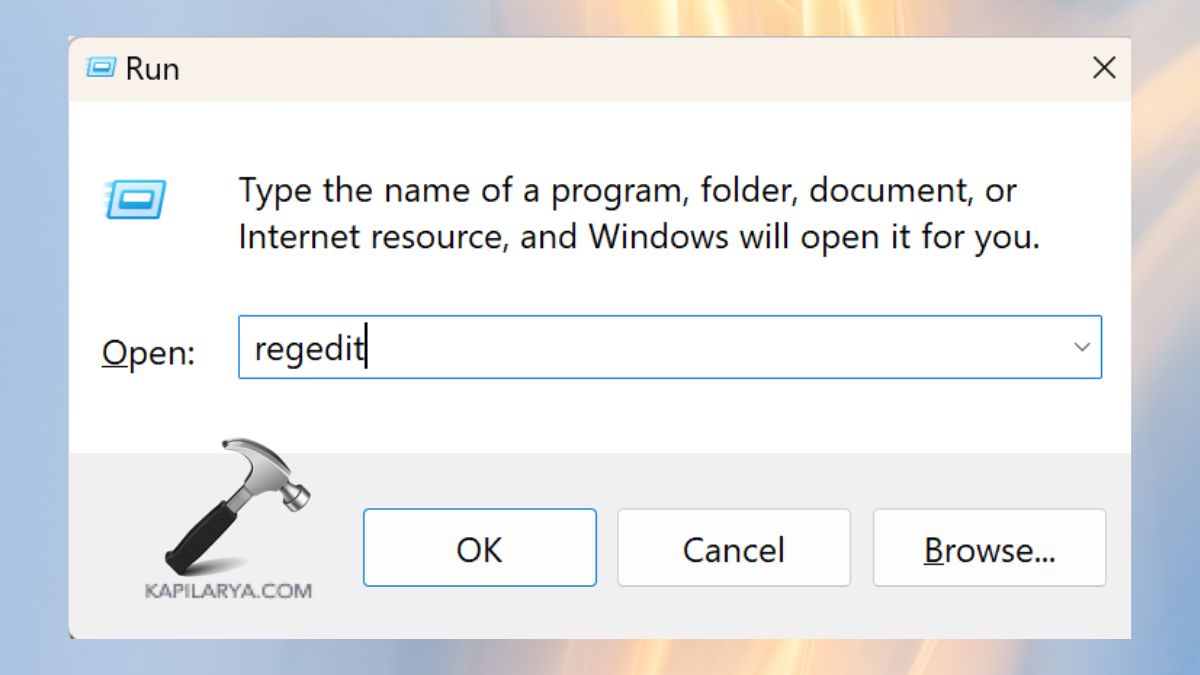
1. Click “Windows + R”, enter this, and press Enter.
regedit
2. This takes the following path in Registry Editor.
HKEY_LOCAL_MACHINE\SOFTWARE\Microsoft\Windows\CurrentVersion\CapabilityAccessManager\ConsentStore\location
Double-click Value. Set the value to – “Allow”.
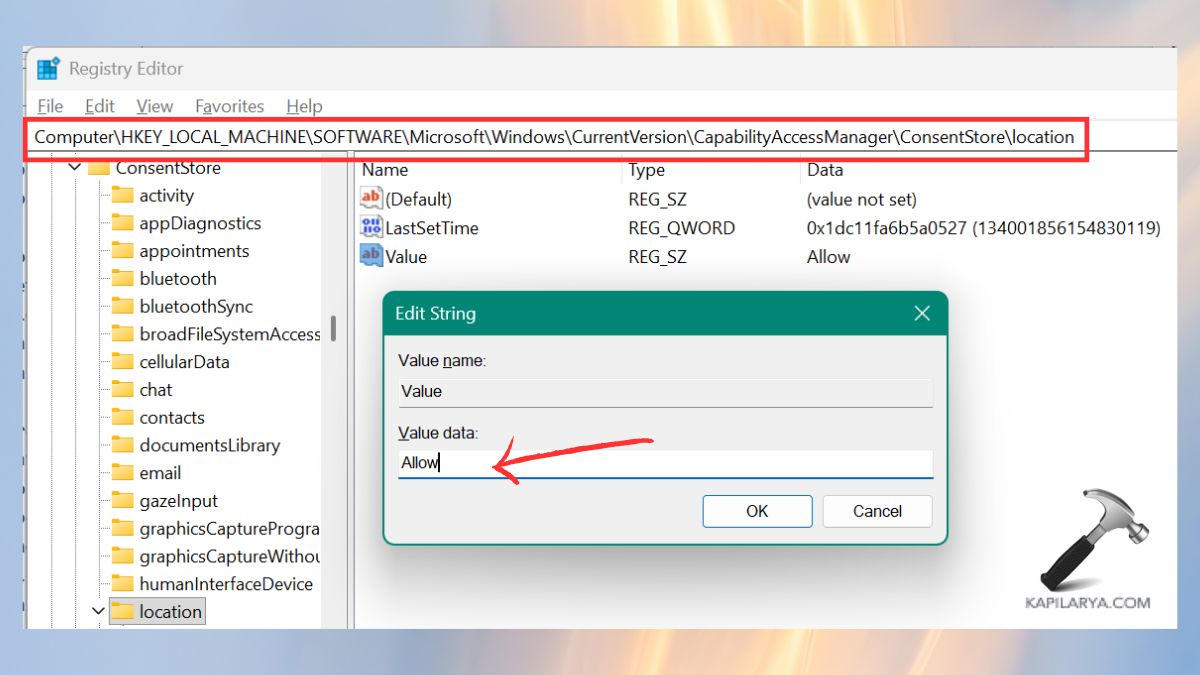
Close Registry Editor and restart your PC.
Method 3: Configure via Group Policy Editor
This technique comes in handy, particularly with Windows 11 Pro, Enterprise, or Education editions.
1. Press “Windows + R” and type the following and press Enter.
gpedit.msc

2. Navigate to this location – Computer Configuration > Administrative Templates > Windows Components > Location and Sensors.
Open “Turn off location”.
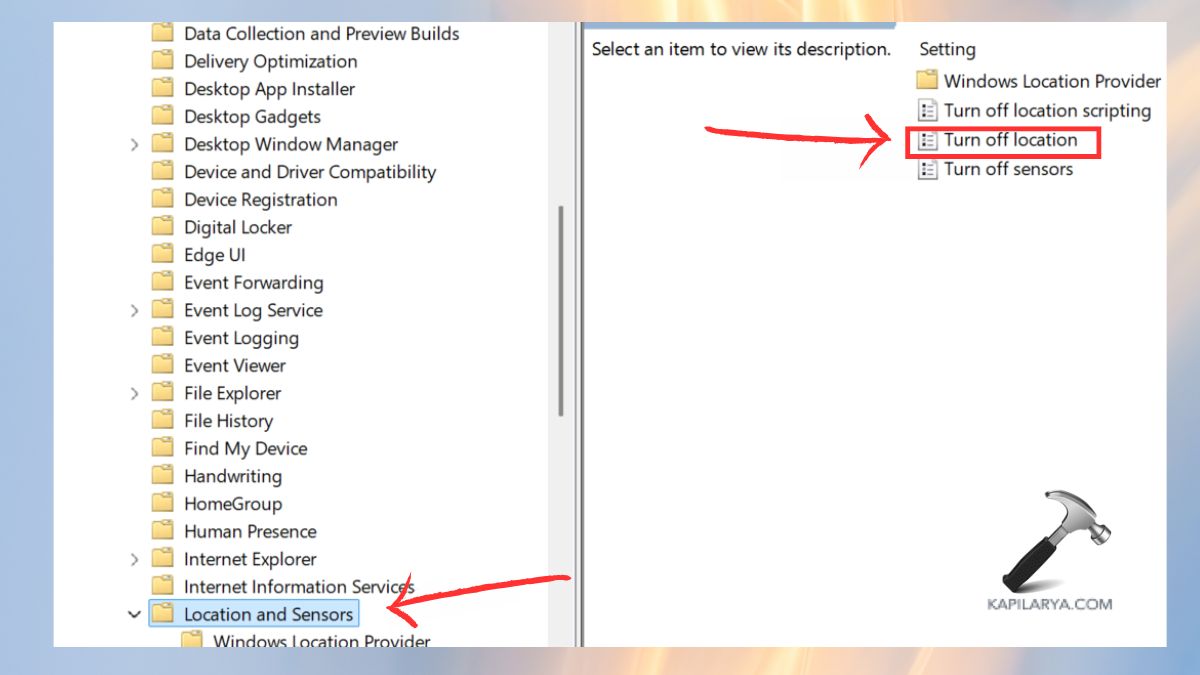
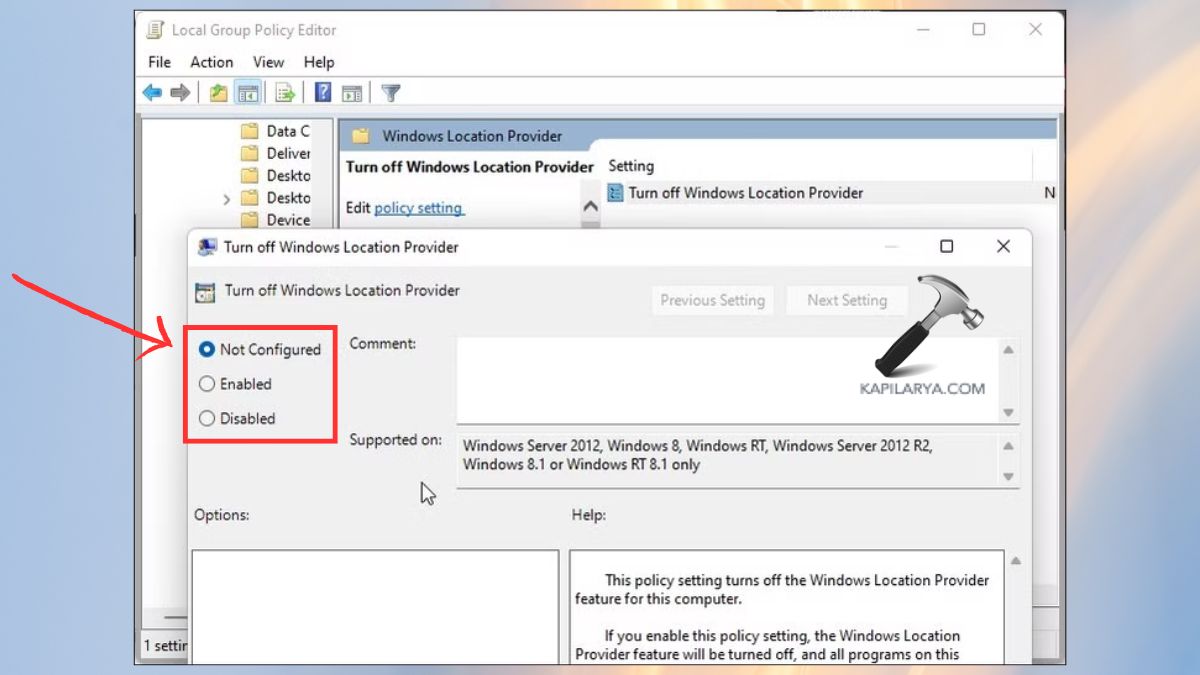
3. Choose either Disabled or Not Configured. Click Apply > OK.
Method 4: Enable Services Using PowerShell
PowerShell can be used by IT administrators or sophisticated users to work with a number of devices.
1. Right-Click on Start and choose Admin Terminal.

2. Run the following command.
Set-ItemProperty -Path "HKLM:\SOFTWARE\Microsoft\Windows\CurrentVersion\CapabilityAccessManager\ConsentStore\location" -Name "Value" -Value "Allow"

Restart your PC. This immediately turns on registry-level blocks.
Method 5: Apply Reset & System Permissions
Should all these fail, system corruption can be repaired by simply reconfiguring Windows location services.
1. Open Settings. Click on the Privacy and security > Location.
2. Go down the list, and you will see “Clear” under Location history or Recent Activity.
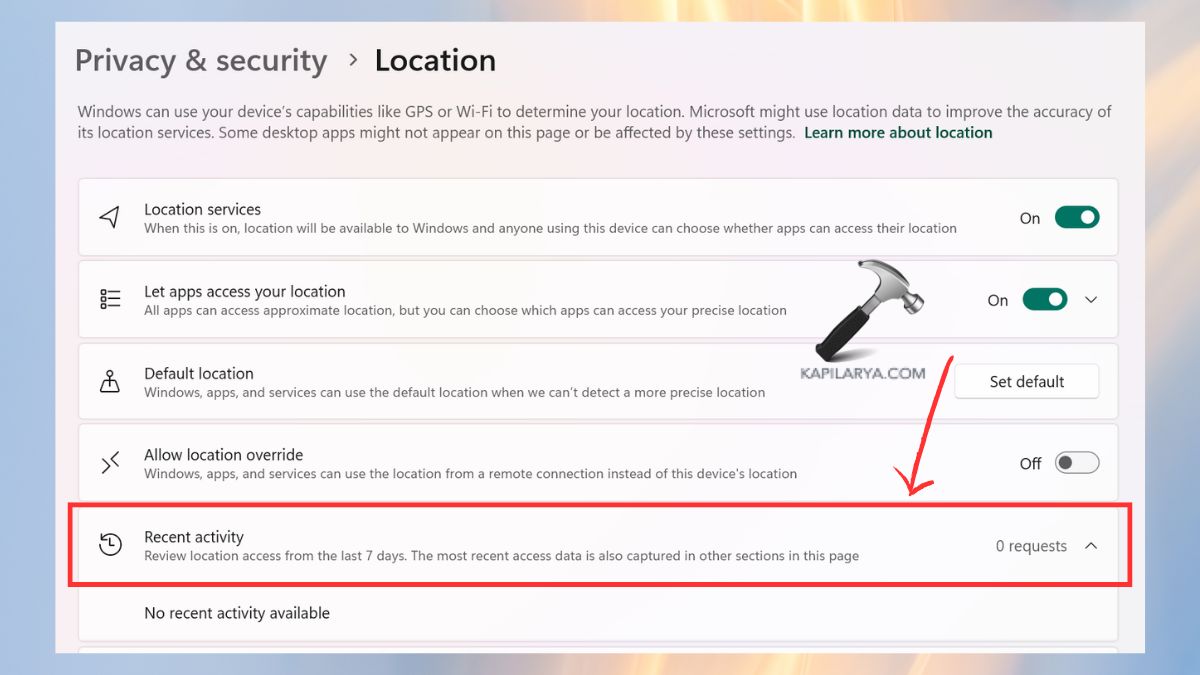
Restart your PC and check again.
Video fix
Here’s a video fix to help you more on this:
Frequently Asked Questions (FAQs)
That’s it!