If Copilot opens but only shows a blank or white screen, fails to load content, or appears unresponsive on Windows 11, the issue often stems from connectivity problems, app glitches, cached data corruption, account or browser conflicts, or outdated components.
Page Contents
Fix Copilot Shows Blank Screen in Windows 11
Trying the right combination of the methods below usually fixes the blank-screen behaviour. Go step by step and see what works for the error in your Copilot.
Fix 1: Repair or Reset the Copilot App
Windows includes a repair option that refreshes app components without affecting your files:
1. Open Settings and go to Apps. Click on Installed apps.
2. Locate Copilot (or Microsoft Copilot).
3. Click the three dots (⋯) next to it, then choose Advanced options.
4. Try Repair first. If that doesn’t help, click Reset.
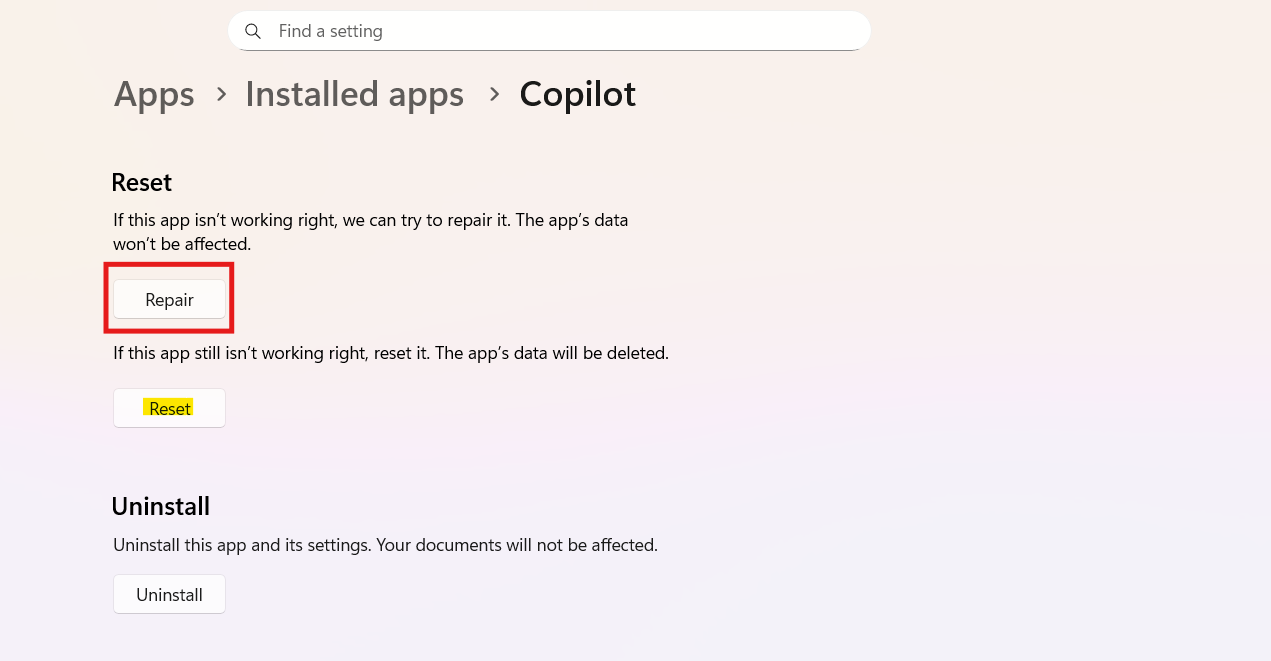
Repairing/Reinstating can resolve corrupted settings or missing resources that lead to blank screens.
Fix 2: Check Your Internet and Run Copilot Troubleshooters
Copilot depends on internet access, and internal troubleshooters can automatically identify issues:
1. Ensure your network is stable and not blocked by firewalls or proxy rules.
2. Open the Get Help app from the Start menu.
3. Use the built-in Copilot License Troubleshooter or Copilot Connectivity Troubleshooter as prompted.
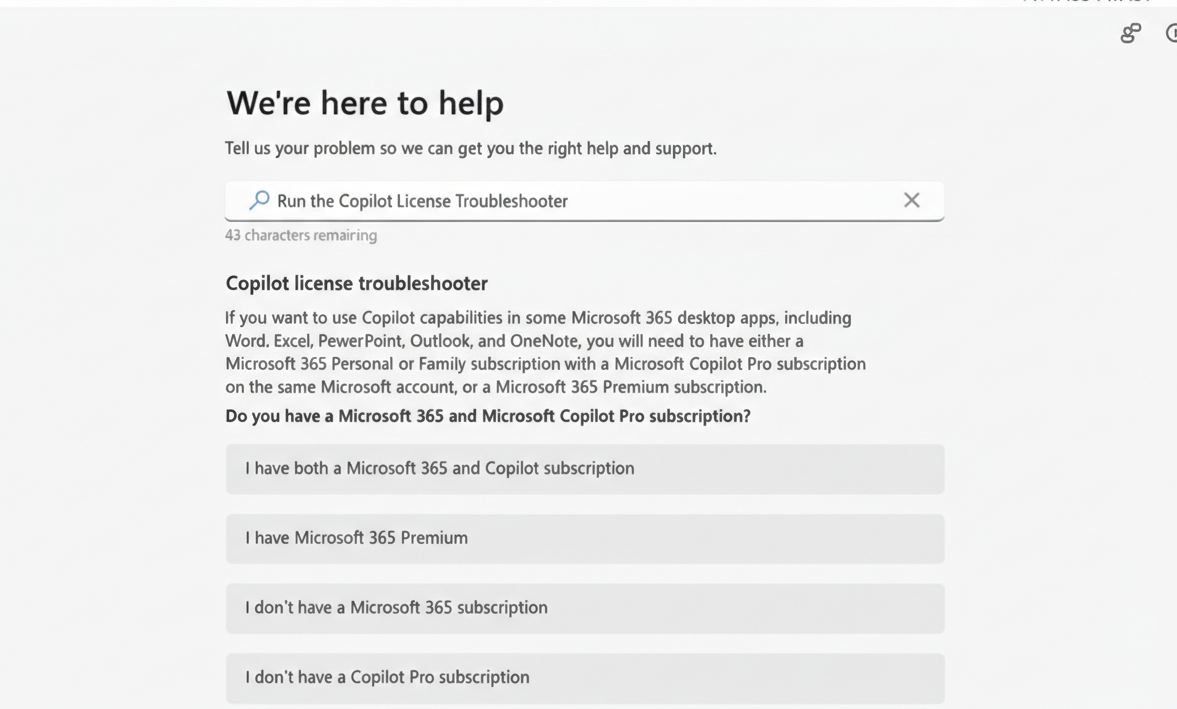
These tools help detect connectivity, licensing, or backend problems that might prevent Copilot from rendering content.
Fix 3: Sign Out and Back Into Your Microsoft Account
A corrupted or expired session token can cause Copilot displays to fail:
1. Close Copilot or the affected Office app.
2. Sign out of your Microsoft account in Windows 11 (Start button and then your profile icon).
3. Restart your PC.
4. Sign in again and launch Copilot.
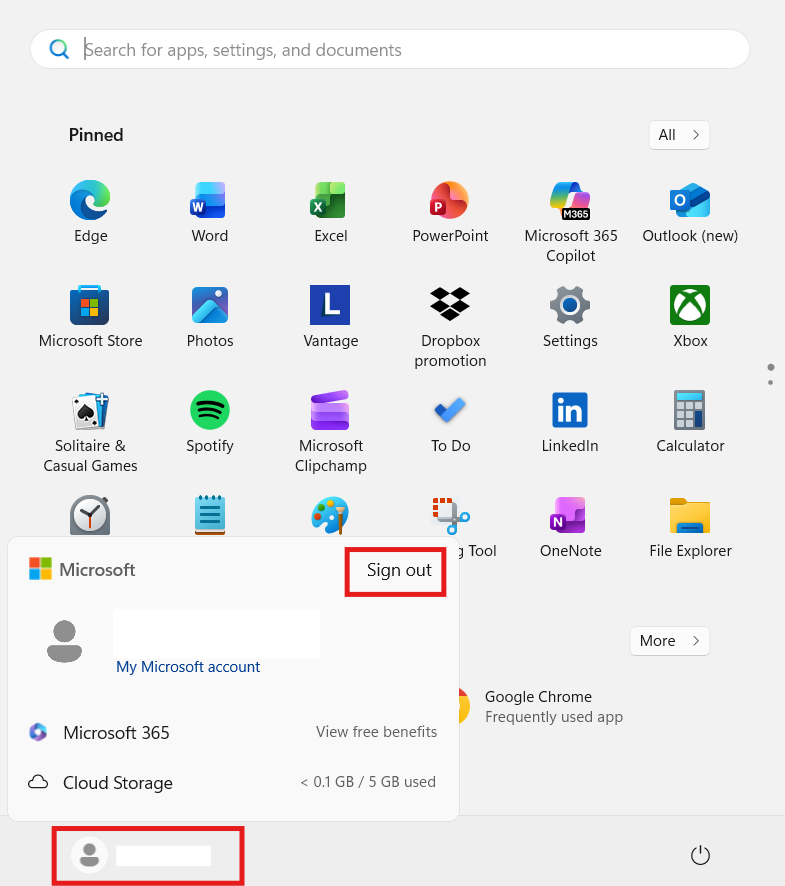
Re-authenticating often refreshes tokens and restores proper loading.
Fix 4: Use a Different Browser or Clear Browser Cache
If Copilot opens through a browser or Edge integration and shows blank:
1. Try using Microsoft Edge, Chrome, or Firefox. Sometimes Copilot renders differently.
2. Open Edge and go to Settings and then Privacy, search, and services. Clear browsing data.
3. Clear cached images and files.
4. Relaunch Copilot.
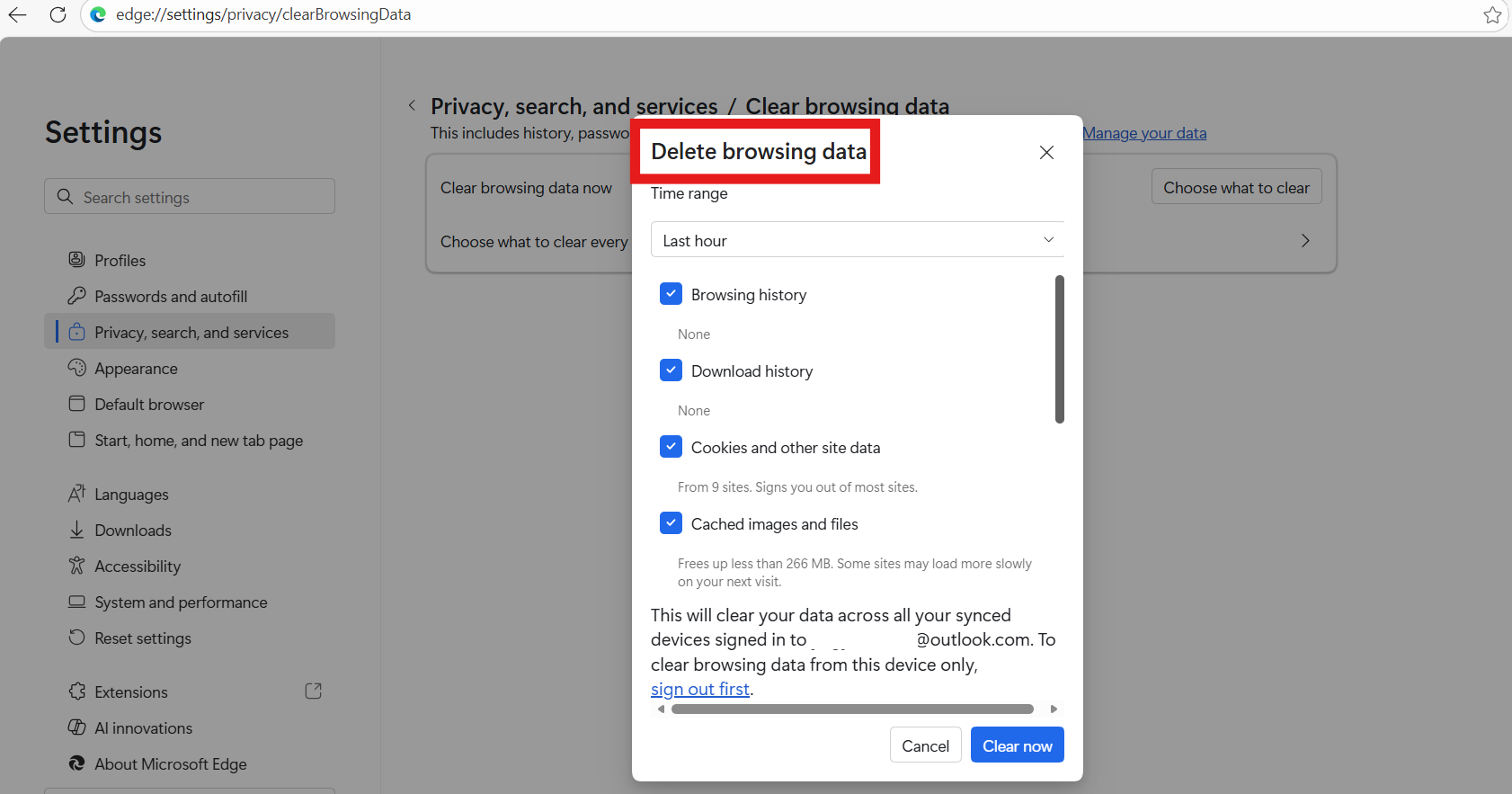
Sometimes, browser extensions or corrupted cache interfere with Copilot’s UI loading.
Fix 5: Update Windows and Copilot
Outdated features or app components can prevent Copilot from working as expected:
1. Go to Settings and then Windows Update and click Check for updates – install all pending system updates.
2. In the Microsoft Store, check for Copilot app updates and apply them.
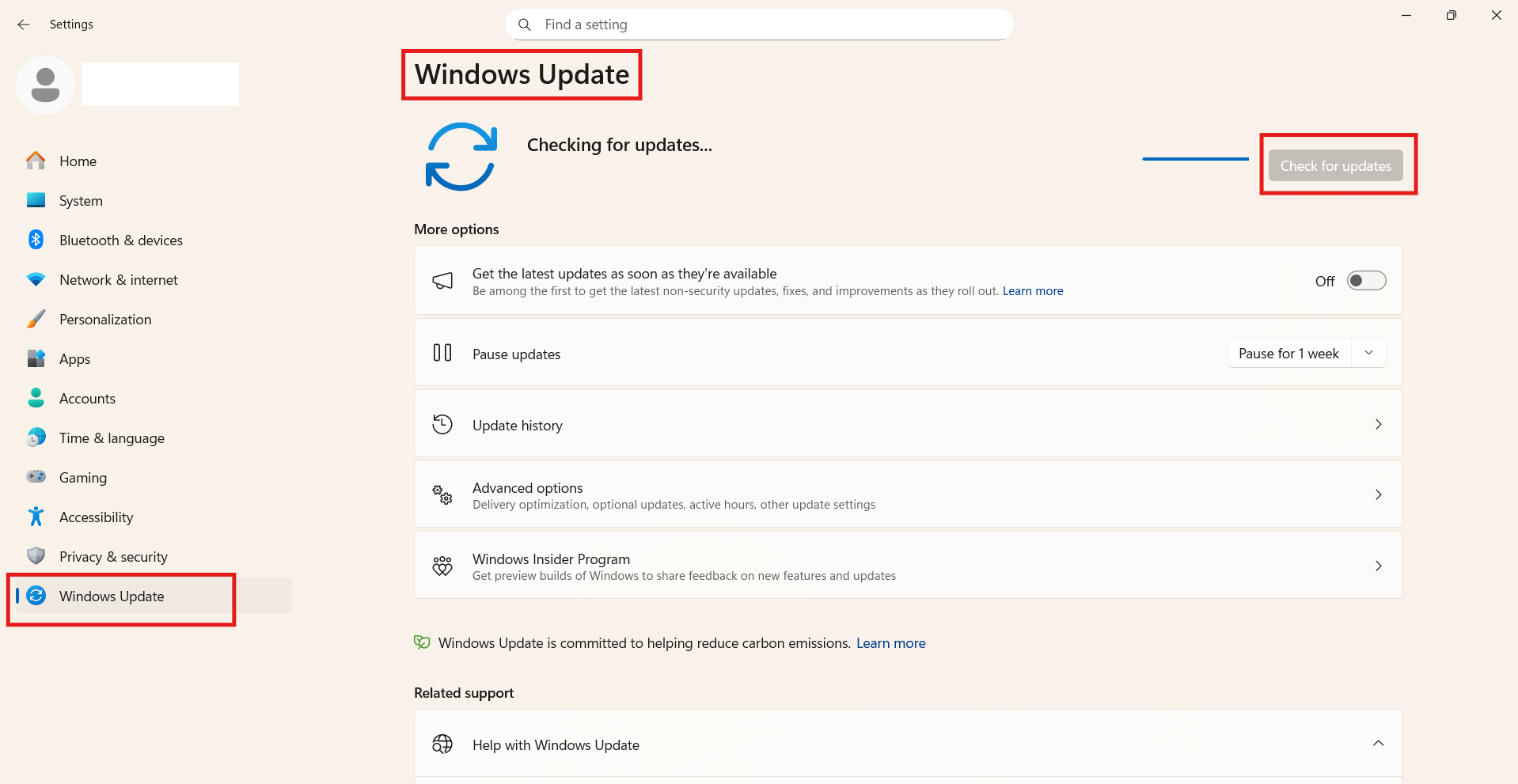
Staying updated helps avoid bugs that cause blank screens or missing UI elements.
Extra Tips That Can Help
1. Try Incognito/Private Mode: Open Copilot in a private browser window. This bypasses extensions and cached states.
2. Temporary VPN Use: Sometimes regional connectivity limits can block Copilot content; switching to a VPN (e.g., US region) may help.
3. Disable Conflicting Extensions: If you encounter Copilot blank screens in Edge, disable ad blockers or privacy tools one by one to check for conflicts.