Windows 11 keeps showing the wrong location is one of the problems that Windows users face. This is a common problem that many people experience when their system identifies the wrong city, state, or even country, leading to issues with apps, weather updates, and online services. In case your Windows 11 device is displaying the incorrect location, do not panic, as we have got you covered.
In this guide, we will tell you why Windows 11 can show the wrong location and how to fix it. Read on and restore the location of your device.
Page Contents
Why Windows 11 shows the wrong location?
It is useful to know the typical reasons that lead to this error before leaping to solutions.
- Location permissions or cache error
- Broken or misconfigured Geolocation Service
- A VPN or proxy server that interferes with IP detection
- Wrong system time or Windows time server problems
So, it is time to get to the best solutions to resolve the wrong location in Windows 11.
Fix Windows 11 keeps showing wrong location
Solution 1: Restart and Configure Geolocation Service
The Geolocation Service is the one that is tasked with detecting the location of your device. Windows can display the incorrect location when it is disabled or faulty.
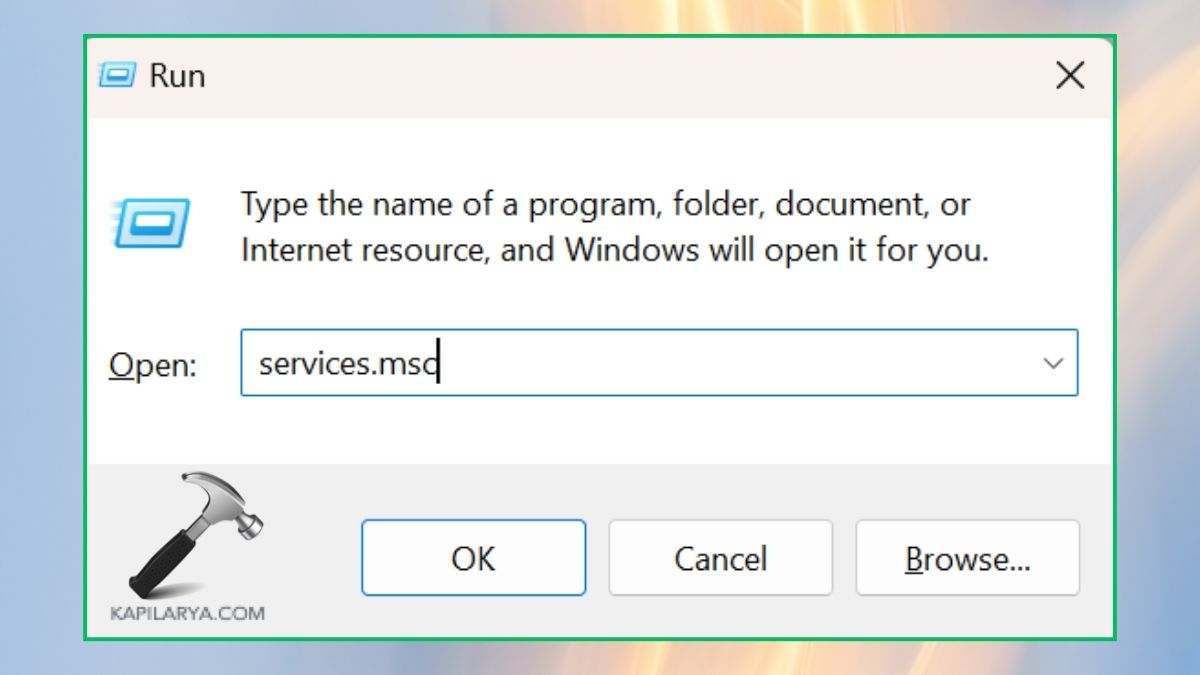
1. Press Win + R to open the Run bar and Enter this command.
services.msc
2. Scroll down and find Geolocation Service. Right-click and Properties.
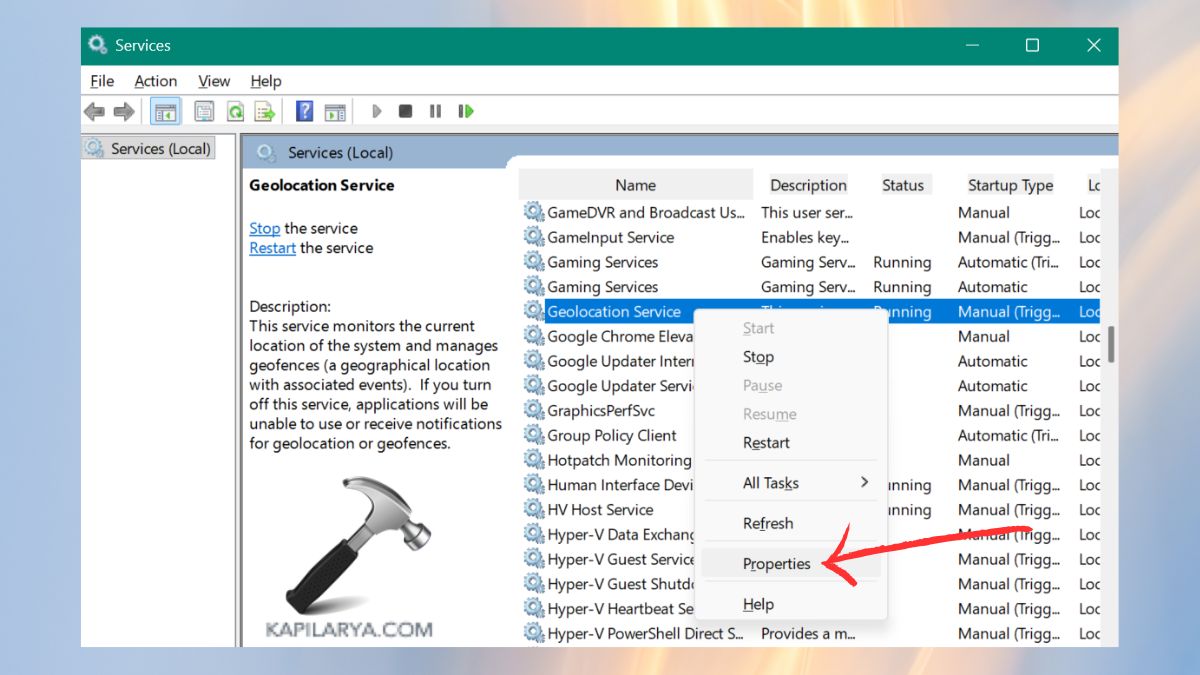
3. In Startup type, select Automatic. Click Start in case the service is not running, and then Apply > OK.

4. Restart your PC and see whether the location is now right.
Solution 2: Verify IP Consistency and Disable VPNs
In some cases, your IP address is a large determinant of location. Windows may think you are in a totally different region when using a VPN or proxy.
1. If you have a VPN, disable it and see what location you have.
2. Press the keys Win+X and in the list, select Terminal(Admin). Press the prompt with Yes.

3. Next, use this command to get to the IP address.
ipconfig /all

4. In case your IP displays an incorrect location, contact your Internet Service Provider (ISP). In case the IP is correct and Windows still displays the incorrect location, proceed to the next fix.
Solution 3: Reset Location Permissions and Cache
Inaccurate results can be caused by corrupted location permissions or cached data. The problem is usually solved by resetting them.
1. To open Settings, press Win + I. Open Privacy & security > Location.
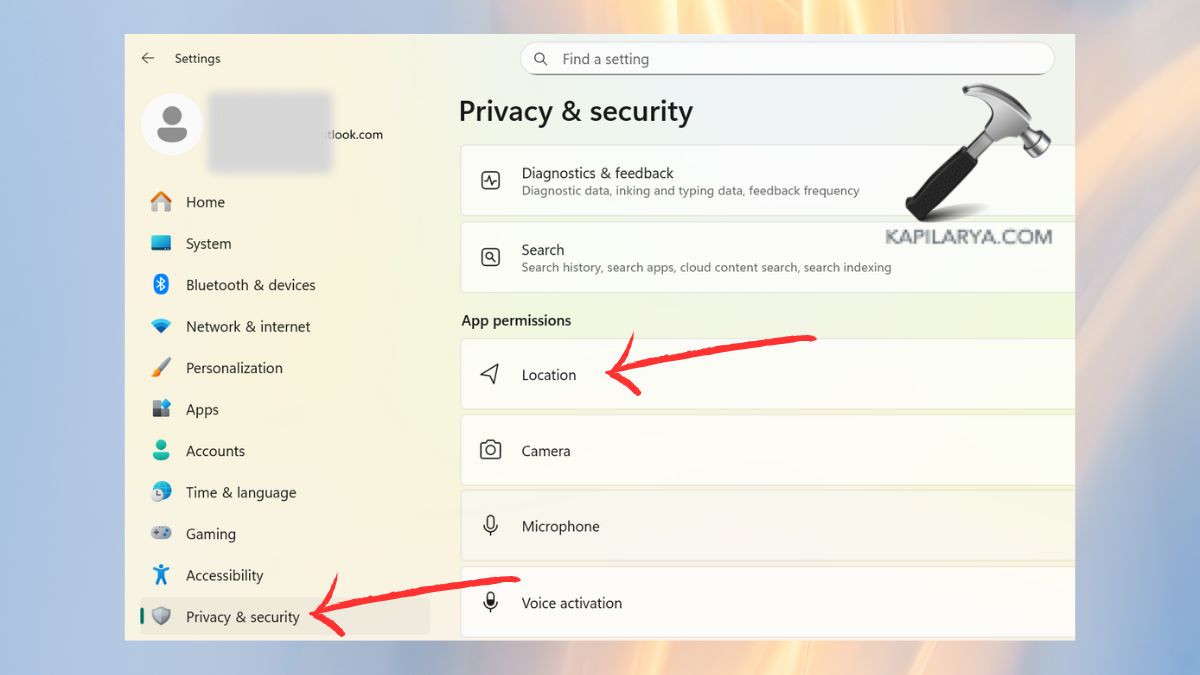
2. In Location services, switch it Off and On.

3. Reboot your computer and see by trying your apps (such as Weather or Maps).
Solution 4: Change Windows Time Server
The wrong location can also be shown because of an incorrect system time or a faulty Windows time synchronization.
1. Click on the date & time on the taskbar. Right-click on the date and time, and choose Adjust date and time.
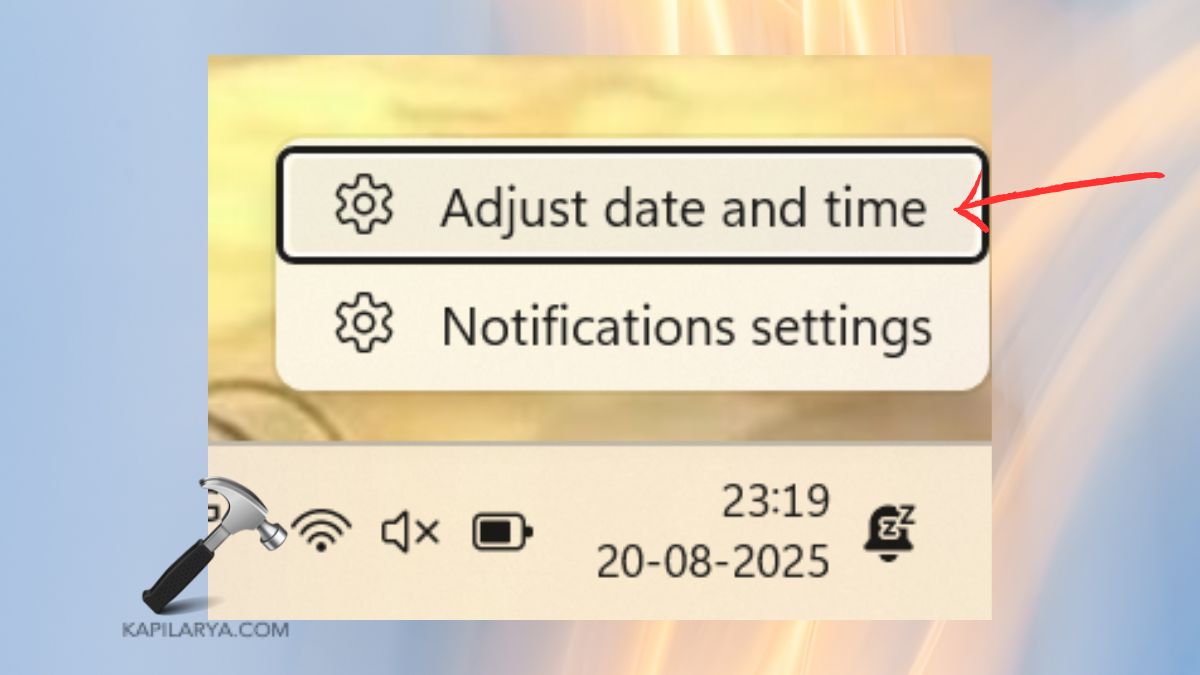
2. Scroll to Additional settings > Sync now under Time & language.

Frequently Asked Questions (FAQs)
#1 Why does Windows 11 keep showing the wrong location?
This normally occurs because of VPN usage, wrong system time, location cache problem, or disabled Geolocation Service.
#2 Can I manually set my location in Windows 11?
Yes. Go to Privacy & security > Location. In the Default location, select your desired location manually.

#3 Will disabling VPN fix the wrong location issue?
Yes, in most instances. VPNs may redirect your IP to another country, and this results in the wrong detection of location in Windows 11.
#4 Is clearing location history safe?
Sure, it is totally safe. Deleting your location history clears the stored location history and does not impact other settings on your system.
That’s it!