There is no reason why everybody would like to change Desktop wallpaper, but everybody do it for sure. Imagine the scenario, when you right click your favorite image and select Set as desktop background but nothing happens then. The wallpaper at Desktop still remains unchanged. This is common issue may be faced by many users. If you’re also experiencing this problem, this fix is for you.
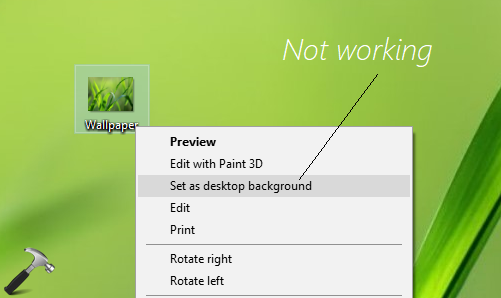
Couple of reasons might be culprit behind this problem. Most common causes are corrupted TranscodedWallpaper wallpaper, or the presence of configuration contents in slideshow.ini file. You must try System File Checker scan, initially to fix this issue.
Otherwise, following fixes will help you to get rid of this hiccup.
Page Contents
FIX: Unable To Change Desktop Background In Windows 10/8/7
How to fix, if you can’t change desktop background in Windows?
FIX 1 – Using File Explorer
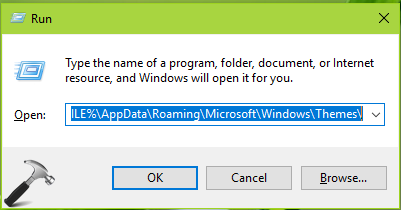
1. Press  + R and type
 %USERPROFILE%\AppData\Roaming\Microsoft\Windows\Themes\ in Run dialog box, click OK.
2. In the Themes folder so open, rename the TranscodedWallpaper file to TranscodedWallpaper.old. Also make sure that slideshow.ini file is empty. You can open this configuration settings file with Notepad to empty its content.
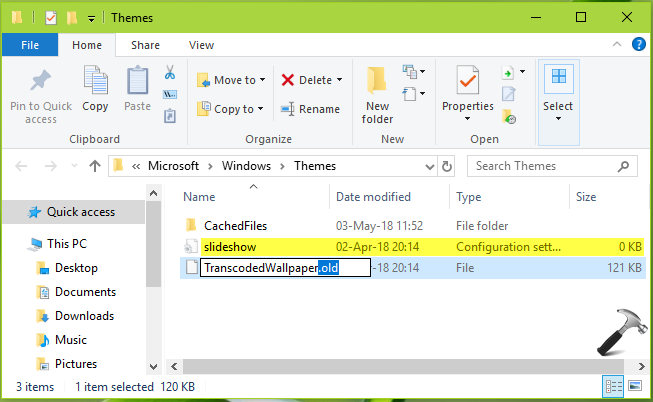
After doing this, check if you can change the Desktop wallpaper now.
If the issue still persists, try FIX 2.
FIX 2 – Using Registry Editor
Registry Disclaimer: The further steps will involve registry manipulation. Making mistakes while manipulating registry could affect your system adversely. So be careful while editing registry entries and create a System Restore point first.
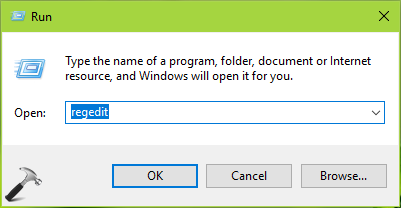
1. Press + R and put regedit in Run dialog box to open Registry Editor (if you’re not familiar with Registry Editor, then click here). Click OK.
2. In left pane of Registry Editor window, navigate to following registry key:
HKEY_LOCAL_MACHINE\SOFTWARE\Microsoft\Windows\CurrentVersion\Policies
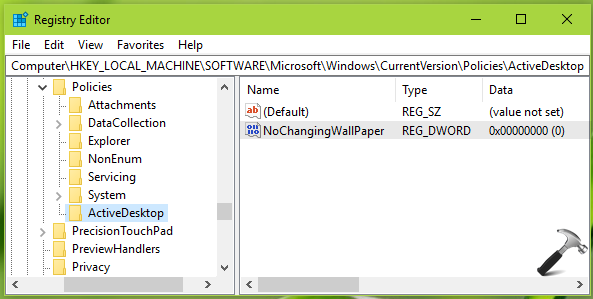
3. Right click on Policies registry key and select New > Key. Name the newly created sub-key as ActiveDesktop. Now in the right pane of ActiveDesktop registry key (HKEY_LOCAL_MACHINE\SOFTWARE\Microsoft\Windows\CurrentVersion\Policies\ActiveDesktop), right click and select New > DWORD Value. Name this newly created registry DWORD as NoChangingWallPaper. Since you’ve just created this DWORD, its Value data is already 0, which is the actual requirement here.
Close the Registry Editor and reboot to make changes effective. After restarting your system, retry to change Desktop wallpaper, and this time it would work as expected.
Hope this helps!