

Desktop icons are there to facilitate easy access of apps, document and relative programs. They can be app icons, system icons, shortcut to a document having long accessible path, images etc. Having Desktop icons, you need only single click to access the related content. You can keep your favorite desktop icons of your choice. If you are getting an issue with desktop icons like they are keeps refreshing automatically, then this article would help you to fix this problem.

Page Contents
Fix Windows 11 Desktop icons keeps refreshing automatically
Fix 1: Reset icon cache
1. In Windows 11, right click Start and select Terminal (Admin) then open Command Prompt tab. In Windows 10, right click on Start Button and select Command Prompt (Admin). On older Windows editions such as Windows 8/7, you can open administrative Command Prompt using search.
2. In the Command Prompt window:
cd %homepath%\AppData\Local\Microsoft\Windows\Explorer
3. Then type following command and press Enter:
dir iconcache*
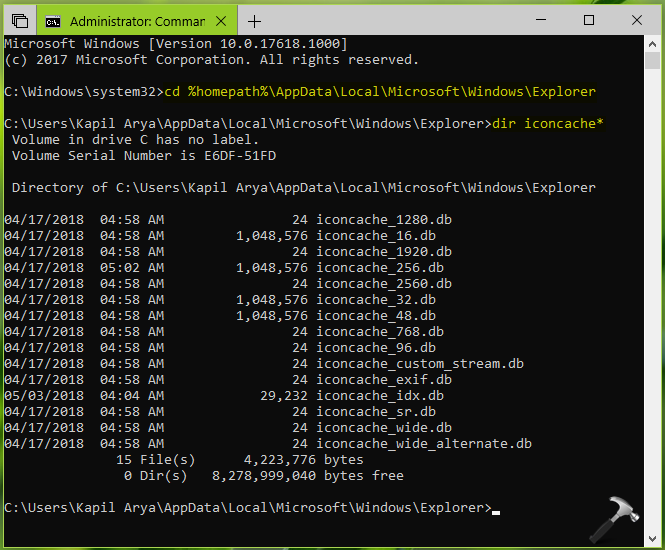
This should list all the icon cache files.
4. Next, you can restart the File Explorer process. Simply open Task Manager, go to Processes tab.
5. Locate Windows Explorer. Click End task. Then your desktop background will disappear. Don’t worry, its completely safe and not permanent. As the process restarts itself, visual elements will be back.
Now the icon cache is completely flushed and issue must be resolved. If not, check Fix 2.
Fix 2: Run System File Checker scan
Running a System File Checker scan can help the users in solving the aforementioned issue easily. Therefore, follow the steps given below to run the SFC scan and solve the issue.
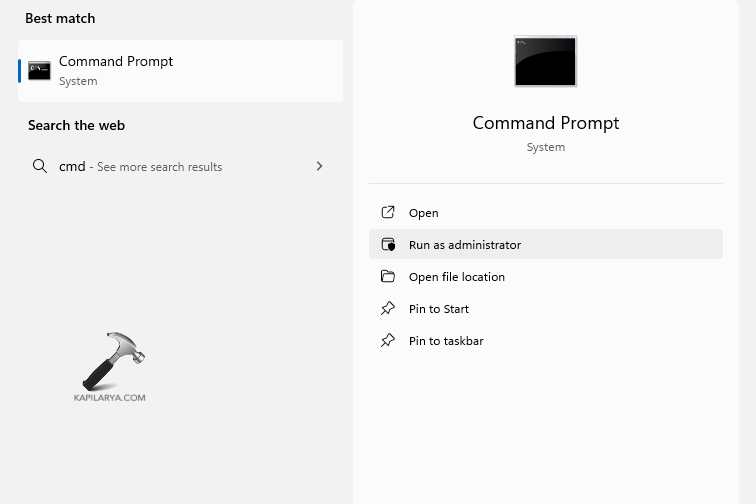
1. At first, open Command Prompt and run it as an administrator.
2. Next, copy and paste the prompt given below and select Enter.
SFC /scannow
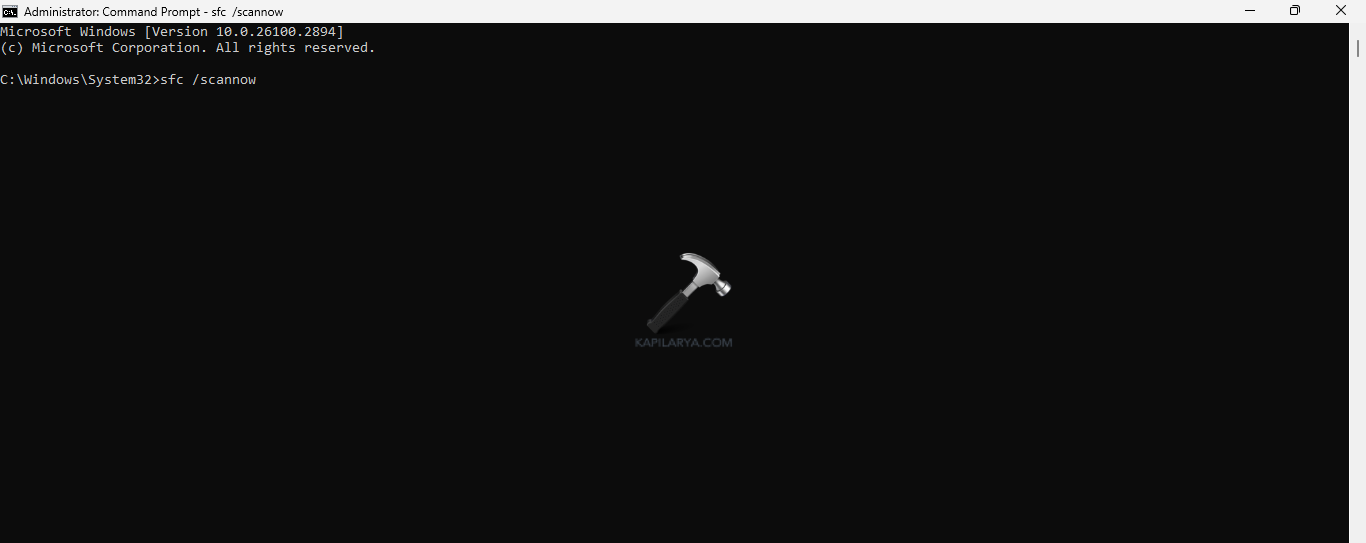
3. Lastly, after the completion of the scan, exit the Command Prompt and reboot the PC.
If issue still persists, do let me know via comments, I’ll be happy to help you.
That’s it!



Tried all this and it didn’t help. Icons are still blinking white.
Same Issue. Did all the steps you listed and still have the same issue.