We all know that Event Viewer program writes logs by default for the system activities. You can use these logs to identify the root cause for the problems and thus troubleshoot them accordingly.
By default, maximum log file size is configured by Windows for different sections. For Application, Setup and System type logs, the maximum log file size is 1 MB (1024 KB). While for Security logs, the maximum log file size is 20 MB (20480 KB).
Now you may thinking what exactly happens when this maximum log size is reached? Well in such cases, Windows will overwrite events as needed. In this default behaviour, Windows will overwrite oldest events first. This means when the maximum log size is reached and you needed some oldest events, chances of their availability is low as Windows may have overwritten them with newest logs. To avoid this scenario, you can archive the log when maximum log size is reached.
By archiving the logs, you’ll be able to save oldest logs from being overwritten with newer logs. Here’s is how to make Event Viewer to archive logs:
How To Archive The Log When Maximum Event Log Size Reached In Event Viewer
1. Open Event Viewer.
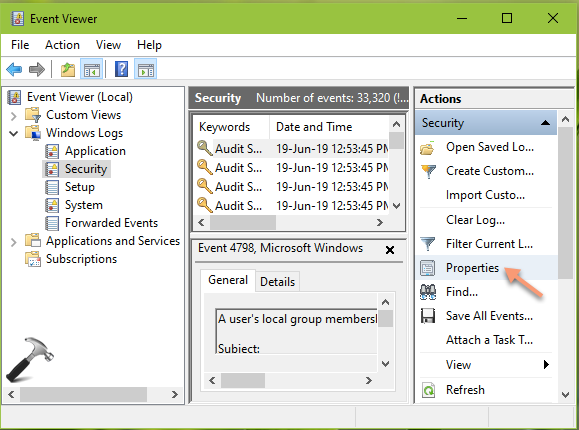
2. Open the section for which you want to archive the log, for example, Security. Click on any event in middle pane and in the Actions pane, click Properties.
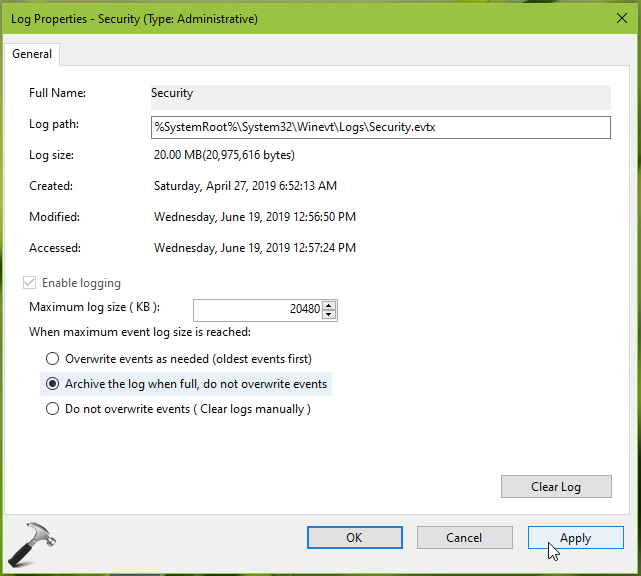
3. In the property sheet, under When maximum event log size is reached, select Archive the log when full, do not overwrite events option. Click Apply followed by OK.
4. Close Event Viewer and return to Desktop, if you like.
So now onwards, Windows will archive the log maximum log size is reached. You can access the archived log file at %SystemRoot%\SYSTEM32\WINEVT\LOGS. The archived file will be named in Archive-<Section>-<Date/Time> format, for example, Archive-Security-2019-06-19-19-08-34. The archived file can be now used to trace down older events.
That’s it!
Also see: Event Viewer not working in Windows 10.