We all know that Microsoft has separated Windows Search and Cortana in Windows 10 Version 1903:
Windows 10 V1903 Separates Search And Cortana
Previously, we’ve seen how to disable web search results for Cortana. Now, as the Windows Search and Cortana are different entities, we’ll see how to disable web search results for Windows Search only.
You might have noticed when you open Start Menu and type something, Windows Search pop-up comes with results. By default, it includes the web search results provided by Bing. These results would save your extra step to search some query online. You can directly click on the web result to land on corresponding web page.
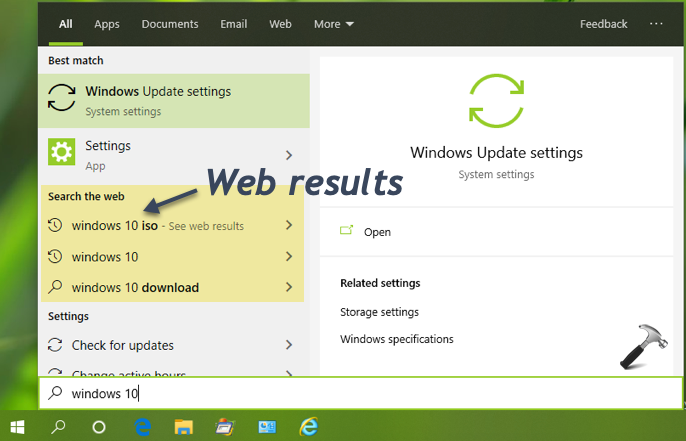
However, if you don’t want to let Windows include web results in your Start Menu search, here’s what to do. You can perform below mentioned registry manipulation and eliminate web results.
How To Disable Web Search For Start Menu In Windows 10
Registry Disclaimer: The further steps will involve registry manipulation. Making mistakes while manipulating registry could affect your system adversely. So be careful while editing registry entries and create a System Restore point first.
1. Press  + R and type
 regedit in Run dialog box to open Registry Editor (if you’re not familiar with Registry Editor, then click here). Click OK.
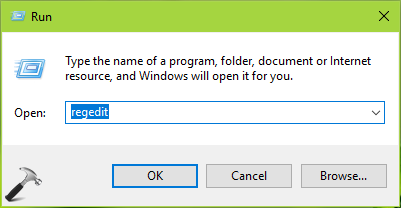
2. In left pane of Registry Editor window, navigate to following registry key:
HKEY_CURRENT_USER\Software\Microsoft\Windows\CurrentVersion\Search
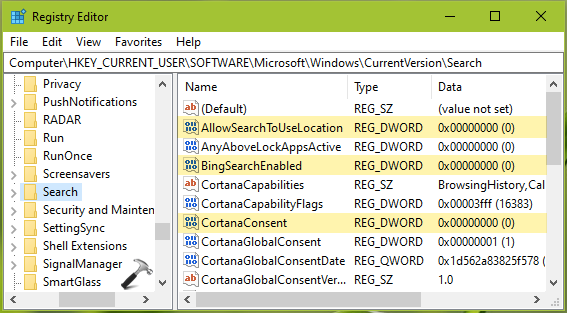
3. In right pane of Search registry key, set the following registry DWORDs to corresponding Value data:
| Registry DWORD | Value data |
|---|---|
| AllowSearchToUseLocation | 0 |
| BingSearchEnabled | 0 |
| CortanaConsent | 0 |
Note that if any of these registry DWORDs are missing, right click on blank space and select New > DWORD Value and simply name then as mentioned above.
4. Close Registry Editor and reboot to make changes effective.
After restarting your system, web search should be disabled for Start Menu.
If you want to restore web search results later, simply set all DWORDs mentioned in step 3 to 1.
That’s it!
Related: Desktop Search Not Working After Installing KB4512941.