

UPDATE: Article updated on 26 January, 2016 with new method.
Microsoft Edge is the fast and new browser available in Windows 10. You can review this browser in following article:
[REVIEW] Learn about new features in Microsoft Edge
When you first time run Microsoft Edge, you’ll see the Welcome to Microsoft Edge screen (refer screenshot shown below). This is quite similar to welcome page presented inside Internet Explorer (IE). Recently, we came around an issue in a domain environment with this welcome page. Actually, on some of the frozen machines, the welcome page keeps appearing after every reboot. Obviously, this will turn clients into frustration and they’ll switch themselves to any other browser.
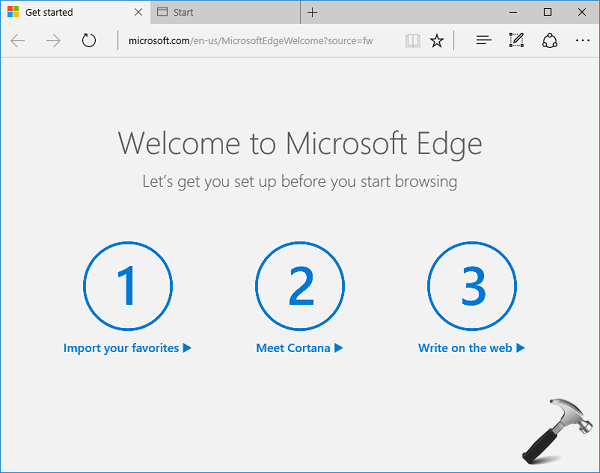
But if you want to keep them working on Microsoft Edge, then you need to disable the first run welcome page permanently. Unfortunately, there are no Group Policy settings available for this atm. Also, the ways to disable welcome page of IE doesn’t works for this case. Then later we found the registry setting for this welcome page. After tweaking the registry, the problem no longer exists.
So, if you’re also looking forward to disable welcome page for Edge, follow these steps:
How To Disable Welcome Page In Microsoft Edge
Registry Disclaimer: The further steps will involve registry manipulation. Making mistakes while manipulating registry could affect your system adversely. So be careful while editing registry entries and create a System Restore point first.
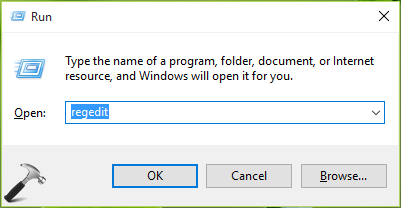
1. Press  + R and put regedit in Run dialog box to open Registry Editor (if you’re not familiar with Registry Editor, then click here). Click OK.
2. In the left pane of Registry Editor, navigate to following registry key:
HKEY_CURRENT_USER\Software\Classes\Local Settings\Software\Microsoft\Windows\CurrentVersion\AppContainer\Storage\microsoft.microsoftedge_8wekyb3d8bbwe\MicrosoftEdge\Main
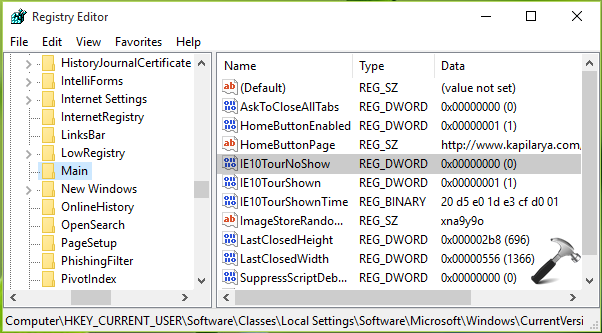
3. In the right pane of Main key as shown in above mentioned screenshot, look for registry DWORD (REG_DWORD) named IE10TourNoShow. Double click on this registry DWORD to modify it.
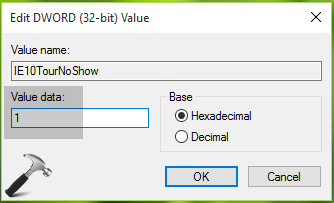
4. Now, in Edit DWORD Value box, set the Value data to 1. Click OK and close Registry Editor. Reboot the machine to make changes effective. After restarting the system, welcome page for Edge will no longer appearing.
That’s it! See this fix, if you can’t add new search providers in Microsoft Edge.





This doesnt work.
^^ Have you rebooted after doing registry manipulation?
Kapil, thanks for the article. A few questions:
1. Is the article, you provided the HKEY_CLASSES_ROOT key location, which is simply a merger of HKEY_LOCAL_MACHINE and HKEY_CURRENT_USER. Wouldn’t the more precise location be HKEY_CURRENT_USER\SOFTWARE\Classes\Local Settings\Software\Microsoft\Windows\CurrentVersion\AppContainer\Storage\microsoft.microsoftedge_8wekyb3d8bbwe\MicrosoftEdge\TabbedBrowsing?
2. I assume because it’s located in HKCU, this is a per-user setting and must be set for each user, right?
3. If you set NTPFirstRun to 1 *and* you set the “Configure corporate Home pages” Group Policy, will this make Edge open only the pages set in Group Policy on first use of Edge? Or will the “Start” page (not the “Get started” page) still display on first use, too?
Thanks for all your help.
^^ Hi Jason, thanks for your efforts on this. After researching a bit on this, I’ve updated the article. You can go ahead with this new method and see if it works for you!
The screenshot has IE10TourNoShow key but in the arcticle IE10TourNoShown.
Which would be the correct one?
^^ The DWORD is IE10TourNoShow. It has been corrected now in the article, thanks for notifying :)
I’d like to set the IE10TourNoShow, HomeButtonPage & HomeButtonEnabled values in new user profiles, as default values that could be overwritten if wanted. I tried GPP to set them, but it appears that some sort of new user provisioning process kicks in afterwards that overwrites the microsoft.microsoftedge_8wekyb3d8bbwe key in HKCU, and just leaves an empty “Children” subkey. If a new user logs in, logs off, then logs back in, then the registry values get created by GPP. But I want them to be written on the first logon. Any ideas on how to do this? Is there a way to set a default registry collection for new users of a (Microsoft Edge) package?
I was able to get this working via Active Setup registry keys deployed via GPP & a Powershell script also deployed via GPP. Here’s the script, in case anyone else is looking for a similar solution:
$regpath = “HKCU:\SOFTWARE\Classes\Local Settings\Software\Microsoft\Windows\CurrentVersion\AppContainer\Storage\microsoft.microsoftedge_8wekyb3d8bbwe”
while (!(Test-Path $regpath)) {Start-Sleep -Milliseconds 100}
New-Item -Path ($regpath+”\MicrosoftEdge\Main”) -Force
New-ItemProperty -Path ($regpath+”\MicrosoftEdge\Main”) -Name “IE10TourNoShow” -Value “1” -PropertyType DWORD -Force
And Active Setup is described pretty well here: itninja.com/blog/view/an-active-setup-primer
^^ Good to know 😊
Hi Kapil,
I have tried that one and set google chrome as my default browser but what happened is that every time I locked my computer out and when signing back in, google chrome opens up and goes directly to microsoftedgewelcome site.
It seems that there is a trigger key when locking your computer… Any idea?
^^ Strange! Does the steps mentioned here makes any differences in your case?
Hello thank you for taking the time to post the solution. However this is the traditional answer most people get. I have to say there is much quicker way. This is it
Open up Reg edit. ( in the search box) .Next go to HK local machine. Then open up the Microsoft tab. Then open up the main tab. Click on that and then delete in the right-hand pane where it says open page or something similar.
You will see on the right hand window under the tab called data a web address that will look like Microsoft main page or open page. So delete that and that’s all you need to do it is very simple very easy and very quick. I have Internet Explorer version 11