

In order to manage computers remotely, Remote Server Administration Tools (RSAT) is pioneer package for system administrators. Microsoft has included this tool in Windows Server and they can be used on Windows 8 or later as well. If you’re a system administrator, and if you’re running Windows 8 or later, you can easily manage the systems running Windows Server via these remote tools.
For that, you need to install the RSAT kit to your Windows. In this article, we’re going to share you the way to install them. So without wasting your time anymore, lets share the way…
Install Remote Server Administration Tools (RSAT) In Windows 10/8.1/8
1. First of all, download the RSAT package from following links:
DOWNLOAD LINK [Windows 10]
DOWNLOAD LINK [Windows 8.1]
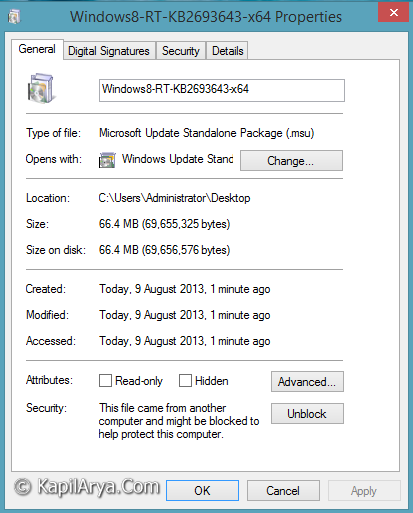
2. Then do a right click on update package file and select Properties. In the General tab, for the security section, click the Unblock option, Apply followed by OK.
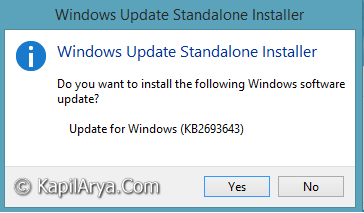
3. Select Yes in following prompt:
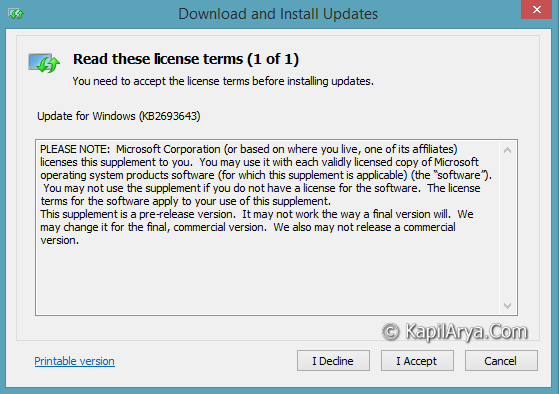
4. Moving on, click I Accept in Download and Install Updates window:
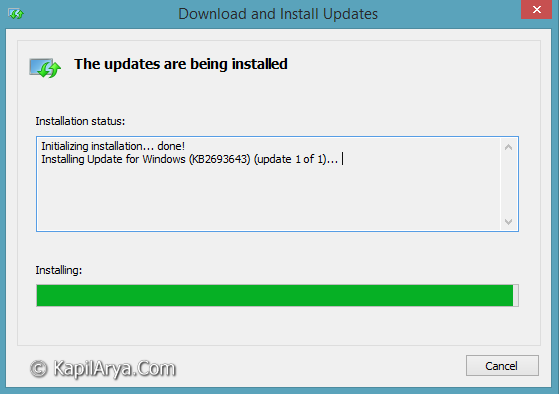
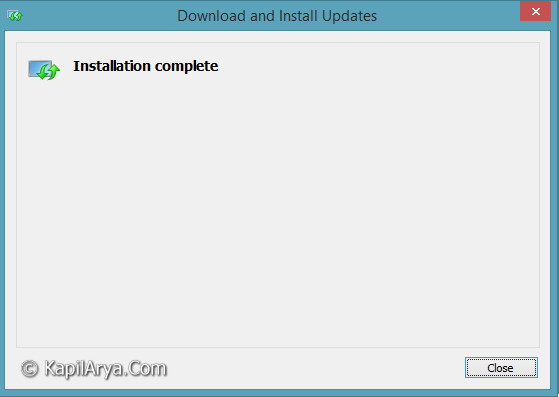
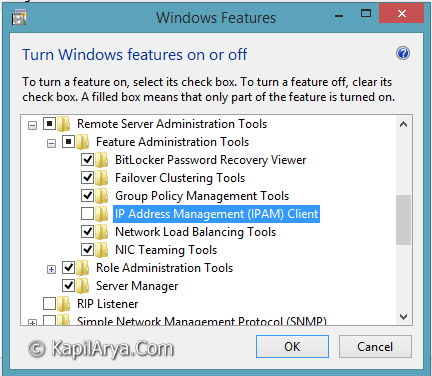
5. In this way, Remote Server Administration Tools got installed on your system. You can enable its all or selective components in the Windows Features window. Click OK after making your choice.
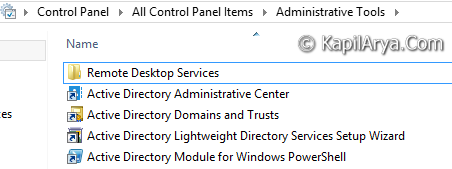
6. You can access RSAT by navigating Control Panel -> Administrative Tools -> Remote Desktop Services.
Hope you find the article useful! Go here if you can’t install RSATs and receive “The update is not applicable to your computer” error.
![Remote Desktop Keeps Freezing or Disconnecting [6 Fixes]](https://www.kapilarya.com/assets/remote_dekstop_icon_1781340032.jpg)




Hello, Thank you for your post.
I’ve just made all steps and still i cannot see it in the Windows Features:(
I will just mention that I installed RSAT on Windows 8 and there was no problem.
Maybe you have an idea what can be the reason?
Patch installed at least 3 times, system restarted as well.
Thank you in advance.
^^ Please refer this link : https://www.kapilarya.com/cannot-install-remote-server-administration-tools-rsat-in-windows-10