

In Windows 8 & 7, Windows automatically bears the default owner name on About Windows prompt. This is actually comes from the installation of Windows. When you install Windows, the name you provide there automatically assumed as Registered Owner of Windows.
Page Contents
How To : View Registered Owner Under “About Windows” On Your System
1. To see this on your copy of Windows, Press  + R combination, then type “msconfig” in the Run dialog box. Press Yes if prompted for UAC permissions.
2. Switch to Tools and after selecting About Windows click Launch. You’ll get following window.
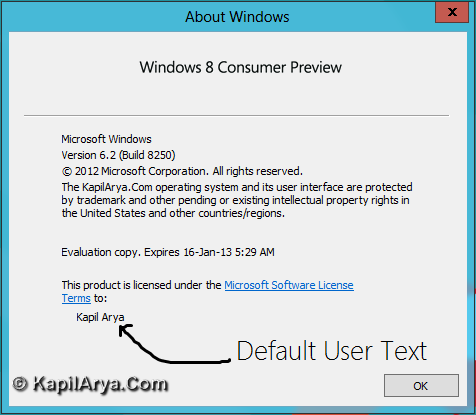
It is clearly shown that default text is the logged user. Now we want to customize it to some other text. Lets see how to do this.
Modify Registered Owner Text For “About Windows” Description
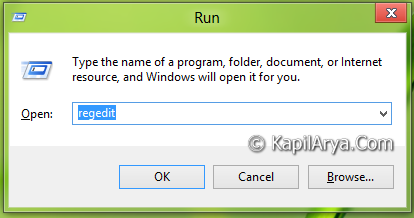
1. Press + R and put regedit in Run dialog box to open Registry Editor (if you’re not familiar with Registry Editor, then click here). Click OK.
2. Navigate here:
HKEY_LOCAL_MACHINE\SOFTWARE\Microsoft\Windows NT\CurrentVersion
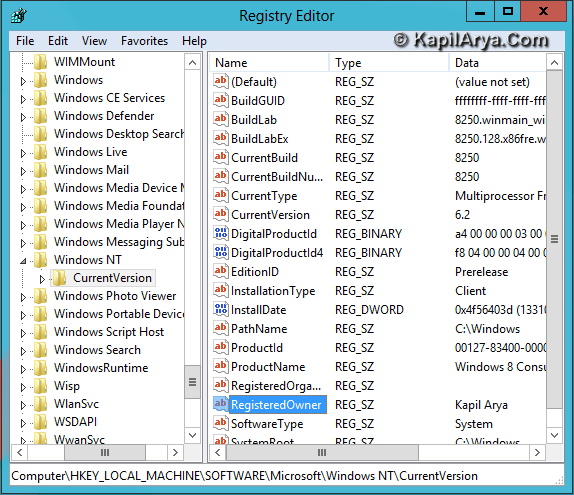
3. In the right pane of the key, you’ll find RegisteredOwner string bearing same text as was in About Windows window (IMG 1).
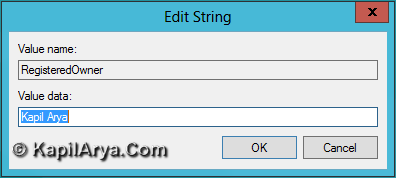
Right click on this string and select Modify. The Value data will be obviously the default text. Put your desired text there. For example, we put Kapil Sparks™.
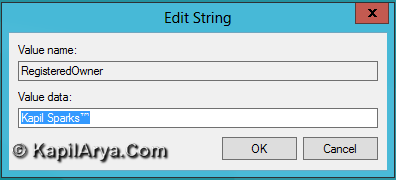
4. Again launch About Windows prompt and you’ll get your desired text there.
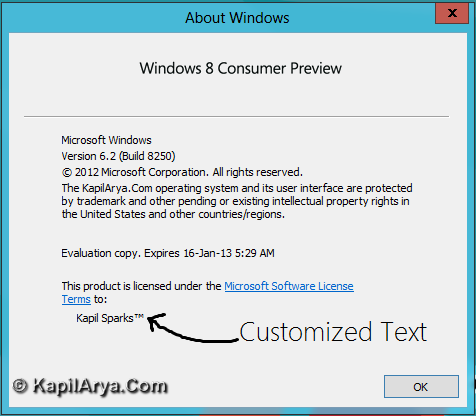
Hope you like the tip!







thanks bro.. great tip though!
can I also edit Windows 8 Consumer Preview text??????? Thanks
@ t67 No!
means everything inside dat window can b customized
you can’t just customize EVERYTHING !!!
@ kapil, gr8 article bro
I have Windows 10.
^^ It works on Windows 10 too!