

In the course of utility, by default Windows displays a shut down button in order to facilitate shut down, restart operations. Most of users, in fact almost all of the users, find it useful.
While there are some scenarios, when you just hate this shut down button. This is a kind of simplicity phobia, that an end Windows user can come around. Here is what we’re talking about:

So without wasting anymore time, here are the two selective ways, that you can opt to disable the shut down button as showed in above image. You will need to be logged in as an administrator to be able to do below steps.
Page Contents
Remove Shut Down Button From Login Screen Using Registry Editor
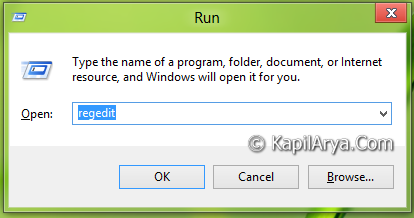
1. Press  + R and put regedit in Run dialog box to open Registry Editor (if you’re not familiar with Registry Editor, then click here). Click OK.
2. Navigate here:
HKEY_LOCAL_MACHINE\SOFTWARE\Microsoft\Windows\CurrentVersion\Policies\System

3. In the right pane of this location, modify the 32-bit DWORD highlighted above viz. shutdownwithoutlogon. Double click on it to configure. You’ll get this:

4. Put its Value data equals to 0 to remove shut down button. Else let it remain as 1 to enabled shut down button (this is default setting). Close the Registry Editor and reboot to see results.
Here is the result:

Remove Shut Down Button From Login Screen Using Local Security Policy
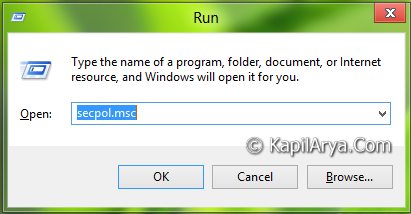
1. Press + R and put secpol.msc in Run dialog box. Click OK.
2. In the left pane, expand Local Policies and then click Security Options. Get into the right pane of the window, as shown below:

3. In the right pane of window, look for the policy named Shutdown: Allow system to be shut down without having to log on. Double click on it to modify. You’ll get this:

4. At this window, if you select Disabled, you’re done to remove the shut down button. In case you want to show the shut down button again, select Enabled (default setting). Click Apply followed by OK.
That’s it, reboot the Windows finally and you’ll be able to erase shut down button!







Great method Kapil. Works like charms.:)
I can’t access the key given in the article, please help.
@ bogdan, try group policy.
@Kapil, Nice dude!!!
GPO editor is not accessible on Windows 8/8.1 basic edition. You need to have enterprise/pro to edit these settings.
^^ Registry Editor is still available on those editions ;)