

Adding a display picture (DP) of own is the first choice users make, generally after installing Windows. If you are new to Windows 10, let me quickly tell you how to set up your account picture. Open the Settings app and go to Accounts > Your picture section. From here, you can either take your picture using webcam or browse system folders to set up one taken already.
Sometimes, due to various technical issues, users may face problem while setting up their account picture. Such cases mostly occur if your copy of Windows is not activated or is non-genuine. So first and foremost thing you should do is to activate your Windows. Generally, following message appears when you can’t set up your account picture:
Page Contents
Account picture error
Setting the account picture failed. Please try again.

In case even after confirming that your Windows is genuine and activated, if your facing this issue, then you can try the steps mentioned below to fix:
FIX : “Setting The Account Picture Failed. Please Try Again” In Windows 10
It is highly recommend to create a System Restore point first, before proceeding.
1. Open File Explorer and go to View tab. Make sure Hidden items option is checked here. If not, do check it.
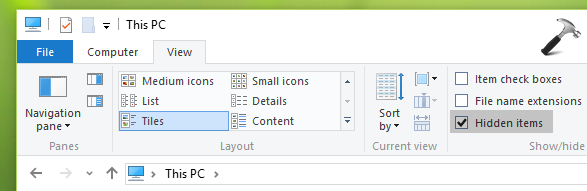
2. Next, navigate to following folder in the File Explorer window:
C:\ProgramData\Microsoft\Windows
*Substitute C: with your system root drive. ProgramData folder is hidden folder by default.
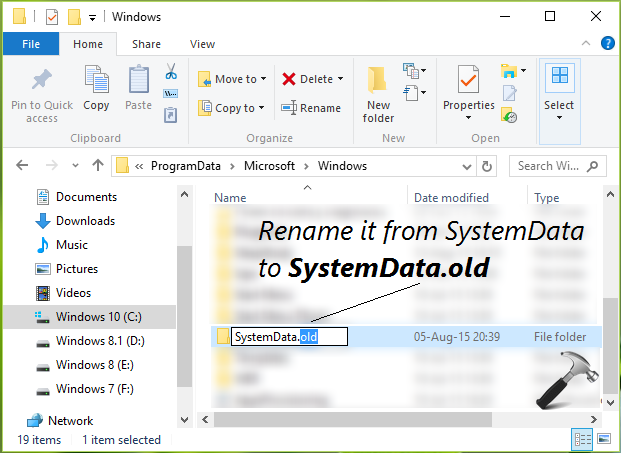
3. In the above shown window, scroll down and look for SystemData folder. We’ve to rename this folder to something else, so that we can fix the account picture error – as this folder is root cause. But you can’t simply rename this folder, since its a system folder. So take the ownership of this folder by following steps mentioned this guide:
Take Ownership Of Files Or Folders In Windows 10
Once you’ve taken ownership of the folder, you’ll able to rename the folder to something else, like SystemData.old.
4. Now restart your system and try to setup account picture. You’ll find that the error is no longer appearing now and you can set your DP very easily.
Video fix
You can checkout this video fix for further assistance on this issue:
That’s it! Go here if you get “Setting the lock screen failed. Please try again” error in Windows.




Thank you. It work
^^ Glad we could help :)
Shit son this worked!!!!! First time no problems. Thanks for this :D
^^ Awesome :)
I still can’t change my user pic even after following your advice.
^^ Okay, try creating new user account and see if you could assign picture to it.
could not change the folder name
^^ Please take ownership of folder first and then re-try to rename.
If I don’t have that folder, what should I do? :(
Hey. Thanks for this tutorial. It really worked.
^^ Glad it helped!
Not working for me
This, I’m afraid did not work for me. Tried with new account, with local account and Microsoft account – all failed. The only thing that would work was changing images in ‘User Account Pictures’ but I want individual images not a set default one. I would rather have no picture so cleaned out ‘User Account Pictures’ – Micros**t rides again!!
OH THANKS MY LOCK SCREEN WENT BACK TO THE DEFAULT AND NOW I CANT CHANGE THAT EITHER!!! PLEASE HELP!
It doesnt work and it broke my lock screen
i can,t find the system data folder…what to do??????please give a reply/
^^ Try creating empty SystemData folder at same location, see if it helps.
Thanks Kapil, It worked. (I had tried other all available options but ….)
^^ Glad to hear it worked 😊
I don’t know if I dare trying this
I followed everything exactly and it didn’t work :/
I’m very confused on what to do.
did everything on here but it didn’t work so in account pictures there was a folder with a load of random letters and numbers, renamed it to “.old” then tried again and was soo happy!
^^ Thanks for sharing this, Mike!
I was having problems still like many others, the renaming it and creating a new (and empty) folder and naming it SystemData worked! No need to reboot, it will just populate the folder and we want it empty. thanks for the help!
^^ Glad to see it helped 😎
Uhm. Did all of this, and like the others, it didn’t work. Now my lockscreen even is in effin DEFAULT. Please how do I at least undo all this it doesn’t make me do anything to the systemdata folder even PLEASE HEEEELP?
I tried the solutions, but was unable to fix it so I had a custom picture. I eventually fixed it by signing in to my Microsoft account on their website. I changed the picture there and it updated on all of my devices to show my new picture. I think the picture on their site associated with your account takes precedence over the local machine settings. It may work for you. It did for me.
^^ Glad you sorted the issue 😊
I accidentally deleted my user account pictures in program data folder how can I recover that can you please help me….. Thanks in advance….
This does not work on Enterprise and in a domain enviroment
It doesnt work and it broke my lock screen
It does not work at all :-
Dear Kapil , nothing seems to work ive tried all the methods by you and others nothing seems to work ,created an empty system data folder there ,it doesnt work also . in dire staits please help at the earliest .
I rried this method, but it did not work for me. I am amazed to see all the people that this method helped. I fail to see what Lock Screen images have to to do with the Account Picture, but more power to them and you as well.
Didn’t work.
So I took ownership of the folder and renamed it, then set the laptop to restart… now it’s locked in an endless “Restarting” screen. Power off/on won’t help. Think the machine might be messed up for good.
^^ Kindly use System Restore to go back to earlier stage.
Does not work after, renaming and trying other fixes like restoring to restore point.
I tried all of these methods as well. I have a blank SystemData folder (created by my PC after my ownership reboot) and I have even gone through all of my User Account Pictures and created new ones with the picture that I want in each size required by the system. I still see the error. I have updated the pix in my Microsoft account online (and have a second PC where it populates just fine.) I’m at a loss. I have no idea how this happened in the first place. Strangely enough, on my second PC in the User Account Data folder, there are no pictures (they are all the default outline profile) but everything shows up just fine. Any other suggestions? Thanks so much!
^^ You can try repair upgrade next: https://www.kapilarya.com/how-to-repair-windows-10-using-in-place-upgrade
This didn’t let me change my DP. This just deleted my lock-screen background, so now I can’t choose my DP or my lock screen background since that can’t be changed either anymore.
It worked 100% for me. The key is taking ownership of the folder first.
^^ Glad to help 😊
It is now 2019 and I am finding myself in need of help…found your suggestion….used it and it worked…thank you! I appreciate your help!
^^ Happy to help Joy!
Thankyuo for yuor help, but this did not work for me I have a protected conputer so not many things work.
This got me headed in the right direction but instead of renaming the SystemData fodler I found another folder called User Account Pictures under: ProgramData | Microsoft | User Account Pictures. There, I deleted the unwanted pictures and just kept the generic ones that are either blank or look like a human outline.
^^ Can you confirm, that also worked?
I can’t recover that folder of SystemData … Plz help someone
^^ Take ownership of the folder, if you can’t rename it: https://www.kapilarya.com/take-ownership-of-files-or-folders-in-windows-10.
Thank you so much, it works for me!!!!
^^ Glad it helped 😎