

“Ctrl+Shift+Esc” is the combination, which we generally call to access a significant tool inside Windows, that is called Task Manager. Using Task Manager, we can see what type of processes Windows is currently carrying and how much memory consumption each task is doing exclusively. Add to these, there are a lot of information that we can achieve from Task Manager.
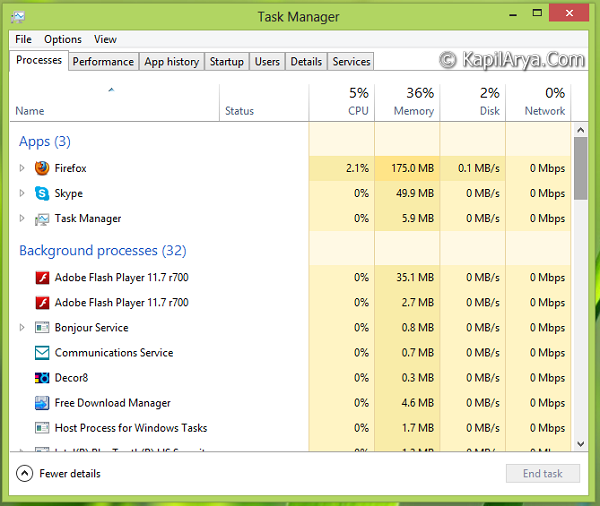
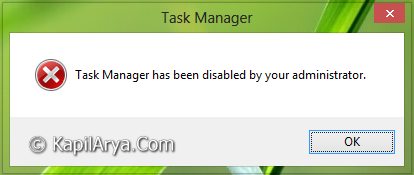
However there are certain scenarios, when you just can’t access Task Manager. The following message may be received while you’re unable to see Task Manager in your Windows:
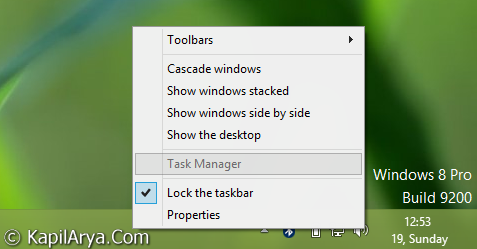
In either case, the right click context menu over taskbar has the Task Manager option greyed out and pressing “Ctrl+Shift+Esc” brings nothing:
If you’re already facing such kind of issue, then in this article, I’ll show you the way to fix it. Make sure you’re logged in as administrator of your Windows before following the steps. There are two way to fix this:
Page Contents
Fix: Task Manager Has Been Disabled By Your Administrator In Windows 10/8/7
Fix 1: Using Registry Editor
Registry Disclaimer: The further steps will involve registry manipulation. Making mistakes while manipulating registry could affect your system adversely. So be careful while editing registry entries and create a System Restore point first.
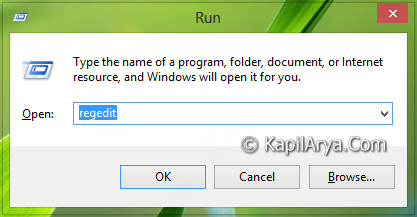
1. Press  + R and put regedit in Run dialog box to open Registry Editor (if you’re not familiar with Registry Editor, then click here). Click OK.
2. Navigate here:
HKEY_CURRENT_USER\Software\Microsoft\Windows\CurrentVersion\Policies\System
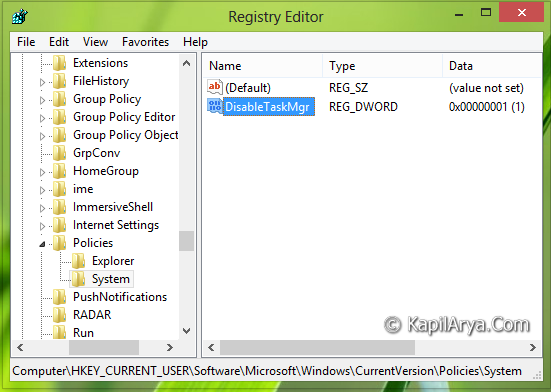
3. In the right pane of this location, you’ll see a DWORD named DisableTaskMgr having Value data equals to 1. Double click on it to modify:

4. In order to re-enable Task Manager, you should change the Value data to 0. Click OK. Alternatively, you can delete the key System (i.e. HKEY_CURRENT_USER\Software\Microsoft\Windows\CurrentVersion\Policies\System) to have same effect. Reboot once to see results.
Fix 2: Via Group Policy
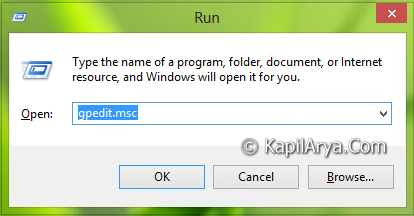
1. Press + R and put gpedit.msc in Run dialog box to open Local Group Policy Editor. Click OK.
2. Navigate here:
User Configuration -> Administrative Templates -> System -> Ctrl+Alt+Delete Options
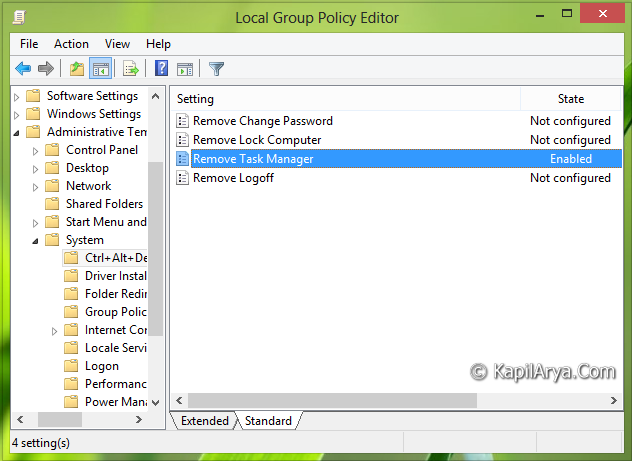
3. Since you’re facing the issue to access Task Manager, you’ll see that in the right pane of this location, setting Remove Task Manager is Enabled. Double click on it to modify:

4. In order to access fix your issue, you should set this policy to Not Configured or Disabled stage. Click Apply followed by OK. Reboot and your problem should be fixed now!
Hope this helps!
Also read: Can’t open Task Manager in Windows 10/8/7.





Thanks for the great fix sir… I have been facing this issue since a month.. it worked like charm..so thank you again.
If the trick is used in reverse sense you can disable a task manager using it!
^^ Provided, you’re logged in as administrator :)