

For a better user experience, the e-mail composing programs save drafts automatically before you send the e-mail. Thus, when we have to compose longer e-mail messages, the automatic draft saving helps us a lot and we don’t need to save the draft manually.
In Outlook 2013, which is a part of Microsoft Office productivity suite, we faced a strange problem due to automatic draft saving feature. In this case, if we would have create an e-mail message and send it quickly before Outlook started saving draft automatically, the message was sent fine. But when we are on the way to create longer message and once Outlook saved draft automatically, following message keeps appearing when we send the composed message:
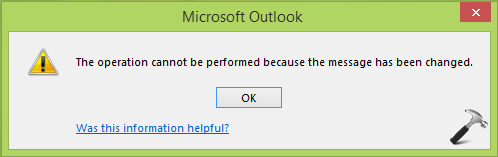
If this happened, then you can copy the message quickly by creating new message and in this way you’ll be able to sent longer message before Outlook starts saving its draft. However this workaround looks quite unprofessional if you’ve to sent a huge number of messages on daily work basis.
Here is how you can solve this problem:
FIX : The Operation Cannot Be Performed Because The Message Has Been Changed In Outlook 2013
1. Press  + R and type Outlook /safe in the Run dialog box and click/tap OK. This will open Outlook 2013 in safe mode.
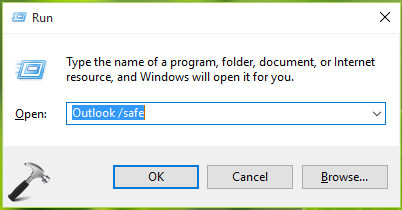
Verify if the issue persists in Safe Mode. It may possible that problem can’t be reproduced in Safe Mode and you can use this workaround if you’re comfortable with it. Else you may go ahead with steps mentioned below to get a selective fix.
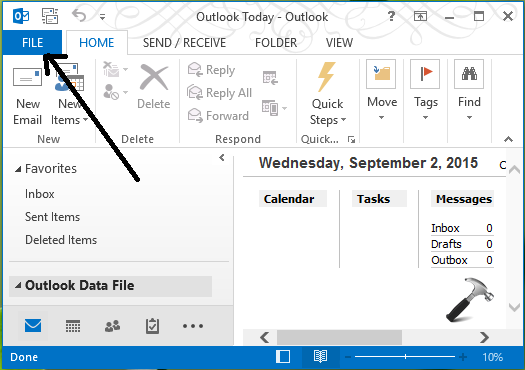
2. Next, open any file in Outlook and click FILE option at top left corner of program window.
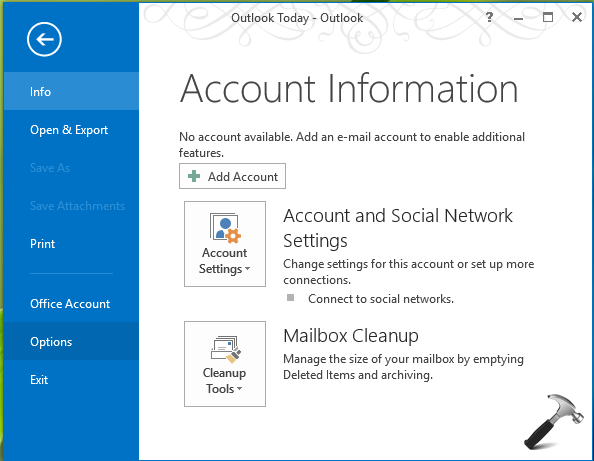
3. Moving on, click Options in this screen:
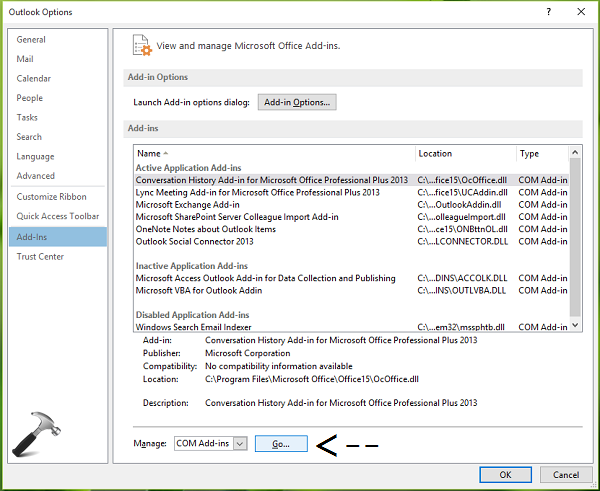
4. Then in Outlook Options window, select Add-Ins in left pane. In the corresponding right pane, select COM Add-ins against Manage and click/tap Go.
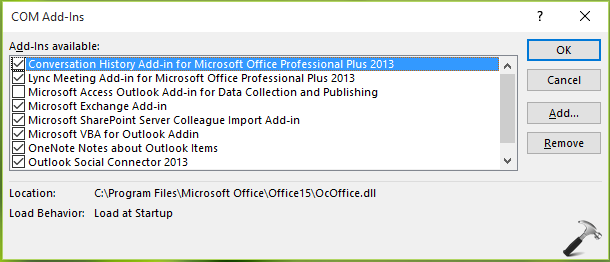
5. Finally, in the COM Add-Ins window, use the hit and trail method. That is, disable the add-ins one-by-one and check if issue exists. In this way, you’ll be able to locate that add-in which is root cause here. If you don’t rely upon add-ins, you can disable them all and get rid of this problem. Click OK when you’re done.
Hope this helps! Additionally read how to enable Developer tab in Outlook/Office 2013.


Thanks for advice! It helped.
^^ Glad we could helped :)
Thanks so much dude! it helped me
I do receive this message “the operation cannot be performed because the message hs been changed.” when I try to flag an email.
a couple of 3rd party things I removed as advised above:
1. ESET add-in
2. Snag-it add-in
^^ Awesome 😎
Thanks Kapil, your clear and detailed explanation has solved this for me. It has been driving me nuts since I migrated to Windows 10 and Office 365.
My issue had to do with just viewing emails and then trying to move them to another folder. I found that I had to temporarily select another message before I could re-select the message and delete or move it. Since I disabled the add-ins I don’t use, it has been working like it should.
^^ Thanks for your feedback, much appreciated 😊
I just removed ESET antivirus add-on and it seems to be working
Thanks
^^ Great! Thanks for sharing this 😎
Amazing. This has been the only thing I’ve found that fixes the problem. I disabled:
Microsoft Exchange Add-in
Microsoft Sharepoint Server Colleague Import Add-in
Outlook Social Connector 2016
…and flagging/unflagging messages worked like a charm. I’m not sure which of the three did the trick, but I don’t need any of them so I’m not going to investigate further.
^^ Glad to help David 😎
This helped me too. Thank you so much. Really stressful going in and all of a sudden nothing works. I spent hours on some of this already aka syncing to outlook.com and I am glad I found this dialog.
My bad, I forgot to type: one note add on (removed), outlook 2013
^^ Happy to help 😊