

Quick Access has been implemented in File Explorer so that users can navigate to their frequently accessed folders on the go. By default, we have Desktop, Documents, Downloads and Pictures folders pinned to Quick Access. Now as long as you use Windows 10, you can pin any folder to Quick Access, which you reach often. In order to pin an item in File Explorer to Quick Access, simply right click on item and select Pin to Quick Access.
Using this same approach, we recently faced an error while pinning a removable drive to Quick Access. We received following error message in this case:
The parameter is incorrect.
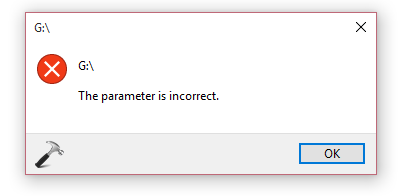
You may see this error message for any folder or files you wish to pin. The supposed root cause behind this problem is that there may be corruption among the data which your system stores for frequent folders record. Hence, in such a case, resetting that data will solve this problem for us.
Here is how do you fix it:
FIX : “The Parameter Is Incorrect” While Pinning Folders To Quick Access In Windows 10
1. Right click on Start Button and select Command Prompt (Admin) in the context menu so appeared.
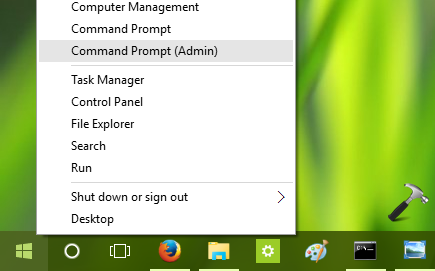
2. Next, in the administrative Command Prompt, type following command and press Enter key:
del /F /Q %APPDATA%\Microsoft\Windows\Recent\AutomaticDestinations
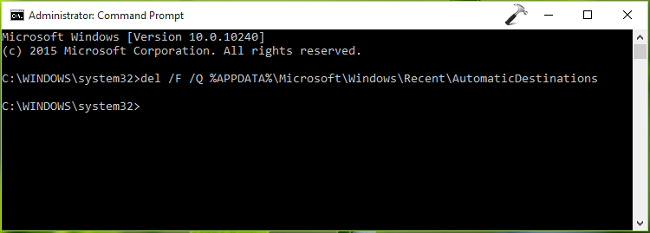
3. Once the command successfully executed, close Command Prompt and reboot your system. After restarting the machine, try pinning any item to Quick Access and it should work without any error this time.
That’s it! Don’t forgot to read how to permanently remove Quick Access from File Explorer in Windows 10.






Thanks! :D
^^ Glad we could help :)
I tried the command but it is saying ” The system cannot find the path specified”. Please help.
^^ Make sure in the File Explorer, Hidden Items option is checked under View tab.
I ticked the hidden items box and then tried the command but still it is showing the same message. However,in all settings>update and security> recovery there is an option, reset this pc, which says it will keep my files safe and reinstall the windows, should I go for this option?
^^ Well, that’s a simple issue and don’t go for Reset in this case. Press Windows Key + R, type %APPDATA%\Microsoft\Windows\Recent\AutomaticDestinations and hit Enter. Verify if the AutomaticDestinations folder opens or not. This is the folder we’re trying to affect here.
Yes I am able to open the folder as you mentioned, its there. Which file to delete/modify now? There are plenty of them with long alphanumeric names.
I received this messsage: “The system cannot find the path specified”
Please your notes
Hi Kapil Arya, Like Archit, I was able to open the Automatic Destinations folder and saw 28 items on it. What do I do next? Thanks in advance for the help.
Hi Kapil Arya, Encountered the same problem and I followed your instructions to Archit. What do I do next after opening the Automatic Destinations folder? Thanks in advance. Hope you can help me because I’ve become dependent in Quick Access.
^^ See if marking those items as hidden works for you. Also uncheck Hidden Items option in File Explorer ribbon (View > Hidden Items).
Hi Mr. Arya, I hid all contents in the Automatic Destinations folder. I unchecked the Hidden Items option in File Explorer. I tried to pin to Quick Access. Still got the “parameter incorrect” message. I tried to paste the Automatic Destinations link on the Command Prompt Admin again. Still got the “cannot find path specified” message. I restarted my computer and tried everything again. Still unsuccessful. Hope you can help me. Thanks very much.
^^ Okay, additionally see if these commands executes successfully:
del /F /Q %APPDATA%\Microsoft\Windows\Recent\*
del /F /Q %APPDATA%\Microsoft\Windows\Recent\CustomDestinations\*
“The system cannot find the path specified.” for both commands on Command Prompt Admin. I appreciate that you’re taking the time to help me. If you’re running out of ideas, it’s okay. Thanks.
Hi Mr. Arya, just want to give you an update. My Quick Access pins miraculously appeared again. It is also working now. Windows 10 auto-updated over the weekend, so I guess everything got reset so it’s working again. Just wanted to let you know. Thanks for you efforts in helping me
^^ Thanks for the update, Michelle! Glad to hear issue is resolved now :)
I’m able to pin it to quick access successfully, but once i remove my device i’m unable to open the files. I’m trying to save all of my photos and videos from my phone onto my computer because I just got a new phone. Please help !!
^^ I believe your stuff is not getting copied. Suggest you to first copy your data to somewhere like Documents, then try pinning it to Quick Access.
Like others above, I can’t pin items (parameter is incorrect) nor can I use the line in the cmd prompt (system cannot find the path specified).
When using Windows Key+R, %APPDATA%\Microsoft\Windows\Recent\AutomaticDestinations doesn’t open. (Windows can’t find the specified path). Further sleuthing reveled that I have %APPDATA%\Microsoft, but no “Recent” folder.
Any thoughts on next steps? Thanks in advance for your help.
^^ Please refer previous comments here, I believe you’ve invisibility over hidden items in Explorer.
In File Explorer, View >> Hidden items is checked.
So no solution for me then? It’s incredibly frustrating to not have a Quick Access menu!
^^ Suggest you to try reinstalling Windows 10 without affecting your data: https://www.kapilarya.com/reinstall-windows-10-without-affecting-personal-files
win + r
and type %APPDATA%\Microsoft\Windows\Recent\AutomaticDestinations
then delete the file there
work ty
my quick access work now
^^ Glad it solved 😊
Thanks Man. It worked just fine
^^ Glad to help 😊
This worked for me thank you so much!
^^ Awesome!
Thanks man it really worked , Keep up the good work.
^^ Glad to help!
It worked! Thank you daddy!
^^ Glad to help!
thanks for the solution
Coming late to this, just want to say that deleting the files in ‘Recent’ worked for me too! Thank you so much!
This worked for me:
1: Take a screenshot of all your pinned folders on the sidebar or note them down with their locations.
2: Delete all the pinned folders which have the grey pin needle to the right of them, so that will include for most people the Desktop, Downloads, Documents and Pictures folders as well as any folders that you have deliberately pinned to the Quick Access sidebar. Other Quick Access folders which Windows automatically put there can be left alone.
3: Re-pin the folders which you just removed.
^^ Thanks for sharing this Robert!
Works even without rebooting! Thank you!
^^ Glad to help 😎
Bless you
Thanks very much . it worked . i wish to know what the command was all about if possible .
Please note, that at least for me, you can only successfully use this specific command in cmd, not PowerShell, as it for some reason hates this command and has no idea what to do with it.
That’s Microsoft for ya.
I was looking for a fix for this for so long, and this worked!
^^ Glad to help 😎
Worked perfectly thank you so much